
How to Link Meta Ads with GA4
Integrate Meta Ads with GA4 in 5 to 10 minutes to map events, import cost data, and improve attribution and ad optimization.
Want to streamline your Meta Ads and Google Analytics 4 (GA4) data? Here's the quick answer: integrating these platforms helps you track ad performance, post-click behavior, and conversions more accurately. It solves problems like privacy restrictions and browser limitations that weaken Meta Pixel tracking. Plus, it only takes 5–10 minutes to set up.
Key Benefits:
Unified Reporting: View Meta Ads data and website metrics in one place.
Improved Targeting: Use GA4 events to refine Meta Ads campaigns.
Better Attribution: Track conversions missed by Meta Pixel.
Setup Steps:
Open Meta Events Manager and go to Partner Integrations.
Connect your GA4 property and Meta Pixel.
Map GA4 events to Meta conversions (e.g.,
purchase,add_to_cart).Enable data sharing for all traffic sources.
Pro Tip: Use consistent UTM parameters (e.g., utm_source=facebook) to ensure accurate traffic categorization in GA4.
This integration not only simplifies performance tracking but also enhances campaign optimization by combining GA4's event data with Meta's AI. Keep reading for detailed instructions and troubleshooting tips on connecting your data.
How to Connect Meta Account With Google Analytics 4 (GA4)
Why Connect Meta Ads with GA4
Connecting Meta Ads with GA4 creates a two-way data flow that makes campaign tracking and optimization much simpler. Meta Ads performance data flows into GA4 for unified reporting, while GA4 event data feeds back into Meta Ads to enhance ad delivery. This connection helps address challenges like browser restrictions and privacy updates that can make relying solely on the Meta pixel less effective.
Track Campaigns Across Platforms
GA4 provides insights into post-click metrics like bounce rates, time on page, and exit pages - data that Meta Ads Manager doesn’t capture. This added layer of behavioral tracking lets you see how Meta Ads work alongside other traffic sources, such as organic search, email, or direct visits, to drive conversions. Essentially, it paints a clearer picture of the customer journey and Meta’s role in it.
To ensure GA4 categorizes Meta traffic correctly, use consistent UTM parameters like utm_source=facebook and utm_medium=paid. Without proper UTMs, your Meta traffic might be mislabeled as referral traffic, leading to fragmented data and less accurate reporting.
Next, let’s explore how combining data in one place makes performance analysis easier.
Consolidate Reporting in One Place
By importing Meta cost data into GA4, you can calculate true return on ad spend (ROAS) across all your channels in a single dashboard. This eliminates the need to jump between platforms or reconcile conflicting reports. As Ivan Burban, Head of Marketing at Coupler.io, puts it:
"This reverse integration is genuinely transformative for digital marketing efforts. Suddenly, you're no longer limited to Facebook's pixel alone".
When setting up the integration, opt to import "All traffic sources" instead of limiting it to Meta-specific traffic. This broader data pool provides Meta’s AI with more robust signals, which can improve optimization.
This consolidated approach also sets the stage for better ad targeting.
Improve Ad Targeting and Performance
Integrating GA4 with Meta Ads allows for advanced ad optimizations using high-quality event data. Littledata explains:
"Correct event and dataset mapping can improve the measured performance of your facebook or Instagram campaigns and make you eligible for future optimizations".
Better event data means reduced acquisition costs and more efficient campaigns.
For the best results, map GA4 events to their corresponding Meta conversions. For instance, link GA4’s purchase event to Meta’s Purchase event or generate_lead to Lead. Additionally, don’t overlook micro-conversions like add_to_cart or add_payment_info. These smaller actions provide Meta’s algorithm with more detailed information, helping refine audience targeting and improve Lookalike Audiences.
What You Need Before Starting
Before diving into the integration process, make sure both GA4 (Google Analytics 4) and Meta Ads are set up properly, and you have the necessary permissions. Missing any of these can lead to integration issues or limit certain features. Start by reviewing your GA4 setup, confirming that the Meta Pixel is correctly installed, and ensuring you have the right access levels.
Check Your GA4 Setup
First, confirm that your GA4 property is live and that Key Events - like purchases, leads, or sign-ups - are correctly configured. Only events marked as Key Events will be available for mapping during the integration process.
To test if your setup is working, open the Realtime report in GA4. Visit your website using an incognito browser window and check if your activity appears in the report. Ensure the source and medium are tracked correctly. This is a vital step to help resolve reporting differences between Meta and GA4 later on. Additionally, follow GA4's naming conventions for events. For example, use generate_lead instead of Lead_Form_Submit and stick to consistent lowercase formatting, as GA4 is case-sensitive.
Once your GA4 setup is verified, move on to reviewing your Meta Pixel configuration.
Verify Meta Pixel Installation
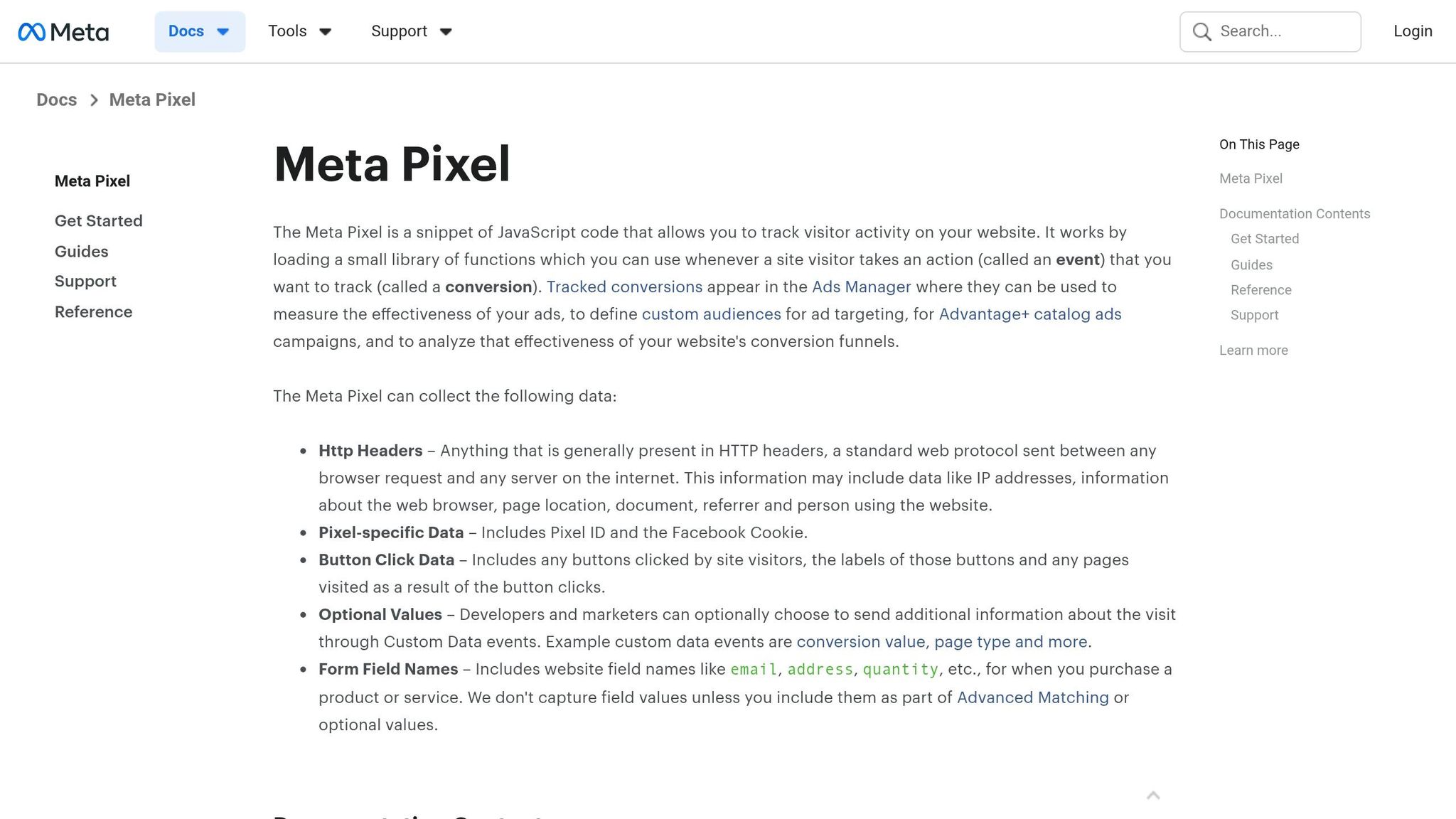
Accurate tracking through the Meta Pixel is essential. Your Meta Pixel or Conversions API (CAPI) must be installed and actively capturing user actions on your site. Use the Meta Events Manager to check the "Overview" and "Diagnostics" tabs for any errors or warnings related to your Pixel. If issues are flagged, address them by troubleshooting Meta Pixel issues before attempting the GA4 connection.
Confirm Admin Access
Having the correct permissions is critical for a smooth integration. In Meta Business Manager, you need Advertiser or Admin permissions to manage campaigns and partner integrations. You can also use an AI Media Buyer to automate these workflows. For GA4, Viewer access is sufficient for authorizing the connection, but Editor access is required to import Meta cost data.
Platform | Required Access Level | Purpose |
|---|---|---|
Meta Business Manager | Advertiser or Admin | Manage campaign data and partner integrations |
Google Analytics 4 | Viewer (Editor for data import) | Authorize data sharing and property selection |
Security | Two-Factor Authentication | Required for account stability and integration |
To ensure long-term access, use a generic company email (e.g., marketing@company.com), especially if team members change roles. Also, enable two-factor authentication (2FA) on both Facebook and Instagram accounts to meet security requirements and avoid integration failures.
How to Link Meta Ads with GA4
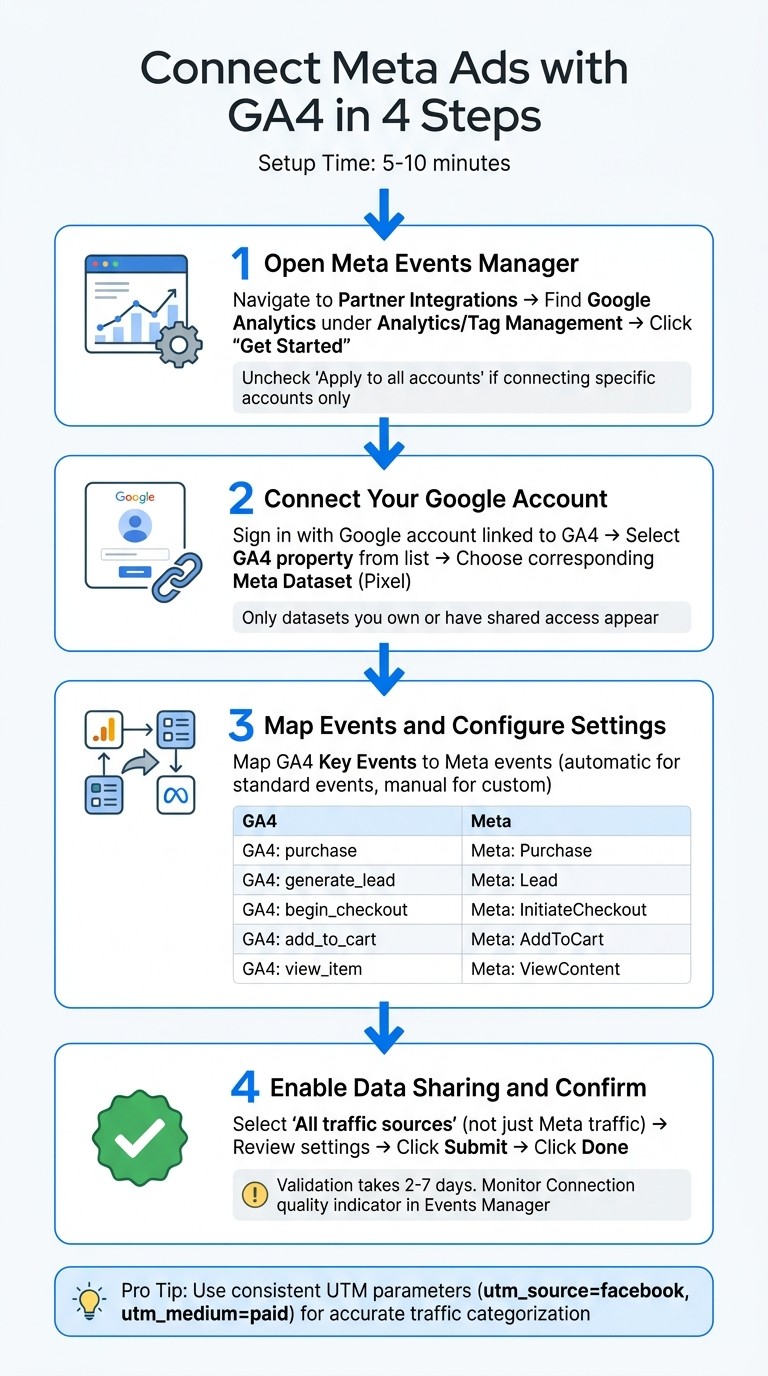
How to Connect Meta Ads with GA4 in 4 Steps
This Meta Ads and GA4 integration guide shows that the process is straightforward that takes around 5 to 10 minutes. Meta offers a built-in partner integration that allows GA4 data to sync directly with Meta Ads Manager - no coding or third-party tools required. Once the setup is complete, it typically takes two to seven days for the platforms to validate and start sharing data.
Step 1: Open Meta Events Manager
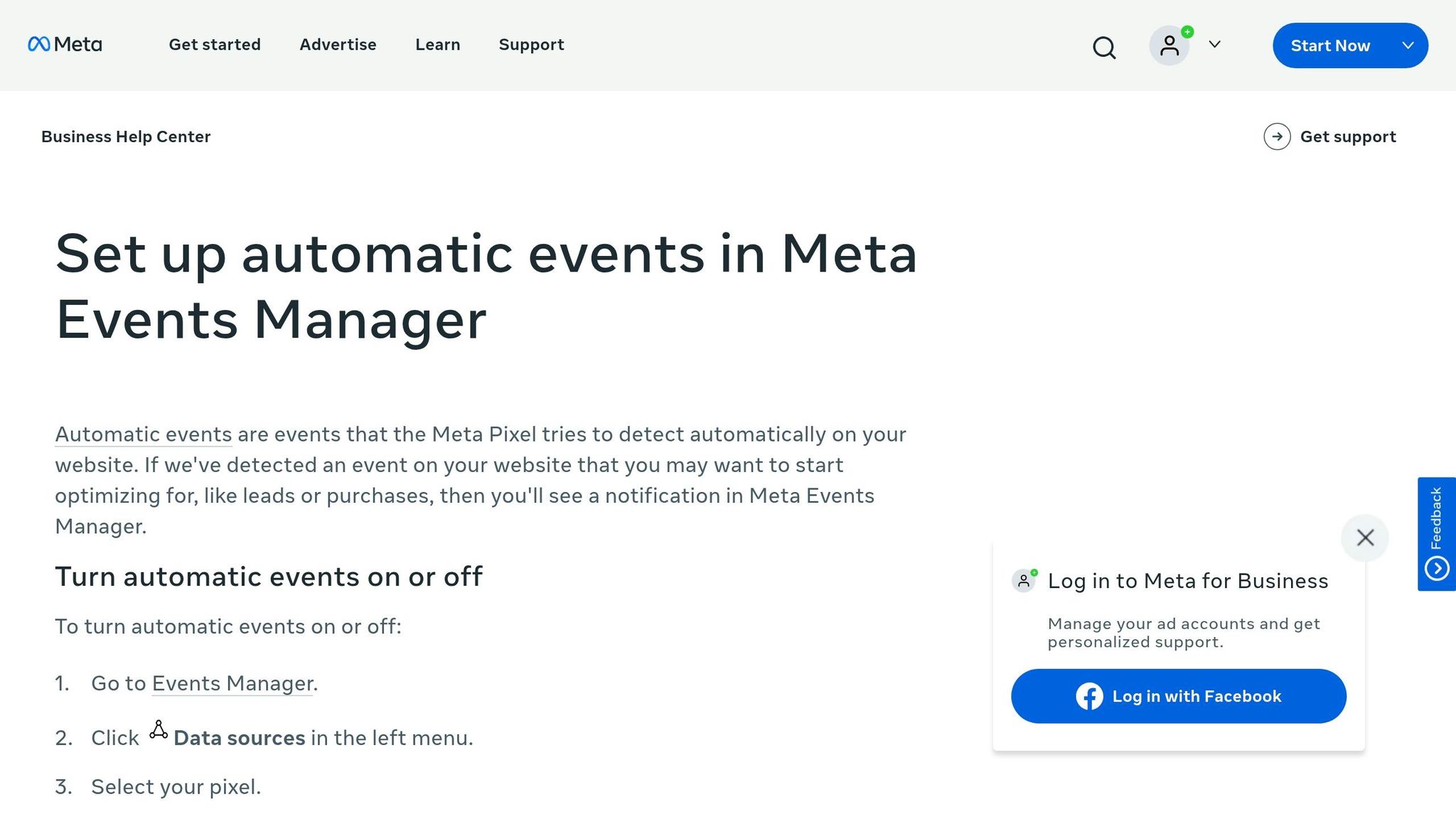
Start by logging into Meta Events Manager and heading to the Partner Integrations section. Under the Analytics or Tag Management category, locate Google Analytics and click 'Get Started' to kick off the integration process. If you're managing multiple ad accounts, you can choose to uncheck 'Apply connection to all Meta ad accounts' if you only want to connect specific accounts.
Step 2: Connect Your Google Account
Next, click 'Get Started' again and sign in using the Google account linked to your GA4 property. After logging in, you'll see a list of GA4 properties available for connection. Pick the property you want to link and then select the corresponding Meta Dataset (previously known as Pixel). Keep in mind, you can only connect datasets that you own or those explicitly shared with you.
Step 3: Map Events and Configure Settings
Once connected, map GA4 'Key Events' to their Meta counterparts. Many standard events, like purchase or generate_lead, are mapped automatically. For custom events, you'll need to set up the mapping manually. Accurate one-to-one mapping ensures better tracking results, often requiring custom conversion tracking with Meta Pixel and GA4 for non-standard events.
GA4 Event Name | Meta Equivalent Event |
|---|---|
| Purchase |
| Lead |
| InitiateCheckout |
| AddToCart |
| ViewContent |
Step 4: Enable Data Sharing and Confirm
Choose 'All traffic sources' instead of limiting it to 'Only traffic coming from Meta.' This broader dataset helps Meta's AI optimize campaigns more effectively, especially in cases where privacy restrictions limit direct attribution , a challenge often linked to iOS privacy changes. After reviewing your settings, click Submit and then Done. During the validation period, keep an eye on the 'Connection quality indicator' in Meta Events Manager to ensure everything is functioning as expected.
The next section will cover how to address common integration challenges.
Fixing Common Integration Problems
Even with everything set up correctly, integration issues can still pop up. To keep your GA4 and Meta Ads connection running smoothly, focus on tackling these common trouble spots: event mapping errors, authentication failures, and data delays.
Resolving Event Mapping Errors
Sometimes, events won't show up in the Meta dropdown menu during setup. This happens because Meta's integration only identifies GA4 events marked as "Key Events" in your GA4 interface. To map smaller actions like "Add to Cart" or "Begin Checkout", you’ll need to configure them as Key Events in the GA4 Admin settings.
"GA4 has only 'Purchase' set as a key event, so only this event will be available for mapping. However, if micro-conversions like 'Add to Cart' or 'Set Payment Info' are configured in GA4, they can also be mapped to Meta events."
– Littledata Help Center
Another issue? Meta's automatic event detection can sometimes misinterpret actions. For example, it might tag an "Add to Cart" as a "Purchase", which could throw off your revenue numbers. If your data looks off, review and adjust event definitions manually in Facebook Events Manager. Also, if you’re using Google Tag Manager (GTM) along with the native integration, make sure to uncheck the "Send a page_view event when this configuration loads" option in your GA4 configuration tag to avoid duplicate page views.
Error Type | Common Cause | Resolution |
|---|---|---|
Missing Events in Dropdown | Event not marked as "Key Event" in GA4 | Mark the event as a "Key Event" in GA4 Admin settings. |
Mismatched Data/Revenue | Automatic event detection errors | Manually edit and validate events in Meta Events Manager. |
Duplicate Pageviews | GTM and native integration overlap | Uncheck "Send a page_view event" in the GA4 config tag in GTM. |
Property Mapping Error | Incorrect GA4 property selected | Use the "Properties" tab in Events Manager to re-map the dataset. |
If the event mapping looks correct but problems persist, it might be time to check your account authentication.
Fixing Authentication Issues
Authentication problems usually stem from not having the right permissions in GA4 or Meta Business Manager.
"You need a Google Analytics account with Viewer or higher access and Advertiser or admin-level permission in Meta Business Manager."
– Ahmed Ali, Marketing Auditor
If the connection isn’t working, try signing back into your Google account through Events Manager's Partner Integrations to refresh the security token. You can also use the diagnostics tool in Meta Events Manager - look for the "Review" button next to any authentication alerts for step-by-step guidance.
Once authentication is sorted, you’ll want to address any delays or missing data.
Addressing Data Delays or Missing Data
After setting everything up, it can take between 2 to 7 days for data to start flowing. In some cases, this validation period could stretch to 14 days. During this time, keep an eye on the "Connection quality indicator" in Meta Events Manager. If it shows a "low" status, click on it to check for missing or misconfigured elements.
If data doesn’t appear even after the validation window, double-check that the account used for setup still has the necessary permissions on both platforms. To avoid future disconnections, try using a shared company email (like marketing@company.com) instead of a personal one. Lastly, make sure to select "All traffic sources" during setup rather than just "Only traffic coming from Meta." This gives Meta's AI access to a broader dataset, which is especially helpful when privacy measures like Apple’s ITP limit direct attribution.
Using Automation Tools to Optimize Meta Ads
Now that your GA4 and Meta Ads are connected and any common issues are resolved, you can take things to the next level by using automation to fine-tune your campaigns. Instead of manually sifting through reports and making constant adjustments, automation tools can analyze performance data and make improvements around the clock.
What Is AdAmigo.ai?
AdAmigo.ai is an AI-driven media buyer designed to simplify Meta Ads management. It handles tasks like launching campaigns, adjusting budgets, testing creatives, and refining audience targeting - all based on real-time performance data. Using Meta's official API, AdAmigo.ai can operate in two modes: full autopilot or with your approval for every change.
The platform's AI Autopilot audits your ad account continuously, identifying opportunities and implementing Meta ad optimization tips automatically. It takes care of essential tasks like scaling Meta ad budgets, pausing low performers, reallocating budgets, and testing new strategies. Plus, the AI Chat Agent lets you manage campaigns in a conversational way. You can ask questions like, "Why did ROAS drop yesterday?" or give commands like, "Increase budgets on top-performing ads."
How AdAmigo.ai Works with Meta Ads
The integration between GA4 and Meta Ads allows automation tools to work with a complete set of performance data. GA4 sends verified server-side event data (like purchases or leads) to Meta, while Meta shares cost, click, and impression data back to GA4. This creates a feedback loop that supports real-time campaign optimization.
AdAmigo.ai uses this combined data to make smarter decisions. For example, it can analyze post-click behavior from GA4 - such as time spent on a page or specific event completions - to refine audience targeting and build stronger Lookalike or Custom Audiences. Properly mapped events, like purchase or generate_lead, ensure the AI gets clean, consistent signals to optimize your campaigns effectively .
"By using GA4 data, Meta's automation systems can operate with richer insights. This helps advertisers optimize their campaigns and achieve better growth." – Coupler.io
Benefits of Using AdAmigo.ai
One of the biggest advantages is the time it saves. Instead of spending hours analyzing data and tweaking campaigns, the AI handles repetitive tasks, freeing you to focus on strategy and creative direction. For agencies, this means a single media buyer can manage three to five times more client accounts without compromising performance.
Users have reported seeing up to a 30% improvement in performance within the first month and an 83% increase in ROAS. The platform also includes AdAmigo Protect, a safety feature that monitors account health, flags delivery issues, and catches unusual activity early - helping to avoid costly mistakes and wasted ad spend.
As the AI learns from your campaign data, results, and preferences, it becomes increasingly effective. Over time, this creates a compounding effect where your advertising performance keeps improving as the system gains more experience managing your account.
Conclusion
Integrating Meta Ads with GA4 unlocks a powerful way to track your marketing funnel from click to conversion. This setup goes beyond surface metrics like click-through rates, allowing you to focus on the actions that matter most - such as form submissions and purchases. By properly mapping events, you give Meta's algorithms the right signals for better ad delivery, potentially lowering acquisition costs and increasing campaign efficiency and ROI.
Once the integration is live, use GA4's dashboard and AI tools for account analysis to compare Meta's performance with other channels. This cross-channel analysis helps you identify which platforms are driving growth and where your budget will have the most impact. Ivan Burban, Head of Marketing at Coupler.io, emphasizes the importance of this approach:
"What truly improves ad performance is solid analysis... You can make this process much easier by using [automation] dashboards, which consolidate all these elements in one place to support smarter decisions and drive success".
On top of that, Meta ads automation tools like AdAmigo.ai take things a step further. They continuously process data from GA4 and Meta, handling tasks like scaling successful campaigns, pausing low performers, and testing new strategies - all without the need for manual adjustments. The real strength lies in turning rich data into automated, intelligent decisions. Whether you're managing one account or several, combining GA4 integration with AI-driven tools creates a system that keeps refining itself for better results over time.
FAQs
Will linking GA4 to Meta Ads change my conversion numbers?
When you link GA4 to Meta Ads, it won't directly increase or decrease the actual number of conversions your campaigns generate. What it does impact is how those conversions are reported. By enabling enhanced tracking, you'll gain more accurate attribution and improved data quality. This means your reports might show higher, lower, or differently assigned conversions. The key here is that these changes provide clearer insights into user behavior across platforms, rather than altering your campaign's actual performance.
Do I need the Meta Pixel or Conversions API before connecting GA4?
It's not strictly necessary to use the Meta Pixel or Conversions API to link GA4 to Meta Ads. However, using these tools is highly recommended for better tracking and attribution. They play a crucial role in capturing user interactions and conversions, which enhances the quality of your data when integrating GA4 with Meta Ads. Accurate event tracking and linking datasets are key to improving performance and achieving dependable attribution.
How do I stop duplicate pageviews if I use GTM and the integration?
To avoid duplicate pageviews when using Google Tag Manager (GTM) with GA4 and Meta Ads, it's crucial to set up events correctly. Ensure you're not triggering multiple tracking tags for the same pageview. One way to streamline this process is by configuring Meta Events Manager as a partner integration with GA4.
Double-check that GTM tags fire only once per page load and that your GA4 configuration tags are properly set up. During the integration process, uncheck any unnecessary options to prevent unintentional duplication across accounts.