
Tracking Meta Ads with Google Analytics
Learn how to tag Meta ad URLs with UTMs, import Meta cost data into GA4, and set up conversion tracking and real-time monitoring to measure ROAS.
Want to track what happens after someone clicks on your Meta ads? Google Analytics 4 (GA4) can help you connect the dots between ad clicks and on-site actions (and resolve reporting differences between the platforms) like purchases, sign-ups, or time spent on your site. Here's how GA4 helps you get a complete picture of your Meta ad performance by syncing Meta Ads with Google Analytics:
Tag your URLs with UTM parameters: Ensure Meta ad traffic is properly tracked in GA4 by using dynamic UTM tags.
Import Meta ad cost data into GA4: Combine Meta spend, clicks, and impressions with GA4 metrics like conversions and engagement.
Set up conversion tracking: Align GA4 Key Events with your business goals to measure what really matters.
Use real-time monitoring: Quickly spot issues like low engagement or broken landing pages and make adjustments on the fly.
What You Need Before Starting
Before you dive into tracking, make sure you have:
Editor or Administrator access to your GA4 property
Access to the Meta Ads account in your Meta Business Portfolio
Consistent
utm_sourceandutm_mediumvalues across all your Meta campaigns — mismatched tags are the #1 cause of broken attributionIf you've previously uploaded Meta cost data manually via CSV, delete those datasets first to avoid double-counting
NEW GA4 Feature: Meta Ads Cost Data Import
Before you link Meta Ads with GA4 to import cost data, ensure you have completed your Meta conversions setup with GA4 to track performance accurately.
How to Set Up Google Analytics for Meta Ads Tracking
How to Set Up Google Analytics 4 for Meta Ads Tracking in 3 Steps
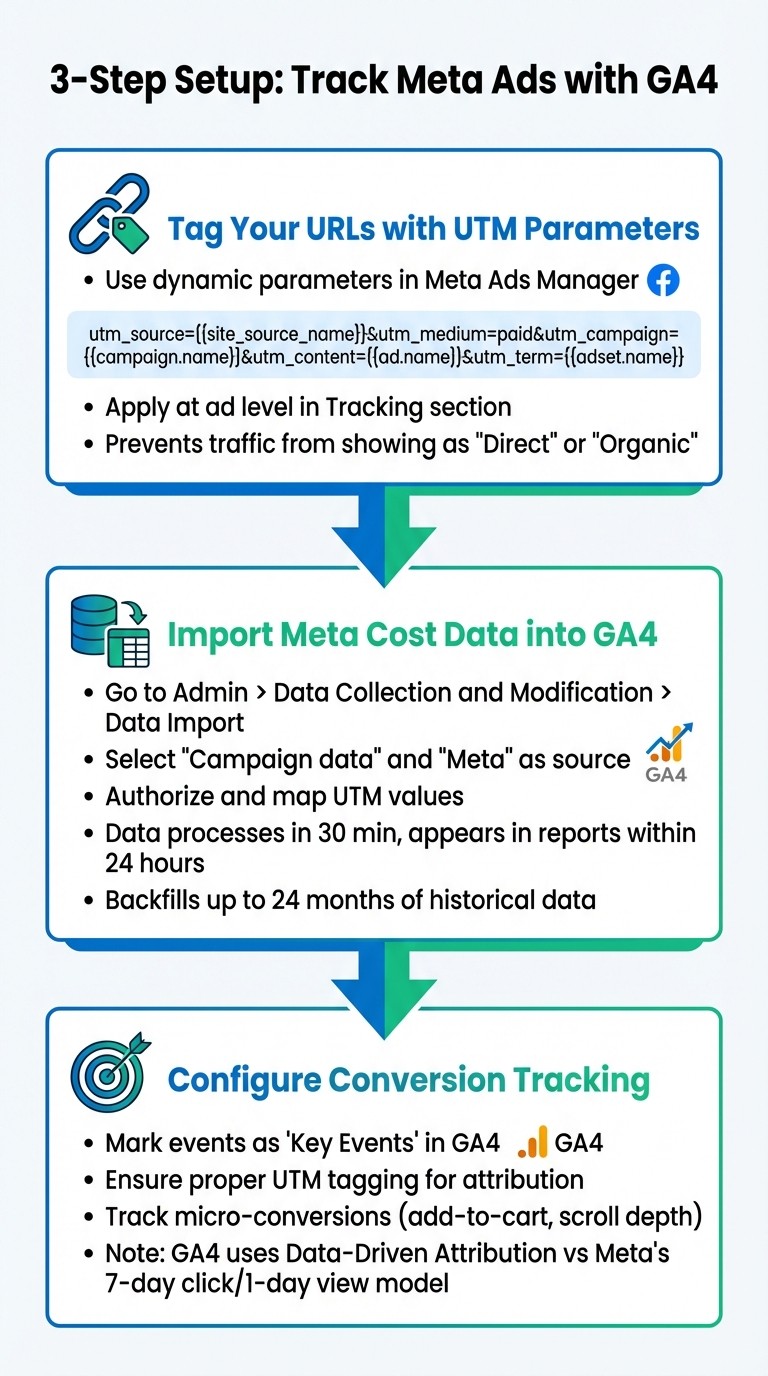
You can set up GA4 tracking for Meta ads in three main steps: adding URL tags, importing cost data, and tracking conversions. Each step builds on the one before it, so start by tagging your URLs correctly.
Adding UTM Parameters to Meta Ad URLs
UTM tags are essential because they tell GA4 where your traffic is coming from. Without them, Meta ad clicks might show up as "Direct" or "Organic" in your reports. To avoid this, you need to add a UTM string to every Meta ad URL.
Meta Ads Manager makes this process easier with dynamic parameters - placeholders that automatically insert the names of your campaigns, ad sets, and ads. For example, instead of typing out utm_campaign=SpringSale2026 manually, you can use {{campaign.name}}, and Meta will replace it with the actual campaign name. This automation reduces errors and keeps your tracking consistent.
Here's a recommended UTM template for the URL Parameters field at the ad level:
utm_source={{site_source_name}}&utm_medium=paid&utm_campaign={{campaign.name}}&utm_content={{ad.name}}&utm_term={{adset.name}}
The {{site_source_name}} placeholder is particularly handy because it automatically assigns values like fb for Facebook, ig for Instagram, msg for Messenger, and an for Audience Network.
UTM Parameter | Purpose | Recommended Meta Dynamic Value |
|---|---|---|
| Identifies the platform |
|
| Identifies the marketing channel |
|
| Identifies the specific campaign |
|
| Differentiates ad creatives |
|
| Identifies ad sets or keywords |
|
To apply these parameters, go to the ad level in Meta Ads Manager, open the Tracking section, and paste your UTM string. Consistency is key, so use the same utm_medium value (like paid) across all campaigns. This ensures GA4 groups them correctly under the "Paid Social" channel.
If you prefer to build your UTM strings outside of Meta Ads Manager — say, before your campaign is even set up — Google's Campaign URL Builder is a solid alternative. It gives you a clean form to fill in each parameter and generates the full URL, which you can then paste into Meta's URL field.
Once your URLs are tagged, the next step is to import your Meta cost data into GA4.
Importing Meta Cost Data into Google Analytics 4
As of October 2025, GA4 can automatically pull in Meta ad spend, clicks, and impressions. This integration lets you calculate important metrics like cost-per-conversion and ROAS alongside your other advertising data.
Here's how to set it up:
In GA4, go to Admin > Data Collection and Modification > Data Import and click "Create Data Source."
Give your data source a name (e.g., "Meta Ads"), choose "Campaign data" as the data type, and select "Meta" as the import source.
Click Connect and authorize GA4 to access your Meta account. Then select your Business Center and the specific Ad Account you want to import data from.
Map your UTM values to the corresponding fields. For instance, if you used
{{site_source_name}}as yourutm_source, GA4 will recognize values likefb,ig,msg, andanand match them to the right campaigns.Review the import schedule and any filters, then click "Finish."
Data processing usually takes about 30 minutes, and it appears in reports within 24 hours. GA4 also attempts to backfill up to 24 months of historical Meta data. If you've previously uploaded Meta cost data manually via CSV, delete those datasets to avoid double-counting. Once the integration is live, look for a status of "Imported" (not "Processing") in the Data Import section — that's your confirmation everything is working. You can then view your data in the Non-Google Cost report under Acquisition or in the Advertising workspace.
"Bringing Meta ad cost into GA4 is one of those small setup tasks that pays off quickly. Once everything is connected, you get a clearer, more accurate picture of your marketing performance without juggling multiple dashboards."
Julius Fedorovicius, Founder, Analytics Mania
Troubleshooting: Cost Data Not Showing?
If you've completed the import but don't see data after 24 hours, here are the most common fixes:
Check your UTM values match exactly. GA4 matches imported cost data to traffic based on
utm_sourceandutm_medium. If your ads useutm_source=facebookbut GA4 seesfb(from{{site_source_name}}), the cost data won't link up. Make sure the values in your ad URLs match what GA4 expects.Verify you selected the correct Meta Business Account and Ad Account during setup. If you manage multiple accounts, it's easy to pick the wrong one — double-check in Admin > Data Import by clicking your data source.
Confirm the import status shows "Imported," not "Processing." A stuck "Processing" status usually means the connection didn't complete. Try removing and recreating the data source.
Remove any conflicting CSV imports. If you previously uploaded Meta cost data manually via CSV, those datasets can conflict with the automatic import. Delete them in the Data Import section before re-running.
Wait the full 24 hours. While processing starts within about 30 minutes, data propagation across GA4 reports can take up to a full day.
With cost data imported, you’re ready to set up conversion tracking.
Setting Up Conversion Tracking
The final step is setting up conversion tracking to accurately attribute key actions. GA4 tracks conversions as Key Events - specific actions like purchase, generate_lead, or book_demo that align with your business goals. To configure this, identify or create events in GA4 and mark them as "Key Events."
Proper UTM tagging is crucial here. When your Meta ad URLs are tagged correctly, GA4 can attribute conversions to the right campaign, ad set, and creative. If you run into issues with conversions not appearing where you expect them, debugging your Meta ads conversion tracking can help you trace exactly where the data breaks.
Keep in mind that GA4 and Meta use different attribution models. GA4 typically employs a Data-Driven Attribution model, while Meta relies on its own windows, like a 7-day click and 1-day view model.
"You won't 'sync' GA4 and Meta into one truth; you'll reconcile them. UTMs + GA conversions tell you post-click value, while Meta Pixel vs. Conversions API keeps Meta's delivery smart."
BrightBid Admin
For campaigns with limited conversion data, consider tracking micro-conversions such as "add-to-cart" or "scroll depth." These smaller actions can help optimize ad delivery while waiting for more significant conversion events. Also, ensure that website redirects retain UTM parameters to avoid tracking issues.
What Metrics to Track in Google Analytics
Once your tracking is ready, it's time to zero in on the metrics that matter most. GA4 gives you insights into what happens after someone clicks your Meta ad, while Meta Ads Manager focuses on platform-specific engagement, like clicks and impressions. The real magic happens when you combine these perspectives.
To start, dive into the Traffic Acquisition Report. Set "Session campaign" as the primary dimension to see how Meta campaigns drive users, sessions, and conversions. Add "Session manual ad content" as a secondary dimension to identify which ad creatives perform best and to ensure your UTM tags are working correctly.
The Non-Google Cost Report under Acquisition is another must-check. It blends imported Meta data - like ad costs, clicks, and impressions - with GA4 session metrics. This report lets you calculate essential KPIs, such as ROAS and cost-per-conversion, in one place. By merging Meta and GA4 data, you gain full-funnel insights. For a deeper dive, use Exploration Reports to analyze Meta cost data alongside behavioral metrics like engagement rate or scroll depth.
Pay close attention to engagement rate and average engagement time. If Meta shows high clicks but GA4 reveals a low engagement rate, it could signal a disconnect between your ad messaging and the landing page. Use exit rates by source to identify where Meta users are dropping off. The Model Comparison Report in the Advertising section is also invaluable - it lets you compare Data-Driven and Last-Click attribution, helping you understand Meta's role in multi-touch conversions.
"If Meta looks great and GA4 looks modest, you're seeing attribution model differences, not fraud. Decide which model rules your budget - and stick with it."
BrightBid
These metrics do more than just measure performance - they guide your Meta ads ROI optimization strategy. For instance, track assisted conversions in the Attribution reports to see how Meta ads influence users who eventually convert through other channels. When full conversion data is limited, micro-conversions like add-to-cart events can offer early insights. Once you've gathered enough data, focus on conversion density - the number of conversions per session - to pinpoint your top-performing segments.
Ready to take it a step further? Next, tackle the attribution challenges these metrics might reveal.
Fixing Attribution Problems
Attribution issues can distort how you evaluate the performance of your Meta ads. A frequent problem arises when traffic is misclassified as "Direct" or "Organic Social" instead of "Paid Social." This often happens when UTM parameters are either missing or inconsistent. Without these tags, GA4 can't correctly attribute visitors from paid Meta ads. By implementing proper tracking, you can resolve these attribution challenges, ensuring your campaign data reflects reality. This alignment between Meta reporting and GA4 helps improve attribution accuracy.
To avoid "Unassigned" traffic in GA4 reports, make sure you're using dynamic URL parameters and consistent utm_medium values. If Meta traffic is showing up as "Unassigned" in your Traffic Acquisition report, it's because your UTM values don't match GA4's default channel grouping rules. Here's why: GA4 recognizes traffic as "Paid Social" only when the source is a recognized social platform (like Facebook or Instagram) and the medium matches one of these patterns — cpc, ppc, paid, paid-social, or retargeting. If you use utm_medium=social or utm_medium=facebook, GA4 won't classify it as paid — it'll land in "Unassigned" or "Organic Social" instead. Stick with utm_medium=paid or utm_medium=cpc across all your Meta campaigns, and this problem disappears.
Fixing Misattribution to Organic and Direct Traffic
Even with accurate UTM tagging, privacy measures can cause attribution gaps. Apple's Intelligent Tracking Prevention (ITP) limits first-party cookies set via JavaScript in Safari to a 7-day lifespan — and to just 24 hours when the URL includes query parameters from known trackers like Meta's click ID (fbclid). Since Meta's in-app browser on iOS uses Safari's engine, this means GA4 itself undercounts returning visitors and conversions from iOS Meta traffic. A user who clicks your ad on day 2 and converts on day 8 may not be attributed back to Meta at all — GA4 has already expired the cookie.
Using both the Meta Pixel (client-side) and the Conversions API (server-side) can help minimize data loss by capturing events that the Pixel might miss. Server-side tracking via CAPI is particularly effective here — it sets first-party cookies from your own domain, sidestepping ITP's JavaScript cookie restrictions.
It's also essential to align utm_source and utm_medium values to avoid syncing problems. Regularly check your "Traffic Acquisition" report. If you notice Meta traffic categorized as "Direct", it could mean privacy-focused browsers are stripping out UTM parameters. GA4's "Model Comparison" tool in the Advertising section can help you analyze how differences in attribution windows - Meta's multi-day click and view-through versus GA4's last non-direct click - impact your metrics.
For more complex sales cycles, like those in the B2B space, additional strategies are necessary.
Using GA4's Cost Data for B2B Marketing
B2B sales often involve long decision-making processes, and Meta's 24-hour view-through window may not capture the full customer journey. GA4's Data-Driven Attribution (DDA) model distributes credit across multiple touchpoints, offering a more comprehensive view of how Meta ads contribute to early-stage research. Importing Meta cost data into GA4 allows you to compare ROAS and cost-per-conversion across different channels.
The "Non-Google cost" report is particularly useful for comparing Meta spend with engagement metrics like "engaged sessions" or "average engagement time". For even deeper insights, export GA4 data to BigQuery to perform user-level analysis and long-term cohort tracking - essential for evaluating B2B lifetime value. GA4 also supports up to 24 months of historical Meta data, enabling you to backfill reports and identify patterns over time.
Tools for Tracking Offline and CRM Conversions
GA4 anonymizes visitor data and has a 90-day lookback window, which can make it difficult to attribute long sales cycles accurately. For campaigns where online data might miss long-term conversions, third-party attribution tools can fill in the gaps. For example, Ruler Analytics captures Meta's FBCLID via first-party cookies and syncs it with your CRM. When a deal closes, the associated revenue flows back into GA4 and Meta, helping both platforms identify high-quality leads.
"Since the iOS changes, we've been relying on the data we get from Ruler way more. Lately, we aren't getting the right data from Facebook ads portal, so I'm starting to use Ruler to make sure I'm not turning off ads that are actually working... For businesses with high value/low quantity leads, this is so key."
Kurt Dunphy, Growth Manager, Rally
Other tools like Funnel.io and Supermetrics are excellent for pulling Meta cost data into platforms like Looker Studio or BigQuery for multi-channel analysis. These tools are particularly helpful when offline conversions or phone calls are part of the sales process. While GA4's "Data Import" feature can automate cost imports every 24 hours, it won't account for offline conversions unless integrated with your CRM.
Tool | Primary Function | Best For |
|---|---|---|
Ruler Analytics | First-party MTA & CRM Sync | Tracking offline revenue and phone call conversions |
Funnel.io / Supermetrics | Data Extraction & ETL | Consolidating Meta cost data into Looker Studio or BigQuery |
GA4 Data Import | Native Cost Integration | Viewing Meta spend and CPC directly inside GA4 reports |
Real-Time Monitoring and Campaign Adjustments
Once you've set up conversion tracking, real-time monitoring becomes your next powerful tool. GA4's Real-Time report provides a snapshot of activity from the past 30 minutes, letting you spot and address performance issues as they happen. This can be a game-changer, allowing you to catch problems - like broken landing pages or inconsistent messaging - before they drain your daily ad budget. By filtering for Meta traffic, you can act quickly on these insights.
Filtering GA4 Real-Time Reports for Meta Traffic
To focus on Meta traffic in GA4's Real-Time report, click "Add filter" or "Add comparison." Then, select Session source / medium and input your Meta UTM values, such as facebook / cpc or instagram / cpc. This will show you how many users are currently visiting your site from Meta ads, what pages they're viewing, and whether they're completing key actions like purchases or form submissions.
Pay attention to metrics like Engaged Sessions and Average Engagement Time. If Meta Ads Manager shows high click volume but GA4 reports low engagement time, it's a sign of a mismatch - your ad might be promising something your landing page isn't delivering. Similarly, if there's heavy traffic but no recorded conversions, it could point to a broken tracking setup or technical issues, like slow page load times or missing calls-to-action. These insights allow you to act fast and fine-tune your campaigns on the fly.
Making Quick Changes to Underperforming Campaigns
Real-time data enables immediate action. For example, if you notice high exit rates on a landing page, you can pause the campaign or update the landing page URL right away. These quick adjustments can make a huge difference. A benchmark analysis from Ruler Analytics illustrates why this matters: Facebook Prospecting campaigns showed a 0.0 last-click ROAS but a 4.1x ROAS under marketing mix modelling (MMM) — meaning that without the right measurement, entire upper-funnel campaigns can look like losers when they're actually driving results. Spotting and fixing attribution gaps, like broken UTMs or misclassified traffic, is often the difference between killing a profitable campaign and scaling it.
"If you can't explain this week's budget shifts in two sentences, you're not optimizing - just tinkering."
This advice from BrightBid highlights the importance of informed decisions. For example, shift 10–20% of your budget toward ad sets that show strong engagement and conversion rates in GA4. If a high-performing campaign starts losing engagement, it could indicate creative fatigue. In such cases, try rotating in new formats, like Reels or carousels, to regain attention. However, unless performance is clearly failing - like zero conversions after significant spending - wait about 3–7 days to allow campaigns to stabilize before making major scaling decisions.
For those managing multiple campaigns, automation tools can simplify these adjustments. AdAmigo.ai — an AI media buyer that automates Meta ad optimization and real-time monitoring, so you can focus on strategy while it handles execution.
Conclusion
Using GA4 to track Meta ads gives you a clearer picture of how your campaigns impact your business. As Digital MicroEnterprise explains, "Meta Ads Manager tells you if your ads are working. GA4 tells you if your business is working". This approach connects ad performance with real-world business outcomes, showing how clicks turn into conversions and mapping the entire customer journey - from the first interaction to the final purchase.
The goal isn't to make numbers match perfectly. BrightBid emphasizes, "You're not trying to make GA4 and Meta 'match.' You're designing a measurement system that's consistent, privacy-aware, and decisive". Meta's data helps refine ad delivery, while GA4 focuses on post-click behavior, landing page performance, and actual ROAS. Together, they provide insight into which campaigns drive meaningful results, not just engagement within the platform.
To make this work, standardize your UTM parameters, import Meta cost data into GA4, and ensure conversion tracking is set up properly. This includes tracking custom conversions to capture specific user actions that standard events might miss. Then, implement weekly optimization loops. Shift 10–20% of your budget toward ad sets proven to convert based on real data, not just platform metrics. Real-time monitoring is key - it helps you spot and fix issues like broken landing pages or underperforming creatives before they waste your budget.
FAQs
Why is my Meta ad traffic showing as Direct in GA4?
When Meta ad traffic shows up as Direct in GA4, it's usually because of issues with UTM parameters or redirects. Misconfigured UTM parameters can prevent GA4 from properly identifying the traffic source. Similarly, if redirects strip away tracking data, GA4 defaults to classifying the visits as direct traffic.
To fix this, double-check that your UTM parameters are properly set up and ensure redirects aren't interfering with your tracking data.
How do I connect Meta ad spend to conversions in GA4?
Importing Meta Ads cost data into GA4 allows you to tie your ad spend directly to on-site actions and conversions, giving you a more complete picture of ROI. Start by tagging your Meta ads with UTM parameters like utm_source and utm_medium. After that, set up a GA4 data source specifically for Meta Ads, map the UTM parameters accordingly, and bring in the cost data. This integration lets you analyze both ad spend and conversions right within GA4, improving your attribution insights.
Why don't GA4 and Meta report the same conversions?
GA4 and Meta handle conversions in fundamentally different ways due to their unique attribution methods. Meta relies on its multi-day click and view-through attribution models, which consider actions taken after users interact with ads - whether by clicking or simply viewing them. On the other hand, GA4 focuses on tracking on-site user behavior after a click, capturing what happens directly on your website.
These contrasting approaches to attribution inevitably result in discrepancies in reported conversions. While Meta might credit a conversion based on ad interactions outside your site, GA4 attributes it strictly to on-site activity. This difference highlights the importance of understanding each platform's metrics to interpret your campaign performance effectively.