
Meta Conversions: Setup with GA4
Step-by-step guide to map GA4 events to Meta custom conversions, install the Meta Pixel and Conversions API via server-side GTM, and test deduplication.
Meta custom conversions help you track specific website actions - like purchases or leads - and optimize Meta ad campaigns. By integrating Google Analytics 4 (GA4) with Meta’s Conversions API, you can bypass browser restrictions, improve real-time data accuracy, and align cross-platform tracking and reporting. Here’s how to set it up:
Why Use GA4? GA4 offers server-side tracking, better cross-platform attribution, and seamless event mapping with Meta’s event schema. This ensures accurate conversion tracking and reporting, even with ad blockers.
What You Need: GA4 property, GTM server container, Meta Pixel, Meta Business Manager, and cloud hosting for server-side tagging.
Setup Steps:
Follow best practices for Meta Pixel data sync using direct code, GTM, or partner integrations.
Configure events in GA4 and map them to Meta’s standard events (e.g.,
purchase,add_to_cart).Use Meta Events Manager to create and test standard vs custom conversions based on URL or parameter rules.
Implement Meta’s Conversions API via GTM for server-side tracking and deduplication.
Install Facebook (Meta Ads) Conversion API with server-side GTM
Setting Up Meta Pixel and Events in Events Manager
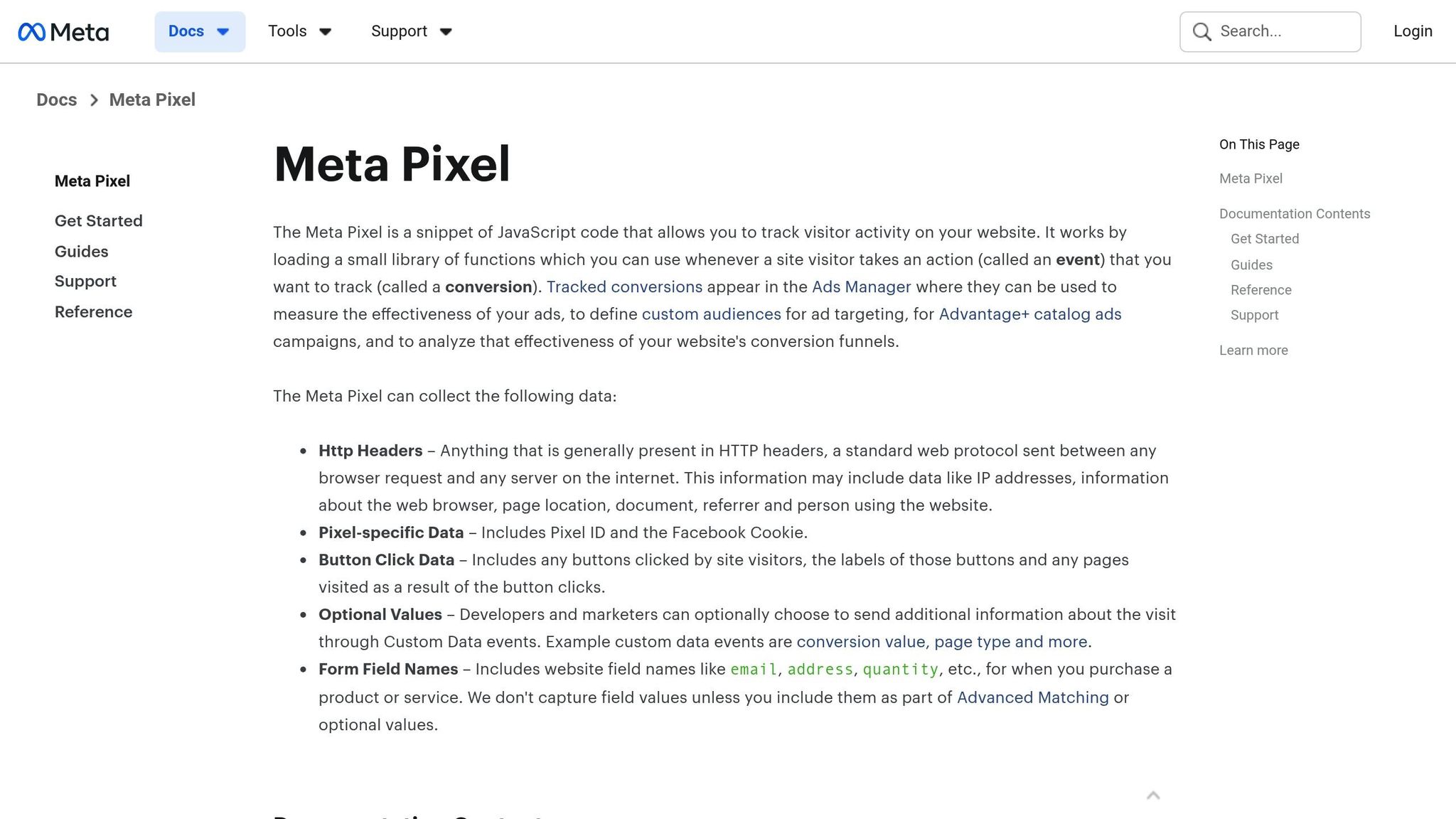
Getting your Meta Pixel up and running is crucial for syncing accurate conversion data with GA4. The Meta Pixel works by tracking user actions and sending that data to Meta. You have three main ways to install it: direct header injection, where you copy the base code from Meta Events Manager and place it in your website’s <head> section; Google Tag Manager (GTM), which lets you deploy the Pixel through a web container or use a server-side container for the Conversions API to minimize data loss from ad blockers; or partner integrations for platforms like Shopify, BigCommerce, or WooCommerce that simplify the process.
Once the Pixel is installed, activate automatic advanced matching in Events Manager. This feature helps Meta link website visitors to their Meta accounts more effectively, improving attribution. If you’re comparing Meta Pixel vs. Conversions API for your setup, make sure to configure deduplication by sending a unique event_id with both methods. This prevents double-counting conversions. Meta also advises including external_id and fbp (Browser ID) for better deduplication accuracy. Now, let’s walk through the steps to set up and configure your Meta Pixel for tracking events.
Installing the Meta Pixel
To start, open Events Manager in Meta Business Manager, select your Pixel, and click Continue Pixel Setup. Choose the installation method that fits your technical setup.
For GTM users: Create a new tag in your web container, select Custom HTML, and paste the Pixel base code. If you’re using a server-side container, configure the Conversions API tag, which sends data directly from your server to Meta.
For direct installation: Copy the entire Pixel code and embed it in the
<head>section of every page on your website. Ensure the Pixel code runs before any other event tracking code. If you’re using a CMS like WordPress, you can use a header injection plugin or add the code directly to your header template.
Configuring Standard and Custom Events
With the Pixel in place, the next step is setting up events to track key user actions. Standard events like Purchase, Lead, or AddToCart can be configured using the Event Setup Tool. This no-code option in Events Manager allows you to navigate your site and "tag" buttons or URLs to trigger events. It’s straightforward - just click through your site and mark the actions you want to track.
For more control, you can manually add event code, such as fbq('track', 'EventName'), directly into your site’s code or use GTM. Meta standard events align with GA4 event names as shown below:
Meta Standard Event | GA4 Event Name |
|---|---|
Purchase | purchase |
AddToCart | add_to_cart |
InitiateCheckout | begin_checkout |
Lead | generate_lead |
ViewContent | view_item |
CompleteRegistration | sign_up |
For even more flexibility, you can set up custom conversions using URL-based rules without writing additional code. For example, a URL containing "thank-you" could trigger a Purchase event. As Meta explains:
"Custom conversions let you create rules for events. When you create these rules, you can measure more specific customer actions".
Verifying Events in Events Manager
To ensure your events are working correctly, go to Events Manager > Data Sources > [Your Pixel] > Test Events. Enter your website URL, trigger the events, and check the Test Events section for real-time activity. You’ll see event names, parameters, and timestamps as they occur.
For verifying Conversions API (CAPI) events, generate a test_event_code in the Test Events tab and include it in your server payload. If you’re using GTM server-side, use the GTM debugger to confirm whether the request "Succeeded" or "Failed". Additionally, regularly check the Diagnostics tab in Events Manager for error or warning messages related to your Pixel setup.
Creating Custom Conversions in Meta Events Manager
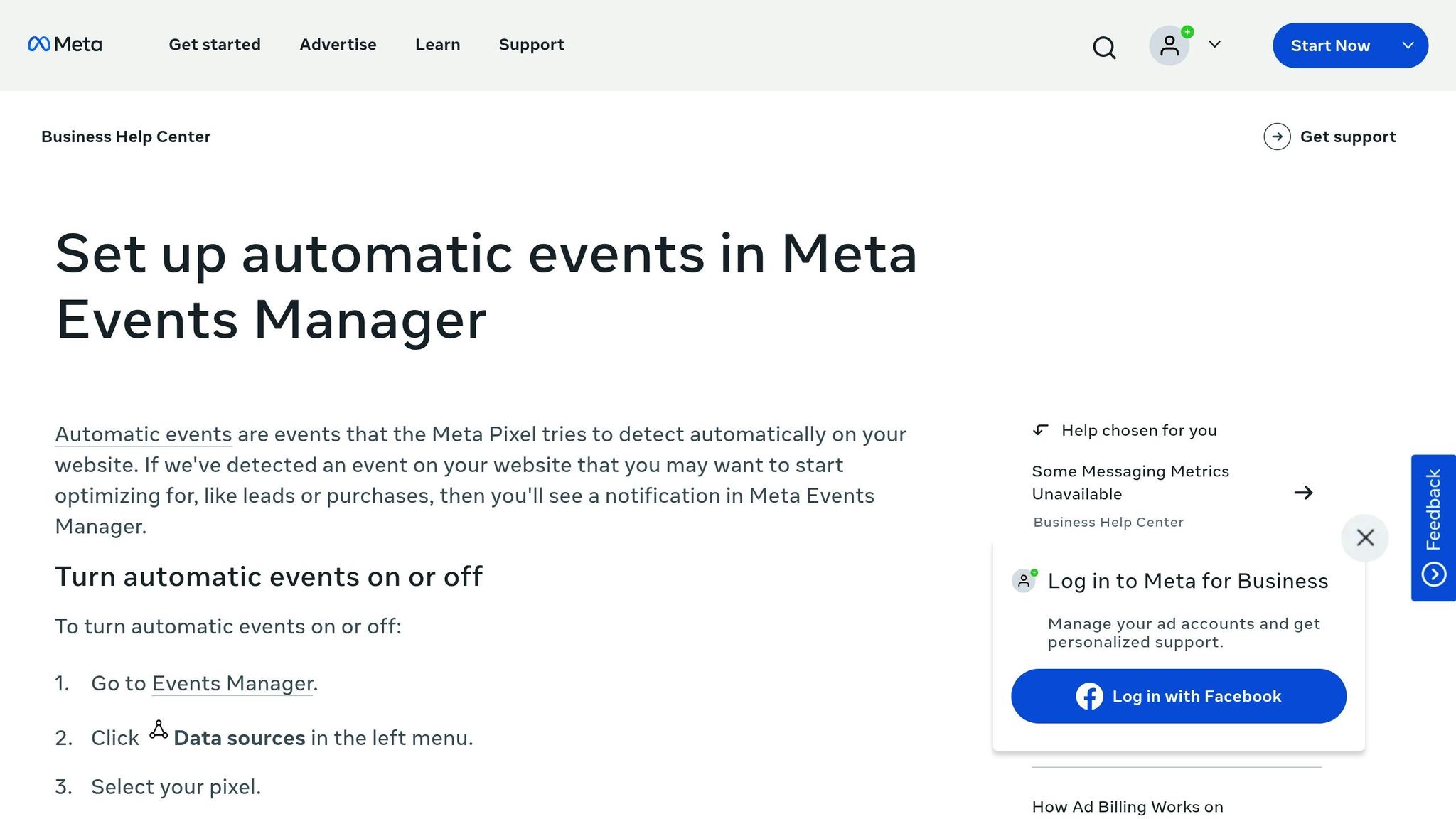
Custom conversions allow you to focus on tracking specific, high-value actions. For example, instead of logging every Purchase event, you can create a custom conversion that triggers only when someone buys men’s shoes priced over $40. This level of precision helps Meta’s algorithm optimize for the actions that matter most to your business using a conversion optimization checklist. Here’s how you can set up custom conversions in Events Manager.
Start by opening Events Manager, selecting your Pixel or dataset, and clicking Custom Conversions > Create Custom Conversion. Next, choose a base event like Purchase, AddToCart, or pageview, and set your rules. URL rules let you filter by page paths (e.g., URLs containing "thank-you" or "confirmation"), while parameter rules allow filtering based on data points like value, currency, content_ids, or content_type. You can combine these rules for even more specific targeting.
Defining Custom Conversion Rules
Choose a standard or custom conversion category, such as Lead, Purchase, or Schedule, and decide how to assign conversion value. You can use the event’s value parameter or set a fixed value manually. For eCommerce tracking, include parameters like content_ids (to identify specific products), order_id (mapped from GA4’s transaction_id to avoid duplicate conversions), and currency for precise financial reporting. Adding user matching parameters can also improve attribution accuracy.
Here’s a quick guide to aligning Meta and GA4 parameters:
Meta Parameter | GA4 Field Name | Purpose |
|---|---|---|
|
| Tracks revenue and supports value-based bidding |
|
| Ensures accurate financial reporting |
|
| Identifies specific products |
|
| Prevents duplicate conversions |
|
| Key for user matching |
|
| Critical for attribution |
When naming your custom conversions, use clear and specific labels like "High Value Men's Shoes Purchase" instead of generic terms. This makes it easier to interpret reports in Ads Manager. This clarity is essential when you optimize Meta Ads for maximum ROI across different campaigns.
Testing Custom Conversions
Once your rules are in place, validate your setup before launching campaigns. Go to your custom conversion, click Activity, and check the Recent Events section to ensure that events matching your URL or parameter criteria are being triggered in real time.
Test your custom conversion rules using both browser and server-side tools to confirm they are working as intended. Refer back to earlier event verification steps for details on testing. Regularly review the Diagnostics tab in Events Manager for any errors, such as missing parameters or invalid currency codes. A 2025 study revealed that maintaining a strong connection between GA4 and Meta resulted in an average 5% increase in conversions driven by Meta. Taking the time to set up and test thoroughly can make a measurable difference in your results.
Mapping GA4 Events to Meta Custom Conversions
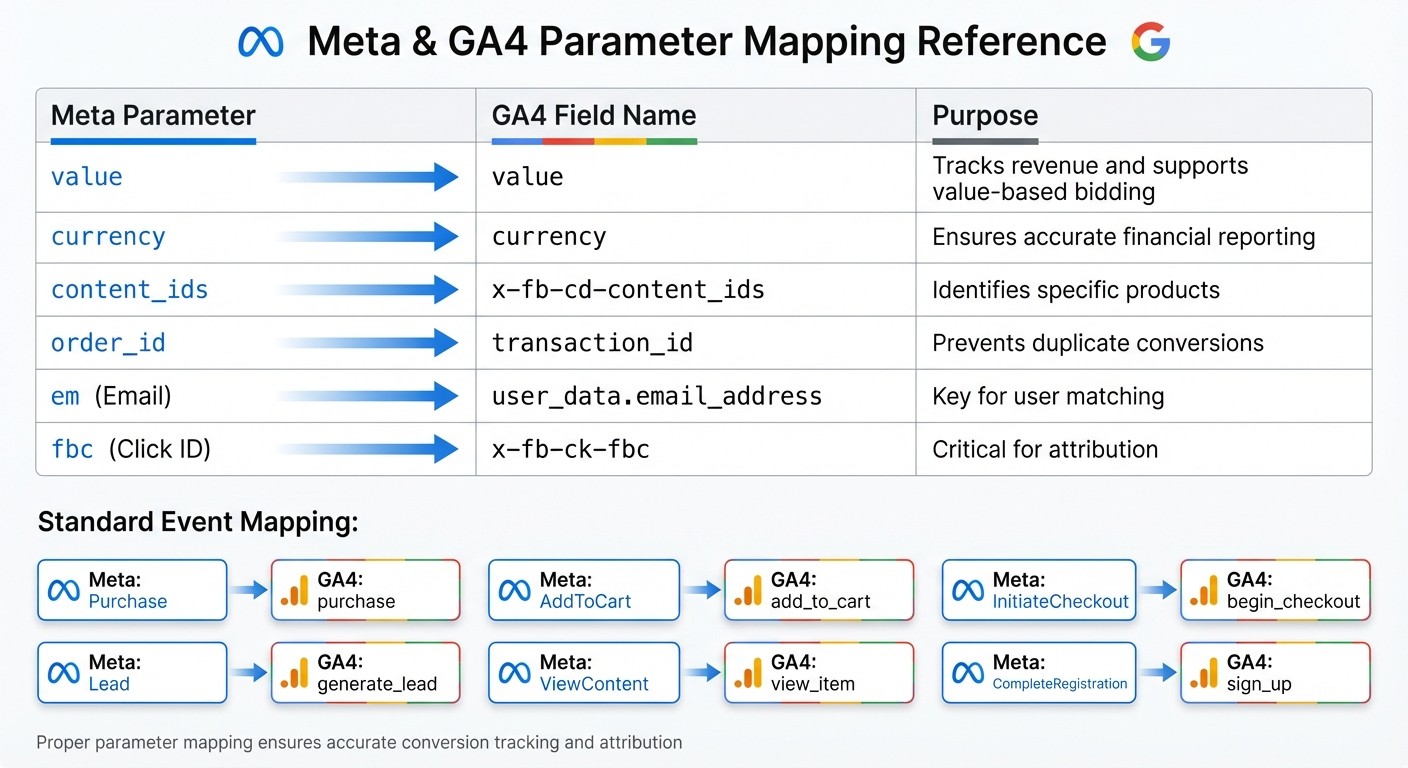
Meta and GA4 Event Parameter Mapping Guide
After setting up custom conversions in Meta Events Manager, the next step is mapping your GA4 events to these conversions. This process ensures that the actions tracked in GA4 align with Meta’s requirements, allowing its algorithms to receive the necessary conversion signals to optimize your campaigns effectively. You can achieve this by marking events as conversions in GA4, using partner integration tools, or implementing the Meta Conversions API for offline data sync through server-side Google Tag Manager (GTM).
Marking Events as Conversions in GA4
Start by labeling key GA4 events as conversions. Navigate to Admin > Data Display > Events in GA4. Here, you’ll find a list of all tracked events. To mark an event as a "Key Event" (GA4’s term for conversions), click the star icon next to the desired event. While this doesn’t automatically send data to Meta, it highlights the events that matter most for your integrations and reports.
Make sure your key events include relevant parameters like value and currency, as these are crucial for value-based bidding on Meta. Once identified, you can proceed with partner tools or server-side GTM to forward these events to Meta.
Using GA4 Partner Integration
Partner integration tools, such as CustomerLabs, simplify the mapping process. These tools authenticate your Meta account and require your GA4 Measurement ID and API Secret key, which can be found under Admin > Data Streams > Measurement Protocol in GA4. Once set up, the tool automatically maps standard events. For example:
GA4’s
purchaseevent maps to Meta’sPurchaseevent.GA4’s
add_to_cartevent maps to Meta’sAddToCart.
You can also manually map custom events. For instance, if you track a request_quote event in GA4, you can map it to Meta’s Lead event. This approach is ideal if you prefer a straightforward setup without diving into the complexities of server-side GTM.
For advanced users who need more control over their data, the Meta Conversions API via server-side GTM is the way to go.
Implementing Meta Conversions API with GTM
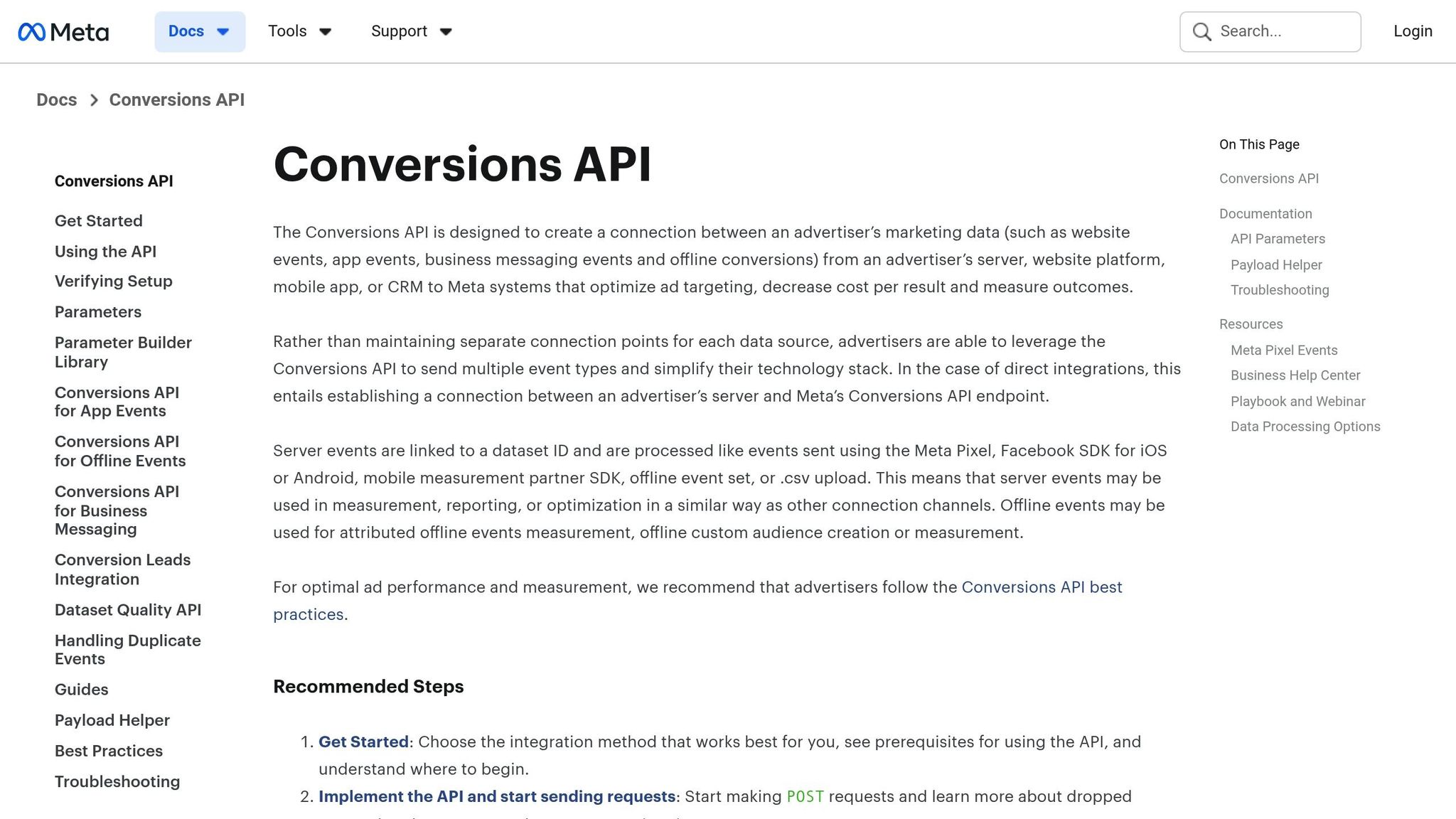
Server-side GTM offers enhanced control over event tracking and data transmission. To set this up, you’ll need both a GTM Web Container (on your website) and a GTM Server Container (hosted on Google Cloud Platform or another provider). In the web container, configure the GA4 Configuration tag to send data to the server container by adding the Server Container URL in the transport_url field. Don’t forget to enable the first_party_collection flag to ensure user data can pass through.
Set up first-party cookie variables for _fbp and _fbc, and map them to x-fb-ck-fbp and x-fb-ck-fbc. In the server container, install the Conversions API Tag (available in the Template Gallery by facebookincubator). Enter your Pixel ID and Access Token, and select "website" as the action source. The server container’s GA4 Client will capture events and forward them to the Meta Conversions API Tag, translating GA4 fields into Meta’s required format.
To avoid double-counting when using both the Meta Pixel (browser-side) and the Conversions API (server-side), create a custom JavaScript variable in GTM that generates a unique ID for every event. Pass this ID as x-fb-event_id in your GA4 events and as eventID in your Meta Pixel tag. Use Meta Events Manager’s Test Events tool to confirm that events are being received correctly. If you’re sending complex parameters like contents or custom_properties, make sure to JSON stringify them before transmission.
"The Conversions API is designed to create a direct connection between your marketing data and the systems which help optimize ad targeting, decrease cost per action and measure results across Meta technologies." - Meta Developers Documentation
Testing and Verifying Event Data Flow
After mapping your GA4 events to Meta custom conversions, the next step is to test the setup. This ensures that data flows smoothly from GA4 through your website to Meta.
End-to-End Testing of Events
Start by verifying the entire event journey, from the trigger on your site to its receipt in Meta. Open Google Tag Manager (GTM) Preview mode for both your web and server containers simultaneously. This allows you to track an event from when it fires on your site all the way to Meta's servers. Trigger a test conversion and use the GTM debugger to confirm that your GA4 tags fire and send data to the correct endpoint (graph.facebook.com).
Then, head to Meta Events Manager > Data Sources > Test Events and copy the test event code provided. Paste this code into the test_event_code parameter of your GTM Conversions API tag. Trigger another test conversion, and check Meta's Test Events window to ensure the event appears. Confirm that the event_id from the Meta Pixel matches the one from the Conversions API. If Meta successfully recognizes these as the same event, the Test Events tool will display a "Deduplicated" label.
Use the GTM Server-side debugger to inspect outgoing API requests. If a tag shows as "Failed", click on the "Request" tab to view the "Response Body" and identify the error message returned by Meta's API. Double-check that all required parameters - such as value, currency, and user identifiers - are being passed correctly. Key parameters like em (email), fbc (click ID), and fbp (browser ID) are essential for improving your Event Match Quality score.
Before publishing your tags to production, remove the test event code from your GTM setup. Leaving it in place could send test data into your live reports, distorting analytics and ad performance metrics.
Troubleshooting Common Issues
If you encounter problems during testing, use these targeted checks to address them. For instance, if events don’t appear in Meta Events Manager, confirm that the GA4 Client is listening to /g/collect and that first_party_collection is set to true.
Discrepancies in data can often stem from mismatched attribution windows or differing time zone settings. Align both platforms to the best attribution windows for your business—such as 7-day click—to reduce reporting inconsistencies. Additionally, implementing server-side Conversions API helps overcome browser-based data loss.
Low Event Match Quality (EMQ) is another common problem. This occurs when insufficient user data - like hashed email addresses or phone numbers - is passed from GA4 to Meta. Without enough data, Meta struggles to link conversions to users, which can hinder campaign performance. Use the Meta Pixel Helper Chrome extension to ensure your Pixel is firing correctly and that all necessary parameters are being sent from the browser. Also, review the Diagnostics tab in Meta Events Manager for warnings or errors, such as missing parameters or invalid URL rules.
If you notice double-counted conversions, it means deduplication isn’t functioning correctly. To fix this, ensure both the Pixel and Conversions API standardize conversion data with the same event_name and a matching event_id. This allows Meta to combine them into a single conversion. Always pass a unique event ID consistently through both methods.
Tool | Purpose |
|---|---|
GTM Preview Mode | Monitors event triggers, variable mapping, and tag firing status |
Test Events Tool | Verifies event receipt and deduplication in Meta Events Manager |
Server Debugger | Checks outgoing API request/response status and identifies errors in GTM Server Container |
Meta Pixel Helper | Confirms Pixel ID, event name, and parameter accuracy via a Chrome extension |
Using Custom Conversions for Ad Optimization
Once you've set up your custom conversions, you can harness that data to fine-tune your ad campaigns. Meta's algorithm is designed to zero in on the actions that align most closely with your business goals.
Using Conversion Data for Value-Based Bidding
Value-based bidding takes a different approach - it focuses on maximizing revenue rather than just increasing conversion numbers. To make this work, assign values to your custom conversions using the value and currency parameters. When setting up your campaigns, choose "Sales" as your objective and switch your bidding strategy from "Lowest Cost" to "Highest Value" or use automated bid rules. This prioritizes users who are likely to spend more.
If you have customer lifetime value (LTV) data, include the predicted_ltv parameter. This provides Meta with even better insights to target high-value customers. To keep these optimizations running smoothly and hit Meta Ads scaling ROAS benchmarks, ensure your mapped events are firing consistently. Regular activity strengthens the connection and improves signal quality.
With bidding dialed in, you can take it a step further by using this conversion data to sharpen your audience targeting.
Building Custom Audiences for Retargeting
Custom conversions open up a world of retargeting possibilities. In Ads Manager, head to the Audiences section and create a Custom Audience based on the conversions you've tracked. For example, you could create an audience of users who added items to their cart but didn’t complete their purchase within the last 14 days. Or, you could target customers who spent over $50 in the past month with tailored upsell offers.
Pair these audiences with multiple Lookalike Audiences to find new users who mirror your top converters. A 1% Lookalike Audience of your high-value purchasers often performs better than broad targeting, especially when combined with value-based bidding. Plus, a strong conversion setup enables cross-device tracking, capturing scenarios where users browse on mobile but complete purchases on desktop - this kind of tracking can account for up to 65% of such cases.
To go even further, consider using Meta's Advantage+ Audience feature. It lets the algorithm analyze real-time behavior and expand your reach beyond your initial audience. This works best when your custom conversions consistently send strong signals about user intent.
For larger-scale optimization, automation tools can help you manage these insights effectively.
Improving Optimization with AdAmigo.ai
As your campaigns grow, manually managing custom conversions across multiple campaigns can become overwhelming. That’s where tools like AdAmigo.ai (https://adamigo.ai) come in. This autonomous AI agent uses your conversion data to handle daily campaign optimizations. It analyzes performance across creatives, audiences, budgets, and bids, then provides a prioritized to-do list of impactful tweaks. You can either approve these suggestions one by one or switch to Autopilot Mode for automatic adjustments.
The platform also offers a Bulk Ad Launch feature, allowing you to generate hundreds of ad variations at once. By pulling creatives directly from Google Drive, the AI creates on-brand ad copy and visuals using your conversion data, then tests them at scale.
One user shared, "Our budgets are controlled, our spend is smartly allocated, and our ROAS has significantly improved."
Automated ad management tools like AdAmigo.ai have been shown to reduce Cost Per Action (CPA) by 20–35%. Plus, integrating GA4 with Meta can boost conversions by 22%, thanks to more precise user data.
AdAmigo.ai is an official Meta Business Technology Partner and offers flexibility to work fully or semi-autonomously. It respects all your budget, pacing, geo, and placement rules. Setup is quick - just connect your Meta ad account, set your KPIs, and brief the AI with goals like "Scale spend 30% at ≥3× ROAS." From there, the platform continuously optimizes your campaigns using real conversion signals from GA4.
Conclusion and Key Takeaways
Recap of Setup Steps
To set up Meta custom conversions with GA4, follow these three steps: first, install the Meta Pixel; next, configure important GA4 events using Google Tag Manager (GTM) to sync Meta Ads with Google Analytics; and finally, define custom conversion rules in Meta Events Manager. When mapping events like purchase or generate_lead, ensure you use matching event_id values. For reliable data transmission, GTM Server-Side is highly effective. If you're using both the Pixel and Conversions API, event deduplication is essential - send identical event_id parameters to allow Meta to merge events and avoid double-counting.
Pro Tips for Optimizing Campaigns
Now that your custom conversions are set up, here are some tips to fine-tune your campaigns for better results. Keep an eye on your Event Match Quality (EMQ) score in Meta Events Manager, align attribution windows between GA4 and Meta, and use UTM parameters to verify attribution accuracy.
"Getting as granular as you can will help your ads because you're giving Meta additional information about what to do and who to target".
Always test events after making changes to ensure your data signals remain strong. For advertisers managing multiple campaigns or scaling ad spend, automation tools like AdAmigo.ai (https://adamigo.ai) can simplify the process. This platform analyzes live performance and offers actionable recommendations for creatives, audiences, budgets, and bids. You can choose manual approval or let it run on autopilot. By following these strategies and refining your settings, you'll enable Meta's algorithm to deliver more precise and impactful ad targeting.
FAQs
How does integrating Google Analytics 4 (GA4) with Meta's Conversions API enhance data accuracy?
Integrating GA4 with Meta's Conversions API creates a direct connection between GA4's server and Meta, bypassing browser-based tracking methods like the Meta Pixel. This server-to-server setup minimizes data loss caused by ad blockers or cookie restrictions, resulting in more precise conversion tracking.
With GA4's event tracking combined with Meta's API, advertisers can improve attribution accuracy and potentially capture up to 30% more conversions. This integration offers a sharper understanding of campaign performance, enabling advertisers to fine-tune their ad strategies using more dependable data.
What are the advantages of using server-side Google Tag Manager (GTM) for tracking Meta conversions?
Using server-side Google Tag Manager (GTM) with the Meta Conversions API brings some valuable advantages to the table. One of the standout benefits is its ability to cut down on duplicate event reporting. By managing deduplication directly on the server, it ensures your data stays more accurate and reliable.
Another big plus is improved privacy. Server-side testing and validation happen in a secure environment, which helps limit the exposure of sensitive user information.
With server-side tracking in place, you can gain clearer reporting and deeper performance insights for your Meta ad campaigns, helping you make more informed decisions.
How can I ensure custom conversions are tracked accurately without double-counting?
To keep your Meta custom conversions accurate, it's crucial to prevent double-counting. This means ensuring that each user action is tracked only once, whether it's reported via the browser pixel or through server-side tracking. Start by properly configuring the Meta Pixel and testing it in Events Manager to make sure it triggers the correct events. When setting up custom conversions, stick to a single, well-defined trigger - like a unique event parameter or a specific URL pattern - to avoid overlapping with standard events.
If you're using the Conversions API (such as through Server-Side Google Tag Manager), make sure to activate the deduplication feature. This involves including a matching event_id for every conversion. By doing so, Meta can identify and discard duplicate hits when both the server and browser report the same ID. Additionally, if you've transitioned from Universal Analytics to GA4, disable any older Universal Analytics-based conversions to avoid tracking the same event twice.
To maintain accuracy, regularly cross-check Meta's conversion data with event counts in GA4. Tools like AdAmigo.ai can be a big help here, as they can identify duplicate events and provide actionable fixes. This allows you to focus on refining your strategy while ensuring your tracking remains reliable.