
How to Integrate Meta Ads with Analytics Tools
Learn how to connect Meta Ads to GA4, Supermetrics, and BI tools, set permissions and UTMs, use CAPI, and fix common tracking issues.
Running Meta Ads without pairing them with analytics tools limits your ability to understand what happens after a user clicks an ad. By integrating Meta Ads with platforms like Google Analytics 4 (GA4) or Supermetrics, you can track post-click behavior, measure conversions accurately, and centralize data for better decision-making. Here's what you need to know:
Why Integrate? Get insights into which ads drive revenue, track assisted conversions, and optimize campaigns with accurate data.
Setup Basics: Ensure your Meta Ads account is configured properly with admin access, two-factor authentication, and correct UTM tagging.
Key Tools: Options like GA4 and Supermetrics allow you to import Meta Ads data, create dashboards, and analyze performance metrics. If your data doesn't align, you may need to debug conversion tracking to identify discrepancies.
Advanced Features:Multi-touch attribution and cross-channel dashboards help you understand how Meta Ads fit into the larger marketing funnel.
AI Optimization: Tools like AdAmigo.ai can automate campaign adjustments, saving time while improving results.
Integrating these tools ensures your ad spend is backed by clear data, helping you optimize campaigns and allocate budgets more effectively.
NEW GA4 Feature: Meta Ads Cost Data Import
What You Need Before Starting
Before diving into analytics tool integration, it’s crucial to set up your Meta Ads account correctly. Skipping this step can lead to failed connections or, worse, incomplete data that disrupts your campaigns. Proper permissions and configurations are the foundation of a seamless integration process.
Setting Up Your Meta Ads Account
Start by confirming you have admin access to your Meta Ads account. You can check this under the "People" section in Ad Account Settings. If you’re not listed as an Admin, request elevated permissions right away to avoid any roadblocks.
Use Meta Business Manager (not Business Suite) to manage multiple ad accounts, pages, and pixels effectively. Make sure your business has a verified Meta Business ID, an active payment method on file, and two-factor authentication (2FA) enabled for both Facebook and Instagram accounts. Inconsistent 2FA settings are a common reason for integration failures, so double-check this step.
For continuity, always use a company email address (e.g., marketing@yourcompany.com) rather than a personal one. This ensures access remains secure even if team members leave.
Once your account is configured, you’re ready to enable the necessary API permissions.
Enabling API Permissions
To connect analytics tools to Meta Ads, you’ll need to grant API permissions. The two essential API scopes are:
ads_read: Provides access to Ads Insights and performance data.ads_management: Enables management and reading of ads for owned accounts.
These permissions allow third-party platforms to pull detailed campaign metrics and manage your ads effectively.
Permission Type | Access Level | What It Enables |
|---|---|---|
| Standard Access | Retrieve ad performance and reports |
| Standard Access | Manage and read ads for owned accounts |
Both Permissions | Standard Access | Full reporting and management capabilities |
Additionally, make sure to tag your ad URLs with UTM parameters. At a minimum, include utm_source and utm_medium to ensure Google Analytics 4 (GA4) can map and import cost data accurately. GA4’s direct Meta integration can retrieve up to two years of historical cost and click data at no cost, but only if your URLs are tagged properly. This step is essential for accurate tracking and reporting.
With API permissions in place, the next step is selecting the right analytics tool.
Choosing an Analytics Tool
Not all analytics tools are created equal, so it’s important to choose one that aligns with your needs. Look for platforms that support server-side integration, particularly Meta’s Conversions API (CAPI). CAPI works alongside the Meta Pixel, bypassing browser-based limitations like ad blockers and iOS privacy updates. This setup minimizes data loss and ensures better attribution accuracy.
Prioritize tools that can directly import Meta Ads cost data and provide detailed breakdowns by campaign, ad set, creative, and audience demographics. Without cost data, you’ll see conversions but won’t know how much you spent to achieve them - making it impossible to calculate your true return on ad spend (ROAS).
Lastly, consider tools verified by Meta as Meta Business Technology Partners. These platforms are tested for compatibility and security, reducing the chances of integration issues. Options like Google Analytics 4, Northbeam, and Supermetrics meet these standards and offer varying levels of automation, reporting detail, and pricing to suit different needs.
How to Connect Meta Ads with Analytics Tools
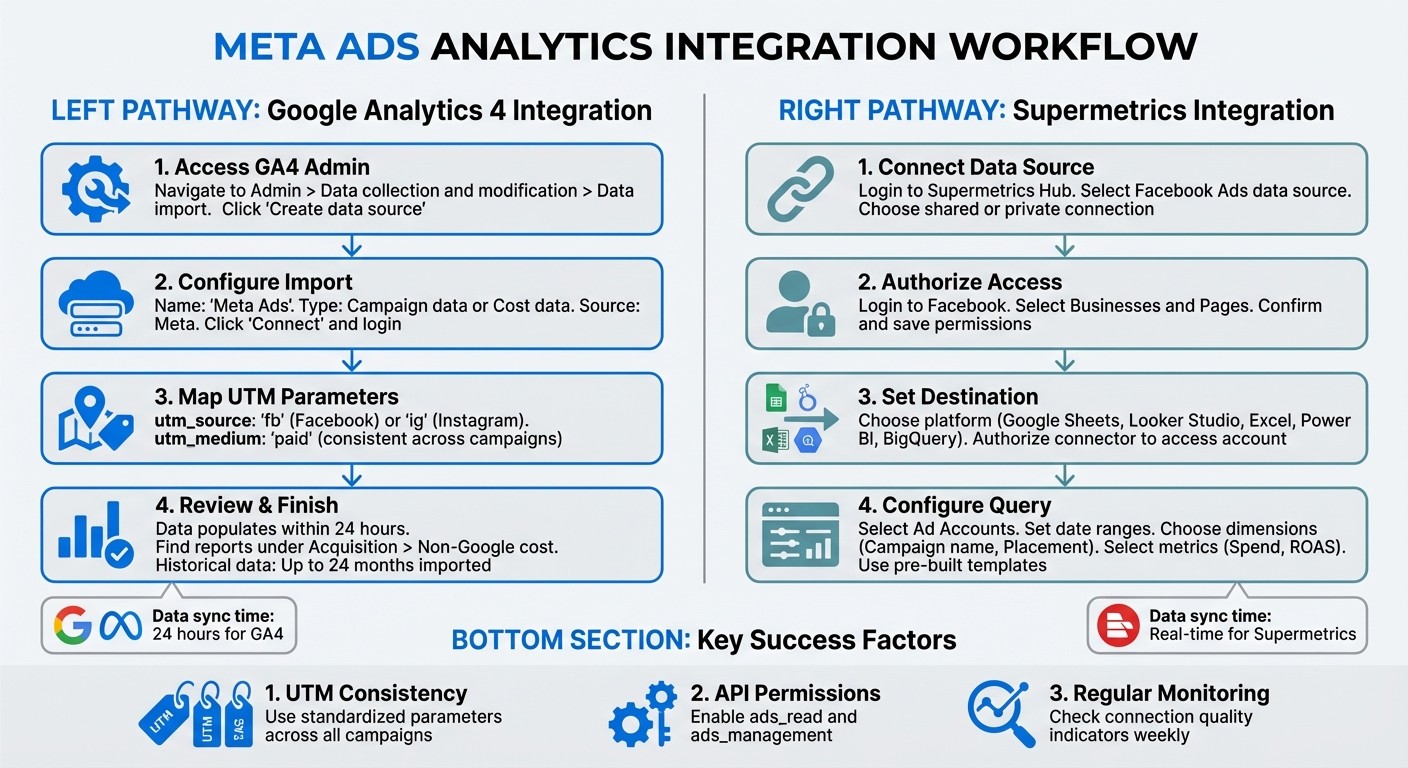
Step-by-Step Guide to Integrating Meta Ads with Analytics Tools
Once your Meta Ads account is set up, the next step is connecting it to analytics tools for centralized data tracking and analysis. By leveraging Meta's API, which requires a proper API key setup, you can integrate your campaigns with platforms like Google Analytics or Supermetrics, allowing for streamlined reporting and insights. Follow these steps to connect Meta Ads to third-party tools and set up these integrations.
Connecting to Google Analytics
Google Analytics 4 (GA4) provides a free integration that enables you to import up to 24 months of historical Meta Ads data. You can initiate this process either through the GA4 interface or Meta Events Manager. For advanced setups, you can combine tracking rules to improve data accuracy.
From Google Analytics 4:
Go to Admin > Data collection and modification > Data import and click Create data source.
Assign a name (e.g., "Meta Ads") and choose Campaign data or Cost data as the import type.
Select Meta as the source, then click Connect and log in with your Business Portfolio credentials.
Map your UTM parameters: match
utm_sourcevalues like "fb" (Facebook) or "ig" (Instagram) and setutm_mediumto a consistent term like "paid" across all campaigns.Review your settings and click Finish. Data will typically populate in GA4 reports within 24 hours.
From Meta Events Manager:
Navigate to Partner Integrations in Meta Events Manager and select Google Analytics.
Log in to your Google account (with Viewer access or higher) for the GA4 property.
Map your Google Analytics properties to the corresponding Meta datasets. For example, align "purchase" events in GA4 with "purchase" events from Meta.
Submit your configurations and click Done.
Regularly monitor the Connection Quality indicator in Events Manager to ensure proper mapping and permissions.
Once connected, Meta Ads data will appear in GA4 under the Non-Google cost report within the Acquisition section.
Connecting to Supermetrics
Supermetrics is a versatile data connector that enables Meta Ads data to flow into platforms like Google Sheets, Looker Studio, Excel, Power BI, and BigQuery. It's a great option for teams or agencies that require tailored, automated reporting without extensive coding.
Log in to Supermetrics Hub and select the Facebook Ads data source.
Choose a shared or private connection, log in to Facebook, and select the Businesses and Pages you want to include. Confirm and save permissions.
Set up your destination. For Looker Studio, create a new data source and locate the Supermetrics connector.
Authorize the connector to access your Google account, then authenticate your Meta Ads account through the connector panel.
Configure your query by selecting Ad Accounts, date ranges, dimensions (e.g., Campaign name, Placement), and metrics (e.g., Spend, ROAS).
Use Supermetrics' pre-built Looker Studio templates for professional dashboards, saving time on design.
To simplify filtering and segmenting in your dashboards, maintain consistent naming conventions for campaigns and ad sets in Meta Ads Manager. Supermetrics also offers a 14-day free trial, allowing you to test the integration before committing.
Advanced Tracking Features
Once your integrations are live, you can dive deeper into your data and go beyond basic click and conversion metrics. These advanced tools give you a clearer view of how your ads perform. Features like multi-touch attribution and custom cross-channel dashboards provide a more detailed look at the customer journey, helping you better allocate your Meta Ads budget. Let’s break down how these features can refine your campaign insights.
Multi-Touch Attribution Models
Many advertisers still rely on last-click attribution, where only the final touchpoint before a conversion gets credit. While straightforward, this method often undervalues the role Meta Ads play, such as when customers first engage with your brand on Facebook or Instagram but complete their purchase later through Google Search or direct traffic. Multi-touch attribution (MTA) solves this issue by tracking all interactions in the customer journey, highlighting how Meta Ads contribute to conversions.
To make the most of MTA, ensure your reporting remains consistent across platforms. For example, when comparing Meta Ads Manager to third-party tools like GA4, align reporting dates and use similar custom attribution models - such as Meta’s 7-day click window versus GA4’s Data-Driven Attribution. Consistent UTM parameters across campaigns are essential for accurate tracking. As BrightBid explains:
You won't 'sync' GA4 and Meta into one truth; you'll reconcile them. UTMs + GA4 conversions tell you post-click value, while Pixel/CAPI keeps Meta's delivery smart.
With MTA in place, you’ll get a clearer picture of how Meta Ads influence your overall marketing funnel.
Custom Dashboards and Cross-Channel Reports
A centralized dashboard brings all your marketing data - Meta Ads, Google Ads, email, organic traffic - into one place, giving you a complete view of performance. Tools like Looker Studio, Tableau, and Power BI allow you to visualize key metrics like ROAS, CPA, and CTR side by side. This eliminates the hassle of switching between platforms or manually exporting data.
For example, Shayna Tyler, an analyst at Signal Theory Inc., used to spend over four hours preparing reports manually. After implementing Improvado to automate their cross-channel reporting pipeline, reporting time dropped by more than 80%. Reports that once took hours now take just 30 minutes.
We're reporting for significantly more clients, even though it is only being handled by a single person.
This kind of automation not only saves time but also frees up resources for more strategic tasks.
To get started, standardize UTM naming conventions across platforms (e.g., utm_medium=cpc) so GA4 can accurately aggregate your data. Then, connect Meta Ads to your BI tool using connectors like Supermetrics or Meta API integrations. Finally, use a shared service email (e.g., marketing@company.com) instead of personal accounts to avoid disruptions if team members leave.
Using AdAmigo.ai for AI-Powered Optimization
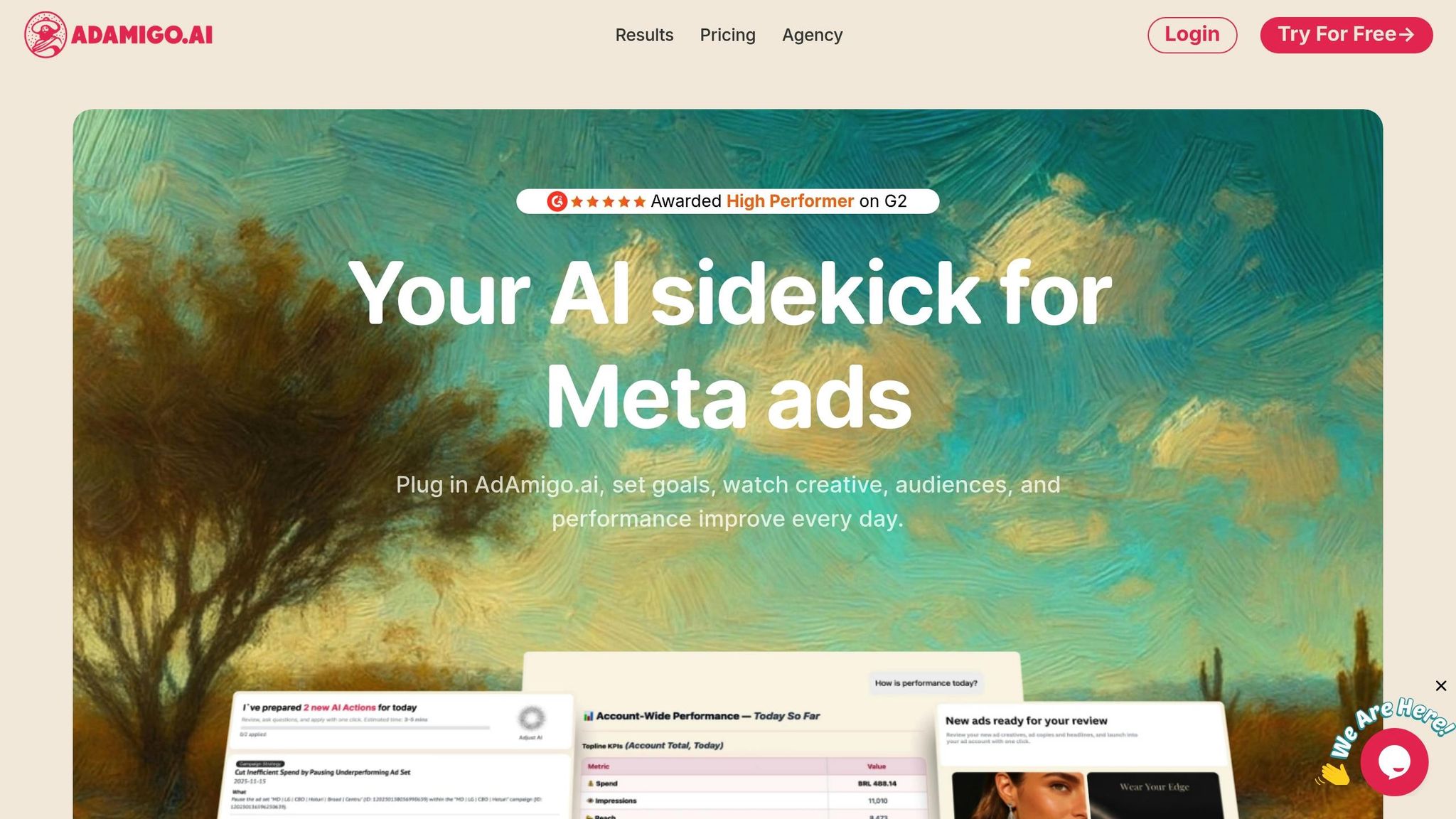
AdAmigo.ai takes campaign management to the next level by not just tracking performance but actively enhancing it in real time. Acting as an autonomous AI media buyer, it connects directly to your Meta Ads account to adjust creatives, budgets, bids, and targeting on the fly.
What AdAmigo.ai Does
AdAmigo.ai relies on three specialized AI agents to optimize your Meta Ads campaigns:
AI Actions Agent: This agent audits your campaign data every 15 minutes, creating a prioritized daily to-do list. Tasks might include reallocating budgets or refining audience targeting for maximum impact.
AI Ads Agent: By analyzing top-performing ads and competitor content, this agent generates and deploys new creative variations that align with your brand.
AI Chat Agent: With this feature, you can query your account in plain language, asking questions like, "Why did ROAS drop yesterday?" or even bulk-launch campaigns directly from Google Drive.
The platform also offers a Protect feature, which monitors your account for issues like overspending, broken links, or disabled ads, addressing them before they affect performance. AdAmigo.ai has earned "High Performer" status on G2, with users highlighting its ability to simplify Meta ad management. Jakob K. described it as:
The fact that you can launch campaigns through text or voice commands feels like magic! It handles everything from creating custom and lookalike audiences to adjusting budgets with just a few prompts.
You can operate AdAmigo.ai in Review Mode, where you manually approve AI suggestions, or switch to Autopilot Mode for fully automated execution within your specified KPI limits. For agencies, this automation allows a single media buyer to handle 4–8× more clients, freeing up time for strategic planning.
Getting Started with AdAmigo.ai
Getting started is quick and straightforward. First, connect your Meta Ads account via a secure API. Then, set your KPIs, such as "Increase spend by 30% while maintaining a ROAS of 3× or higher." From there, you’ll receive a daily feed of AI-driven recommendations for new campaigns, audience tweaks, budget adjustments, and fresh creatives. You can choose to approve, modify, or auto-publish these suggestions. This process helps you stay ahead of creative testing benchmarks to ensure your ads remain competitive.
To streamline creative workflows, you can integrate Google Drive, enabling the AI to pull assets for bulk campaign launches. Start with Review Mode to verify the AI's recommendations before transitioning to Autopilot for continuous, hands-off optimization. You can also set daily and monthly spending limits to maintain control over your budget. As Sherwin S. noted in his G2 review:
AI recommendations are spot-on... It's like having an extra set of super-smart hands helping me hit my KPIs.
Fixing Common Integration Problems
Integration issues often stem from API permissions, data mismatches, and attribution window conflicts. Knowing how to troubleshoot these can save you a lot of time and headaches.
Fixing API Rate Limits and Permission Errors
Meta's API requires specific permissions to access campaign data, often managed alongside Meta Consent Mode settings. If you’re encountering insufficient permissions errors, check that your Business Manager account has enabled the following:
ads_read for basic reporting
ads_management for full campaign access
business_management for managing multiple ad accounts
You can confirm these permissions in Business Manager under the "People" tab. Without them, tools like Google Analytics or Supermetrics won’t be able to retrieve your data.
Meta API rate limits are another common issue. These occur when too many requests are made in a short time. Since Meta updates delivery metrics every 15–20 minutes, syncing data more frequently doesn’t provide any additional value. If your analytics tool is hitting rate limits, adjust your data pull intervals to match Meta's update schedule.
Now, let’s look at how to handle data mismatches between platforms.
Resolving Data Mismatches
Discrepancies between Meta and third-party analytics are normal because they use different tracking methods. Meta relies on logged-in profiles, while Google Analytics 4 (GA4) uses cookies and device IDs. Additionally, Meta can take up to 72 hours to fully process conversions, so comparing daily data may always show some gaps.
To minimize mismatches, ensure you’re using consistent UTM parameters (e.g., set utm_medium as "paid" and utm_source as "facebook" or "instagram"). When sending user data through the Conversions API, hash identifiers like emails and phone numbers using SHA256, ensuring they are lowercase and free of spaces.
Once tracking parameters and data formats are aligned, the next step is to address attribution window differences.
Aligning Attribution Windows
Meta defaults to a 7-day click and 24-hour view attribution window, while GA4 often uses a 30-day last-click or data-driven model. This can lead to Meta attributing a conversion to an ad that GA4 might associate with organic search.
To better understand these differences, use GA4's Model Comparison tool (found under Advertising > Attribution). This tool highlights how attribution models diverge, helping you determine which one aligns better with your customer journey.
Keep in mind that Meta updates its API quarterly, and each version remains active for two years. Outdated integrations can break if attribution windows or data fields are deprecated. Regular updates to your integration setup can help avoid disruptions.
Conclusion
By connecting Meta Ads with analytics tools like Google Analytics 4, Northbeam, or Supermetrics, you can take campaign tracking and optimization to a whole new level. These integrations provide insights into post-click behavior and assisted conversions - data that Meta's native dashboard doesn't fully capture. Standardizing UTM parameters across all ads, with consistent source, medium, and campaign tags, ensures GA4 categorizes traffic correctly and avoids reporting differences.
Centralized reporting is another game-changer. By combining Meta metrics with data from platforms like Google Ads and LinkedIn, you can clearly demonstrate marketing ROI across the entire funnel. You can also use an ad performance analyzer to quickly identify which creative assets are driving those results. This unified view not only highlights the impact of your Meta campaigns but also helps you allocate budgets more effectively, ensuring every dollar works harder.
For even more efficiency, tools like AdAmigo.ai streamline optimization. In just five minutes, you can set up the platform and start receiving daily AI-driven recommendations. This automation allows you to spend less time on manual adjustments and more time focusing on strategy, while your campaign performance improves in real time.
With the right setup, you can eliminate troubleshooting headaches and fully concentrate on scaling campaigns that deliver results. These integrations and tools give you the freedom to focus on growth while your campaigns continuously refine themselves.
FAQs
Do I need both Meta Pixel and Conversions API?
For precise data and performance tracking, it's a good idea to use both Meta Pixel and Conversions API. The Meta Pixel gathers data on user interactions directly from your website, while the Conversions API works server-side to send data, helping to bypass issues like browser restrictions or ad blockers. When used together, they improve attribution accuracy, prevent duplicate data, and enhance conversion tracking - essential for fine-tuning your campaigns.
Why don’t GA4 and Meta show the same conversions?
Google Analytics 4 (GA4) and Meta use distinct attribution models, tracking systems, and data processing methods. These differences mean that even when both platforms track the same events, their reported metrics can vary. Each platform's approach to attributing conversions and handling data is tailored to its ecosystem, which naturally leads to discrepancies in the numbers you see.
How should I standardize UTMs for Meta Ads?
To keep your tracking organized and effective, it's important to use consistent UTM parameters across all Meta Ads campaigns. Stick to clear and logical naming conventions, like utm_source=facebook and utm_medium=cpc, and ensure these parameters are included in every ad URL.
Take it a step further by properly mapping your UTMs when connecting Meta Ads to analytics tools. This ensures your tracking stays accurate, gives you better attribution data, and helps generate actionable insights about performance. In short, a standardized UTM approach makes your data easier to analyze and more reliable.