
Custom Conversion Tracking with Meta Pixel and GA4
Align Meta Pixel and GA4 with a shared data layer, GTM setup, and CAPI to reduce tracking gaps and improve ad ROAS.
Tracking ad performance accurately is critical for success. Meta Pixel and Google Analytics 4 (GA4) are two tools that, when used together, provide a fuller view of your campaigns. Meta Pixel focuses on ad conversions, while GA4 tracks user behavior across all channels. However, discrepancies between these tools can arise - 10%-15% is normal, but anything above 40% signals issues that need fixing.
Key Takeaways:
Meta Pixel: Tracks ad-driven conversions. Works best with Conversions API (CAPI) for server-side tracking, reducing browser limitations.
GA4: Offers a broader analysis of user behavior across channels with event-based tracking.
Consistency is key: Align event names and parameters between both platforms to avoid mismatches.
Setup Tools: Use Google Tag Manager (GTM) and a centralized data layer for easier maintenance and reliable tracking.
Testing: Verify your setup in Meta Events Manager and GA4 DebugView to ensure all events and parameters are firing correctly.
Quick Fixes for Common Issues:
Double tracking: Remove duplicate Pixel installations.
Missing data: Ensure key parameters like
valueandcurrencyare passed in events.Deduplication errors: Use consistent
event_idfor browser and server-side events.
Accurate tracking improves ad optimization. Once your setup is solid, tools like AdAmigo.ai can help scale your campaigns by automating performance adjustments.
Conversion Tracking with Google Tag Manager and GA4
Meta Pixel and GA4: Key Differences and Capabilities
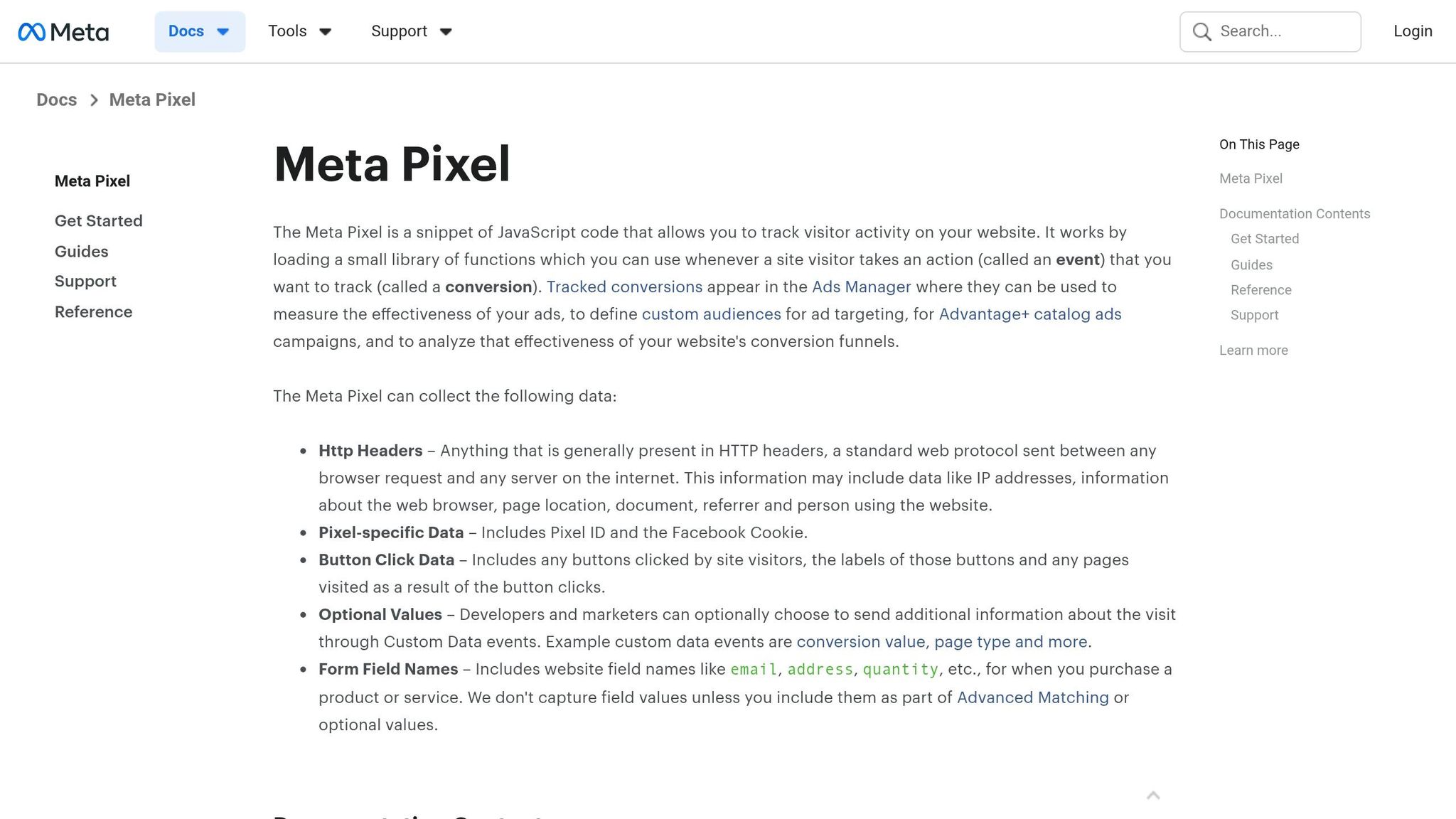

Meta Pixel vs GA4: Tracking Architecture & Key Differences
Before diving into setup, it’s crucial to understand what each tool does and how they work together.
How Meta Pixel Works
Meta Pixel is a small JavaScript snippet that activates in a user’s browser whenever they visit your site. It tracks specific actions - like page views, adding items to a cart, or completing a purchase - and links them back to your Meta ads. This data feeds into Meta’s ad delivery system, helping it identify users more likely to convert. It also allows you to create retargeting audiences based on past site visitors.
One major challenge with Meta Pixel is browser-based signal loss. Features like Apple’s Intelligent Tracking Prevention (ITP) and App Tracking Transparency (ATT) can block the Pixel from recording conversions. To address this, Meta suggests using the Conversions API (CAPI) alongside the Pixel. CAPI works server-side, sending event data directly from your server to Meta. For a detailed walkthrough, see our Meta Conversions API Setup Guide. By bypassing browser restrictions, it ensures more reliable tracking. When both Pixel and CAPI are active, Meta matches events using an event_id to avoid double-counting conversions.
GA4: Event-Based Measurement
Google Analytics 4 (GA4) takes an event-based approach to tracking. Every user interaction - whether it’s a page view, a scroll, a button click, or a purchase - is treated as an event. This approach provides a detailed view of user behavior across sessions and devices.
Unlike Meta Pixel, GA4 isn’t tied to a specific platform. It tracks traffic from various sources, including organic search, email campaigns, paid social ads, and direct visits, all in one place. This makes it ideal for understanding the entire customer journey - not just what happens after someone clicks on a Meta ad. Additionally, GA4 offers insights into post-click behaviors like session duration, bounce rate, and exit pages, which Meta Ads Manager doesn’t provide.
Meta Pixel vs. GA4: Side-by-Side Comparison
Meta Pixel and GA4 serve different purposes but complement each other to provide a complete picture of performance. Meta Pixel answers the question, “Did my ad lead to a conversion?” while GA4 focuses on, “What did users do after arriving, and where did they come from?” A 10% to 15% discrepancy between the two platforms is typical due to their differing attribution models. However, if the gap exceeds 40%, it’s worth investigating issues like broken UTM parameters or misconfigured settings.
Feature | Meta Pixel | Google Analytics 4 (GA4) |
|---|---|---|
Core Purpose | Ad attribution, retargeting, Meta optimization | Cross-channel behavior and journey analysis |
Tracking Method | Browser-side (+ server-side via CAPI) | Browser-side (+ server-side via sGTM) |
Attribution Model | Self-attributing (7-day click, 1-day view default) | Neutral (data-driven or last non-direct click) |
Event Structure | Standard Events & Custom Conversions | Recommended Events & Key Events |
Reporting Focus | Conversions attributed to Meta ads | Total site performance across all sources |
View-Through Tracking | Yes | Generally no |
With these tools’ unique strengths clarified, the next step is to ensure you meet the necessary prerequisites for setting up custom tracking.
What You Need Before Getting Started
Before diving into implementation, it's crucial to get your accounts and plans in order. This helps you avoid unnecessary troubleshooting later. Take a moment to review your current tracking setup to ensure there are no conflicts.
Required Accounts and Tools
Missing any of the following can delay your progress, so make sure you have access to these tools and accounts:
Required Tool / Account | Minimum Access Level | Purpose |
|---|---|---|
Admin or Advertiser | Manage datasets, Aggregated Event Measurement (AEM), and partner integrations | |
Google Analytics 4 | Editor | Authorize data sharing and import cost data |
Google Tag Manager | Admin | Deploy web and server-side tracking tags |
Verified Domain | Owner | Required for Aggregated Event Measurement (AEM) |
Cloud Hosting | User / Owner | Hosts GTM server containers |
One critical step: your domain must be verified in Meta Business Manager. This is necessary to enable Aggregated Event Measurement, which allows you to prioritize conversion events. Without this, Meta won't be able to effectively optimize your ad delivery. Once your accounts are ready, it's time to establish a unified strategy for event naming.
Planning Event Names and Parameters
After ensuring all accounts and tools are set up, focus on aligning your event naming strategy. Consistency is key. If Meta Pixel and GA4 use different names or values for the same actions, it can lead to headaches when trying to reconcile data.
To avoid this, create a centralized data layer that follows the GA4 schema. This ensures both platforms pull identical event data.
"When both GA4 and Meta Pixel consume identical data from the same source (your data layer), they receive the same conversion values, revenue figures, and user interactions." - Digital MicroEnterprise
For example, a purchase event should trigger once in the data layer, containing a single value and currency field. Both GA4 and Meta should read this same event object. Keep in mind, a 15%–25% discrepancy between platforms is normal due to varying attribution models. However, if the gap exceeds 40%, it’s likely a technical issue.
With your accounts ready and event names standardized, you can move forward with configuring custom conversion tracking.
How to Set Up Custom Conversion Tracking
Once your accounts are ready and event names are defined, it’s time to configure tracking. This involves two steps: setting up events in Meta Events Manager and replicating those events in GA4. These systems need to track conversions in the same way for accurate reporting.
Setting Up Custom Events in Meta Pixel
Meta provides two ways to track custom conversions: code-based custom events and rule-based custom conversions.
For code-based events, ensure the Meta Pixel base code is already installed in the <head> section of your site. Then, you can trigger a custom event using a script when a specific action occurs, such as a button click or completing a multi-step form. Here’s an example:
Place this code in your site’s HTML at the point where the event happens.
For rule-based custom conversions, there’s no need to add code. Instead, you’ll define the rules directly in the Events Manager. Here’s how:
Open Events Manager, navigate to Custom Conversions, and click Create Custom Conversion.
Select your Pixel as the data source, pick a base event, and define your rule.
Use "URL contains" instead of "URL equals" when setting rules. This approach avoids issues with dynamic query parameters or trailing slashes.
Assign a category, optionally add a conversion value, and save.
Once your custom events are set up in Meta, the next step is to replicate them in GA4.
Configuring Matching Events in GA4
To align Meta and GA4, use GA4-standard event names like purchase, generate_lead, or add_to_cart. These names are already recognized by Meta, ensuring smoother integration.
After verifying that events are firing correctly, mark the most important ones as Key Events in GA4:
Go to Admin > Data Display > Events.
Locate the event and toggle it as a Key Event. This makes it visible in Meta Events Manager for mapping.
It’s also crucial to align event parameters between Meta and GA4. Here’s a quick reference table:
Meta Parameter | GA4 Field Name | Purpose |
|---|---|---|
|
| Tracks revenue for return-on-ad-spend (ROAS) calculations |
|
| Ensures financial reporting accuracy |
|
| Prevents duplicate event tracking |
|
| Identifies specific products viewed or purchased |
If parameters don’t match, tracking discrepancies can occur. Maintain a one-to-one mapping between GA4 Key Events and Meta standard events. Combining multiple GA4 events into one Meta event can cause attribution issues and make optimization harder.
Once the integration is set up, give Meta 2 to 7 days (or sometimes up to 14) to validate the connection. After this period, you should see a "High" quality status in Events Manager.
Choosing a Tracking Architecture
Once your custom events are ready, picking the right tracking architecture is crucial to keeping your data consistent and making maintenance straightforward.
The way you set up Meta Pixel and GA4 is just as important as deciding what to track. A well-thought-out architecture ensures stable tracking, reduces developer workload, and keeps your data aligned across platforms.
Direct Meta Pixel Implementation
This method involves adding the Meta Pixel base code and event snippets directly into your website's HTML. It’s the quickest way to get started since no extra tools are required. However, making changes or adding new events means diving back into the codebase, which can lead to errors or broken tracking during updates. While this approach works for quick tests, it can become cumbersome during larger redesigns or long-term usage.
Using Google Tag Manager
By installing the GTM container snippet, marketers can manage and update Meta Pixel events directly through GTM's interface, cutting down the need for developer involvement with every small change. To ensure better security and performance, use the vetted Facebook Pixel template from the Community Template Gallery instead of a custom HTML tag. You can also simplify updates by storing your Meta Pixel ID in a Constant Variable within GTM, allowing you to apply changes across all tags effortlessly. GTM’s Preview Mode and Tag Assistant tools are invaluable for testing events before they go live, ensuring everything works as expected.
Data-Layer-Driven Tracking
A data layer is a JavaScript object embedded on your site that organizes event data - like product IDs, order totals, and user actions - in a structured way. This setup acts as a central hub, ensuring that both GA4 and Meta Pixel receive identical data for the same user actions.
"The data layer decouples your tracking logic from your website's visual presentation. Marketing and development teams can redesign pages... without touching (or breaking) your measurement infrastructure." - Digital MicroEnterprise
While setting up a data layer requires some initial developer effort, it simplifies future updates significantly. Adding new Meta Pixel events becomes a straightforward mapping task in GTM instead of a full coding project. This makes it an ideal choice for scaling, especially for e-commerce sites that need to maintain consistent revenue and product data across platforms.
Feature | Direct Implementation | Google Tag Manager | Data-Layer-Driven |
|---|---|---|---|
Ease of Setup | High | Moderate | Low (requires dev work) |
Maintenance | Difficult (fragile) | Easy (centralized) | Very easy (stable) |
Data Consistency | Low | Moderate | High |
Dev Dependency | High (every change) | Low (after setup) | Low (after setup) |
Best For | Small sites / testing | Marketing teams | E-commerce / scale |
For teams running active Meta campaigns, the best approach is often a combination of GTM and a data layer. This setup empowers marketing teams to operate independently, minimizes tracking disruptions during site updates, and ensures GA4 and Meta Pixel are working with the same data.
Testing and Troubleshooting Your Tracking Setup
After setting up your tracking, it's crucial to test everything thoroughly. A faulty setup might not show obvious errors but could silently report incorrect data - and that can lead to major problems down the line.
"Optimization on bad data is worse than no optimization." - Dror Aharon, CEO, COREPPC
Testing in Meta Events Manager and GA4 DebugView
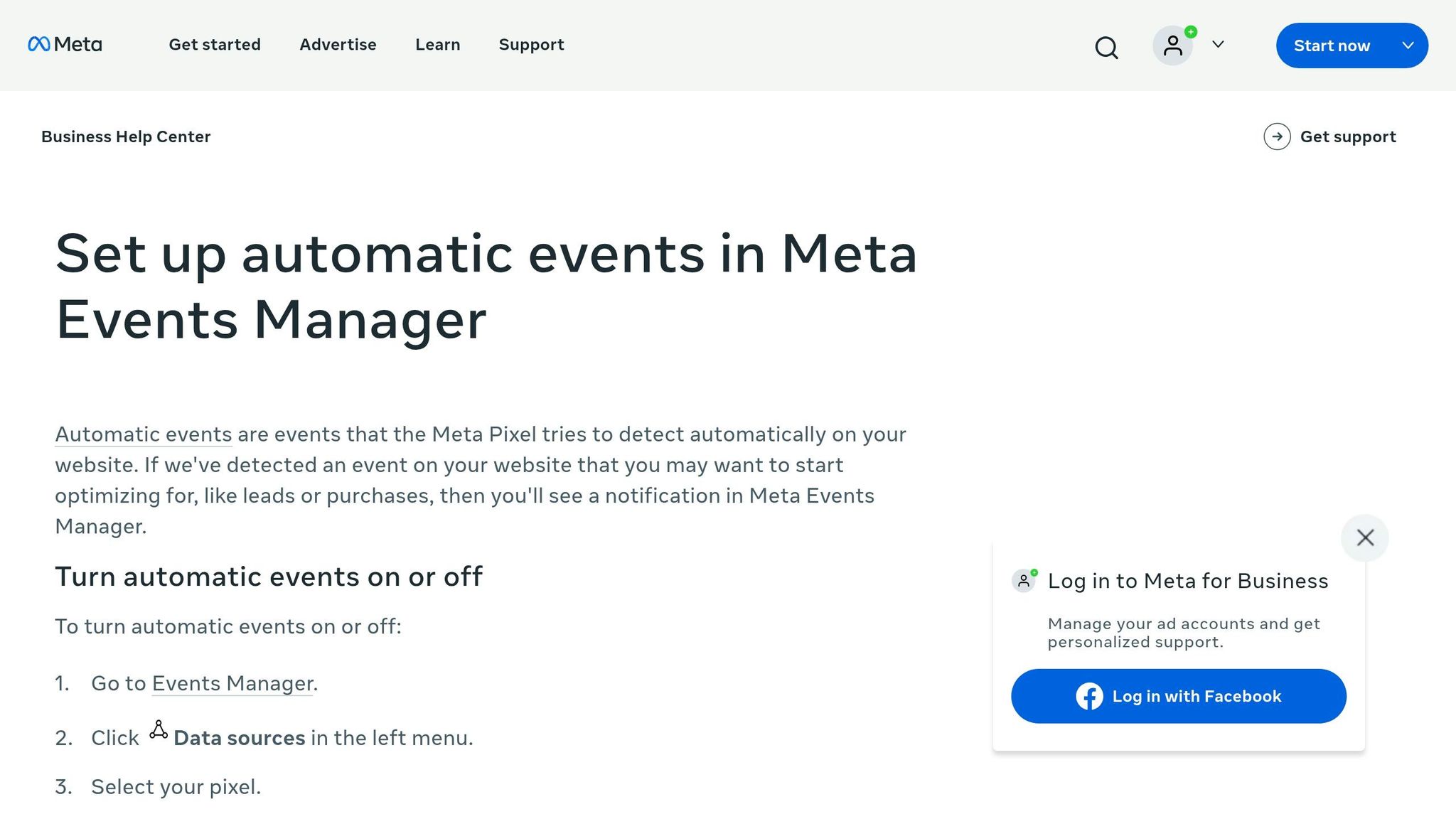
To ensure your setup works as intended, use Meta Events Manager's Test Events tool and GA4 DebugView.
In Meta Events Manager, go to the Test Events tab and open your site using the provided test URL. Perform actions like adding items to the cart, starting checkout, or completing a purchase. If events appear in real time, it confirms that both browser-side pixel tracking and server-side Conversions API (CAPI) events are working. This includes verifying that deduplication between the two is functioning. Regularly check the Diagnostics tab for alerts about inactive pixels, missing parameters, or low match quality scores. The Connection Quality Indicator (rated Low to High) provides a snapshot of your Meta integration's overall health.
If you're using GTM, always run Preview Mode before publishing changes. This lets you see which tags fired, what triggered them, and what data variables were passed. Make sure your data layer includes the ecommerce.items array and all necessary monetary parameters before building tags.
For GA4, open the DebugView panel under Admin and enable debug mode using GTM or the GA4 DebugView Chrome extension. As you navigate your site, watch for real-time event tracking. Ensure that critical parameters like value, currency, and transaction_id are present on every purchase event. Missing any of these can disrupt revenue reporting and cause mismatches with Meta data.
If you encounter issues, check the common problems and their solutions below.
Common Issues and Fixes
A difference of 15% to 25% between Meta and GA4 conversion numbers is typical due to variations in attribution models and measurement windows. However, a gap of 40% or more usually signals a problem.
Common Issue | Likely Cause | Fix |
|---|---|---|
Events firing twice | Pixel is installed both via GTM and hardcoded in the page HTML | Remove the hardcoded pixel snippet and manage all tracking through GTM |
Missing | Data layer isn't passing the e-commerce object correctly | Use GTM Preview Mode to inspect the data layer and ensure |
Purchase event not appearing in Meta | CAPI and browser pixel are sending duplicate events without proper deduplication | Assign a consistent |
Low match quality score in Meta | Missing customer data (email, phone) in event payload | Pass hashed customer data (SHA-256) along with purchase events to improve match quality |
Events visible in GTM Preview but not in GA4 DebugView | GA4 Measurement ID is incorrectly configured in the GTM tag | Verify the Measurement ID in your GA4 Configuration tag and ensure debug mode is active |
After making updates, test events using the Meta Pixel Helper extension. This tool shows event names, parameters, and any firing errors in real time, helping you catch issues before they impact live campaign data.
Scaling Meta Ad Performance with AdAmigo.ai
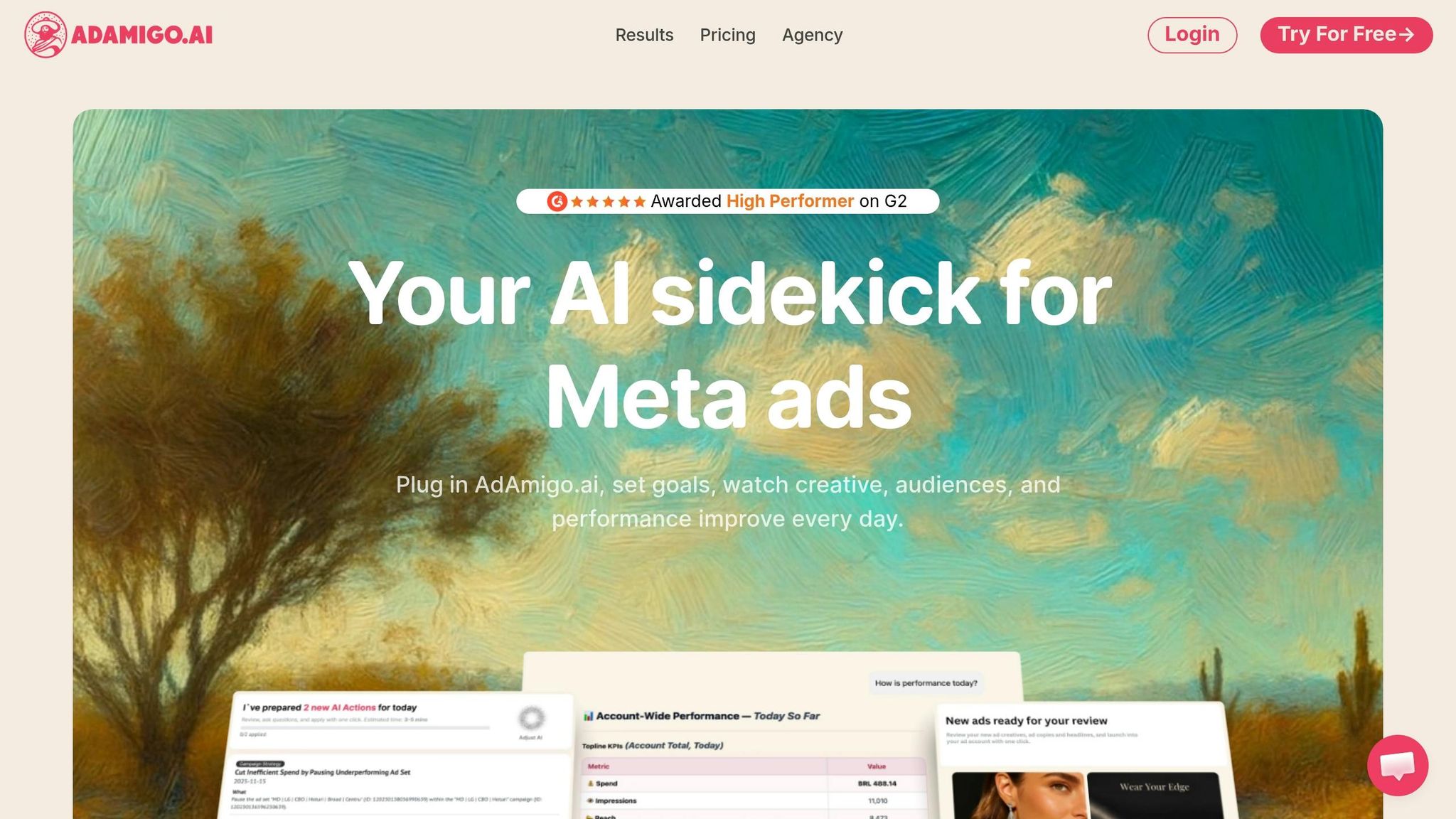
Once your tracking is accurate, the next step is scaling your ad performance. With conversion tracking locked in, the challenge shifts to making the most of that data. That’s where AdAmigo.ai comes in.
AdAmigo.ai is an autonomous AI media buyer built specifically for Meta ads. It works in real time to analyze performance data and take immediate action - scaling budgets on high-performing ad sets, pausing those that underperform, testing new creative ideas, and adjusting bids. And the best part? You don’t even need to log into Ads Manager. The platform boasts impressive results, such as up to a 30% boost in performance within the first month and, in some cases, an 83% ROAS increase after the AI starts refining campaigns.
What sets AdAmigo.ai apart is how its four main tools work as a cohesive system rather than standalone features. This integration ensures your campaigns are continuously optimized without any gaps.
Feature | Function | Scaling Benefit |
|---|---|---|
AI Autopilot | Optimizes budgets, bids, and audiences 24/7 | Automatically scales high-performers and eliminates underperformers based on your KPIs |
AI Chat Agent | Provides conversational campaign management | Ask questions like "Why did ROAS drop?" and get both answers and actionable fixes |
Bulk Ad Launcher | Launches hundreds of ads from a Google Drive brief | Speeds up creative testing to quickly identify top-performing ads |
AdAmigo Protect | Monitors for anomalies and delivery issues | Prevents budget losses by catching tracking errors or misconfigurations early |
This smooth transition from accurate tracking to intelligent scaling forms the backbone of a well-optimized Meta ad strategy. The AI Chat Agent, for example, eliminates the need for manual data analysis by allowing you to ask performance questions directly - and get both insights and fixes in one step. Built with agencies in mind, AdAmigo.ai empowers a single media buyer to handle 3–5× more accounts by automating repetitive tasks.
The platform’s Meta ads automation can be tailored to your comfort level. You can set it to require approval before making changes or switch to autopilot mode once you trust how it operates. And with every action explained in plain language, you’ll always know exactly what’s happening and why.
Conclusion: Key Takeaways for Custom Conversion Tracking
Custom conversion tracking with Meta Pixel and GA4 thrives on precision and regular updates. Using a well-structured data layer that feeds identical information to both platforms helps eliminate discrepancies and ensures consistent insights.
Here are the essentials to remember: consistent event naming is key. For example, mapping GA4 events like purchase and generate_lead to their Meta equivalents ensures both platforms track the same actions. Parameters like transaction_id (Meta's order_id) enable deduplication, while value and currency ensure accurate ROAS calculations. A unified data layer and well-aligned event mapping remain critical, especially as tracking evolves.
Staying adaptable is just as important. For instance, Meta's recent policy update - flagging sensitive custom conversions starting September 2, 2025 - underscores the need for ongoing adjustments. The growing shift toward server-side tracking, like the Conversions API, also highlights the direction the industry is heading.
Why does this matter? Accurate tracking fuels better ad optimization and stronger ROAS. Meta's algorithm performs best when fed reliable conversion data, and tools like AdAmigo.ai can automatically act on that data, scaling successful campaigns and cutting underperformers.
To keep your tracking setup effective, update it whenever your site changes, policies shift, or during quarterly audits. This ensures your data remains accurate and your Meta ads continue to perform at their peak.
FAQs
Why don’t Meta Pixel and GA4 conversion totals match?
Differences in conversion totals between Meta Pixel and GA4 arise from their distinct approaches to attribution, time zones, and data collection methods. GA4 relies on data-driven attribution, while Meta often uses a 7-day click and 1-day view model.
Other variations can stem from tracking challenges, such as missing transaction IDs or ad blockers interfering with Pixel data. Rather than trying to match the totals exactly, it's more effective to focus on understanding and reconciling these differences to ensure a more accurate analysis.
Do I need the Conversions API (CAPI) if I already have the Meta Pixel?
Yes, you still need the Conversions API (CAPI) even if you're already using the Meta Pixel. The Meta Pixel works on the browser side, tracking user actions. However, it can run into issues with ad blockers and privacy tools, which limit its effectiveness.
CAPI solves this problem by using a server-to-server connection, allowing it to bypass these restrictions and provide more accurate data. Combining both tools is the standard approach. Just make sure to configure deduplication properly to prevent any double-counting of events.
For an added boost, tools like AdAmigo.ai can help you optimize performance while working with these tracking systems.
What’s the best way to prevent duplicate purchase tracking?
To prevent duplicate purchase tracking when using tools like Meta Pixel and the Conversions API, you should set up deduplication by including a unique event_id with each event. For Google Analytics 4 (GA4), connect your GA4 property to the Meta Pixel. This helps merge identical events and avoids inflated metrics. Also, ensure you map a unique transaction_id to the order_id field for clarity. Platforms like AdAmigo.ai can simplify these setups, ensuring precise tracking and reporting.