
Meta Ad Account Linking: Permissions Explained
Clear guide to business vs. asset roles, required admin permissions, common linking errors, and best practices for Meta ad accounts.
To link a Meta ad account successfully, permissions are key. You need the right roles at both the business and asset levels. Here's what you should know:
Business Roles: Determine who manages the overall business entity. Admins have full control; users with partial access can only manage assigned assets.
Asset Roles: Apply to specific assets like ad accounts. Admins can manage everything, Advertisers can run campaigns, and Analysts have view-only access.
Linking Requirements: To link an ad account, you need full control at the business level and admin access to the ad account.
Common Issues & Fixes:
"Insufficient Permissions" errors occur when the user lacks admin access, which is one of the common mistakes in Meta ad testing and setup.
Ad accounts can only belong to one Business Portfolio at a time.
Two-factor authentication (2FA) is mandatory for admins.
Best Practices:
Limit full control to a few trusted users.
Regularly audit permissions and remove inactive users.
Use temporary access for short-term roles and ensure proper offboarding.
How to Give Access to Meta Ads Manager (Step-by-Step)
Once you understand the differences between permissions and admin roles and have access, you can begin to automate your Meta ad campaigns to streamline management and improve performance.
Meta Roles and Permissions Explained
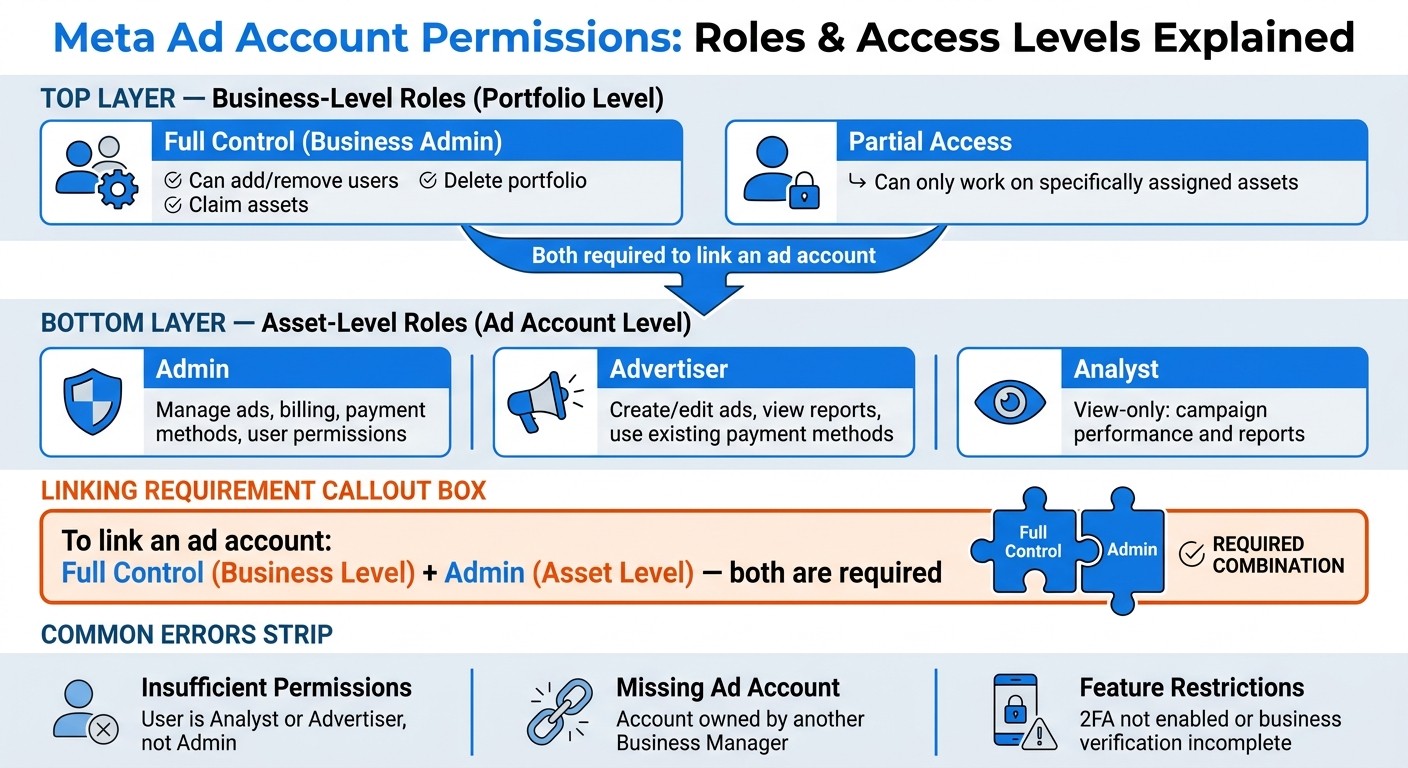
Meta Ad Account Permissions: Roles & Access Levels Explained
Meta's permission system has two distinct layers, and mixing them up often leads to linking errors. Knowing how these layers work together—and following Business Manager setup best practices—can save you a lot of headaches.
Business Roles vs. Asset Roles
Business roles function at the portfolio level. They determine who can manage the overall business entity. For instance:
A Business Admin (Full Control) can add or remove users, claim assets, and even delete the entire portfolio.
A user with Partial Access can only work on specific assets they've been assigned. They won’t have access to the broader business settings.
Asset roles, on the other hand, are more specific. They apply to individual assets like ad accounts, Pages, or Pixels. Someone can hold an asset role without having any authority at the business level. For ad accounts, the roles break down as follows:
Role | What They Can Do |
|---|---|
Admin | Manage ads, billing, payment methods, and user permissions |
Advertiser | Create and edit ads, view reports, and use existing payment methods |
Analyst | View-only access to campaign performance and reports |
"Ownership belongs to the Business Manager who created the ad account. Access refers to who can use it - individuals or partner businesses. Permissions define what level of control each person or partner has." - AGrowth.io
Permissions Needed to Link an Ad Account
To link an ad account, a user must have both Full Control at the business level and Admin access to the ad account. One without the other won’t work.
This is a common stumbling block. For example, a media buyer with an Advertiser role can manage campaigns but can’t link the account to a third-party tool (see our guide to connecting third-party tools) or move it into a Business Portfolio. Similarly, Analysts - whose access is read-only - can’t perform linking actions. If you encounter an "Insufficient permissions" error, check the user’s Admin access in the ad account’s People tab within Business Manager.
Keep in mind: an ad account can only belong to one Business Portfolio at a time. If the account is tied to another portfolio, you’ll need to remove it from there before linking it elsewhere. Understanding these role distinctions is key to navigating common ad account linking scenarios effectively.
Common Ad Account Linking Scenarios
Understanding how to link ad accounts effectively can save time and minimize headaches. Below, we’ll dive into some common scenarios and their key considerations.
Adding a Personal Ad Account to Business Manager
When you add a personal ad account to Business Manager, you're doing more than just sharing access - you're transferring ownership. Once added, the account becomes part of the Business Manager permanently and cannot be linked to another portfolio.
To initiate this process, you’ll need Full Control of the Business Manager and either ownership of the personal ad account or Admin access to it. Here’s how to do it:
Go to Business Settings > Accounts > Ad Accounts.
Click Add and select "Add an Ad Account."
Enter the Ad Account ID and assign permissions.
Before starting, ensure you have the Ad Account ID handy and activate two-factor authentication (2FA) for all admins. Meta may restrict advertising or remove payment methods if 2FA isn’t enabled.
Giving Access to a Partner or Agency
When working with external partners or agencies, it’s best to add them as Partners using their Business Portfolio ID instead of granting access to individual employees. This approach keeps your business in control of the asset while providing the agency with the necessary access.
"External agencies are added as partners, not as owners." - ALM Corp
Access should be granted thoughtfully, as shown in the table below. For short-term engagements, Meta offers Temporary Access for durations ranging from 3 to 75 days.
Role | Recommended Access Level |
|---|---|
Agency Partner | Partner access to assigned assets only |
Media Manager | Partial access to ad account, pixel, and reporting |
Freelancer / Contractor | Temporary partial access (3–75 days) |
Finance Team | Finance access / billing-related visibility only |
To enhance security, include an offboarding process in your agency contracts. Removing access at the end of a partnership reduces risks, and conducting quarterly audits can help identify any dormant connections.
Connecting an Instagram Account to an Ad Account
Connecting an Instagram account to an ad account requires Admin access for both the ad account and the Business Manager that owns it. This connection is managed through Business Manager, where you add the Instagram account as an asset, ensuring permissions are aligned across both platforms.
Sometimes, agency Partner permissions might not be sufficient for this integration. In such cases, the account owner may need to handle the connection to enable all required settings. If you run into an "Insufficient permissions" error, double-check that you’re logged into the correct Facebook profile and that the account is associated with the correct Business Manager.
Fixing Common Permission Problems
Building on the roles and permissions discussed earlier, this section dives into common errors and how to resolve them. Most permission issues stem from a handful of typical scenarios. Knowing where to look can save you a lot of time and frustration.
How to Diagnose Permission Errors
Start by navigating to Business Settings > Accounts > Ad Accounts, then select the account in question and head over to the People tab. If your name isn’t listed there, it means you haven’t been granted access to that specific asset - even if you have full Business Manager access. If your name does appear, double-check that the "Manage Ad Account" toggle is switched on.
Here’s a quick guide to some common permission errors and their solutions:
Permission Error | Likely Cause | Fix |
|---|---|---|
Insufficient Permissions | User is assigned an Analyst or Advertiser role instead of Admin. | Request an Admin to upgrade your role in Business Settings > Ad Accounts > People. |
Missing Ad Account | Account ownership lies with another Business Manager, or access is pending. | Go to Business Settings > Requests > Received or confirm ownership in Ad Account Settings. |
Feature Restrictions | Two-factor authentication (2FA) isn’t activated, or business verification is incomplete. | Check the Security Center and Account Quality to verify your 2FA and business status. |
If these steps don’t fix the issue, review your asset-level settings for inconsistencies. For login problems or "No Account Access" errors, try opening an incognito window to confirm you’re using the right business account.
Aligning Permissions Across Assets
One common issue when linking assets is mismatched setups. Your Facebook Page, Instagram account, and ad account all need to exist within the same Business Manager. If they’re managed under separate portfolios, connections can fail.
Also, remember that permissions need to be assigned at the asset level. Even if you have full access to the Business Manager, you could still be locked out of an individual ad account or pixel if you haven’t been specifically added to it via the People tab.
When setting up a new third-party tool, choose the option to "Opt in to all current and future Pages/Businesses." This ensures new assets are automatically included, helping to avoid permission conflicts down the road. After that, review your permission management practices to minimize future problems.
Best Practices for Managing Permissions
How to Delegate Access Safely
When managing permissions, the golden rule is straightforward: grant access strictly based on what someone needs to perform their role - no more, no less.
Role | Recommended Access Level | Essential Controls |
|---|---|---|
Internal Executive | Full Control | Manage settings, people, and assets |
Paid Media Manager | Partial Access | Create and manage ads; view performance |
Agency Partner | Partner Access | Work on assigned assets only; manage their team |
Finance/Accounting | Finance Access | View or manage billing and invoices only |
External Consultant | Analyst | View-only; ideal for short-term audits |
For agency partners, using their Business Portfolio ID simplifies the process of assigning access. This approach also makes offboarding and audits more efficient. Aim to have 2–3 internal admins with Full Control, ensuring you’re not locked out if one admin’s account is compromised or they leave the company. Implementing strong password security is equally vital to prevent unauthorized access. For short-term roles like consultants or auditors, take advantage of Meta's temporary access feature, which allows you to set access to expire after 3 to 75 days.
Two key habits can help maintain secure permissions over time:
Quarterly Access Audits: Regularly review permissions to remove inactive users, revoke access for former employees, and ensure no one has unnecessary Full Control.
Offboarding Procedures: Include access removal in your offboarding checklist so permissions are revoked the same day someone leaves the organization.
Next, let’s look at how tools like AdAmigo.ai can help automate and safeguard these processes.
Using Automation Tools Like AdAmigo.ai
When connecting third-party tools to your Meta ad account, always remember: the user authorizing the connection must have Admin (Full Control) rights for the ad account being linked. If the user has a lower-level role, like Advertiser or Analyst, the connection won’t work.
Take AdAmigo.ai as an example. It integrates directly through Meta's official API, adhering to Meta's permission framework and rate limits. Once connected, the tool performs ongoing audits of your ad account, spotting opportunities and making optimizations. These include adjusting budgets, scaling successful campaigns, pausing underperformers, and iterating creatives. Depending on your settings, these changes can be automated or require your approval beforehand.
After linking any tool, head to the Business Integrations section in your Facebook profile to verify the "Manage Your Business" toggle is active. Some platforms might request broader permissions because of how Meta groups access levels, so it’s worth reviewing what each integration can do. Trusted tools like AdAmigo only request the permissions they need to function effectively.
Conclusion
Key Takeaways on Permissions
Getting permissions right in Meta Business Manager isn't just a technical task - it plays a crucial role in keeping your ad account secure and running smoothly. The golden rule? Only grant the access necessary for each role.
Here are some essentials to keep in mind:
Restrict Full Control to only the most trusted users.
Store assets in a Business Portfolio to maintain ownership, even if your team changes.
Use the "Assign Partner" feature with an agency's Business Portfolio ID instead of adding individual users directly.
Make sure two-factor authentication (2FA) is enabled for everyone on your team. Without it, Meta may limit advertising access or even remove payment methods.
These steps are the foundation for secure and efficient ad account management, ensuring you're set up for success - especially when integrating automation tools like AdAmigo.ai.
Next Steps for Ad Account Optimization
Now that you know the basics, it's time to take action. Start by auditing your current permissions in Meta Business Suite under Settings > Accounts > Ad Accounts. Remove access for former employees, inactive agencies, or anyone with more permissions than they need. For consultants or short-term partners, set up temporary access (3–75 days).
A well-organized permission structure allows for seamless integration with performance tools. For instance, AdAmigo.ai connects directly through Meta's API, acting as a 24/7 AI media buyer. It audits your account, adjusts budgets, scales successful campaigns, and refines creatives - all automatically. By ensuring your permissions are clean and secure, you set the stage for tools like this to operate safely and effectively.
FAQs
Why do I have Full Control in Business Manager but still can’t link the ad account?
To link an ad account in Business Manager, having Full Control in Business Manager alone isn’t enough. Meta’s permissions framework requires that you must also have admin access directly on the ad account itself to complete the connection.
How do I move an ad account to a different Business Portfolio?
To transfer an ad account to a different Business Portfolio in Meta Business Manager, you'll need to update the ad account's ownership. This involves assigning the new Business Portfolio as the owner or administrator. To do this, adjust the permissions and roles within the Business Settings section to finalize the transfer.
What permissions are required to connect a third-party tool like AdAmigo.ai?
If you want to connect a third-party tool like AdAmigo.ai, you'll need admin-level permissions (or similar) on your ad account in Meta Business Manager. These permissions are essential because they provide the tool with the access it needs to manage and optimize your campaigns effectively.