
Set Up Event Mapping for Meta Ads and GA4
Align GA4 key events with Meta Ads conversions to fix attribution, validate tracking, and improve ROAS using Pixel/CAPI and event mapping.
Setting up event mapping between Meta Ads and GA4 helps connect ad performance data with website activity, giving you a clearer picture of conversions and user behavior. This process links Meta’s tracking (via Pixel or Conversions API) with GA4 events, aligning metrics like purchases or sign-ups across both platforms.
Key Takeaways:
Why It’s Important: Meta and GA4 often report different conversion numbers due to varying attribution models and tracking limitations. GA4 is generally more reliable for accurate conversion tracking.
What You Need:
A working Meta Pixel or Conversions API.
Properly configured GA4 property with consistent event names using a GA4 integration guide.
Admin access to both platforms for integration.
How to Do It:
Verify GA4 events using Realtime reports.
Check Meta’s Event Match Quality (EMQ) score (aim for 6.0+).
Use OAuth to connect Meta Ads with GA4 and map events like
purchaseorlead.
Troubleshooting: Address issues like mismatched event names or missing parameters (e.g.,
value,currency). Monitor EMQ scores and use GA4 Realtime reports to validate event tracking.Maintenance: Regularly update mappings for new events, monitor connection health, and validate data consistency.
By aligning events across both platforms, you can refine ad targeting, save on ad spend, and improve campaign performance.
GA4 Integration Benefits
Preparing Meta Ads and GA4 for Event Mapping
Before linking Meta Ads with GA4, it's crucial to ensure both platforms are correctly set up and working as intended.
Configure GA4 Events and Conversions
In GA4, what used to be called "Conversions" are now referred to as Key Events. To confirm that your events are being tracked properly, open your GA4 property and use the Realtime report. If you trigger an action on your site and no events appear in real-time reporting, there could be an issue with your tracking code.
Double-check that the event names in GA4 match those in your website's code. It's also important to include parameters like value and currency (e.g., currency: "USD" and value: 49.99) in your events. These parameters are essential for calculating accurate ROAS (Return on Ad Spend).
Once you've verified your GA4 events, you can move on to setting up your Meta Pixel and Conversions API.
Set Up Meta Pixel and Conversions API
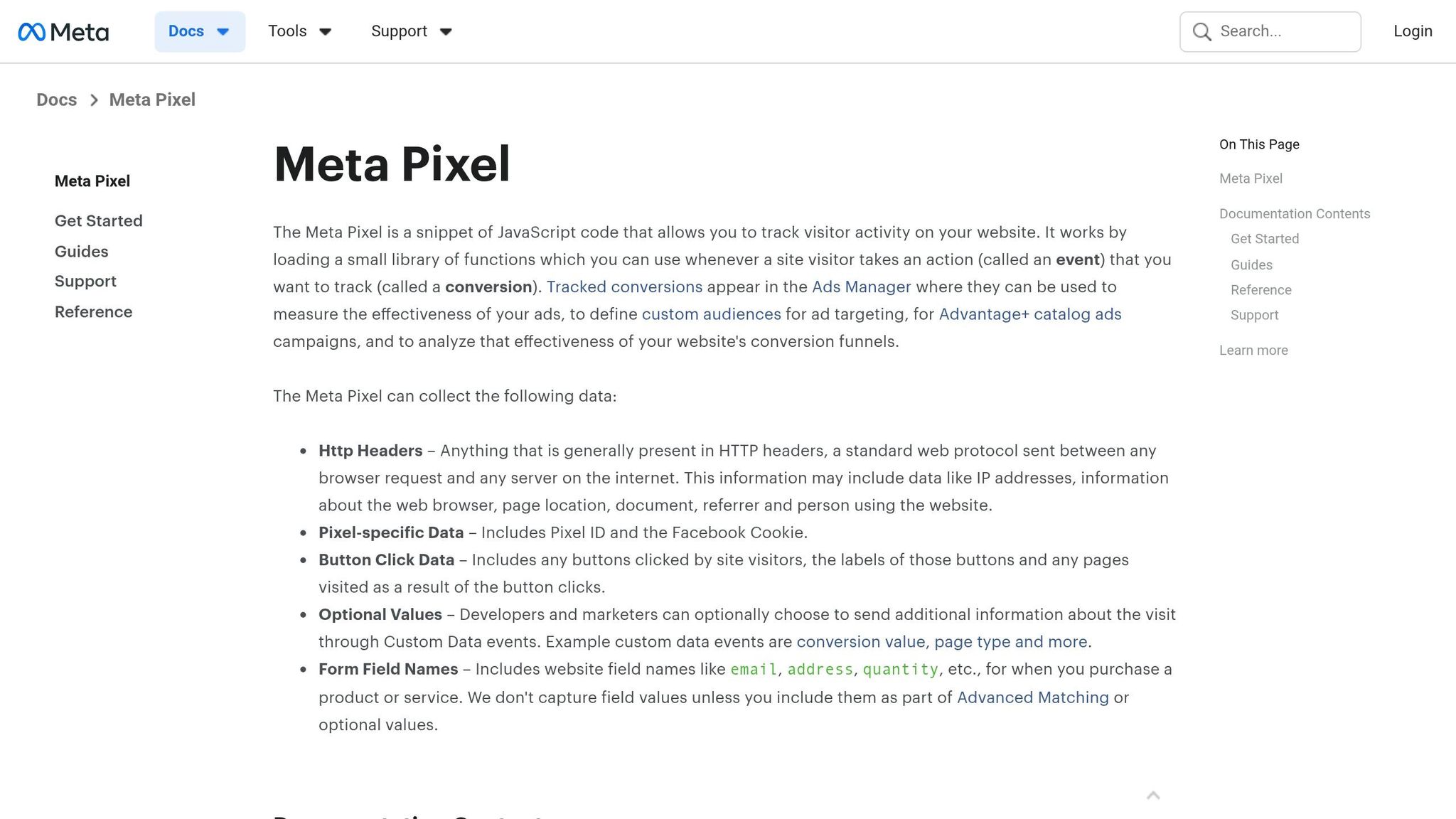
In Meta's Events Manager, check your Event Match Quality (EMQ) score. A score above 6.0 is recommended for better conversion matching accuracy. If your score is below this threshold, your data matching may be less reliable.
After confirming that Meta's tracking is functioning as expected, you’ll need to ensure that GA4 is eligible for integration within Meta Events Manager.
Check GA4 Integration Eligibility in Meta
Go to the Partner Integrations section in Meta Events Manager to verify if GA4 integration is available for your account. If it’s missing, the issue might be related to admin permissions - you must have admin access to both the Meta Business account and the GA4 property - or an inactive GA4 data stream.
Once the integration is established, run a 90-day historical data scan. This step helps calibrate the connection and highlights any gaps in event tracking. To stay proactive, set up real-time alerts so you can quickly address any integration failures.
How to Map GA4 Events to Meta Ads Conversion Events
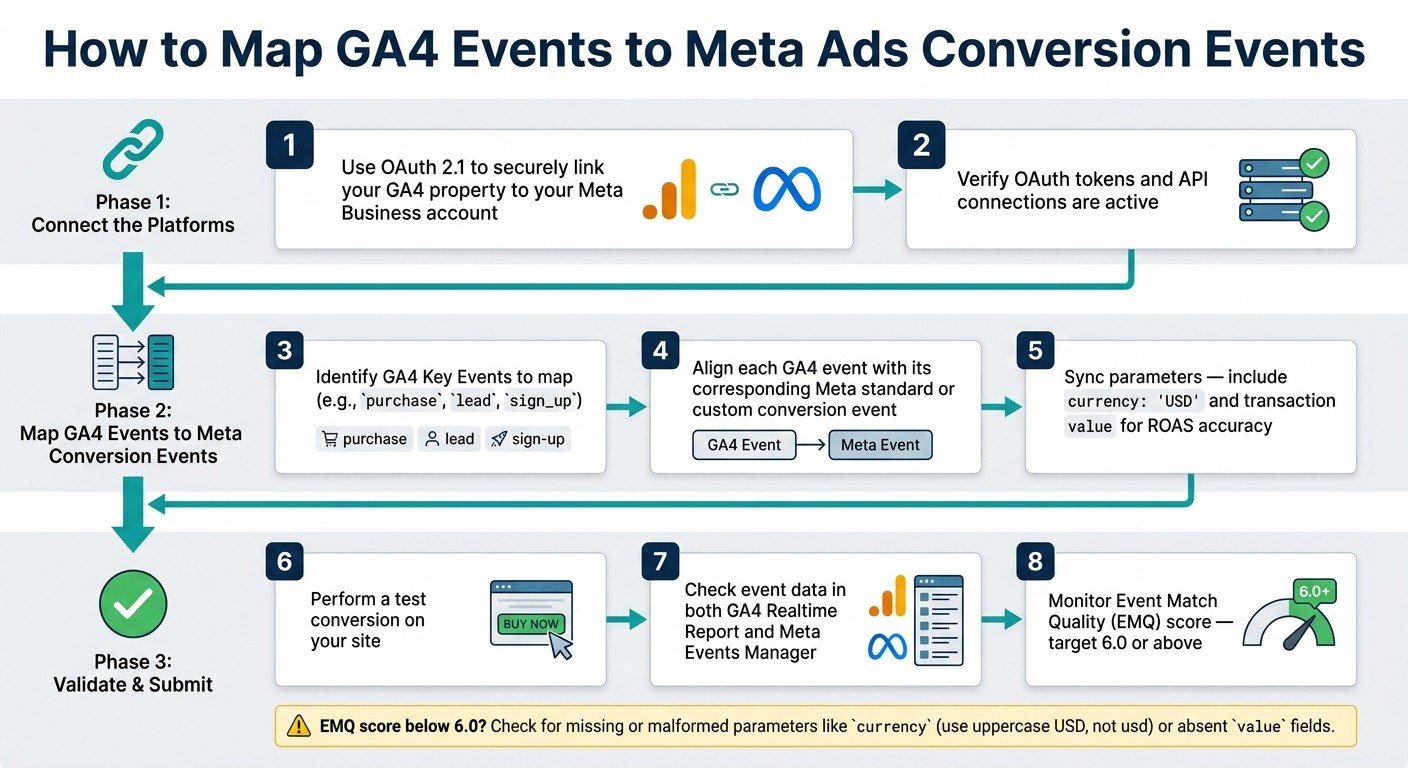
How to Map GA4 Events to Meta Ads: Step-by-Step Setup Guide
Once you've verified both platforms and confirmed your GA4 integration in Meta Events Manager, it's time to link them and start mapping events effectively.
Connect Meta Ads with GA4
The first step is to establish a connection between the two platforms. Use OAuth 2.1 to securely link your GA4 property to your Meta Business account. This process authorizes the platforms to share data securely and ensures smooth integration. Before moving forward, double-check that your OAuth tokens and API connections are active and functioning properly. Once the connection is in place, you can begin assigning GA4 events to their respective Meta conversion events.
Map GA4 Events to Meta Conversion Events
After the connection is set up, your GA4 Key Events are ready for mapping. The goal here is to align each GA4 event - like purchase, lead, or sign_up - with its corresponding Meta standard event or a custom conversion event. Pay special attention to syncing parameters like value and currency. For example, when mapping a purchase event, include details such as currency: "USD" and the transaction value. These parameters allow Meta's algorithm to calculate Return on Ad Spend (ROAS) accurately. Without them, Meta receives conversion signals but lacks the context to optimize campaigns effectively. Once you've mapped your events, test the setup to ensure everything is working as expected.
Submit and Validate Your Event Mapping
After submitting your mappings, it's time to test and validate. Perform a test conversion on your site and check the event data in both GA4 and Meta. Look for any discrepancies or significant attribution gaps. While some differences are normal - Meta uses a 7-day click attribution model, whereas GA4 relies on a data-driven approach - large, unexplained gaps might indicate a tracking issue rather than a modeling difference.
Once your mappings are live, monitor your Event Match Quality (EMQ) score in Meta's tracking health dashboard. An EMQ score below 6.0 could point to a parameter mismatch introduced during the mapping process. Keeping this score high ensures accurate data flow and better campaign performance.
Troubleshooting and Maintaining Event Mapping
After setting up your event mapping, keeping it running smoothly and resolving any hiccups is essential for accurate data tracking.
Common Event Mapping Issues and Fixes
Some frequent problems include broken tracking codes, incorrect event names, or improperly formatted parameters. For example, if an event is missing, double-check the website code and GA4 records to spot any typos.
However, not all data gaps signal a tracking issue. In the U.S., where privacy concerns are growing, and especially in Europe, 30–70% of users may reject analytics cookies. This can create data gaps that mimic tracking errors but are actually due to consent choices. Always rule out consent-related data loss before diving into troubleshooting.
If your Event Match Quality (EMQ) score falls below 6.0, it usually points to missing or malformed parameters. For instance, a currency field might be entered as usd instead of USD, or a value field might be absent in purchase events. Use Meta's Tracking Health dashboard to pinpoint and fix these formatting issues. Addressing these errors can directly improve the quality of conversion signals Meta relies on to optimize campaigns.
Once you've resolved these issues, confirm that your data remains consistent across platforms.
Checking Data Accuracy Between Platforms
When your mapping is live, don’t expect Meta and GA4 data to line up perfectly - some differences are normal because of their distinct attribution models. A good approach is to compare data from three sources: Meta’s API, GA4, and an estimated “real” figure (calculated as GA4 conversions × 1.2). This helps establish a reliable performance baseline.
Verification Method | Tool/Metric | Purpose |
|---|---|---|
Attribution comparison | Meta vs. GA4 reports | Spot attribution differences |
Real-time validation | GA4 Realtime Report | Ensure events fire correctly after setup |
Tracking health check | Event Match Quality | Assess data signal quality for Meta |
Codebase audit |
| Confirm code aligns with GA4 records |
Use GA4’s real-time reporting to confirm that events are firing properly. Additionally, audit OAuth/API connections and monitor EMQ scores regularly to ensure consistent data flow.
Once you’ve validated the data, ongoing maintenance will help you avoid future problems.
Keeping Your Event Mapping Up to Date
After troubleshooting and verifying accuracy, regular updates are essential to keep your campaigns performing well. Anytime you add a new key event in GA4, navigate to Meta Events Manager → Partner Integrations → Google Analytics → Settings, and map the event to the corresponding Meta conversion event. As Meta’s Help Center warns:
"Unmapped new events can cause issues."
Check Connection Quality weekly in the Partner Integrations tab. A “low” status often signals that a new GA4 event hasn’t been mapped yet.
Verify dataset activity every 56 days. If datasets remain unused in active ad sets for this period, they may stop working within the integration.
After any updates to your mapping, wait 2–7 days (or up to 14 days in some cases) to see if the Connection Quality status changes.
Here’s a tip that’s easy to overlook: use a shared company email (like marketing@[companyname].com) for Google Analytics authentication instead of a personal account. If the person who set up the connection leaves the company, this can prevent disruptions.
"As a best practice, use a service account or general email that's not tied to a specific person (such as marketing@[companyname].com)." – Meta Business Help Center
Using Event Mapping to Improve Campaign Performance
Once you've set up event mapping, the next step is putting that enhanced data to work to refine your campaign performance.
Using Mapped Events for Better Attribution
Mapped events can help you pinpoint which ads are truly driving results. By using a three-source measurement approach - comparing real-time data from Meta's API, GA4, and an "assumed real" figure (calculated by multiplying GA4 conversions by 1.2) - you can establish a more accurate baseline for performance.
Building on your validated event mapping, GA4's engagement signals and page-level data allow you to evaluate the quality of traffic from individual campaigns. This can also help identify "orphaned" campaigns - those where ads generate paid traffic, but the corresponding landing pages consistently fail to convert.
Once you've refined your attribution using mapped events, you can use this data to power advanced automation for your campaigns.
Automating Campaign Optimization with AdAmigo.ai
Clean, mapped conversion data doesn't just improve reporting - it also enables smarter automation. When AI systems like AdAmigo.ai use verified GA4 events instead of relying solely on Meta's self-reported conversions, they can make more accurate decisions about budgets, bids, and creative testing.
AdAmigo.ai’s AI Autopilot continuously monitors your Meta ad account, identifies opportunities for improvement, and makes adjustments. It optimizes budgets, scales successful ads, pauses underperforming ones, and even launches new creative tests. By analyzing both Meta and GA4 data together, it moves beyond simple "if/then" rules to predictive optimization, forecasting how budget changes could impact ROAS.
To get started, you can use semi-auto mode, where you manually review recommendations while the AI calibrates itself using 90 days of data. Once you're confident in its accuracy, you can switch to full Autopilot, letting the system handle everything. On average, AdAmigo users see a 28% lift in ROAS within the first month, with some accounts achieving up to an 83% increase.
Pricing Plans
AdAmigo offers flexible plans to suit different needs:
Plan | Price | Best For |
|---|---|---|
Signals | $99/month | Teams that want guided recommendations but prefer manual control |
Full Access | $349/month | Teams ready for full AI automation, including creative generation |
Agency | Custom | Agencies managing 5+ ad accounts, with options for white-labeling |
AdAmigo Protect is also included, monitoring for issues like budget spikes, broken links, or delivery problems. This ensures that as your campaigns scale through automation, any unexpected issues are flagged before they lead to wasted ad spend.
Conclusion and Key Takeaways
By following the steps and troubleshooting tips outlined earlier, event mapping between Meta Ads and GA4 can provide a clearer picture of your ad spend performance. Aligning GA4 events with Meta conversions removes the guesswork and replaces it with consistent, cross-referenced data.
When you map GA4 events to Meta Ads conversion events and regularly validate performance, you create a reliable system for campaign tracking. Since Meta and GA4 attribution models often differ, leading to discrepancies in self-reported conversions, GA4 serves as your most trustworthy baseline - especially when combined with triple-source measurement.
Routine monitoring is essential to identify and address data inconsistencies before they skew your metrics.
Getting this mapping right has tangible benefits: better budget allocation, more effective creative testing, and higher ROAS. As one advertiser shared:
"Our budgets are controlled, our spend is being smartly allocated and our ROAS is up massively." - Rochelle D., G2 Reviewer
Consistently maintaining accurate and validated data is key to optimizing your campaigns and driving better results.
FAQs
Which GA4 events should I map first?
Begin by aligning your key GA4 conversion events to ensure you're accurately tracking your campaign's performance. Pay close attention to critical actions like "purchase," "sign_up," or "lead" events, as these are directly tied to your business objectives. Take a moment to review your list of GA4 key events, prioritizing these specific conversions. Then, double-check that each event is properly set up and firing as expected. This approach allows you to effectively measure ROI, fine-tune your campaigns, and catch any discrepancies early on.
How do I fix a low Event Match Quality (EMQ) score?
To boost a low Event Match Quality (EMQ) score, focus on sending accurate and complete user data. This includes hashed emails, phone numbers, and other identifiers. Whenever possible, also include details like the Facebook Click ID (fbclid) and IP addresses.
Using tools such as data layers can help ensure that data is collected and transmitted correctly. Additionally, enable Event Enhancement to improve the quality of your event data. Always remember to comply with privacy regulations like GDPR to ensure user consent and protect data security.
Why don’t Meta and GA4 conversion numbers match?
Meta and GA4 often show different conversion numbers because they use distinct tracking systems, attribution models, and ways of processing data.
Meta relies on the Meta Pixel, which tracks user actions through cookies and browser data. On the other hand, GA4 uses its own tagging system and cookies to gather information.
These differences can be further influenced by common issues such as:
Broken tags: If tracking tags aren’t working properly, data collection can be incomplete.
GDPR consent rejection: Users declining tracking cookies can lead to missing data.
Mismatched event names: If event names don’t align between platforms, it can cause inconsistencies.
By understanding how each platform tracks and attributes conversions, you can better interpret and manage these discrepancies.