
Meta Ad Permissions vs. Admin Roles
Clear differences between admin roles and ad account permissions, plus security tips: limit admins, require 2FA, and audit access.
Managing Meta ads can be confusing if you don’t know the difference between admin roles and ad permissions. Here’s the key distinction:
Admin roles control everything at the business level (e.g., user access, billing, and settings).
Ad permissions are task-specific for ad accounts (e.g., creating campaigns, viewing reports).
Why this matters:
Mixing them up can lead to security risks, like unauthorized changes or financial losses. Meta suggests keeping admin roles limited to 2–3 trusted individuals, while ad permissions allow you to safely share ad account access to delegate tasks without exposing sensitive business controls.
Key Takeaways:
Admin roles: Full control of Business Manager, including user and billing management.
Ad permissions: Specific access to ad account tasks, like running campaigns or analyzing data.
Security tip: Require two-factor authentication (2FA) for all users and conduct regular access audits.
Quick Comparison:
Feature | Admin Roles (Business Level) | Ad Permissions (Ad Account Level) |
|---|---|---|
Scope | Full business control | Ad account tasks only |
User Management | Add/remove users, assign roles | Cannot manage users |
Billing Access | Full access | Limited or none |
Risk Level | High | Medium to low |
Understanding these differences ensures multi-account ad management and better security for your Meta accounts.
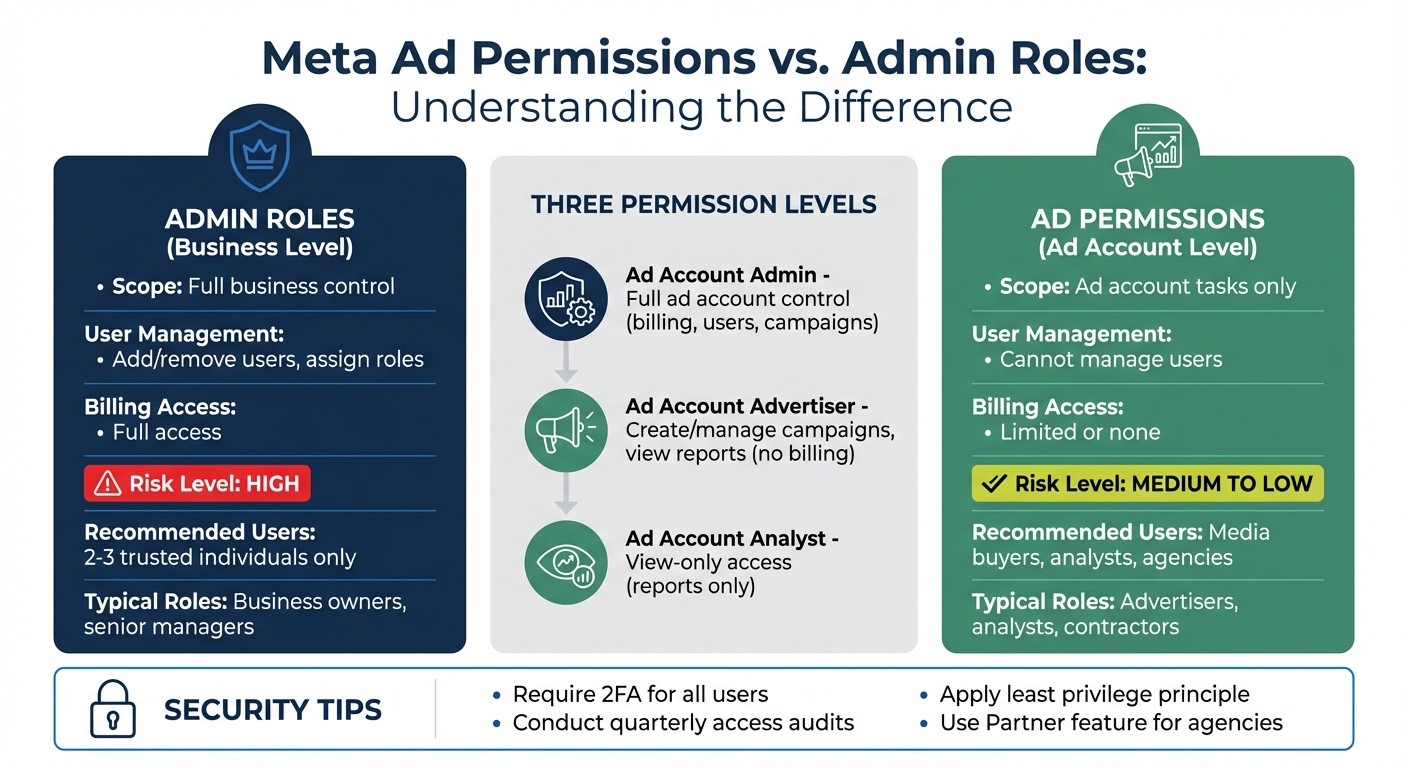
Meta Admin Roles vs Ad Permissions: Key Differences and Access Levels
How to Add Users to Meta Business Manager
Before adding users, ensure your assets are ready by following a Meta ad account setup checklist to maintain compliance.
What Are Admin Roles?
Admin roles are essential for managing your Meta business entity within Business Manager. They oversee access and control, allowing you to manage business settings, team members, and payment methods across all assets.
Unlike ad account roles and permissions, which focus on specific ad account tasks, admin roles are broader. They determine who has authority over the entire Business Manager, not just individual advertising accounts.
"Admin Access – Give this role to anyone you want to have control over everything in your Business Manager, including settings, others' roles, ad accounts, and more."
Types of Admin Roles
Meta provides two main roles at the business level: Admin Access and Employee Access.
Admin Access: This role grants complete control over Business Manager. Admins can adjust settings, manage users, and access all financial details.
Employee Access: This is the default role for most team members. Employees can only work on assets that an admin assigns to them.
"Employee Access – This will probably be where you place most of your people because they can only work on and access areas that an admin has assigned to them."
Rhodes Branding
What Admin Roles Can Do
The primary difference between Admin Access and Employee Access lies in the level of control.
Capability | Admin Access | Employee Access |
|---|---|---|
User and Partner Management | Yes | No |
Edit Business Info | Yes | No |
Create Ad Accounts | Yes | No |
Manage Payment Methods | Yes | No |
Work on Assigned Assets | Yes | Yes |
Only users with Admin Access can manage payment methods and invoicing for Business Manager. This is particularly important given upcoming Meta Ads billing changes affecting how accounts handle credit cards. However, ad account admins can handle billing for their assigned accounts. Typically, the person who creates the Facebook Business Page becomes the default owner unless permissions are adjusted or you need to fix ad account ownership issues.
Next, we’ll dive into ad permissions and how they complement these admin roles for managing Meta ad-related tasks.
What Are Ad Permissions?
Ad permissions provide specific, task-based access to individual ad accounts, unlike admin roles, which grant broader, business-level control. These permissions determine what actions a person can perform within a particular ad account, such as creating campaigns, viewing performance data, or managing billing. The key advantage? They allow you to delegate responsibilities without exposing your entire Business Manager setup.
Ad permissions are designed to limit access to only what's necessary for a user’s role. For instance, someone might have full Business Manager access but only limited permissions for a single ad account. This level of control is especially useful for media buyers, data analysts, or agencies, as it safeguards sensitive information like billing details and high-level business settings by encouraging 2FA setup for business accounts.
"Meta itself recommends assigning only the level of access people need to perform their job." - agrowth.io
Types of Ad Permissions
Meta offers three standard levels of ad permissions, each tailored to specific roles:
Ad Account Admin: This is the highest level of access, providing full control over the ad account. Users can manage campaigns, view reports, edit billing details, and add or remove other users. It’s best suited for senior media managers or account owners who need complete oversight.
Ad Account Advertiser: This level allows users to create and manage campaigns and view performance metrics, but it restricts access to billing and user management. It’s ideal for media buyers or external agencies handling day-to-day campaign tasks.
Ad Account Analyst: This is a view-only role, enabling users to monitor campaign performance and pull reports without making any changes. It’s a good fit for finance teams, executives, or analytics specialists.
Additionally, Meta’s Business Suite offers custom roles. These allow you to fine-tune access - like permitting someone to edit campaigns while blocking access to billing settings. For developers and technical teams, managing API key permissions is equally critical for maintaining security.
How to Assign Ad Permissions
To assign ad permissions, head to business.facebook.com and find the Business Settings section. From there, go to Accounts → Ad Accounts, select the specific account, and click Add People. Choose the user and assign their permission level. The user will then receive an invitation in the "Requests" tab, which they must accept to gain access.
If you’re working with an agency, use the Assign Partner feature instead of adding individual employees. Simply enter the agency’s Business ID. This allows the agency to manage its team internally while you maintain full control of the ad account. This method keeps your user list streamlined and prevents the agency from altering your access or making unauthorized billing changes.
Admin Roles vs. Ad Permissions: Key Differences
Admin roles manage business-level settings, while ad permissions are tied to specific ad functions. Essentially, admin roles operate at the Business or Page level, giving control over everything from user management to billing and asset oversight. In contrast, ad permissions are limited to ad account tasks like running campaigns and generating reports. This distinction means admin roles cover a broader scope, while ad permissions focus purely on advertising activities. Notably, having admin access to a Page doesn’t grant automatic access to the ad account, and vice versa.
Security is where the difference becomes critical. Admin roles pose a higher risk if compromised - attackers could lock out users, delete the business, or hijack billing information. For example, in 2025, a verified business lost over $11,000 in ad spend within hours after attackers bypassed two-factor authentication using stolen browser session cookies to alter billing settings. Ad permissions, on the other hand, limit the potential damage to unauthorized campaign spending or data exposure, without risking total loss of account ownership. Proactively monitoring for Meta ad account anomalies can help identify these risks before they escalate.
Meta recommends keeping the number of admins to a minimum - ideally just 2–3 trusted individuals - to reduce vulnerabilities. As Meta explains:
"People with access to your business without two-factor authentication are a security risk."
Here’s a quick comparison of the two:
Feature | Admin Roles (Business/Page Level) | Ad Permissions (Ad Account Level) |
|---|---|---|
Primary Scope | Full control of business entities, Page settings, and user hierarchy | Limited to managing ad campaigns and audiences |
User Management | Can add, remove, or change roles for any user | Cannot manage other users or adjust permissions |
Billing & Payments | Full access to edit payment methods | Advertisers can view billing details; Analysts cannot access billing |
Content Control | Can publish, edit, and delete organic posts | Restricted to ad management; no access to organic content without Page permissions |
Security Risk | High – compromises can lead to total account loss | Medium to Low – risks are limited to campaign spend or data exposure |
Typical Use Case | Business owners, senior managers, and primary account handlers | Media buyers, agencies, and analysts |
Page admins handle organic content and overall Page settings. Meanwhile, ad permissions are strictly for ad-related tasks. For example, Page admins can publish or delete posts, while ad account users can only run campaigns and manage AI vs. manual ad audiences. This separation ensures that ad account users can’t accidentally - or intentionally - alter your brand’s public-facing content.
Grasping these distinctions is crucial for assigning the right access levels and fixing Meta ad account permission errors when they arise.
When to Use Admin Roles vs. Ad Permissions
Deciding between admin roles and ad permissions depends on responsibilities, access to financial controls, and the need to mitigate security risks. Admin roles are suited for those managing billing, user access, and account settings, while ad permissions are better for team members handling advertising tasks without requiring control over sensitive account functions.
When to Use Admin Roles
Admin roles should be limited to business owners, senior managers, or individuals overseeing financial and operational aspects of the business. These roles carry the authority to manage team members, update payment methods, and oversee the account's overall structure. Following Meta ad account security best practices by restricting admin roles to essential personnel reduces the risk of unauthorized changes or account breaches.
"Ideally: 2–3 trusted admins maximum - Include one primary and one emergency fallback admin." - Meta
Typically, senior leadership assumes admin roles, given their responsibility for the business’s financial health and operational continuity. To avoid losing access, always appoint a backup admin who can step in if the primary admin is unavailable.
If a user’s responsibilities are limited to managing ad campaigns, consider assigning ad permissions instead.
When to Use Ad Permissions
Ad permissions are ideal for media buyers, analysts, contractors, or agencies tasked with campaign management and performance tracking. For team members creating and managing ads, the "Advertiser" permission is appropriate. Meanwhile, the "Analyst" permission suits financial teams, data analysts, or stakeholders who only need to review performance reports and metrics.
For external agencies, use the "Assign Partner" feature instead of adding individual employees as admins. This method allows agencies to manage their own teams while you retain full control of the ad account. If the partnership ends, you can revoke access instantly, avoiding risks tied to personal profiles or inactive logins. Meta highlights this approach as a way to centralize control and maintain security.
"Follow least-privilege access - assign only what a person needs to execute their work." - Meta
To enhance security, require two-factor authentication (2FA) for all users, especially admins, and perform quarterly access audits to remove inactive users or former employees promptly.
Best Practices for Managing Access
Keeping your Meta Business Manager secure requires a clear plan for managing access, defining permissions, and conducting routine reviews. These steps are essential to addressing the risks tied to both broad admin roles and more specific ad permissions. Two key principles form the backbone of effective access management: keeping admin roles limited and performing regular audits.
Apply the Least Privilege Principle
Always assign users the lowest level of access they need to do their job. For instance, if someone only needs to check performance reports, assign them the "Analyst" role instead of "Advertiser." If a user is responsible for creating ads but doesn’t need billing access, the "Advertiser" role will suffice. Admin roles should be reserved for just 2–3 highly trusted individuals - typically a primary owner and a backup - to reduce high-level security risks.
It’s also a good idea to manage assets through Meta Business Manager (Business Center) instead of personal profiles. This centralization ensures continuity and avoids access issues when team members leave the organization.
Don’t forget to enforce two-factor authentication (2FA) for all users, especially admins. This adds a layer of protection against unauthorized account takeovers. Additionally, monitor permissions regularly to catch any users who may have unintentionally accumulated more access than they need.
Use Tools to Automate Access Management
While manual practices are important, automation can make access management more consistent and scalable. As your team or client list grows, manually reviewing permissions becomes less practical. Automated reporting and management tools can track account structures, user permissions, and campaign activity in real time, flagging issues like unusual access patterns, expired tokens, or unauthorized changes without requiring constant manual oversight. This is particularly useful when leveraging AI tools for Meta ad account analysis to maintain security and performance.
For example, AdAmigo.ai integrates directly with Meta, offering agencies and in-house teams a centralized way to manage access across multiple accounts. Its dashboard reduces errors from switching between different Business Manager setups, while bulk management features make it easy to update roles or revoke permissions across accounts. Plus, its automated recommendations guide users through common issues like connecting Meta Ads to third-party tools, refreshing OAuth tokens or accepting updated Meta agreements, saving time and reducing headaches.
Conclusion
Admin roles oversee the entire account environment, including billing, user management, and high-level settings. In contrast, ad permissions focus on specific tasks like creating campaigns or viewing reports. Understanding the differences between roles and permissions is crucial for maintaining both security and operational efficiency.
The secret to effective access management lies in finding the right balance between control and functionality. Assigning too many Admin roles can lead to security vulnerabilities and potential lockouts. Knowing the signs your account is compromised can help you react quickly if these vulnerabilities are exploited. On the other hand, granting too few permissions can slow down workflows. Properly managing access is a key aspect of advertising security, governance, and ensuring smooth operations.
A good rule of thumb is to limit Admin roles to 2–3 individuals and provide others with only the access they need. For example, use the Analyst role for finance teams that only require reporting capabilities, and the Advertiser role for media buyers who don’t need billing access. Reserve Admin roles for senior governance. When collaborating with agencies, use the Partner feature in Business Settings instead of adding individual employees. This approach helps you retain ownership and control.
To strengthen your setup further, conduct regular audits and leverage automated tools. Require two-factor authentication for all users, and centralize account management through Meta Business Manager. If you encounter hurdles during this process, troubleshooting your account setup can resolve common access and restriction issues. For teams handling multiple accounts or clients, tools like AdAmigo.ai can simplify permission tracking, flag access issues in real time, and reduce the hassle of switching between Business Manager setups. This allows you to focus more on strategy rather than administrative tasks.
Striking the right balance between control and efficiency forms the backbone of secure and agile Meta ad management. Effective access management doesn’t just prevent problems - it empowers your team to scale securely and confidently.
FAQs
Do I need Business Manager admin access to run ads?
No, you don’t need to have Business Manager admin access to run ads on Meta. Other roles, such as Advertiser or Analyst, can manage campaigns as long as they have the appropriate permissions. While admin access provides the highest level of control, assigning the correct role within Business Manager is sufficient to handle ad management effectively.
What’s the safest access to give a freelancer or agency?
The safest way to manage access is by assigning roles that provide just enough permissions for specific tasks while minimizing potential risks. Meta suggests using roles such as Advertiser or Analyst in Business Manager. These roles restrict access to sensitive areas like billing and major account changes. Reserve the Admin role for trusted partners only, as it gives complete control over the account. To maintain security, make it a habit to regularly review permissions and avoid granting full ownership unless it’s absolutely required.
How often should I audit users and permissions?
Regularly reviewing users and their permissions is crucial, especially after team changes, role adjustments, or potential security issues. This practice ensures that access rights stay up-to-date, helping to prevent unauthorized actions. Keeping permissions aligned with current roles is key to maintaining both security and compliance.