
How to check if your Meta ad account must stop using credit cards (where the notice appears)
Find billing banners in Meta Business Suite's Billing & Payments or Credit lines tab, check permissions, and apply for monthly invoicing before April 1, 2026.
If Meta requires you to stop using credit cards for ads, you’ll see a banner in the Billing & payments section of Meta Business Suite. This change must be made by April 1, 2026, or your ad account will be disabled, and campaigns will pause. You can use a Meta Ads Budget Calculator to re-evaluate your spend during this transition. Notices often appear as red or yellow banners with messages like "Action required" or "Apply for monthly invoicing."
Here’s what to do:
Where to Check: Go to business.facebook.com, log in, and navigate to Settings > Billing & payments. Look for banners on this page or under the Credit lines tab.
What to Look For: Notifications may include prompts to switch to monthly invoicing or direct debit. If eligible, you’ll see an Apply button.
Permissions Matter: Only users with admin or finance permissions can view and update billing settings. Check your role in Business settings > Users > People if you can’t access notices.
Act promptly to avoid disruptions. If you don’t see any notice, your account might not be affected yet, or you may lack the required permissions.
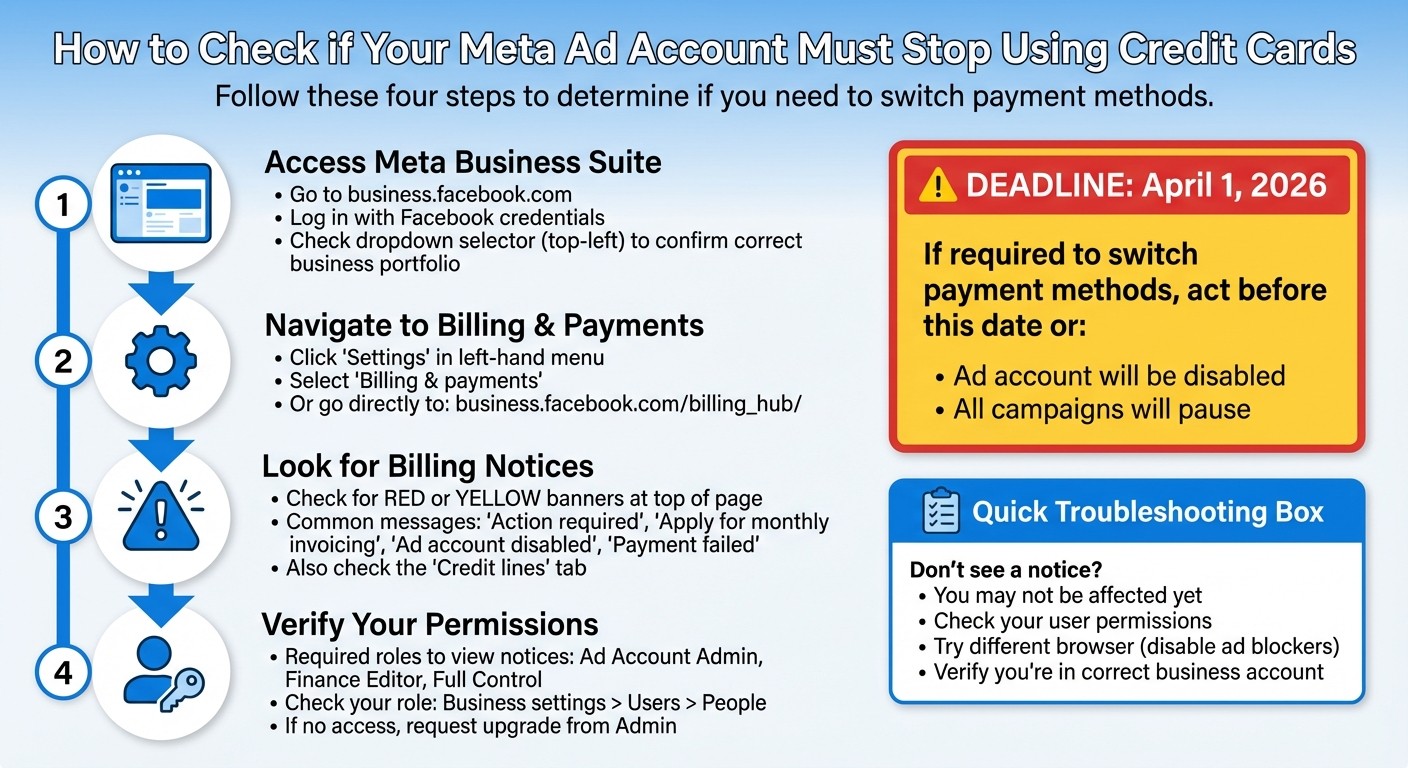
How to Check Meta Ad Account Billing Notices: Step-by-Step Guide
Where to Find the Billing Notice in Meta Business Suite
How to Access Meta Business Suite
Start by logging in at business.facebook.com using your Facebook account credentials. Once you're in, click on Settings from the left-hand navigation menu; this is where you'll find billing options.
If you're managing multiple businesses, check the dropdown selector in the top-left corner to ensure you're working within the correct business portfolio. As KBR, a Meta billing specialist, explains:
"If you can't see billing, you might be in the wrong Business or Ad Account. Use the top-left selector to switch."
After confirming you're in the right account, head over to the Billing & Payments section to locate any relevant notification banners.
Finding the Billing & Payments Section
To access the billing hub, click on Billing & payments from the Settings menu. Alternatively, you can go directly to business.facebook.com/billing_hub/.
Once there, you'll find multiple sub-pages, including:
Accounts
Payment methods
Payment activity
Invoices
Credit lines
The Accounts page provides a quick overview of all connected ad accounts and WhatsApp Business accounts. This is where you can identify any issues, such as disabled accounts or billing problems. You might also need to fix bulk ad launch errors if your payment issues have disrupted active campaigns.
From the main Billing & payments page, check the Payment settings or Payment methods section for banners indicating potential issues, such as credit card restrictions.
Navigating to the billing hub ensures you're in the right spot to locate any notices about payment updates or restrictions.
What the Billing Notice Looks Like
Billing notices are typically displayed as red or yellow banners at the top of the Billing & payments section. Common messages include:
"Ad account disabled"
"Payment failed"
"Action required"
"Verify your payment method"
If your account needs to transition away from using credit cards, you'll see a banner with a message like "apply for monthly invoicing" and an Apply button. This notice is often found in the Credit lines tab or on the main Billing & payments page. It serves as a prompt to update your payment method to avoid service interruptions.
Steve H., a Meta billing expert, offers this tip:
"Look for a section that shows the last failed charge or declined payment (date + amount). That's the evidence we want."
You may also encounter interactive buttons like Pay now or Retry. If a payment you've made doesn't show up right away, refreshing the page can often resolve the issue.
How to Check Your Payment Method Requirements
Reviewing Your Current Payment Methods
Head over to Billing & payments > Payment methods to see all the active payment options linked to your account or analyze Meta ad metrics to see how billing changes impact performance. Keep an eye out for any alerts or warnings next to your payment methods - they’ll highlight actions you may need to take.
If Meta has restricted credit card use on your account, you'll likely see a message prompting you to either add an alternative payment method or apply for monthly invoicing. Address these notifications quickly to adapt to Meta ads policy changes and avoid disruptions to your ad campaigns.
For users in India, you might encounter a prompt to verify your card due to RBI e-mandate regulations. Meta will process a one-time verification charge of INR 3, which will be refunded later. This verification enables automatic billing for transactions up to INR 5,000 or INR 15,000, depending on the case.
Lastly, check if your account is eligible for monthly invoicing or use a Meta ads budget planner to ensure seamless campaign operations.
Determining Eligibility for Monthly Invoicing
Once you’ve reviewed your payment methods, check if your account qualifies for monthly invoicing. Navigate to Billing & payments > Credit lines to see if this option is available. Switching to monthly invoicing can help avoid potential campaign interruptions caused by credit card issues. You can also automate your Meta ads budget to maintain performance during payment transitions.
If your account is eligible, you’ll see an Apply button or a "Request credit access" option. The presence of the Apply button confirms that monthly invoicing is supported for your account. Eligibility usually depends on factors like your ad spending levels and business structure. If the button isn’t visible, your account might not yet meet the spending requirements or your business type may not qualify.
For those in the United States or countries within the Single Euro Payments Area (SEPA), direct debit (autopay) is available for monthly invoicing. Look under the Payment settings section for any banners indicating eligibility.
Fixing Access and Permission Problems
Which Roles Can See Billing Notices
Billing notices are only visible to certain roles. For standard ad accounts using automatic billing (credit cards, debit cards, or PayPal), the Ad Account Admin can both view and edit payment methods. If your account operates within a business portfolio with monthly invoicing, you'll need either Finance Editor (Manage Finance) or Full Control permissions to access billing notices.
The Finance Analyst (View Finance) role allows users to view invoices but does not grant access to payment notices or the ability to update billing details. Here's a breakdown of what each role can do:
Role | View Invoices/Activity | Edit Payment Methods | Pay Outstanding Balance |
|---|---|---|---|
Ad Account Admin | Yes | Yes | Yes |
Finance Editor | Yes | Yes (Monthly Invoicing) | Yes |
Finance Analyst | Yes | No | No |
Full Control (Portfolio) | Yes | Yes | Yes |
"You have to be an admin of the ad account to edit or update the payment method." - Meta Business Help Center
If your current role doesn't grant the necessary permissions, you'll need to update your access to resolve the issue.
What to Do If You Don't Have the Right Role
If billing notices are unavailable to you, start by checking your role in Business settings > Users > People. If your role lacks the necessary permissions, reach out to an Admin or Full Control user to request an upgrade.
To gain full billing access, the Admin can go to Ad account settings in Meta Ads Manager and click Add people under the Ad account roles section. They’ll need to search for your profile (you must be Facebook friends) and assign you the Ad Account Admin role. For business-level permissions, the Admin should navigate to Business settings > Users > People and assign you the "Finance Editor" role or "Manage Finance" permissions.
If you have the correct permissions but still face issues, use the question mark (?) icon in Ads Manager or the Get Support button in the Meta Business Help Center to connect with an agent for further assistance.
Why One Teammate Sees the Notice and Another Doesn't
Understanding Meta ad permissions vs. admin roles often explains why some team members can view billing notices while others cannot. If your colleague has Finance Editor or Admin permissions, they’ll see notices you can’t access if you have a standard employee or analyst role.
Another factor could be browser settings. Extensions like ad blockers or strict tracking protection might hide "Action required" alerts or billing banners in Meta Business Suite. To troubleshoot, open Meta Business Suite in incognito mode or disable all browser extensions. Also, keep in mind that billing notices often display more clearly on desktop browsers compared to the mobile app.
Common Scenarios and How to Handle Them
Here are some typical situations you might face when dealing with billing notices and practical ways to address them.
I See Monthly Invoicing but Can't Apply
If the "billing changes" button isn't working, start by confirming there’s no unpaid balance and that you're not within the invoice locking period (this is from two days before to four days after the end of the month). Also, ensure you have full permissions, such as Manage Finance access and admin rights. If the "Apply" button still doesn’t work, use the Contact support link at the bottom of the Business Support Home page.
Double-check the information checklist to make sure you have all necessary details ready.
I Don't See Any Notice in My Account
If no billing notice is visible, it could mean your account is still using its existing payment method, or you may not have the required permissions. Verify your role by navigating to Business Settings > Users > People and then revisit Billing & Payments during the start-of-month window. Billing alerts are only displayed at specific times, so check periodically.
Again, refer to the information checklist to confirm you’ve got everything you need.
My Payment Method Is Restricted
When a payment method fails, Meta pauses your active ads until the balance is paid. To get back on track, go to Billing & Payments and click "Pay now", or add a new payment method. If you want to switch to direct debit, make sure to clear any outstanding balance first. Keep in mind that verifying a new bank account may take 3–4 days. If credit cards are restricted, check whether online banking is available in your country and consider applying for monthly invoicing. Note that Meta limits a single payment method to a maximum of 10 ad accounts.
Here’s a quick guide to common payment issues and their solutions:
Payment Issue | Solution |
|---|---|
Declined by Bank | Contact your bank to check for transaction limits. |
Insufficient Funds | Add funds or switch to a method with enough balance. |
Card Not Verified | Verify CVV/OTP details or try a different card network. |
Unsettled Charges | Use "Pay now" to settle balances before adding a new bank account. |
Connection Error | Wait and try again later, or use a different payment method. |
Make sure to consult the information checklist to have all necessary details prepared.
Checklist: What Information You Need Ready
Before diving into billing updates, make sure you have all the necessary information at hand to avoid delays or triggering account reviews. Understanding the Meta ad review process can help you prepare for these checks. As Salman Munir, CEO of AdLinked, puts it:
Meta doesn't want your money fast, it wants your consistency first.
Here’s what you’ll need to gather beforehand.
Business and Tax Information
Start with your legal business name - exactly as it appears on your tax documents - and your full business address (street, city, state, and zip code). It’s crucial that your billing address aligns with your legal business address to avoid any red flags.
Next, have your Tax Identification Number ready. The type depends on your business structure:
EIN (Employer Identification Number) for U.S. entities
SSN (Social Security Number) for sole proprietors in the U.S.
VAT ID (EU/UK), ABN (Australia), GST number (India), or the equivalent tax ID for your country if you're outside the U.S.
Additionally, note your federal tax classification (e.g., Sole Proprietorship, Partnership, C Corporation, S Corporation, or LLC). U.S.-based businesses will need a W-9 form, while non-U.S. entities generally require a W-8BEN form.
Bank Account Details
If you’re setting up direct debit or invoice autopay, have these details ready:
Bank name
Account number (up to 17 digits)
Bank code, which varies by region:
U.S.: 9-digit Routing Number
International: SWIFT/BIC code (8–11 characters)
Ensure the account holder's legal name matches the name on your bank statements. You won’t be able to add a new bank account if your ad account has any unpaid charges, so clear any outstanding balances first using an existing payment method.
Keep in mind, bank verification takes 3–4 days, so it’s a good idea to maintain a backup payment method in the meantime.
Ad Account IDs
Finally, locate your 15- or 16-digit Ad Account IDs. You can find these in Ads Manager by checking the numeric string after act= in the URL or by visiting the Accounts section in Billing and Payments for a full list. If you’re switching to monthly invoicing, these IDs are essential for setting up invoice groups, which let you consolidate multiple ad accounts into a single invoice.
Having these details ready will streamline your billing updates and help you navigate Meta Business Suite smoothly.
Conclusion
Regularly checking billing notices in Meta Business Suite is crucial to avoid interruptions in your ad campaigns. If a payment method fails, Meta pauses all active ads and disables your ad account until the balance is cleared. Once the issue is resolved, campaign schedules are adjusted automatically.
To keep your campaigns running without hiccups, always have at least one valid backup payment method in place in case your primary card is declined. Keep in mind that bank verification for direct debit can take 3–4 days to process, so reviewing your billing setup in advance is essential. Taking these steps can help you avoid the disruptions mentioned earlier and ensure your campaigns perform consistently by managing volatility.
If billing notices are missing from your account, check your admin permissions. For those overseeing several businesses, using multi-account Meta ad management tools can help centralize these alerts. Additionally, try accessing Meta Business Suite through a clean browser without ad blockers, as these can sometimes hide important "Action Required" messages. If you run into billing alerts or permission issues, refer to the detailed guide above. Make sure all billing details are up to date to prevent unnecessary verification holds by completing advertiser identity verification.
"When the payment method you're using to run ads on Facebook, Messenger, Instagram or Meta Audience Network fails, which relies on how Meta syncs audience data across platforms, your ads are paused and your ad account is disabled until you pay the amount due."
– Meta Business Help Center
Take a moment now to review your payment methods and business details. Having a backup payment option and staying on top of your billing setup are key to keeping your ad campaigns running smoothly. Regular checks and swift adjustments can make all the difference.
FAQs
I see monthly invoicing but cannot apply
If you're dealing with monthly invoicing but can't apply a payment, there might be a few reasons behind it. It could stem from billing restrictions or account-related issues. To resolve this, make sure you have:
Full control over the business portfolio.
The correct finance permissions assigned to your account.
A line of credit set up as the payment method.
Keep in mind, there's a specific period when billing information can't be updated. This "invoice locking period" runs from two days before to four days after the end of the month.
I do not see anything, does that mean I’m safe?
If you’re not seeing notifications or banners about billing issues in the Billing & Payments section, it’s a good sign that your account likely isn’t flagged for any problems. That said, make sure you have the proper permissions - like admin or finance editor access - to view any alerts. If a teammate spots a notice that you don’t see, it could simply be due to differences in permission levels. To stay on top of things, make it a habit to check for updates regularly.
My payment method is restricted
If your payment method is restricted on Meta, it could stem from problems with your bank account, card, or limitations based on your country’s payment options. To get more details, head to Payment Settings in Ads Manager and look for any banners or alerts about the restriction.
If you don’t have admin or finance editor permissions, you’ll need to ask an account admin to review or update the payment method. Sometimes, restrictions visible to your teammates but not to you might also point to a permissions-related issue.