
5 Best Practices for Business Manager Setup
Prevent lost ad ROI with a secure Business Manager: clear naming, role-based access, 2FA, organized assets, and quarterly audits.
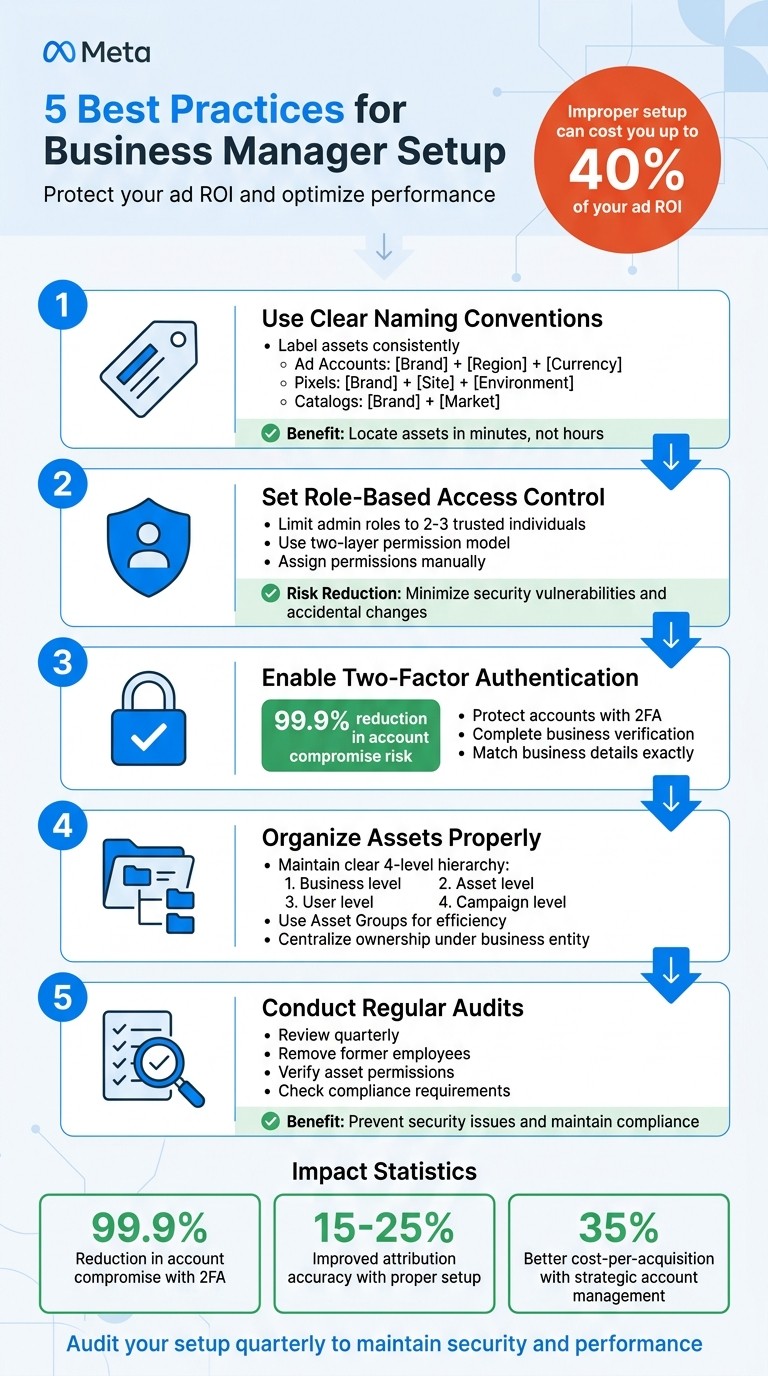
If your Meta Business Manager isn’t configured properly, you could lose up to 40% of your ad ROI. A strong setup ensures your assets are secure, your ad performance is optimized, and your team can work efficiently.
Here’s a quick breakdown of the 5 best practices to avoid common mistakes and create a scalable system:
Use Clear Naming Conventions: Label assets (ad accounts, pixels, catalogs) consistently for easy management and compliance with Meta’s verification standards.
Set Role-Based Access Control: Assign permissions carefully to minimize risks, limit admin roles, and simplify user management.
Enable Two-Factor Authentication: Protect your accounts with two-factor authentication and complete business verification for added security and stability.
Organize Assets Properly: Maintain a structured hierarchy for smoother operations, especially if managing multiple brands or clients.
Conduct Regular Audits: Review user access, permissions, and account health quarterly to prevent security issues and maintain compliance.
These steps reduce risks like losing account access, tracking errors, or compliance issues while improving workflow and ad outcomes. For example, enabling two-factor authentication can lower the risk of account compromise by 99.9%, and proper pixel setup can improve attribution accuracy by 15–25%.
A well-structured Business Manager setup isn’t just about security - it directly impacts your ad performance and ROI. Let’s dive into the details.
5 Best Practices for Meta Business Manager Setup
Meta Business Manager Tutorial 2026 | Step-by-Step Setup
1. Use Clear Naming Conventions for Your Business Manager Account
Getting your naming conventions right is a crucial first step for setting up a secure and manageable Business Manager account.
Efficiency in Managing Assets and Users
A consistent naming system makes it easier to manage assets like ad accounts, pixels, and catalogs. With clear labels, administrators can locate and identify assets in just a couple of minutes.
"If you operate across countries, naming becomes your reporting infrastructure."
This level of clarity is essential when juggling brands and regions.
Scalability for Multi-Brand or Agency Use
For agencies or businesses managing multiple brands, naming conventions can mean the difference between smooth operations and a logistical nightmare. When dealing with assets across regions, currencies, and time zones, a clear system helps avoid mix-ups and confusion.
Here are some naming formulas to follow:
Ad Accounts:
[Brand] + [Region] + [Currency/Time Zone](e.g., "Nike - EMEA - EUR").Pixels:
[Brand] + [Site] + [Environment](e.g., "Nike - Ecom - Production").Catalogs:
[Brand] + [Market](e.g., "Nike - UK_Market").
With this approach, anyone on your team can quickly understand the purpose and scope of an asset without diving into detailed settings.
Alignment with Meta's Compliance Requirements

Beyond keeping things organized, accurate naming also plays a role in meeting Meta's compliance and verification standards. A common reason for verification failures is mismatched formatting between business details across different assets. For example, if your Business Manager lists "ABC Company LLC" but your legal documents say "ABC Company, LLC" (including a comma), Meta's system might flag it as an error and reject the application.
To avoid these issues, make sure your business information in all settings matches your legal documents exactly. Create a standard operating procedure (SOP) for naming assets before linking them to Business Manager. This consistency minimizes verification delays and prevents rejections over minor formatting discrepancies.
2. Set Up Role-Based Access Control and User Permissions
Getting permissions right from the beginning helps shield your business from potential security threats and operational confusion later on.
Security Measures and Risk Reduction
Meta's Business Manager uses a two-layer permission model: Business-level access (Admin vs. Employee) and Asset-level permissions for individual Pages, ad accounts, and pixels. This layered approach minimizes the risk of a single point of failure. By centralizing all assets within Business Manager, your business remains operational even if team members leave or change roles.
It's a good idea to limit admin roles to 2–3 highly trusted individuals. This reduces the chances of accidental changes and minimizes security risks. Having too many admins can lead to ownership disputes and increase exposure to vulnerabilities. For advertisers spending more than $10,000 per month, Meta requires Business Manager for added security features like mandatory two-factor authentication and IP whitelisting.
Streamlining Asset and User Management
Assigning users to specific assets should always be done manually, using professional email addresses. Keep in mind that being added to a business doesn’t automatically grant access to Pages or ad accounts.
Agencies can use the "Partners" feature to simplify the process of managing and revoking client asset access. When working with clients, always "Request Access" to their assets instead of "Claiming" them. Claiming transfers permanent ownership of the asset, which could cause issues for the client down the line.
Scaling for Multi-Brand or Agency Management
If you’re handling multiple brands or clients, Asset Groups can save you time and effort. By grouping related Pages, ad accounts, and pixels, you can assign permissions to team members or partners all at once instead of individually. This is especially useful for agencies or businesses managing accounts across several brands.
Role | Access Level | Best For | Key Capabilities |
|---|---|---|---|
Admin | Full | Business Owners, Directors | Manage users, billing, and all settings |
Advertiser | Limited | Campaign Managers | Create/edit ads and view performance; no billing access |
Analyst | View-only | Stakeholders, Consultants | View performance data and reports only |
To avoid confusion and errors, create Standard Operating Procedures (SOPs) for requesting access and assigning default roles. This helps ensure smooth onboarding and prevents mistakes with permissions that could lead to issues like tracking errors. For example, incorrect pixel configurations - often caused by permission mishaps - can result in a 20-30% drop in tracked conversions.
Setting up a solid role-based access system not only strengthens security but also makes managing assets more efficient. It’s the foundation for keeping your Business Manager organized and running smoothly.
3. Turn On Two-Factor Authentication and Complete Business Verification
Security Measures and Risk Mitigation
Setting up two-factor authentication (2FA) is a must to safeguard your business Pages and ad accounts. Without it, a hacked profile could easily take over your assets, leading to significant risks.
When choosing a 2FA method, consider your team's size and budget. Here are your options:
SMS codes: Simple but vulnerable to SIM-swapping attacks.
Authenticator apps: Offer a higher level of security.
Physical security keys: The gold standard for protection but require a larger budget.
These steps not only protect your accounts but also help you align with Meta's security standards.
Alignment with Meta's Compliance Requirements
In addition to securing accounts, completing business verification is essential for maintaining compliance and scaling ad operations. Verified accounts with enforced 2FA demonstrate reliability to Meta's risk systems, reducing the likelihood of permission errors.
You can complete this process in the Security Center, but accuracy is key. Ensure your business details - legal name, address, and domain - match your official documents exactly. For example, if your tax ID lists "123 Main Street", avoid entering "123 Main St." in Business Settings. Even minor mismatches can lead to rejections.
"If you want stable advertising operations, you treat Security Center as part of your weekly routine, not a one-time setup." - Meta Business Manager: Setup, Security, and Scaling
Completing verification not only minimizes disruptions but also unlocks important features. Be aware that Meta may impose temporary spending or billing limits , which you can manage by setting guardrails for Meta ads until your account meets their security and compliance standards.
4. Organize Your Assets with a Clear Business Manager Structure
Having a well-structured Business Manager setup not only makes it easier to track your assets but also strengthens your security measures. A clear hierarchy is the foundation for effective management. Picture your Business Manager as operating across four levels: the Business level (your primary container), the Asset level (like Pages, ad accounts, and Pixels), the User level (team members and partners), and the Campaign level (your actual content). This kind of organization avoids the confusion that can arise when assets are scattered across personal profiles or mixed between clients. For tips on naming conventions, check out Section 1. With this structure, scaling to manage multiple brands or clients becomes much more manageable. Following bulk launch best practices further ensures that your campaigns remain organized as you grow.
Scalability for Multi-Brand or Agency Use
A strong hierarchy lays the groundwork for scalability, especially when using asset groups and streamlining partner integrations. Whether you're managing three accounts or thirty, Business Asset Groups make a big difference. These groups bundle related assets together, allowing you to assign permissions at the group level by understanding Meta Ads API roles vs permissions, which can speed up onboarding significantly - sometimes by a factor of 10.
For agencies, the Partners feature is a must for handling client assets while maintaining clear boundaries. This setup ensures clients retain ownership of their assets, prevents data from being mixed, and simplifies the process of offboarding when contracts end.
Always centralize asset ownership under your business entity. This way, if an employee leaves or a personal account gets restricted, you won’t lose access to important ad accounts or Pages. Use the "Claim" option for assets your business owns and the "Request Access" option for client-owned assets to keep everything legally and operationally sound.
5. Run Regular Audits of User Access and Account Health
Once your Business Manager setup is in place and well-organized, the next step is keeping it that way. Over time, even a solid setup can lose its edge without proper upkeep. That’s where quarterly audits come in - they help you spot outdated permissions, troubleshoot access issues, and stay in line with Meta’s compliance standards. These reviews improve security and keep your operations running smoothly by avoiding unnecessary administrative clutter.
Security Measures and Risk Management
A strong setup is just the beginning. Regular audits are essential for maintaining security and efficiency. One of the most common risks in Business Manager is having too many users with full admin access. Each admin role adds a layer of risk - whether it’s accidental changes to settings, potential security breaches, or disputes over account ownership. To minimize these risks, aim to keep full admin access limited to 2–3 trusted individuals. Regularly review and adjust roles, downgrading unnecessary admin access to Employee or Advertiser permissions. Also, make it a priority to remove access for former employees or contractors as soon as they leave.
For agencies, the Partners feature is a better option than adding individual employees. It creates clearer boundaries, simplifies the offboarding process, and provides better tracking for audits. Meta also uses automated systems to monitor for red flags like sudden spikes in spending, payment issues, or frequent admin changes. Keeping a clear audit trail can help reduce the risk of account restrictions or disabling and avoid Meta ad rejections triggered by these alerts.
Staying Compliant with Meta's Requirements
Maintaining a secure and well-audited account is crucial for scaling your operations and accessing advanced features. For example, Business Verification often requires your account to be in top shape, including using two-factor authentication and ensuring all business details are accurate. Regular audits can help you catch issues - like mismatched business addresses or other discrepancies - before they cause problems during verification.
Use a structured checklist to organize your audit findings:
Audit Component | Focus Area | Recommended Frequency |
|---|---|---|
User Access Review | Remove former employees/contractors; adjust admin roles | Quarterly |
Asset Permission Check | Verify Pixels, Pages, and Ad Accounts are correctly assigned | Quarterly |
Asset Connections | Review Pixel/CAPI governance, Page roles, Catalog access | Quarterly |
If you’re managing multiple accounts, tools like AdAmigo Protect can help. These tools monitor performance and flag issues like anomalies or errors in real time, adding an extra layer of protection to your manual quarterly reviews.
Conclusion
A properly set up Business Manager not only protects your assets but also enhances ad performance. For example, enabling two-factor authentication reduces the risk of account compromise by 99.9%. On the flip side, a poorly structured setup can drain 25% to 40% of your ad ROI - huge losses if you're spending thousands or even millions on Meta ads. The five practices discussed here form a system designed to safeguard your business while optimizing Meta ads ROI.
These practices - using clear naming conventions, implementing role-based access control, enabling two-factor authentication, maintaining an organized asset structure, and conducting regular audits - work together seamlessly. When Pixels and Conversions API are configured correctly, you can achieve 15-25% better attribution accuracy. Additionally, separating brands into distinct ad accounts ensures that policy issues affecting one brand won't disrupt the operations of others.
A well-structured setup also impacts your bottom line. Advertisers who manage multiple ad accounts strategically report a 35% improvement in cost-per-acquisition compared to those using a single-account approach. As you scale, these benefits only grow.
Take the time to audit your setup against these best practices. Ensure your business details align exactly with official documents to avoid verification delays. Review admin access and remove unnecessary permissions. Confirm that your assets are owned by the business entity, not individual profiles. While these steps may seem tedious, they save you from the headaches and financial losses caused by account restrictions or operational disruptions.
A strong Business Manager setup lays the groundwork for long-term advertising success. Nail it once, maintain it quarterly, and you'll spend less time troubleshooting and more time focusing on what truly matters - your creative strategy, audience targeting, and campaign performance.
FAQs
What’s the best Business Manager structure for multiple brands or clients?
Managing multiple brands or clients in Meta Business Manager works best when you create separate accounts for each brand or client. This approach keeps assets, permissions, and billing organized and distinct, making audits easier and reducing potential risks.
To maintain clarity and security, assign roles like Admin or Advertiser based on specific responsibilities. Regularly reviewing permissions is also crucial to ensure access is limited to the right people. This structure not only simplifies operations but also provides better control over assets and supports growth as your needs expand.
When should I “Request Access” vs “Claim” a client’s Meta assets?
To manage a client’s existing Meta assets, like ad accounts or Pages, use Request Access. This is necessary when the client already owns the assets, and you need their permission to operate on their behalf. On the other hand, use Claim when you own the assets or have been granted ownership rights. This option lets you take control of assets that aren’t yet linked to your Business Manager.
What should I check in a quarterly Business Manager audit?
Keeping your account secure and running smoothly requires regular check-ins. Here are the key areas to review every quarter:
User Access: Double-check that roles like Admin or Advertiser are still aligned with your team's current needs. Remove or update access for anyone who no longer requires it to keep your account secure.
Security Settings: Make sure Two-Factor Authentication (2FA) is turned on for all users. Also, keep an eye on login activity to spot anything unusual.
Asset Ownership: Confirm that your business still owns critical assets like ad accounts, Pages, and Pixels.
Billing: Review your payment methods and billing history to ensure everything is accurate and up to date.
Activity Logs: Regularly monitor changes and spending to catch any unauthorized activity early.
Taking time to address these areas can help you avoid potential issues and keep things running efficiently.