
Meta Ads API Roles vs Permissions: Key Differences
Understand how Meta Ads API roles (who) and permissions (what) must align, plus token refresh and security best practices.
When working with the Meta Ads API, understanding the difference between roles and permissions is essential. Misconfigurations can cause errors like ""insufficient permissions" or "access denied", derailing your ad management processes. Here's the core distinction:
Roles define who you are (e.g., Admin, Advertiser, System User) and are assigned within Meta Business Manager or Developer Portal.
Permissions (or scopes) dictate what your app can do (e.g., read ad data, manage campaigns) and are embedded in API tokens.
Both must align for API integrations to work seamlessly. For example, even with the right permissions, lacking the correct role on an ad account will block access.
Key Takeaways:
Roles are assigned to users or system users and managed in Business Settings.
Permissions are tied to access tokens and managed during OAuth setup.
Tokens expire every 60 days, so follow Meta API configuration best practices to manage refresh steps in your automation pipelines.
Use dedicated system users for automation instead of personal accounts.
Align roles and permissions to avoid integration failures.
Quick Comparison:
Aspect | Roles | Permissions (Scopes) |
|---|---|---|
Focus | Identity & authority | Functional capabilities |
Examples | Admin, Advertiser, Partner |
|
Management | Business Manager, Developer Portal | Token generation, App Dashboard |
Impact of Errors | Asset access issues | API call failures |
To ensure smooth operations, assign roles and permissions carefully, limit access to what's necessary, and secure tokens properly.
Roles in the Meta Ads API: An Overview
In the Meta ecosystem, a role determines the identity and level of authority an entity has within containers like Business or Ad Accounts. Think of roles as job titles - they define who you are and what you can do, even before any specific actions are taken.
Here’s a quick summary of the four main role categories you’ll encounter:
Role Category | Where It's Managed | Key Examples | Primary Purpose |
|---|---|---|---|
Business-Level | Meta Business Manager | Admin, Employee | Governs access to ad accounts, pixels, and pages |
App-Level | App Admin, Developer, Tester | Manages app settings, token generation, and API testing | |
System User | Business Settings | System User (Admin/Employee) | Facilitates server-to-server automation and long-lived API access |
Partner | Business Settings (Partners tab) | Agency, Tool Provider | Provides external organizations access to manage your assets |
Let’s dive deeper into each role category.
Business-Level Roles
These roles are managed in Meta Business Manager and oversee access to high-level assets like ad accounts, pixels, and Facebook Pages. A Business Admin has full control - they can manage users, assets, and billing. On the other hand, an Employee gets access only to the assets they’re assigned.
For ad accounts, the ADVERTISE role is key - it allows users to create, edit, and manage campaigns.
App-Level Roles
App-level roles are distinct from business-level roles and are managed in the Meta Developer Portal. These roles determine who can configure app settings, generate access tokens, and move the app from Development mode to Live mode. The latter is essential for accessing actual ad data at scale.
The primary app-level roles include App Admin, Developer, and Tester:
App Admin: Has full control over app configuration.
Developer: Can build and test, but with more limited permissions.
Tester: Restricted to interacting with the app in a sandbox environment.
Assigning the wrong app-level role can cause issues, such as being stuck in Development mode, which blocks token generation.
System Users and Partner Roles
System users are automated accounts created in Business Manager for tasks that don’t require human involvement. They’re perfect for things like scheduled jobs, automated optimizations, or AI-based tools.
"Create a dedicated system user - never use a personal account. Assign it the ADVERTISE role on every ad account in scope." - Murat Bock, Founder & Fullstack Developer, adlibrary.com
Using personal accounts for automation is risky. System users prevent disruptions caused by personnel changes and ensure smoother operations.
Partner roles, on the other hand, are designed for external organizations. For example, if an agency or tool like AdAmigo.ai connects to your Business Manager through the Partners tab, they receive a partner role. This limits their access to only the assets you’ve shared, without requiring individual user credentials.
Next, we’ll explore how permissions work alongside these roles in API integrations.
Permissions in the Meta Ads API: An Overview
In the Meta ecosystem, roles determine who you are, while permissions outline what your app can do. These permissions are essentially access rights embedded into OAuth tokens, dictating what data your app can access and which actions it can perform on behalf of a user or system user.
Standard Marketing API Permissions
Permissions are requested during token generation and must go through Meta's App Review process. For most integrations, the minimum required permissions are ads_management and ads_read:
"You need a Meta Marketing API access token with
ads_managementandads_readpermissions at minimum. For custom audience creation, you also needbusiness_management." - Tars Technologies Inc.
Here’s a closer look at the most common permissions:
Permission | What It Does | Common Use Case |
|---|---|---|
| Provides read-only access to ad data | Retrieving 90 days of historical performance data |
| Grants write access to ad assets | Creating campaigns, pausing ads, modifying budgets |
| Accesses Business Manager assets | Building custom audiences from customer lists |
| Reads Page-level engagement data | Analyzing engagement metrics for creative insights |
| Manages ads tied to a Facebook Page | Running ads that originate from a specific Page |
Familiarity with these permissions is crucial before diving into their asset-specific applications.
Asset-Level Permissions
Permissions work hand-in-hand with asset-specific roles. For instance, having ads_management in your token isn’t enough on its own. The system user must also hold the ADVERTISE role on each ad account it needs to interact with.
This concept extends to other assets like pixels, catalogs, and offline signal containers. Even with broad API permissions, a system user may be blocked from accessing a specific pixel unless it has been explicitly shared with them in Business Settings. These asset-level controls are critical for managing access and ensuring compliance with data handling policies.
Data Access and Privacy Rules
Meta enforces strict data policies that go beyond individual assets. These policies are embedded into the API itself, restricting content types such as health claims, financial guarantees, or discriminatory language. Violations can result in ad rejections or even account-level penalties.
Token security is another essential part of compliance. To avoid silent automation failures, tokens should be stored securely. Using a dedicated secrets manager instead of a plain .env file is a simple but vital security measure. Additionally, modern API integrations are expected to align with standards like GDPR, SOC 2, and ISO compliance to meet data protection requirements.
Key Differences Between Roles and Permissions
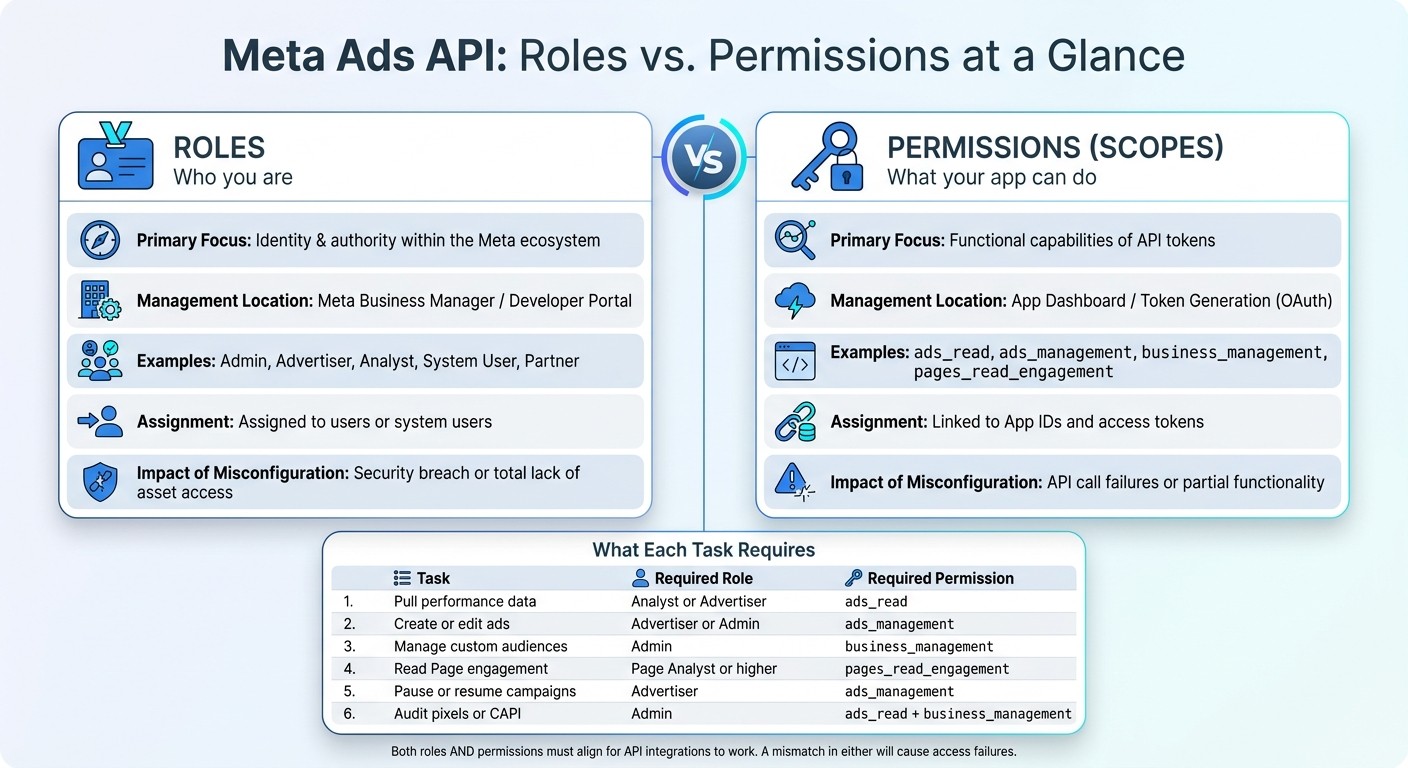
Meta Ads API: Roles vs Permissions at a Glance
Grasping the distinction between roles and permissions can be the deciding factor between a seamless API integration and one riddled with errors.
Conceptual Differences
Think of it this way: roles tell you who you are, while permissions dictate what you can do. Permissions, often referred to as scopes, are embedded into access tokens and inform the API of the actions the token is authorized to perform.
Roles are configured in Business Settings and are assigned to individuals or system users. Permissions, on the other hand, are selected during the OAuth process or when generating tokens, and they are tied to App IDs and access tokens. The two are independent of each other, and this separation is where many integration issues arise. Understanding these distinctions and following Meta Ads QA best practices is crucial for avoiding the errors mentioned earlier.
How Roles and Permissions Interact in API Integrations
Here’s an example: imagine a user with Business Admin status, the highest role available, trying to create or edit ads. If their API token doesn’t include the ads_management scope, they won’t be able to perform those actions.
Now flip the scenario: a token might include the ads_management permission, but if the system user doesn’t have the necessary role (e.g., ADVERTISE) for the specific ad account, the request will still fail. Both the correct role and the corresponding permission must align for the process to work. Missteps here can lead to silent failures in your integration pipeline.
"Long-lived tokens expire after 60 days. Build a token refresh step into your pipeline scheduler; otherwise your automated ad copy generation for Meta pipeline silently fails." - Murat Bock, Founder, adlibrary.com
The tables below provide a clear breakdown of these differences and their practical implications.
Comparison Tables
Roles vs. Permissions at a Glance
Aspect | Roles | Permissions (Scopes) |
|---|---|---|
Primary Focus | Identity and hierarchy | Functional capability |
Management Location | Meta Business Manager | App Dashboard / Token Generation |
Examples | Admin, Advertiser, Analyst, System User |
|
Assignment | Assigned to users or system users | Linked to App IDs and access tokens |
Impact of Misconfiguration | Security breach or total lack of asset access | API call failures or partial functionality |
Common API Tasks and What They Require
Task | Required Role (on Asset) | Required Permission (Scope) |
|---|---|---|
Pulling performance data | Analyst or Advertiser |
|
Creating or editing ads | Advertiser or Admin |
|
Managing custom audiences | Admin |
|
Reading Page engagement | Page Analyst or higher |
|
Pausing or resuming campaigns | Advertiser |
|
Auditing pixels or CAPI | Admin |
|
Best Practices for Setting Up Roles and Permissions
Getting roles and permissions right from the start is key to avoiding API issues. To ensure a secure and efficient Meta Ads API integration, follow these guidelines.
Configuring Roles in Business Manager
Always use a dedicated system user instead of a personal account. Personal accounts can be deactivated, lose access, or have their roles changed, which could disrupt your integration. To set this up, go to Business Settings → Users → System Users in Meta Business Manager and assign the ADVERTISE role to the system user for each ad account.
Assign roles based on actual needs. For example, team members who only need to review performance can be given the Analyst role instead of Advertiser. Keep Admin roles limited to individuals who need to manage assets, audiences, or billing. This approach minimizes risks if an account is ever compromised.
Setting Up API Permissions
When generating tokens, request only the permissions your integration requires. For instance:
A reporting dashboard needs
ads_read.A campaign management tool requires
ads_management.Custom audience workflows need
business_management.
Requesting unnecessary permissions increases security risks without adding functionality.
To add an extra layer of security, set all API-created campaigns and ads to PAUSED status by default. This allows you to review campaigns before they go live.
Security and Access Management
Long-lived tokens expire every 60 days. To avoid disruptions, implement a token refresh process in your pipeline.
"Long-lived tokens expire after 60 days. Build a token refresh step into your pipeline scheduler; otherwise your automated ad copy generation for Meta pipeline silently fails when the token expires and nobody notices for a week." - Murat Bock, Founder & Fullstack Developer
Store tokens securely in a dedicated secrets manager, not in .env files or within your code repository. Additionally, conduct a quarterly access audit. Use Business Settings to review all assigned users and system users, removing access for those who no longer need it. If you’re offboarding a contractor or ending a client relationship, always clean up permissions as part of the process. Regularly monitor for spend anomalies and disapproved ads to keep your API setup secure and functional.
Conclusion: Getting Roles and Permissions Right in the Meta Ads API
Roles and permissions are the backbone of a secure and efficient Meta Ads API setup. Roles define who someone is within your Business Manager hierarchy, such as an Advertiser, Analyst, Admin, or System User. Permissions, on the other hand, dictate what actions an API token can perform, like reading data, managing campaigns, or accessing business assets. Confusing these two or setting them up incorrectly can lead to integration issues.
For example, using an over-permissioned token - like assigning ads_management instead of the more restrictive ads_read - can leave your ad account vulnerable to unauthorized changes. Similarly, relying on a personal account instead of a dedicated System User for pipelines can cause disruptions when personnel changes occur. Platforms like AdAmigo.ai, which depend on AI-driven media buying, illustrate how critical it is to align roles and permissions accurately. Missteps here can either halt operations or expose sensitive assets to risk.
To keep your Meta Ads API integrations secure and functional, follow these practices:
Assign only the minimum permissions required for each task.
Use dedicated System Users instead of personal accounts.
Regularly perform audits and automate token refreshes.
FAQs
Why do I get “insufficient permissions” if my token has the right scopes?
If you're encountering an "insufficient permissions" error despite having the correct scopes, the issue might lie elsewhere. This error can happen when the token doesn't have access to specific ad accounts or assets. Another common cause is misconfigured roles or permissions in Meta Business Manager, such as missing roles or an improperly set up system user. Double-check your account settings to ensure all required permissions and roles are properly assigned.
Which role and permission do I need to read reports vs manage campaigns?
To access reports in the Meta Ads API, you'll need the ads_read permission, which grants visibility into performance data and insights. If you're managing campaigns - like creating, editing, pausing, or deleting ads - you'll require the ads_management permission. For more extensive account control, the business_management permission might also be necessary. Make sure the right roles with these permissions are assigned in Meta Business Manager to match your specific access requirements.
How can I refresh long-lived tokens automatically before they expire?
To keep long-lived tokens active, incorporate a token refresh step into your pipeline scheduler. These tokens often expire after 60 days, so setting up this process in advance helps avoid unexpected failures and keeps everything running smoothly.