
Fixing Meta Ad Account Ownership in 3 Steps
Fix Meta ad account ownership in 3 steps: check owner and access, request transfer or partner access, then verify billing.
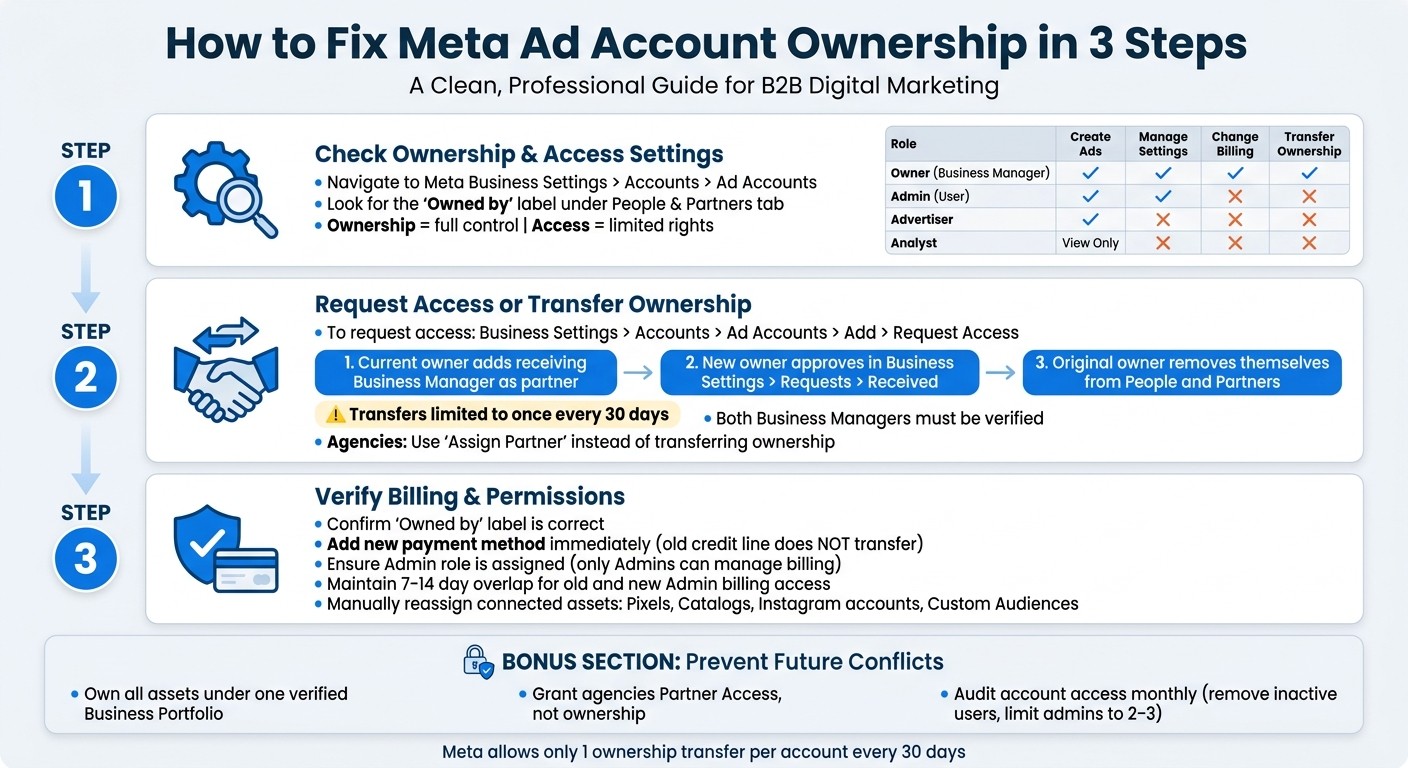
If you're struggling with Meta ad account ownership issues, here's what you need to know: Ownership is tied to the Business Manager that created or claimed the account - not individual users. This can lead to problems like lost billing control, campaign disruptions, or locked accounts. To resolve these issues, follow these three steps:
Check Ownership and Access Settings: Identify the current owner in Meta Business Settings and understand the difference between ownership (full control) and access (limited rights).
Request Access or Ownership Transfer: Submit an access request or initiate a transfer between two verified Business Managers. Remember, transfers are limited to once every 30 days.
Verify Billing and Permissions: After changes, confirm billing details, admin roles, and connected assets like Pixels and Catalogs.
To prevent future problems, maintain clear ownership structures, use partner access for agencies, and regularly audit permissions. Addressing these steps ensures smoother ad account management and uninterrupted campaigns.
How to Fix Meta Ad Account Ownership in 3 Steps
Learn how to assign and remove business asset access to a partner on Meta Business Portfolio
Step 1: Check Current Ownership and Access Settings
Before diving into any changes, it's crucial to understand the current ownership and access settings for the account. This step can save you time and prevent unnecessary complications. Following Business Manager setup best practices ensures your assets remain organized and secure from the start.
Find Ownership Details in Business Settings
To locate ownership details, navigate to Meta Business Settings > Accounts > Ad Accounts. Select the specific ad account, and under the People & Partners tab, look for the "Owned by" label. This indicates which Business Manager oversees billing and partner management. You can also monitor your ad accounts automatically to catch these changes in real-time.
If the ownership details are unclear, grab the Ad Account ID from Ads Manager and cross-check it in Business Manager. If options like "Remove" or "Transfer" are unavailable (grayed out), head to the Account Quality section. Issues like Meta ad policy violations or payment holds can block administrative actions until resolved.
Ownership vs. Access Permissions: Understanding the Difference
Ownership and access permissions often get confused, leading to unnecessary delays in resolving disputes.
"Ownership belongs to the Business Manager who created the ad account... Access refers to who can use it." - AGrowth.io
Ownership provides full control over the account, while access only allows specific usage rights. The table below outlines what each role can do:
Role | Create Ads | Manage Settings | Change Billing | Transfer Ownership |
|---|---|---|---|---|
Owner (Business Manager) | ✓ | ✓ | ✓ | ✓ |
Admin (User) | ✓ | ✓ | ✗ | ✗ |
Advertiser | ✓ | ✗ | ✗ | ✗ |
Analyst | View only | ✗ | ✗ | ✗ |
Even users with Admin-level access lack ownership rights. Key actions like deleting the account, managing billing, or removing partners permanently remain exclusive to the owning Business Manager.
Common Ownership Conflict Scenarios
Ownership conflicts often arise in these situations:
Agencies create accounts under their own Business Manager instead of the client’s.
Former admins fail to transfer ownership after leaving a project or organization.
Business restructuring leaves assets stranded in outdated systems.
Keep in mind, Meta enforces a limit of one ownership transfer per account every 30 days. Understanding these common scenarios can help you navigate potential challenges more effectively.
Step 2: Request Access or Transfer Ownership
Once you’ve identified who currently owns the account, the next step is deciding whether to request access or initiate a transfer. These two actions are distinct, so it’s important to choose the right one based on your needs.
Submit an Access Request in Business Settings
If you don’t have access to the account, go to Business Settings > Accounts > Ad Accounts, click Add, and then select Request Access to an Ad Account. Make sure to use the client's exact Ad Account ID when submitting the request.
After the request is sent, the account owner has to approve it. They can do this by navigating to Business Settings > Requests > Received. Until they approve, your access will remain pending. If you need full control of the account, consider initiating a transfer of ownership instead.
How to Request an Ownership Transfer
Meta doesn’t offer a direct "Transfer Ownership" button, so the process involves several steps between two Business Managers:
The current owner adds the receiving Business Manager by going to Business Settings > Partners > Add > Give a Partner Access, assigns the ad account, and grants "Manage Ad Account" permissions.
The new owner approves the request in Business Settings > Requests > Received.
Finally, the original owner removes themselves from People and Partners, completing the transfer.
Both Business Managers must complete advertiser identity verification, and the ad account should have no unpaid balances or policy violations. Keep in mind that Meta limits ad account transfers to once every 30 days, so plan accordingly if the account was recently moved.
For agencies managing client accounts, it’s better to use partner sharing instead of transferring ownership. This ensures the client retains legal control of the account while the agency handles day-to-day management.
How Agencies Should Handle Access Through Partner Sharing
For agencies, transferring ownership is usually unnecessary. Instead, use the "Assign Partner" function to link your agency’s Business Manager to the client’s account. This allows the client to maintain legal ownership while your agency manages its team internally without needing to add individual team members as admins.
"For external agencies, use Assign Partner access instead of adding individuals as direct admins. Partners manage their own team, reducing your management overhead." - Alan Tran, BOD of AGrowth
This approach keeps account management clean and avoids ownership disputes. If the partnership ends, the client can simply remove the partner connection without additional complications.
Once access is secured or ownership is transferred, move on to verify billing and permissions in Step 3.
Step 3: Verify Billing and Permissions
After updating access or transferring ownership, it’s crucial to verify billing details, administrative roles, and linked assets. This ensures smooth operations and prevents campaign interruptions.
Check the Linked Payment Profile
Once access is updated or ownership transferred, your next priority is to review billing settings and ensure everything is in order.
Start by selecting the ad account in Business Settings > Accounts > Ad Accounts. Confirm the "Owned by" label, and check that the payment method is active and the billing details are accurate. If you encounter locked payment settings, head over to Account Quality to investigate any policy or payment holds.
One important note: while the account-level spending limit remains intact, the previous Business Manager's credit line does not transfer. To avoid issues, add your payment method immediately after the ownership change.
Confirm Admin and Billing Access
Remember, only Admins have the authority to manage billing. Advertisers and Analysts do not have this level of access.
Roles with Billing Control | Can Manage Billing? |
|---|---|
Admin | Yes |
Advertiser | No |
Analyst | No |
After making changes, double-check that the correct Admin has billing rights and fix any permission issues that may have occurred during the transition. To minimize disruptions, maintain a 7–14 day overlap where both the old and new Admins can access billing.
Check Connected Assets for Reassignment
Keep in mind, transferring an ad account does not automatically transfer its connected assets. Meta Pixels, Catalogs, Instagram accounts, and Custom Audiences remain tied to the original Business Manager unless you reassign them manually.
For example, to reassign a Pixel, navigate to Business Settings > Data Sources > Pixels, select the Pixel, and add the new Business Manager as a partner with "Manage" permissions. Repeat this process for Catalogs and Pages. It’s a good idea to keep the original owner’s access active until you confirm that ad delivery, pixel tracking, and billing are running smoothly under the new setup.
How to Prevent Ownership Conflicts Going Forward
To avoid future conflicts, it's essential to establish a clear asset ownership structure and perform regular access audits. These steps ensure long-term security and smooth operations for your accounts.
Maintain a Clear Asset Ownership Structure
All related assets - such as the ad account, Page, Pixel (Dataset) (which you can find in Events Manager), and Catalog - should be owned by a single verified Business Portfolio for each brand. When assets are scattered across multiple Business Managers or personal profiles, it increases the likelihood of ownership disputes.
To stay organized, create a simple inventory using tools like Google Sheets or Airtable. Track key details such as Business IDs, Ad Account IDs, ownership information, and the date of the last access review.
Important: Meta imposes a limit on ownership transfers, allowing them only once every 30 days per account.
This unified structure also reduces risks when working with external agencies.
Grant Agencies Partner Permissions, Not Ownership
When collaborating with agencies, maintain ownership of your assets while granting them access through Meta's Partner Access model. Agencies can manage your ad account without taking ownership, which helps you retain control and avoid disputes down the line.
To do this, use the "Assign Partner" feature in Business Settings and grant permissions like "Manage Ad Account." Keep billing authority and legal control firmly in your hands.
Conduct Regular Account Access Audits
Make it a habit to review account access monthly. Identify and remove inactive users, enforce two-factor authentication (2FA), and limit the number of admins to two or three trusted individuals.
For added support, tools like AdAmigo.ai offer features like AdAmigo Protect. This tool continuously monitors your account for potential issues, such as delivery errors or unusual behavior. By detecting problems early, you can resolve them before they disrupt your campaigns.
Wrapping It Up
When Meta ad account conflicts go unresolved, the consequences can be serious: billing freezes, paused campaigns, and blocked access to essential tools like your Meta Pixel and product catalog.
To fix these issues, follow three key steps: review ownership and access settings, secure access or transfer ownership, and verify billing details and connected assets.
Keep in mind: Meta only allows ownership transfers once every 30 days per account, and both Business Managers involved must be verified.
Once you've handled these steps, your account will be on much steadier ground. To keep things running smoothly, regularly audit access permissions and rely on dedicated tools for account management. For example, AdAmigo.ai offers features like AdAmigo Protect, which actively monitors for unusual activity or delivery issues. This can help you avoid future conflicts and keep your campaigns performing without interruption. A secure setup is the foundation of consistent ad performance.
FAQs
How can I regain billing control if the wrong Business Manager owns the ad account?
To take back control of billing, here's what you need to do:
Review connected assets and campaigns: Start by auditing all linked assets and campaign data to ensure everything is accounted for.
Assign the right Business Manager: Add the correct Business Manager as an admin and set up the necessary permissions.
Update payment details: Switch payment methods and billing information to the appropriate account.
Strengthen security: Enable two-factor authentication and check access logs for any unusual activity.
Following these steps helps secure ownership and keeps your campaigns running smoothly.
What can I do if the owner won’t approve my access request or partner request?
If the owner refuses to approve your access or partner request, there are a few steps you can take to address the situation. Start by auditing any connected assets and backing up all campaign data to ensure nothing is lost. Next, invite the new owner as an admin in Business Manager and update the billing details to reflect their information. Make sure they are granted full admin rights to avoid access issues.
Take the time to review security settings, enable two-factor authentication for added protection, and check access logs for any unusual activity. If communication with the current owner breaks down, refer to Meta’s official guides for handling ownership disputes or reach out to Meta Support for further assistance.
What assets don’t transfer with an ad account (Pixel, Catalog, Audiences)?
When transferring an ad account, assets such as Pixels, Catalogs, and Audiences don’t move over automatically. Each of these requires separate steps to either reassign or share them. Make sure to handle these manually to ensure everything continues to function correctly and remains accessible.