
Troubleshooting Meta Ad Account Setup Issues
Fix Meta ad account payment, access, restriction, and delivery issues with clear steps, verification tips, and setup checks.
Setting up a Meta ad account can sometimes be frustrating due to common issues like payment errors, account restrictions, and access problems. These challenges can delay ad delivery and disrupt campaigns, impacting performance and revenue. Here's a quick breakdown of the most frequent issues and their solutions:
Payment Errors: Caused by expired cards, mismatched billing details, or low spending limits. Fix by updating payment methods, authorizing international charges with your bank, or re-adding cards in Ads Manager.
Account Restrictions: Triggered by policy violations, suspicious activity, or bugs like the March 2026 "Authenticate Your Account" error. Resolve by verifying your identity, enabling two-factor authentication, or settling outstanding balances.
Access Problems: Often due to mismatched permissions or expired tokens. Check Business Manager roles, reconnect integrations, and ensure all team members have the right access levels.
Ad Delivery Issues: Ads may show as "Active" but fail to deliver due to audience size, budget limits, or stuck reviews. Monitor the "Delivery" column in Ads Manager for specific error messages.
Pro Tip: Use tools like AdAmigo.ai to automate troubleshooting, detect setup problems early, and streamline campaign management. Regular audits of your account settings and permissions can also prevent many of these issues.
Payment Errors: Causes and Solutions
Common Payment Problems
Payment failures can stem from your bank, payment provider, or Meta's internal security systems. For new ad accounts, billing thresholds are initially low - typically between $25 and $50 - which triggers frequent automatic charges. If spending increases quickly, this can result in multiple small transactions that banks might flag as suspicious cross-border activity.
Other common issues include mismatched CVV codes, expired cards, or address discrepancies, all of which can block payments. Additionally, banks may reject Meta transactions because they are processed internationally - often from the US or Ireland - which can activate fraud protection systems. A bug, reported as of March 2026, also causes an error message stating, "We think someone may have tried to access your account without permission." This stops ad creation until manual email verification is completed.
How to Fix Payment Errors
Once you've identified the issue, there are several steps you can take to resolve payment errors. First, ensure that your billing details in Meta Ads Manager match exactly with the information on file with your bank. Even minor inconsistencies can lead to automatic rejections. If you’re using a valid card that still fails, try removing it from Payment Settings and re-adding it. This action forces Meta to generate a new authorization token, which can resolve technical glitches.
If your bank is blocking the transaction, contact their fraud department and authorize international charges from Meta to lift any security flags. For authentication errors, open Ads Manager in incognito mode, make a minor edit to the ad name, and click "Publish" - this can help bypass the issue. Additionally, disable VPNs to prevent location mismatches that may cause further complications.
Meta typically retries failed payments over a 24 to 72-hour period before suspending your account. Use this time to address the issue quickly, as delays can push your campaigns into "Learning Limited" status, potentially harming their performance. Resolving payment errors as soon as possible is essential to keep your campaigns running smoothly and progressing out of the Learning Phase.
How to Prevent Payment Issues
Taking proactive steps can help you avoid payment problems and keep your campaigns stable. Always maintain at least two separate payment methods from different providers, such as a Visa credit card and a PayPal account.
"Payment redundancy is the single best insurance policy against ad downtime",
notes agrowth.io.
Set up billing alerts to notify you when your spending approaches 80% of your current threshold. This allows you to manually settle balances before automated charges risk triggering your bank’s fraud protection.
A consistent record of successful payments can also build trust with Meta and may lead to higher billing limits over time. For accounts with high spending volumes, consider using dedicated virtual cards. These cards allow you to set spending limits and often improve acceptance rates for international transactions.
Account Restrictions and Suspensions
Signs Your Account Is Restricted
Keeping your Meta ad account running smoothly means addressing restrictions as soon as they arise. Meta often restricts accounts due to policy violations, suspicious activity, or issues with authenticity.
If you see a red banner in Ads Manager with "Account Error", it’s a sign your account might be restricted. Another clue? Ads marked as "Not Delivering" in the delivery column. You might also come across statuses like "Account Spending Limit Reached" or "Rejected" next to your campaigns. To dig deeper, head to the Account Quality Hub in Meta's Business Support Home. It provides detailed reasons for restrictions and offers specific recommendations to fix them.
Once you've identified these signs, here's what you can do to resolve the issue.
How to Remove Account Restrictions
Start by visiting the Business Support Home to understand why your account was flagged. If you’re dealing with an authentication bug, try opening Ads Manager in incognito mode. Make a small change to an ad, then click "Publish" to prompt manual verification.
For restrictions tied to authenticity, upload clear, high-quality photos of a government-issued ID that matches your Facebook account details. While identity verification usually wraps up in 48 hours, it can sometimes take up to a week. Make sure to enable two-factor authentication (2FA) and review your recent login activity - these steps are often necessary to lift security-related restrictions.
If you see a red notification in the Billing & Payments hub, it’s time to act. Settle any outstanding balance immediately using the "Pay Now" button. This can often resolve "Account Error" statuses quickly. Be aware that Meta gives you a limited window to appeal restrictions, and accounts disabled for over 180 days cannot be recovered.
How to Avoid Account Suspensions
Once your account is back on track, take steps to avoid future suspensions. Follow a Meta ad account setup checklist to complete Business Verification before running high-budget campaigns. Avoid sudden budget jumps or logging in from unfamiliar locations, as these can trigger Meta's fraud detection systems. Instead, scale your ad spend gradually.
Keep at least two verified payment methods on file and ensure your credit card information is up to date. Pay attention to your ad feedback scores - high negative feedback can lead to restrictions, even if your ads follow the rules. While using an incognito browser can sometimes bypass specific authentication errors, it’s a short-term fix, not a permanent solution.
Access and Permission Problems
Common Access Problems
Access issues often arise from mismatched permissions across three levels: Business Manager roles, ad account access, and Page-level permissions. All three need to align for ads to run without hiccups. If they don't, you may encounter errors like "Not authorized to perform action" (indicating insufficient rights) or "Ad account access denied" (showing you lack access to a specific asset in Business Manager).
Another common issue is expired tokens, which can disrupt access for agencies and third-party tools. Short-lived OAuth tokens expire within 1–2 hours, while long-lived tokens last up to 60 days. When a token expires, your connection drops unexpectedly. Additionally, Meta occasionally updates its terms - such as Custom Audience Terms - and may block access until an account admin accepts the new agreement in the "Legal" section of Business Settings.
A particularly frustrating problem is the "Authenticate Your Account" bug that first appeared in March 2026. Meta may block ad creation or edits, requiring manual authentication. This step is often triggered by security layers rather than actual API errors. Sometimes, the authentication button needed to resolve the issue simply doesn't appear, leaving advertisers stuck.
How to Fix Access Problems
To resolve access issues, start by checking permissions at all three levels. Ensure team members have the right Business Manager role, access to the specific ad account, and either "Full control" or "Partial access" at the Page level. Remember, ad account access alone isn’t enough to manage Page-linked ads.
If you’re dealing with the authentication bug, follow the payment errors section's advice to edit an ad and trigger re-authentication. Persistent authentication issues can sometimes be resolved by logging into Ads Manager using a Chrome incognito window to bypass browser cache problems.
For API or connection errors, changing your Facebook password can help. This action deactivates all API connections and forces a fresh re-authentication of your workspace. Also, check the Account Quality page in Business Manager for any policy violations or identity verification requirements that might be causing the problem.
Setting Up Access for Agencies
To avoid future access headaches, it’s crucial to configure agency permissions properly. Assign roles based on what each team member actually needs to do:
Role | View Ads & Reports | Create/Edit Ads | Edit Payment Method | Manage User Permissions |
|---|---|---|---|---|
Admin | ✓ | ✓ | ✓ | ✓ |
Advertiser | ✓ | ✓ | ✗ | ✗ |
Analyst | ✓ | ✗ | ✗ | ✗ |
To reduce security risks, downgrade admin users to Advertiser or Analyst roles if they don’t need billing or user management rights. Keep a spreadsheet of users and their roles, and audit it monthly to ensure permissions are up-to-date. Finally, enable Two-Factor Authentication (2FA) for all team members to prevent mismatches between personal and business security settings, which can lead to intermittent access blocks.
Facebook Ads Manager Setup Guide (2026 Edition)
Ad Account Connection Failures
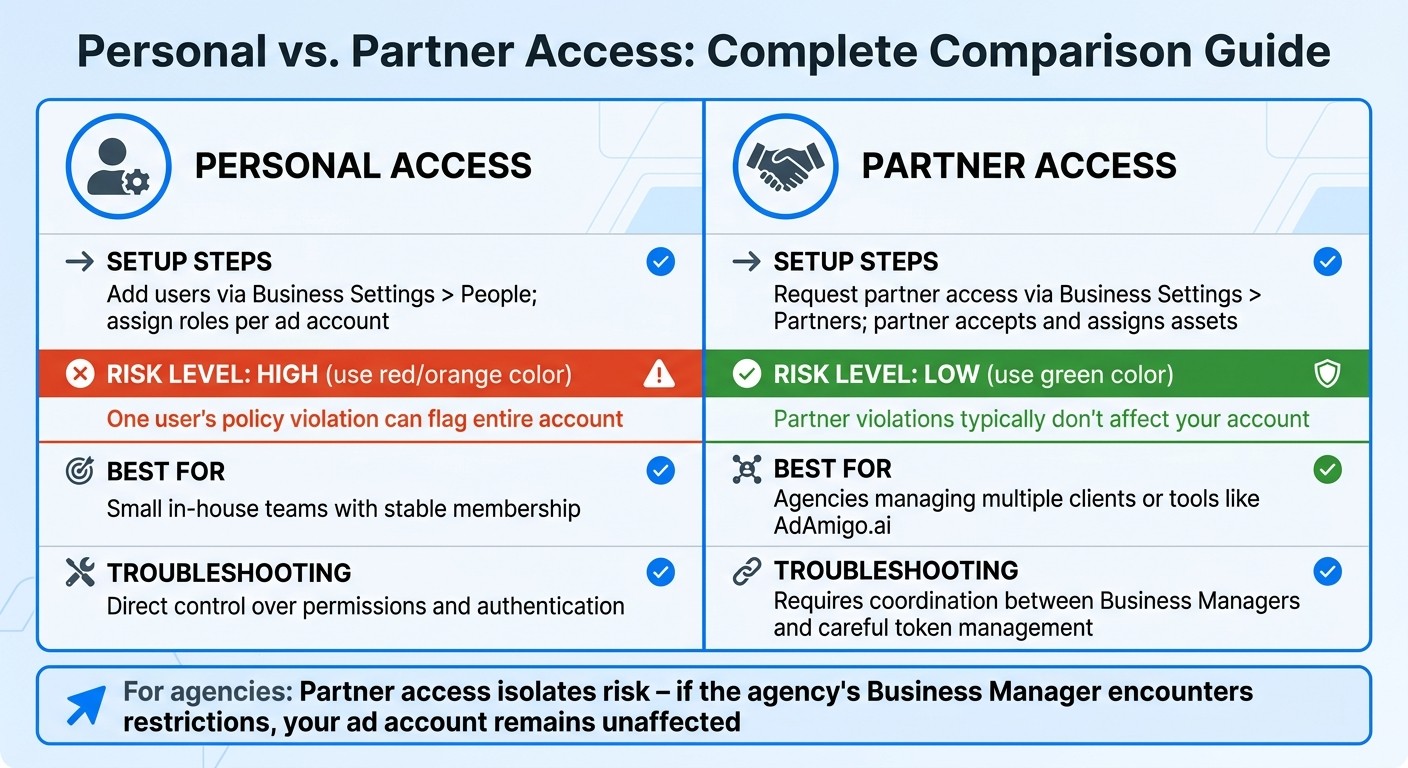
Meta Ad Account Access Types: Personal vs Partner Access Comparison
Signs of Connection Failures
When it comes to running ads, connection failures can disrupt campaigns without immediate warning. These issues often surface only after launching an ad. A common red flag is when your ad status shows "Active", but the spend remains at $0.00 - a clear sign that something is preventing your ad from being delivered.
Since March 2026, a recurring bug has been causing the error message: "someone may have tried to access your account without permission." This issue silently blocks ad creation and editing until you manually authenticate through Ads Manager.
You might also encounter specific error codes. For example:
Error code #1487194: This usually happens when objects, like videos, are restricted or not visible. A typical cause is uploading a video directly to Ads Manager instead of your Page's video library.
Error code #1443121: This indicates your Page name might be missing from the ad creation dropdown.
Both errors suggest broken Meta ad account linking and permissions between your Business Manager and assets like Pages or pixels.
How to Fix Connection Problems
To resolve these issues, start by forcing the authentication banner to appear. Open Ads Manager in Chrome’s incognito mode, edit the name of a specific ad (not an ad set), and click "Publish." This should reveal the hidden "Start Authentication" button, prompting email verification (similar to the steps outlined under access-related problems). If this doesn’t work, try a hard API reset. Change your Facebook password to deactivate current API connections, which will force a fresh re-authentication.
For pixel and integration-related issues, double-check that:
The pixel is installed on the correct domain.
Proper API permissions are set up in Business Settings.
Additionally, monitor the "Delivery" column in Ads Manager. Hover over the status to see specific error messages like "Account Spending Limit Reached" (which can be managed by setting guardrails for Meta ads) or "Audience Too Small". If you encounter object visibility problems, ensure any video assets are uploaded to your Page's video library before using them in Ads Manager.
Fixing these technical hiccups ensures smoother access and ad delivery.
Personal vs. Partner Access: Comparison
Managing access types effectively can help prevent many of these connection problems. It’s important to understand the distinction between personal and partner access, as this can save significant troubleshooting time.
Personal Access: This involves assigning roles to individual users through Business Settings. Each person logs in with their own Facebook credentials. While this setup offers direct control, it comes with higher risks - if one user violates Facebook’s policies, the entire account could be flagged. Understanding how to avoid Meta ad rejections is critical for maintaining account health.
Partner Access: This is handled through "Business Settings > Partners." It allows external agencies or platforms to manage your assets without needing individual login credentials for every team member. Partner access is safer because any policy violations by the partner typically won’t affect your core account. However, it requires careful coordination and token management to maintain uninterrupted connections.
Here’s a quick comparison:
Access Type | Setup Steps | Risk of Account Bans | Best For | Troubleshooting |
|---|---|---|---|---|
Personal Access | Add users via Business Settings > People; assign roles per ad account | Higher – one user’s policy violation can flag the account | Small in-house teams with stable membership | Direct control over permissions and authentication |
Partner Access | Request partner access via Business Settings > Partners; partner accepts and assigns assets | Lower – partner violations typically don’t affect your account | Agencies managing multiple clients or tools like AdAmigo.ai | Requires coordination between Business Managers and careful token management |
For agencies, partner access is often the smarter choice as it isolates risk. If the agency’s Business Manager encounters restrictions, your ad account remains unaffected. On the flip side, personal access is easier to set up but ties the account’s overall security to individual users - making it more vulnerable to mistakes or breaches.
Using AI Tools to Simplify Setup
How AdAmigo.ai Improves Setup
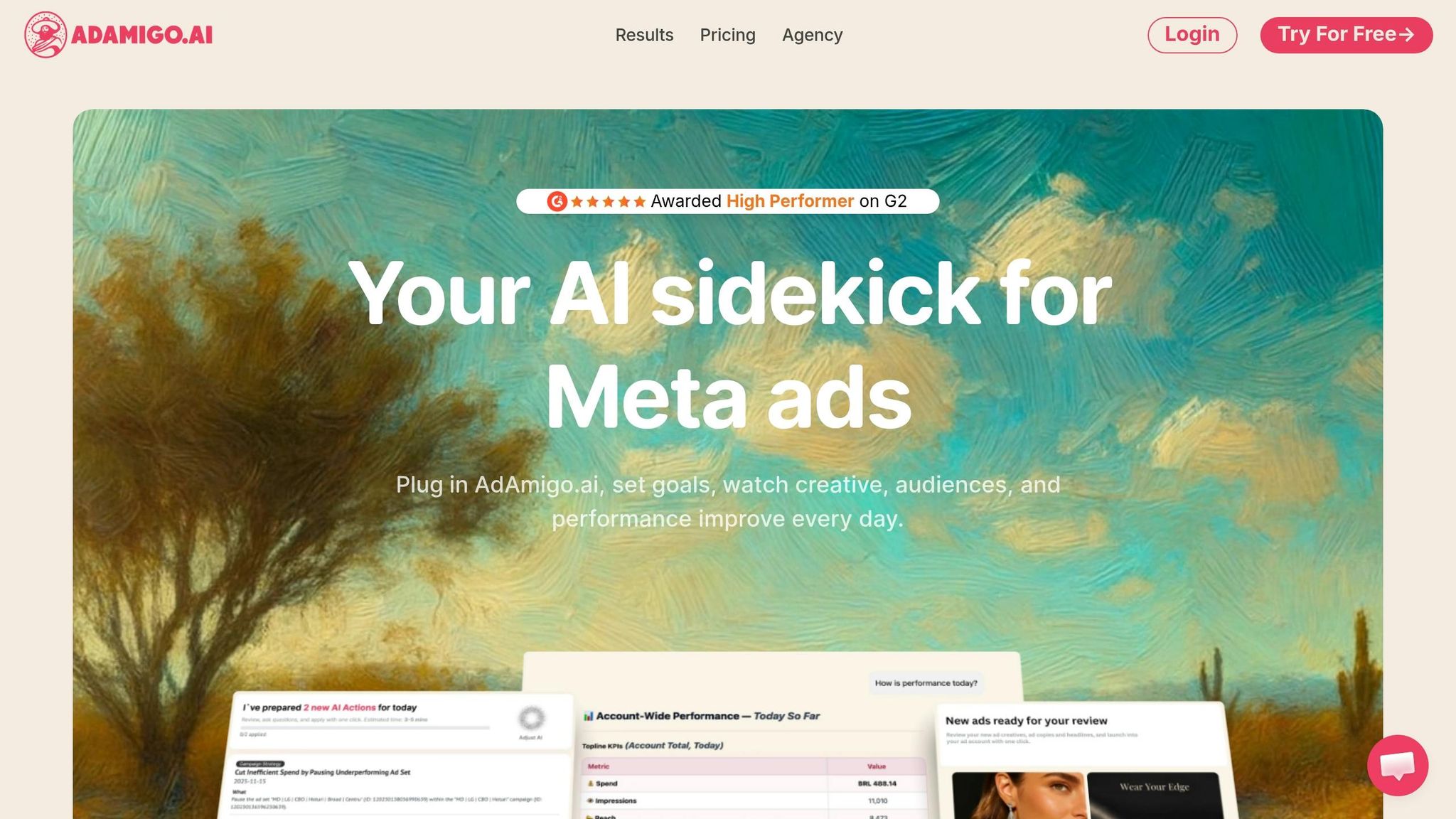
Setting up ad campaigns manually can be overwhelming, with countless settings and plenty of room for errors. Tools like AdAmigo.ai streamline this process by connecting your Meta ad account in just minutes. It also verifies your account structure and permissions automatically, eliminating common setup headaches.
During a quick five-minute onboarding, you can set performance targets - like scaling your budget by 30% or achieving a 3x ROAS. These KPIs guide the AI’s decisions, reducing the trial-and-error phase that often leads to misconfigurations and wasted ad spend. Normally, stabilizing delivery requires around 50 optimization events over seven days, but AdAmigo.ai helps smooth this process.
One standout feature is early problem detection and anomaly scanning. AdAmigo.ai continuously scans for setup issues, such as expired OAuth tokens, missing Admin or Advertiser roles, or unaccepted Meta agreements. It flags these problems in real time and offers actionable solutions. For instance, if your account shows an "Account Error", the AI can pinpoint whether it’s a billing issue, a failed payment, or a spending limit problem.
The Bulk Ad Launcher is another game-changer. It lets you upload creatives directly from Google Drive and launch hundreds of ads at once. This is especially useful for agencies juggling multiple clients. With this tool, one media buyer can manage 3–5 times more accounts, leaving them free to focus on strategy while the AI handles execution.
Benefits of AI Integration
Beyond simplifying setup, integrating AI tools like AdAmigo.ai takes campaign management to the next level by continuously optimizing performance. The platform conducts automated audits on access control, campaign health, and delivery performance. For example, it can detect issues like the Meta custom placement carousel bug, which often requires manually republishing ads to trigger spend. AdAmigo.ai’s AI Actions feature creates a daily to-do list, prioritizing tweaks to creatives, audiences, budgets, and bids for the biggest impact.
What sets AI tools apart from traditional automation is their ability to learn and adapt. AdAmigo.ai refines its strategy based on real-world outcomes, improving its effectiveness over time. This creates a compounding benefit - your campaigns get smarter and more efficient as the AI gathers more data.
Feature | AdAmigo.ai | Traditional Tools | Manual Management |
|---|---|---|---|
Optimization | Fully automated or approval-based | Limited rule-based automation | Manual adjustments only |
Daily Action Items | Prioritized, data-driven insights | Basic performance alerts | Self-identified tasks |
Bulk Launch | Launch hundreds of ads in one go | Limited batch options | One-by-one creation |
Learning | Adjusts based on outcomes | Static rule execution | Relies on human experience |
To get the most out of AI tools, it’s crucial to implement strong security measures. Use two-factor authentication for all account users to avoid security-related delivery blocks. Regularly review roles with high access, like Admin or Finance Editor, to ensure they match current team responsibilities. Additionally, if you have ad sets with significant audience overlap (30% or more), consider consolidating them. This helps both the AI and Meta’s algorithm learn faster by focusing conversion volume.
Conclusion
Setting up a Meta ad account becomes much simpler when you know where to look for common issues. Payment errors are often caused by expired cards, failed transactions, or low spending limits. These can usually be fixed by clicking "Pay Now" or updating your payment method. It's also smart to have a backup payment method ready to avoid interruptions.
When dealing with account restrictions, the solution is a bit different. Head over to Meta Business Support Home to verify your identity, enable two-factor authentication (2FA), or appeal any policy violations. Keep in mind, 2FA is mandatory for business accounts older than 90 days. Without it, you could lose access to essential tools. If no error message appears, try using Incognito Mode to prompt the verification process.
Access and connection issues often stem from ad blockers, using the wrong Facebook profile, or outdated app permissions. Disconnecting and reconnecting your integration can often resolve these problems. For agencies, it’s crucial to establish clear role hierarchies: Admins for full control, Advertisers for campaign management, and Analysts for read-only access. This helps prevent unauthorized changes.
To stay ahead of potential issues, conduct monthly audits of user permissions, accept updated Meta agreements as soon as they’re available, and regularly check your Account Quality page for any policy strikes. Tools like AdAmigo.ai can help by scanning for expired tokens, missing roles, and unusual access patterns in real time. With automated monitoring and daily action items, you can shift your focus from fixing setup problems to driving strategy and growth. Staying proactive ensures your campaigns run smoothly and efficiently.
FAQs
Why are my Meta ads active but spending $0.00?
If your Meta ads are running but not spending, several factors could be at play. It might be due to the learning phase, delivery delays, or specific settings like bid caps or budget limits.
Start by checking for any account restrictions, billing issues, or paused campaigns. Also, make sure the permissions and roles for your account are set up correctly. Double-check your campaign's budget and bid strategy to ensure they're aligned with your goals.
Sometimes, spending delays happen during the initial setup. If everything looks correct, give it a few hours to see if the issue resolves itself.
How can I raise my Meta billing threshold and avoid payment holds?
To increase your Meta billing threshold and steer clear of payment holds, focus on maintaining a strong payment track record and adhering to Meta's guidelines. This means paying your bills on time, addressing any payment issues quickly, and ensuring your payment method is verified and has sufficient funds. While there’s no clear process for manual threshold requests, consistently demonstrating reliable payment behavior can help your account qualify for higher thresholds and reduce the risk of holds.
Should I use Partner access or Personal access for my agency?
For agencies, Partner access is the preferred option. It allows for role-based permissions, enhances collaboration, and improves security by keeping client accounts separate from your personal profile. On the other hand, Personal access links directly to your Facebook profile and works better for quick, one-time tasks. Partner access also makes it easier to resolve issues like account restrictions or permission errors, making it ideal for managing multiple clients or team members efficiently.