
Best Practices for Custom Conversion Reporting
Track and optimize high-value actions with rule-based custom conversions: setup, test, audit, and automate for accurate reporting.
Custom conversions are a simple way to track high-value user actions - like purchases over $100 - without extra coding. They help you optimize ad spend by focusing on what drives real results, not vanity metrics. By setting up precise rules in Meta’s Events Manager, you can segment standard vs. custom conversions, improve reporting accuracy, and train Meta’s algorithm to target your best customers.
Key Takeaways:
Why Use Custom Conversions?
Track specific actions (e.g., purchases over $50) that align with your business goals, reducing wasted spend.
Setup Essentials:
Use
"URL contains" for flexible tracking and validate with tools like Meta Pixel Helper.
Optimization Tips:
Regularly review and update your custom conversions to ensure relevance. Use
Ads Manager to analyze performance by audience, placement, and device.
Automation:
Tools like
AdAmigo.ai simplify managing and optimizing conversions as your campaigns grow.
This guide covers how to set up, test, and maintain custom conversions to ensure accurate tracking and better campaign performance.
Track Custom Conversions in Meta Ads

What Custom Conversions Are and When to Use Them
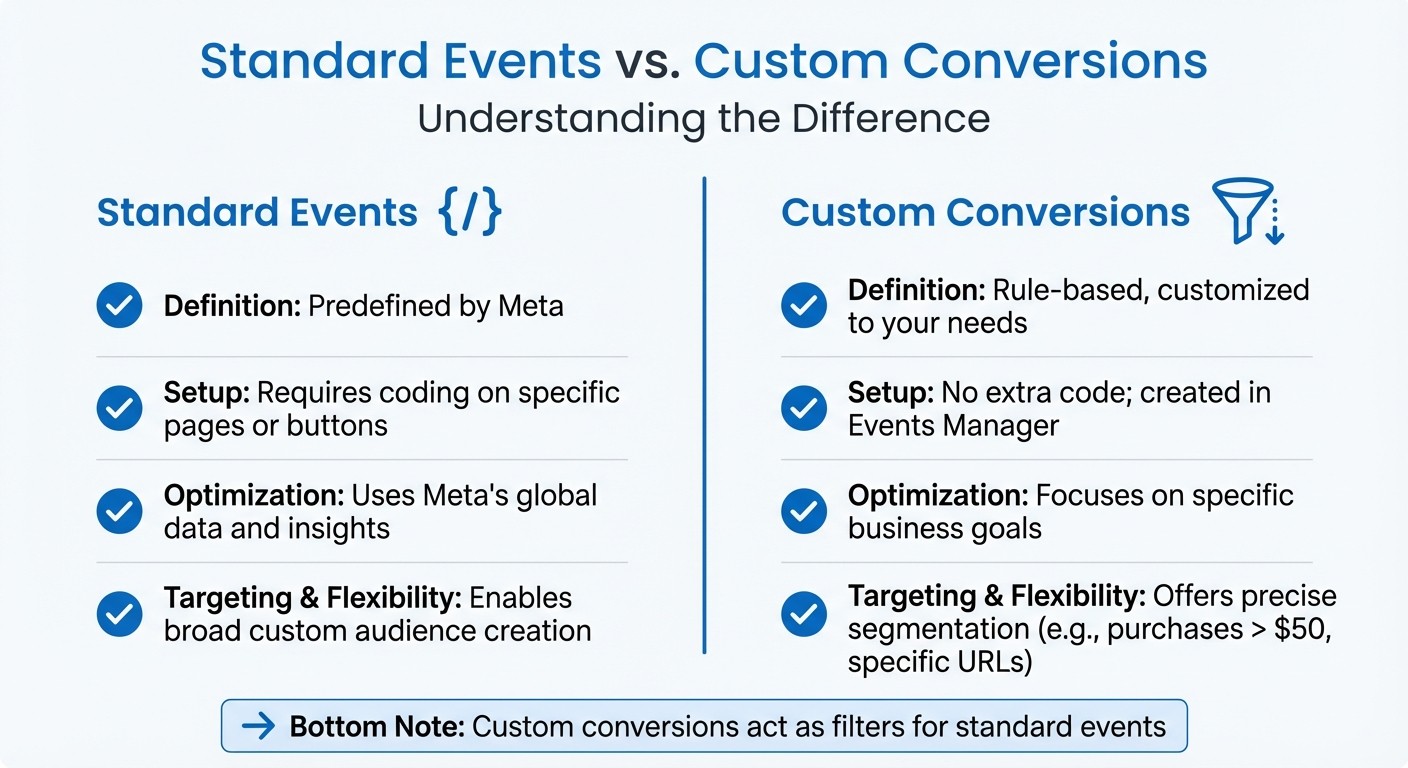
Standard Events vs Custom Conversions in Meta Ads
Custom conversions are rule-based filters designed to refine the data captured by your Meta pixel or Conversions API events. Instead of tracking every "Purchase" event, for example, you can create a custom conversion to count only purchases over $50 or those made on a specific product page. These filters help tailor standard events to align with your business goals - without needing additional code.
### Standard Events vs. Custom Conversions
Standard events require adding code to specific pages or buttons and are used to track broad user behaviors across your site. Custom conversions, however, are defined in Events Manager using URL or parameter rules. They allow you to segment standard events to focus on the metrics that matter most to your business.
Feature | Standard Events | Custom Conversions |
|---|---|---|
Definition | Predefined by Meta | Rule-based, customized to your needs |
Setup | Requires coding on specific pages or buttons | No extra code; created in Events Manager |
Optimization | Uses Meta's global data and insights | Focuses on specific business goals |
Targeting & Flexibility | Enables broad custom audience creation | Offers precise segmentation (e.g., purchases > $50, specific URLs) |
Think of it this way: standard events capture the raw data, while custom conversions act as a "filter" to isolate the insights that are most relevant to your campaigns. This combination ensures you're tracking the interactions that truly matter.
When to Use Custom Conversions
Custom conversions are especially helpful when you want to track high-value actions that standard events can't pinpoint. Examples include completed purchases (not just initiated checkouts), orders above a specific value, visits to a payment confirmation page, or leads that meet particular qualifications, often by mapping GA4 events to Meta custom conversions. They can even track multi-page sessions to identify highly engaged users.
These conversions also reduce the risk of overstated metrics. For instance, Meta's standard "Results" column includes all purchases attributed to your ads. By using a custom conversion, you can isolate purchases for a specific product being promoted, giving you a clearer picture of what’s driving your campaign's success. Pairing this with Meta's "First Conversion" attribution setting eliminates duplicate counts, ensuring your performance metrics are more accurate.
With a maximum of 100 custom conversions per account, it's essential to prioritize the actions that directly influence revenue or qualified engagement. Regularly review and remove unused custom conversions to keep your reporting streamlined. When creating rules, opt for "URL contains" instead of "URL equals" to avoid issues caused by tracking parameters, protocol differences, or trailing slashes.
How to Set Up Custom Conversions Correctly
Getting custom conversions right requires careful planning and attention to detail. Missteps in the setup process can lead to inaccurate tracking or even complete failure, leaving you with incomplete data when it matters most. A few extra steps upfront can save you from headaches later.
Creating Rules for Custom Conversions
Start by opening Events Manager, selecting Custom Conversions, and clicking Create Custom Conversion. From there, you'll name your conversion, choose a data source (either your pixel or Conversions API), and select the standard event you want to refine, such as "Purchase" or "Lead."
The key to success lies in defining your conversion rule with precision. Meta allows you to filter by URL patterns, event parameters, or both. For URL-based rules, it's best to use "URL contains" instead of "URL equals" to avoid issues with dynamic parameters, protocol differences, or trailing slashes. As Conversios.io notes:
"Prefer 'URL contains' over 'URL equals' unless the URL is truly static, because parameters, protocol changes, or trailing slashes can break exact matches and your conversion won't be counted."
For example, if you're tracking purchases of a specific product, use a rule like URL contains /product/wireless-headphones rather than attempting to match the entire URL. If you're focusing on high-value transactions, you can combine a URL rule with a parameter filter, such as "Value is greater than 100", to track purchases over $100. Keep it simple - overly complicated rules with multiple conditions are more likely to fail if your site structure changes. Once you've set up your rules, validate them to ensure everything is working as intended.
Testing and Validating Custom Conversions
After defining your rules, it's time to test them. Before launching any campaigns that rely on a custom conversion, test your Meta Pixel events to make sure they are firing correctly. Use the Meta Pixel Helper browser extension to navigate to the page where the conversion should trigger. Perform the relevant action (e.g., submitting a form or reaching a thank-you page) and confirm the Pixel Helper logs the correct event. Then, return to Events Manager and check the Test Events tab to ensure your custom conversion shows up within a few minutes.
Another important step is reviewing your Event Match Quality (EMQ) score in Events Manager. This score measures how well Meta matches your conversion data to user profiles for optimization and attribution. A low EMQ score often indicates missing customer information, such as email or phone numbers, which you can add via the Conversions API to improve accuracy. Be sure to test conversions on different devices to catch any inconsistencies or edge cases.
Using Custom Conversion Data to Improve Campaigns
Once you’ve got accurate tracking in place, it’s time to leverage custom conversion data to fine-tune your campaigns. Custom conversions let you dig deeper into user behavior, uncovering insights that standard events might miss. This helps you not only improve individual ad sets but also sharpen your overall reporting process.
Optimizing Ad Sets with Custom Conversions
When setting up your ad sets, make your custom conversion the optimization goal. In the "Optimization & Delivery" section, selecting your custom conversion signals Meta’s algorithm to target users who are most likely to complete that specific action.
To figure out which conversions are delivering the best results, use the breakdown analysis in Ads Manager or an ad performance benchmark tool. You can segment your conversion data by factors like age, gender, placement, and device. This helps you spot performance trends and industry benchmarks, whether it’s identifying ad sets with higher acquisition costs or pinpointing top performers based on ROAS (Return on Ad Spend).
Don’t forget to consider attribution windows - they play a big role in understanding your conversions. For quick, impulse-driven purchases, a 1-day click window works well. For typical e-commerce transactions, a 7-day window is more fitting. And for bigger-ticket items, go with a 28-day window to capture the full sales cycle. Use Ads Manager’s "Compare Attribution Settings" tool to see how different windows impact your reported conversion numbers.
These insights not only improve your ad set optimizations but also feed into more detailed reporting strategies.
Building Custom Reports in Ads Manager
Custom reports are your key to turning conversion data into actionable strategies. Start by adding custom conversion columns to your Ads Manager dashboard. Go to "Columns: Performance", select "Customize Columns", and search for your custom conversion by name. Add metrics like conversions, cost per result, and ROAS, then save this setup as a preset for easy access later.
Zero in on the metrics that align with your campaign goals. For example, if you’re focused on conversions, Link Click-Through Rate (Link CTR) is more meaningful than CTR (All) because it reflects deliberate user actions rather than casual engagement. Additionally, monitoring frequency alongside CTR can help you spot ad fatigue - if frequency climbs while CTR drops, it’s probably time to refresh your ad creatives. Breaking down reports by placement, region, and device can reveal new opportunities you might have missed.
These reporting strategies, combined with regular audits and tools like AdAmigo.ai, can streamline your workflow and help you continuously improve your campaigns.
Maintaining Effective Custom Conversion Reporting
Setting up custom conversions is just the start. To keep your campaigns performing well as they grow, you need to maintain and update your setup regularly. Without this ongoing attention, your account can quickly become cluttered with outdated conversions, making it harder to focus on what truly drives results.
Regular Audits and Account Cleanup
Make it a habit to review your custom conversions every month. Start by identifying conversions that haven’t logged any activity in the past 30 days - these are likely no longer relevant and can be archived or deleted. This cleanup keeps your account organized and ensures you’re ready to implement new tracking as your business evolves.
During these audits, check that all active custom conversions still align with your current goals. For example, if you’ve updated your website, revamped product pages, or changed your checkout process, your conversion rules might need tweaking to stay accurate.
To stay organized, document each conversion in a shared spreadsheet. Include details like the name, URL rules, purpose, and last audit date. This not only helps your team understand what each conversion tracks but also prevents duplicate setups. If your account is too large for manual reviews, automated solutions can save time while ensuring accuracy.
Using AdAmigo.ai to Automate Optimization
As your account grows, automation tools like AdAmigo.ai can make managing custom conversions much easier. This platform continuously audits your conversion performance and uses real-time data to optimize campaigns. Instead of spending hours analyzing which ads are hitting their goals, AdAmigo.ai identifies underperformers, reallocates budgets to top-performing ads, and fine-tunes campaigns to maximize results.
Its AI Autopilot feature digs into your conversion data across campaigns, uncovering trends that would take much longer to spot manually. It can scale effective ad sets automatically while pausing those that don’t meet your cost-per-result targets. You can choose to let it run fully autonomously or require approval before it makes changes, giving you control over the process.
Conclusion
Custom conversions enable precise tracking of key actions that matter most to your campaigns. By setting them up effectively - using clear URL rules, validating with tools like Meta Pixel and CAPI, and focusing on actions with high intent - you can build a reliable framework for smarter decision-making, optimizing for ROI, and ongoing campaign improvements.
To keep your tracking accurate as campaigns grow, regular audits and timely updates are essential. However, managing custom conversions manually can be a tedious task as complexity increases. Platforms like AdAmigo.ai can simplify this process by analyzing conversion performance, reallocating budgets to top-performing actions, and identifying optimization opportunities around the clock. Whether you prefer full automation or want to approve changes yourself, tools like these adapt to your workflow while ensuring consistent optimization.
Combining a solid event tracking setup with well-organized custom conversion rules ensures the quality of data needed for confident optimizations. When you pair precise tracking with routine audits and automation, your campaigns can scale efficiently without requiring constant hands-on management. Use accurate tracking and smart automation to maintain strong campaign performance and long-term success.
FAQs
When should I use a custom conversion instead of a standard event?
When you want to track specific user actions that are unique to your business - like purchases exceeding a certain amount or form submissions tied to particular services - using a custom conversion is the way to go. It gives you greater control and flexibility, allowing you to gain detailed insights without the need for additional coding.
How do I stop my custom conversion from breaking when URLs change?
To keep your custom conversions intact even when URLs change, rely on rules that focus on URL parameters or patterns rather than static URLs. By setting rules based on domains, URL parameters, or event parameters, you'll make your tracking more adaptable. Make it a habit to regularly review and adjust these rules in Events Manager to ensure your tracking stays accurate as URLs are updated.
How can I use custom conversions to improve ROAS in Ads Manager?
To get better ROAS, take advantage of custom conversions to track important actions like purchases or form submissions - no extra coding needed. First, make sure your Meta Pixel is properly installed. Then, set up conversion rules based on things like URLs, events, or domains that are linked to valuable user actions. This allows Meta to fine-tune ad delivery, targeting users who are more likely to engage meaningfully.
Keep a close eye on metrics like conversions and cost per result. Regular monitoring will help you adjust your campaigns and improve their performance over time.