
Custom Conversion Rules: Setup Guide
Create and test custom conversion rules in Meta Events Manager using Pixel and Conversions API to track high-value actions and improve campaign ROAS.
Custom conversion rules in Meta's Events Manager let you track specific user actions tailored to your business goals. You can define conversions based on URL patterns or event parameters - no coding required. For example, track purchases over $100 or visits to a specific page. These rules help Meta optimize your campaigns for the most impactful actions, improving ad performance and reducing wasted spend.
Key Steps:
Verify Event Tracking: Ensure your Meta Pixel or Conversions API is properly set up and collecting data.
Create Rules: Use URL-based or parameter-based tracking to define conversions.
Test & Monitor: Use Meta’s tools to confirm your rules are working and troubleshoot issues.
Optimize Campaigns: Align custom conversions with reporting categories like "Purchase" or "Lead" for better ad targeting.
Limitations include a cap of 100 custom conversions per ad account, so prioritize tracking high-value actions. Pairing the Pixel with the Conversions API can improve data accuracy, especially with privacy changes like Apple’s ATT. Regularly review and refine your rules to match your evolving business needs.
How to Create a Custom Conversion in Facebook Ads (2025 Step-by-Step Tutorial)
What You Need Before You Start
Before diving into custom conversions, you need to ensure your event tracking is fully operational. Without accurate event data, even the most carefully set up rules won’t work. This means your Meta Pixel or Conversions API (CAPI) must be properly installed and actively collecting data.
Check Your Meta Pixel or CAPI Installation
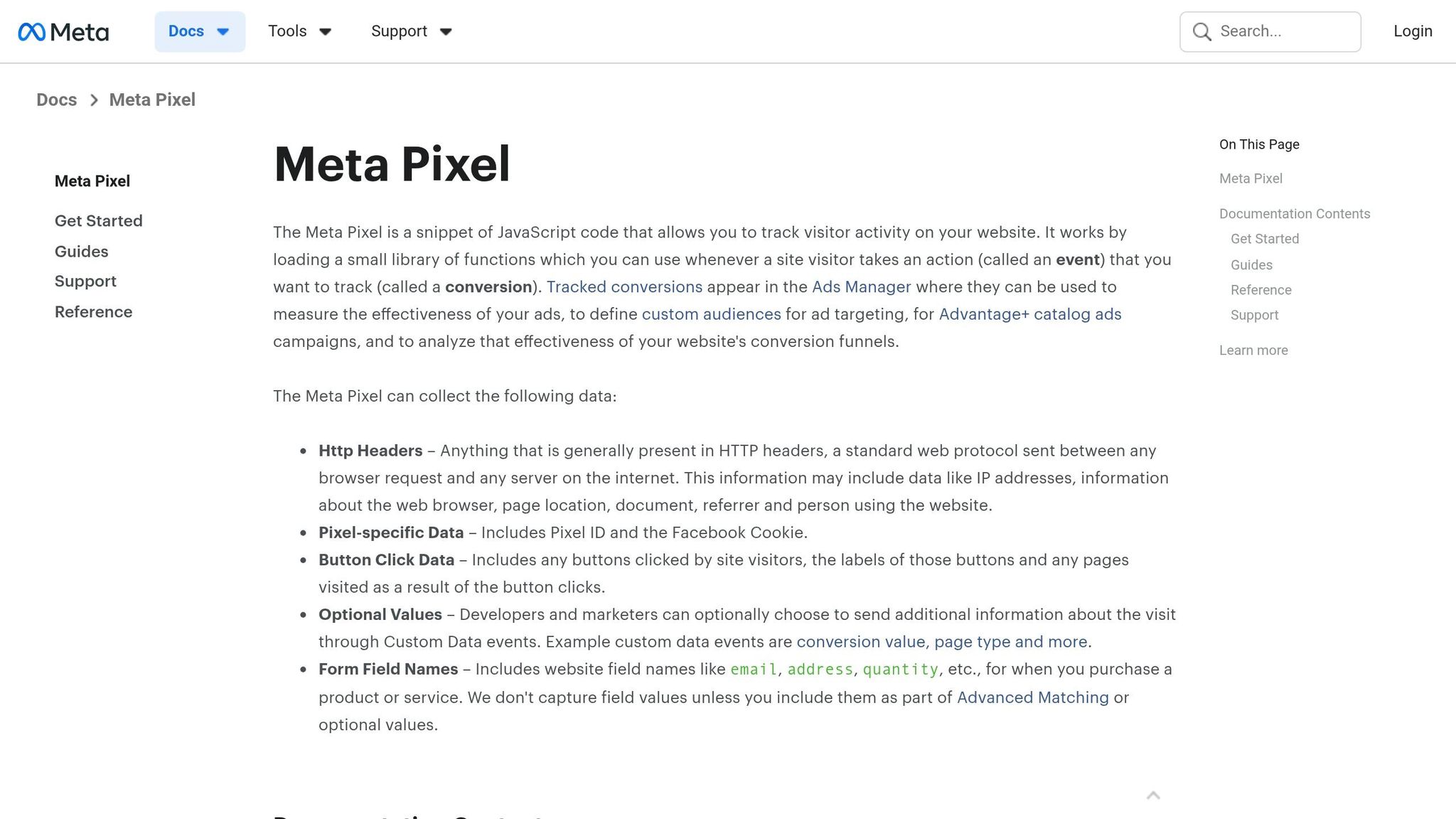
To start, install the Meta Pixel on your website with the base "PageView" event placed in the header. This is essential for event data to flow into the Events Manager.
If you’re using the Conversions API (CAPI), ensure it’s set up for server-side tracking. This requires a valid access token to send event data directly from your server to Meta. CAPI has become increasingly important as privacy features like Apple’s App Tracking Transparency have made browser-based tracking less reliable. Running both the Pixel and CAPI together can improve the accuracy of your data and help Meta better match conversions to your ads.
Additionally, verify your domain ownership in Meta Business Manager for Aggregated Event Measurement (AEM). This step is critical to optimize ad delivery on iOS devices, where tracking signals are limited. Without domain verification, custom conversions may not work properly for campaigns targeting iPhone users.
Once your Pixel or CAPI is installed, confirm that event data is flowing into Events Manager.
Confirm Event Data Is Flowing
Head to Events Manager through the "All Tools" menu in Meta Business Manager, then select your pixel or data source. In the Overview tab, you’ll see a list of events being tracked. Check the "Last Received" timestamp to confirm that events are active.
To test events in real time, use the Test Events tool in Events Manager. Enter your website URL, perform a target action (like completing a purchase or visiting a thank-you page), and check the dashboard to ensure the event is logged. If nothing appears, try clearing your browser cache or testing in incognito mode. You can also use the Facebook Pixel Helper Chrome extension to confirm the pixel is firing and to identify any coding errors. Before finalizing a custom conversion, manually trigger the action to ensure it’s recorded in the Events Manager log.
How to Create Custom Conversion Rules
Once your event data is verified, you're ready to set up custom conversions. This process only takes a few minutes and allows you to define exactly what Meta should count as a conversion.
Navigate to Custom Conversions
Start by logging into Meta Ads Manager. Click the "All Tools" icon (three horizontal lines or nine dots in the top-left corner). From the menu, select Events Manager. In the left-hand sidebar, find the Custom Conversions option - it’s symbolized by a star inside a circle. Alternatively, you can access this through Business Settings by going to the Data Sources tab and selecting Custom Conversions.
Click the blue "Create Custom Conversion" button to open the setup window. Before you can create rules, select the Meta Pixel or offline event set you’ll use as the data source. Ensure you have Admin or Editor permissions in Meta Business Suite, as these roles are required to create or edit custom conversions. Once you’re in the setup window, you can start defining the conditions for tracking.
Set Up Rules and Conditions
Now it’s time to define what triggers your conversion. You can base your rules on two types of tracking: URL-based tracking and event parameter tracking.
URL Rules: These track users visiting specific pages. For instance, if you want to track purchases, set a rule where the URL contains "/checkout-success" or "/thank-you". Use "URL contains" for broader matches or "URL equals" for exact matches.
Event Parameter Rules: These filter conversions based on parameters sent with standard events like Purchase or Lead. For example, you can create a rule that counts a Purchase event only when the
valueparameter is greater than 100, enabling you to track high-value transactions separately. You can also combine conditions to track specific actions, such as purchases over $100 and where thecontent_typeequals "subscription". This level of detail ensures your conversion rules align perfectly with your campaign goals.
To keep things organized, name your rules descriptively - for example, "High-Value Purchase - Over $100" instead of something generic. This makes it easier to identify in Ads Manager reports and helps your team quickly understand what’s being tracked. After setting up the triggers, assign a reporting category to match your campaign objectives.
Choose a Category for Reporting
Selecting the right category helps clarify your success metrics in Ads Manager. Meta offers standard categories such as Purchase, Lead, Add to Cart, and View Content, each suited for different user actions.
Category Choice | Best Used For | Impact on Ads Manager |
|---|---|---|
Purchase | Completed transactions | Tracks ROAS and enables value-based optimization |
Lead | Form submissions or signups | Optimizes user acquisition and calculates CPL |
View Content | Visits to key pages (e.g., pricing) | Useful for top-of-funnel engagement |
Add to Cart | Actions showing purchase intent | Identifies high-intent users who didn’t convert |
If you’re tracking purchases, assign a monetary value to enable value-based optimization and to directly measure ROAS in your reports. For lead generation campaigns, selecting Lead helps Meta target users more likely to submit forms.
Once everything is configured, save your custom conversion and use the Test Events tool in Events Manager to ensure it’s working correctly by debugging your conversion tracking before launching your campaigns.
How to Customize Rules for Better Tracking
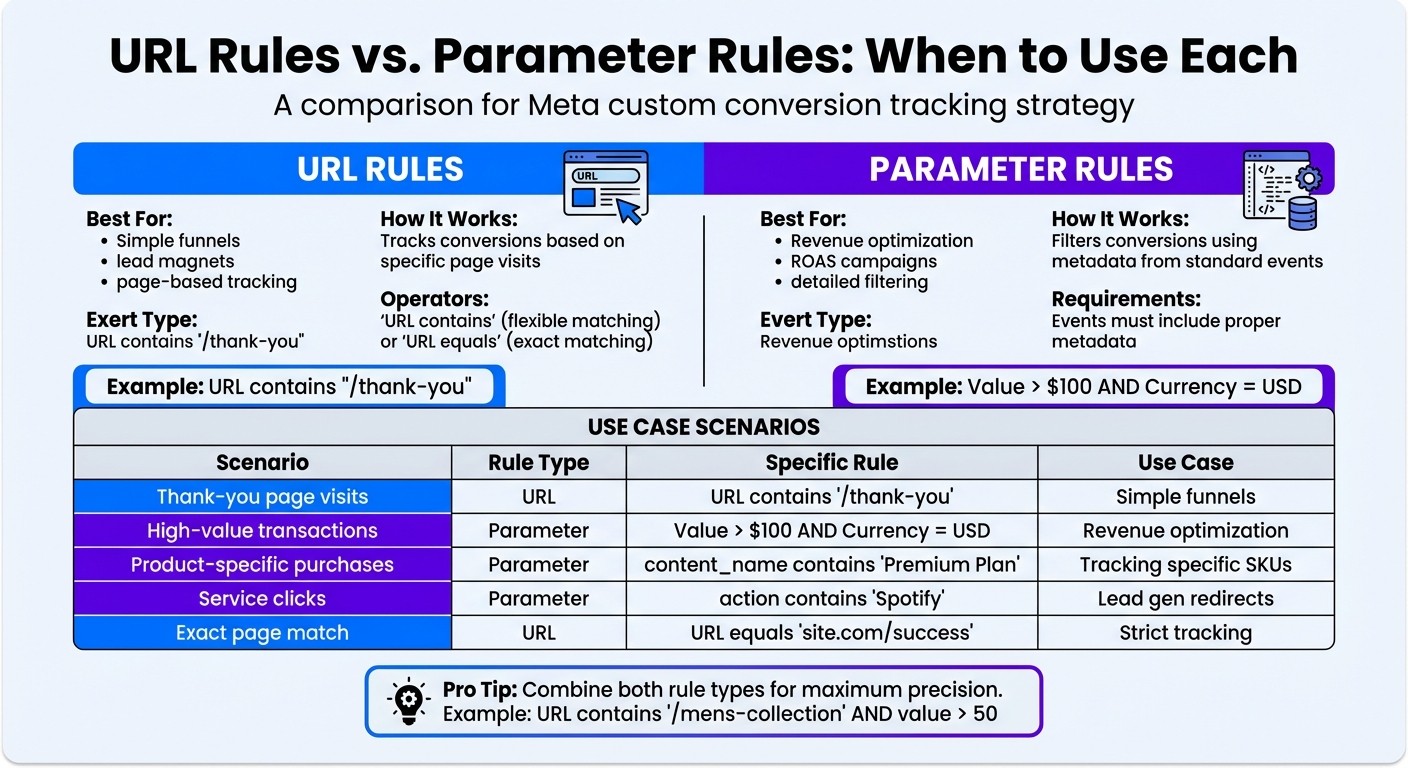
URL Rules vs Parameter Rules: Custom Conversion Tracking Comparison
Once you've set up your basic custom conversion rules, you can take things further by tailoring them for even more precise tracking. This advanced customization helps you zero in on the actions that truly matter for your business.
Layer Multiple Conditions for Detailed Tracking
Want to track specific actions instead of every user interaction? Combining multiple conditions lets you pinpoint the events that align with your goals. For instance, instead of tracking all purchases, you could focus on high-margin products bought by repeat customers or leads from certain regions. Meta makes this possible with AND logic, meaning all conditions must be met for the conversion to trigger.
Let’s say you sell apparel and want to monitor sales of men's shoes priced over $50. You could set a rule like this: URL contains "/mens-shoes" and event parameter value is greater than 50. To keep things organized, give your rules clear, descriptive names. For example, a rule labeled "Mens_Shoes_Over_50" is far more helpful than something generic like "Custom_Conversion_3". Clear labels save time and avoid confusion, especially when juggling multiple campaigns or working collaboratively.
Once your rules are set, it’s important to choose between URL and parameter rules based on your specific needs.
URL Rules vs. Parameter Rules: When to Use Each
URL rules are perfect for tracking conversions tied to specific page visits. They’re easy to set up and work well when a particular page (like "/thank-you" or "/order-complete") indicates a successful action. If your funnel is straightforward and doesn’t require filtering by transaction details, URL rules are your go-to. Use "URL contains" for flexibility (e.g., matching "/checkout-success" and "/checkout-success?ref=email") or "URL equals" for exact matches.
Parameter rules, on the other hand, rely on metadata sent with standard events like Purchase or Lead. These are ideal when you need to filter by specific details, such as price, product category, or quantity. While they require your events to include the right metadata, they offer much more detailed tracking than URL rules alone.
Here’s a quick comparison of scenarios and the best rule types for each:
Scenario | Rule Type | Example | Best For |
|---|---|---|---|
Thank-you page visits | URL | URL contains "/thank-you" | Simple funnels, lead magnets |
High-value transactions | Parameter | Value > $100 AND Currency = USD | Revenue optimization, ROAS campaigns |
Product-specific purchases | Parameter | content_name contains "Premium Plan" | Tracking specific SKUs or services |
Service clicks | Parameter | action contains "Spotify" | Lead gen or app redirects |
Exact page match | URL | URL equals "site.com/success" | Strict tracking with no variations |
For even better results, consider combining both types of rules. For example, if you’re running a campaign for men’s apparel and want to track purchases over $50 from the men’s collection page, you could layer a URL rule (URL contains "/mens-collection") with a parameter rule (value is greater than 50). This hybrid approach gives you broader tracking at the page level while also filtering for specific transactions.
Testing and Monitoring Your Rules
Once you've completed your installation and set up custom conversions, it's crucial to ensure everything is functioning as expected. Testing and monitoring are key to maintaining accurate performance over time. Start by verifying your custom conversion rules immediately after setup.
Test Rules with Meta's Event Testing Tool
To test your custom conversion, visit the relevant page (like a thank-you or order confirmation page) that should trigger the rule. Then, go to Events Manager and check the "Overview" or "Custom Conversions" section to confirm if the conversion appears. If it shows up within a few minutes, your setup is working as intended.
For real-time validation, try using the Facebook Pixel Helper Chrome extension. This tool lets you see which events and custom conversions are firing as you navigate your site. Make sure to clear your browser cache beforehand for accurate results.
Once you've confirmed that the rule is firing correctly, you can troubleshoot any potential tracking issues.
Fix Common Setup Problems
If a rule doesn't fire as expected, retest it immediately. Keep in mind that URL rules for custom conversions cannot be edited once created. If there's an issue with your logic, you'll need to delete the conversion and start over. This makes thorough testing before launch absolutely essential.
For pages with dynamic URL parameters (e.g., confirmation pages that add unique strings), avoid using "URL Equals". Instead, use "URL Contains" to capture consistent fragments like /thank-you or /order-complete, which remain the same across all variations.
Be aware that privacy changes, like Apple's App Tracking Transparency (ATT), can impact tracking. ATT may result in signal loss for iOS users, ranging from 12% to 90%. If you notice lower-than-expected conversion counts, consider implementing the Conversions API (CAPI) alongside your Pixel. Server-side tracking can help recover lost data and provide more accurate results. Additionally, check for duplicate tracking - if both a standard event and a custom conversion are tracking the same action, your data could be inflated.
Track Performance in Ads Manager
After resolving any setup issues, keep a close eye on your conversion data in Ads Manager. Focus on metrics like Conversions (total volume), Cost per Result (CPA), and Return on Ad Spend (ROAS) to evaluate the financial impact of your custom conversions.
In Events Manager, monitor your Event Match Quality (EMQ) score. This metric measures how effectively Meta matches your website data to user profiles. A low EMQ can weaken attribution and reduce optimization effectiveness. Additionally, track metrics like Spend, CPM (Cost per 1,000 Impressions), and Frequency to ensure your campaigns are cost-effective and not oversaturating your audience.
If you notice discrepancies between Ads Manager and third-party analytics, remember that different platforms often use varying attribution models. While small differences are normal, significant gaps could point to duplicate events or tracking errors that need to be addressed.
Next Steps
What to Remember
Custom conversion rules give you direct control over what Meta optimizes for. Instead of sticking to broad events like "Purchase" or "Lead", you can focus on tracking actions that are most important to your business. This could be anything from high-value transactions and newsletter sign-ups on a specific landing page to purchases in a targeted product category.
Here’s a key point: Meta ad accounts are limited to 100 custom conversions. Make sure to name them clearly - something like "High-Value Purchase" is far more useful than "Conversion1." For Meta’s algorithm to work effectively, aim for at least 50 conversion events per week. To address data loss caused by privacy restrictions or ad blockers, use your Pixel alongside the Conversions API. Also, don’t forget to review and A/B test your custom conversion rules every month. This ensures they still match your website’s structure, pricing, and current business priorities.
By keeping these tips in mind, you’ll build a solid foundation for scaling and automating your ad management.
Automate Campaign Management with AdAmigo.ai
Once you’ve nailed the basics, automation can take your campaigns to the next level. AdAmigo.ai acts as a 24/7 AI media buyer, continuously optimizing your Meta ads. It handles everything from creating fresh ad creatives and refining targeting to adjusting budgets and bids based on real-time conversion data.
Here’s an example: Say you’ve set up a custom conversion for "high-value purchases" (orders over $100). AdAmigo’s AI Ads Agent analyzes your brand’s style and your top competitors, then creates optimized ad creatives aimed at audiences with a high return on ad spend (ROAS). Its AI Actions feature suggests daily adjustments to your creatives, audience targeting, budgets, and bids - always keeping your custom conversion goals in focus.
Agencies often use AdAmigo to manage 4–8× more clients, letting the AI handle the execution while strategists concentrate on growth. For in-house teams, it can replace or supplement expensive hires by acting as a tireless AI media buyer that gets smarter over time. Setup is quick - just connect your Meta account, set your KPIs (like "Increase spend by 30% while maintaining a 3× ROAS"), and review the AI’s daily recommendations.
FAQs
Should I use URL rules or event-parameter rules?
When it comes to setting up custom conversion rules in Meta ads, event-parameter rules often outperform URL rules. Why? They allow you to define conditions based on specific event data, offering a higher level of precision and flexibility. This means your tracking becomes more accurate, which can directly enhance your campaign performance. If your focus is on detailed and effective conversion tracking, event-parameter rules are the way to go.
Why isn’t my custom conversion firing in Events Manager?
If your custom conversion isn’t firing, the issue is likely tied to how it’s set up or tracked. Some common culprits include problems with the Meta Pixel - either it’s not installed correctly or it’s been misconfigured. Other potential issues could involve events that aren’t mapped properly or event parameters and URL rules that haven’t been defined correctly.
To troubleshoot, use Meta’s Test Events tool. This will help you confirm whether tracking is functioning as expected. Also, double-check that the Pixel is active on the pages where it’s supposed to track activity. Make sure the event rules you’ve set up match the actual actions users are taking. Addressing these areas should help resolve the problem.
How do I avoid double-counting conversions with Pixel and CAPI?
To prevent double-counting conversions when using both Pixel and CAPI, you’ll need to set up custom conversion rules in Meta’s Events Manager. These rules can be defined using tools like URL filters, event parameters, or even specific domains. The goal? To clearly separate actions tracked by the Pixel from those sent through CAPI.
When done correctly, this setup ensures that your conversions don’t overlap, giving you more accurate attribution and reporting. Taking the time to configure these rules properly is key to keeping your campaign data consistent and reliable.