
Debugging Meta Conversion Issues: Guide
Step-by-step troubleshooting for Pixel and Conversions API errors, deduplication, EMQ fixes, and recovering lost Meta conversions.
Tracking issues can ruin your Meta ad campaigns. If your data is incomplete or incorrect, you risk wasting money and making poor decisions. Meta uses two tools - Meta Pixel (browser-based) and Conversions API (CAPI) (server-side) - to track actions like purchases and leads. But these tools are not foolproof:
Browser tracking misses 30–40% of conversions due to ad blockers and iOS privacy updates.
Server-side tracking (CAPI) can recover 15–30% of lost data but requires proper setup.
Tracking errors can lead to inflated conversion counts, missing data, or poor optimization.
Here’s what you can do to fix it:
Diagnose Issues: Use tools like Meta Pixel Helper and Events Manager to identify problems.
Fix Tracking Errors: Address missing parameters, duplicate pixel IDs, or deduplication issues.
Improve Data Accuracy: Ensure parameters like value, currency, and customer data are included.
Use Automation: Tools like AdAmigo.ai monitor tracking and optimize campaigns automatically.
Accurate tracking ensures better data, optimized ad performance, and higher ROAS. Let’s dive into how to troubleshoot and fix these issues.
How to Fix Meta Facebook Pixel Errors and Test Your Events
How to Diagnose Conversion Tracking Problems

Meta Conversion Tracking Diagnostic and Fix Process
To troubleshoot conversion tracking issues, you’ll need to identify broken components in your setup. Meta provides built-in tools to help you check each step of your conversion funnel. Start by verifying browser-side tracking using the Meta Pixel Helper.
Check Your Pixel with Meta Pixel Helper
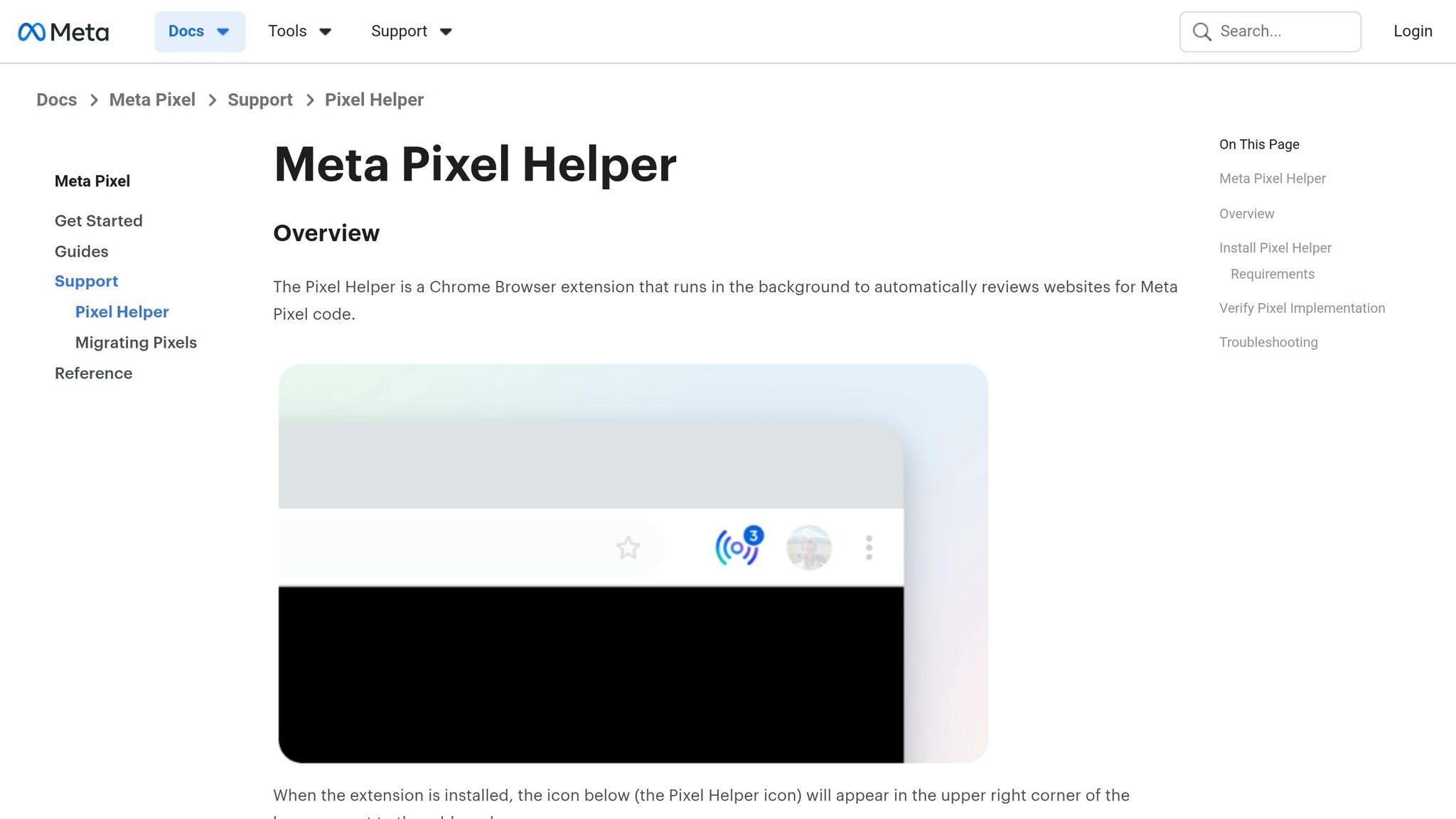
The Meta Pixel Helper is a free Chrome extension that helps you confirm whether your pixel is functioning as expected. After installing the extension, visit key funnel pages like product pages, add-to-cart, checkout, and order confirmation.
A green checkmark confirms that the pixel is firing correctly.
Duplicate Pixel IDs suggest multiple installations, which could lead to data discrepancies.
Yellow warnings or red errors point to issues like malformed data or missing parameters.
For each event, click on it within the extension to ensure key parameters - such as value, currency, and content_ids - are being tracked properly. For example, the "Purchase" event should only fire on the order confirmation page. Keep in mind that the Pixel Helper only shows browser-side events, so for server-side tracking, you’ll need to use the Events Manager.
Once you’ve confirmed pixel activity on the browser side, move on to Events Manager to test Meta conversion events and validate both browser and server-side tracking.
Test Events in Meta Events Manager
In Meta Business Manager, navigate to Events Manager and select your Pixel ID. Then, open the Test Events tab. Enter your website URL and perform key actions like adding items to the cart or completing a purchase. These events should appear instantly in the tool.
Check whether the events are coming from the browser (via the Pixel) or the server (via the Conversions API). If both are in use, look for a "Deduplicated" status. This ensures the same event_id is being sent from both sources, avoiding double-counting.
Pay attention to the Event Match Quality (EMQ) score. A score below 6.0 indicates potential data reliability issues. Additionally, the Diagnostics tab in Events Manager provides automated alerts for problems like missing parameters, declining event volume, or incorrect implementation. Regularly monitoring this tab can help you catch and resolve issues before they affect your campaign results.
Verify Event Parameters and Data
Even if events are firing, they’re only effective if they include the correct parameters. Missing parameters - like value, currency, or content_ids - can result in incomplete or inaccurate data.
For "Purchase" events, ensure they include the following:
Order value
Currency (e.g., USD, EUR)
Product IDs
Additionally, include hashed customer data, such as email (em), phone (ph), first name (fn), and last name (ln). This improves matching accuracy and boosts your EMQ score, helping Meta better associate conversions with users.
To quickly check which parameters are firing on specific pages, use the Event Setup Tool in the Settings tab. This allows you to verify your setup without having to manually inspect your website’s code.
Fixing Client-Side and Server-Side Event Issues
Resolving how Meta Pixel and CAPI work together to solve tracking issues requires tailored solutions. Let’s break down how to address problems for each tracking method.
Fix Client-Side Pixel Event Problems
Browser-based tracking often misses 30-40% of conversions due to iOS privacy updates and ad blockers. Start by checking the Events Manager Overview tab in your account. Green checkmarks mean everything is working, but yellow or red icons flag issues like "No Recent Activity" or incorrect formatting.
If you find duplicate pixel installations, remove the extra one to avoid conflicting data. Confirm that the pixel appears only once in your page source.
Missing parameters like value or currency? Use the Event Setup Tool in Events Manager to map URL parameters or page elements to standard events automatically. This can help if you’re tracking conversions but missing key metrics like ROAS. Also, check your landing page speed - delays over 3 seconds can reduce conversions by about 7%. Use tools like Google PageSpeed Insights to identify and fix slow load times if your click-through rates are high but conversions are lagging.
Fix Server-Side Conversions API (CAPI) Problems
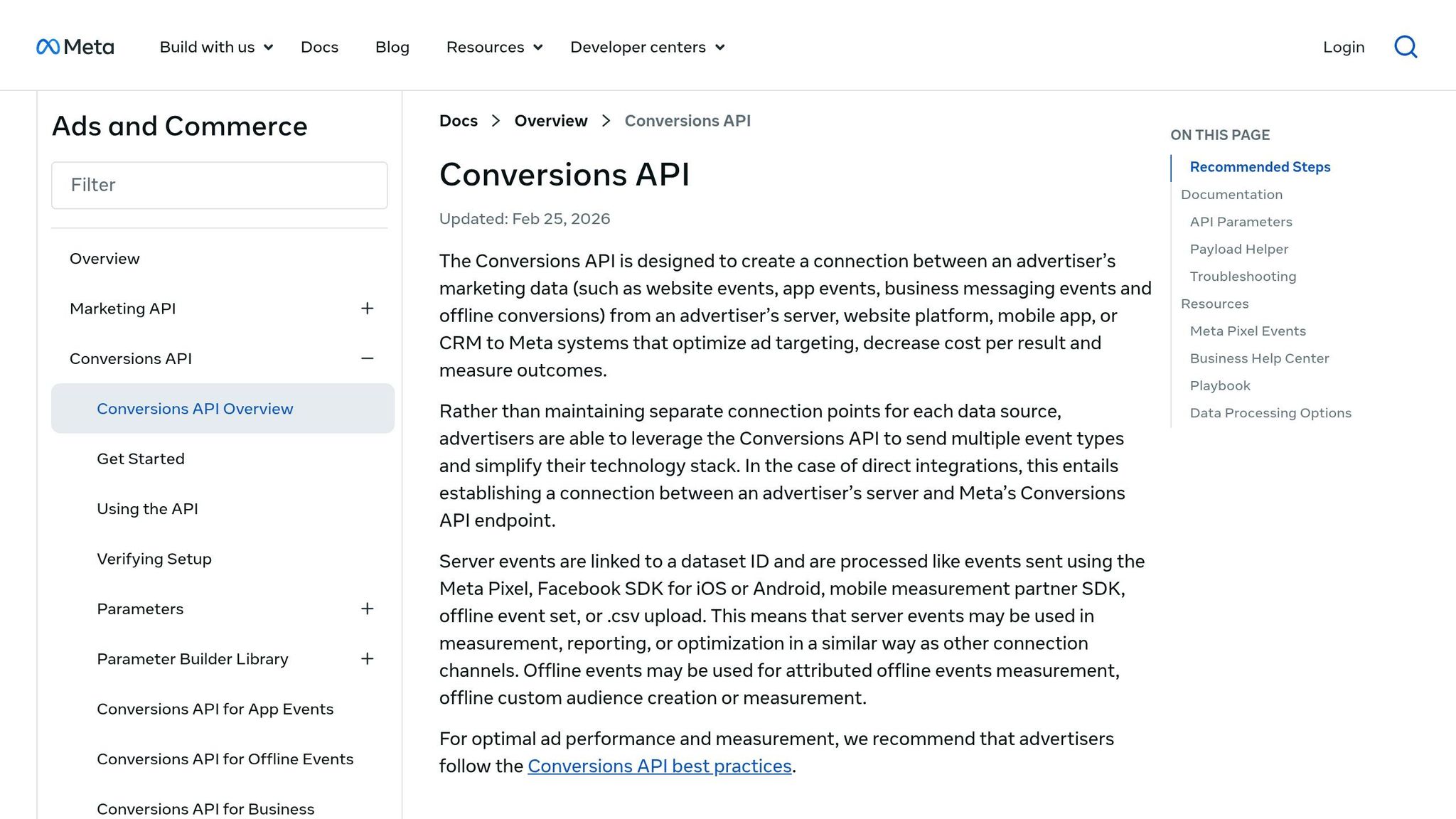
Server-side tracking can recover 15-25% of the conversions lost due to ad blockers and iOS privacy settings. To tackle server-side issues, start by verifying event reception in the Test Events tab. Select "Server" as the source to confirm Meta is receiving your data in real-time.
If server events are missing, generate a fresh token in the Events Manager settings and ensure your server firewall allows outbound requests to graph.facebook.com.
For deduplication, make sure the event_id matches in both Pixel and CAPI calls. Use a consistent identifier, such as an order number or UUID, to avoid double-counting. When sending PII (like email, phone, first name, and last name), follow the steps to standardize conversion data for Meta by hashing identifiers with SHA-256 and ensuring lowercase, trimmed formats. Technical data like IP address and user agent should remain unhashed.
Timing is crucial - send events in real-time or within 2 hours. Delays longer than 24 hours can hurt attribution accuracy. While Meta allows backdating events by up to 7 days, real-time data is critical for optimizing active campaigns.
Common Conversion Tracking Problems and Solutions
Conversion tracking errors can quietly skew your campaign results, leading to issues like "Learning Limited" status or unexpectedly poor ROAS. Let’s dive into some common challenges and how to fix them.
Fix Deduplication Between Pixel and CAPI
If both your browser Pixel and server-side CAPI send the same conversion data, Meta needs to count it only once. This requires matching the event_name and event_id values. When these don’t align perfectly, you might see inflated conversion counts, giving a false sense of success.
One frequent issue is format mismatches - for example, sending the event_id as a string from the browser but as an integer from the server. Another problem is using separate random IDs for each source instead of a single shared identifier across both. Even small timestamp differences between Pixel and CAPI calls can disrupt proper deduplication.
To ensure accurate deduplication, use the Events Manager to confirm consistent event_id values across sources. Run a test conversion in the Test Events tab to verify that both browser and server events share the same event_id . If you’re using Shopify’s official Meta integration, enable "Maximum" data sharing - this automatically handles event_id generation. Proper deduplication is crucial for accurate conversion tracking and reliable ROAS reporting.
Fix Missing or Wrong Event Parameters
When key parameters are missing or incorrectly formatted, Meta might ignore conversions or misattribute them to the wrong campaigns. The Event Match Quality (EMQ) score helps gauge how well your data aligns with Meta’s user accounts. An EMQ score below 6.0 signals that Meta is struggling to match conversion data to ad clicks.
While tools like the Meta Pixel Helper can confirm real-time event data, backend validation is essential to prevent errors. For purchase events, include these critical fields:
value and currency (needed for accurate ROAS calculations)
Hashed identifiers: email (em), phone (ph), first name (fn), and last name (ln) (formatted as SHA-256, lowercased, and trimmed)
To address missing parameters without touching your code, try the Event Setup Tool. This tool lets you map events to conversion goals by linking URL parameters or page elements to standard fields, making it ideal for fixing issues on thank-you pages or checkout flows.
Once parameters are corrected, you can turn your attention to fixing attribution issues with diagnostic tools.
Use the Diagnostics Tab for Attribution Problems
The Diagnostics tab in Events Manager is your go-to for finding unmatched events and attribution gaps that don’t appear in standard reports. This tab highlights conversions that Meta received but couldn’t link to any ad click or impression.
Check the Diagnostics tab to identify missing or misformatted parameters causing these gaps. It shows which parameters are problematic and the percentage of events affected. Fixing these issues ensures Meta’s algorithm has the complete, accurate data it needs to optimize your campaigns effectively.
Using Automation Tools for Tracking and Optimization
Once you've addressed common conversion tracking issues, automation tools can take your ad performance to the next level. These tools not only help monitor your system but also ensure that costly errors don't slip through the cracks.
How AdAmigo.ai Helps Debug and Optimize Meta Ads
AdAmigo.ai is more than just a monitoring tool - it functions as an autonomous AI media buyer. It audits your Meta ad account for tracking problems and performance gaps, offering solutions before they escalate. With features like AdAmigo Protect, the system flags unusual activity, delivery problems, and tracking inconsistencies early, saving you from wasting ad spend.
For instance, if AdAmigo Protect notices a drop in event volume or detects that your Event Match Quality (EMQ) score has fallen below 6.0 (indicating that Meta is struggling to match conversions with ad clicks), the AI Autopilot steps in. It identifies missing parameters causing the issue and adjusts your tracking setup to restore lost attribution data.
The AI Chat Agent makes troubleshooting easier. Instead of sifting through Events Manager tabs, you can ask direct questions like, "Why did my conversions drop yesterday?" or "Is my CAPI configured correctly?" The AI reviews your tracking data, explains any issues, and can even fix them on the spot. This feature is especially helpful for addressing complex problems like deduplication errors or server-side event failures, which typically require technical expertise.
These tools not only simplify debugging but also provide a lifeline for small businesses that might lack the resources for a dedicated team.
Why Small Businesses Benefit from Automation
For small businesses, manual tracking can be a huge drain on time and resources. Challenges like ad blocker interference and iOS privacy restrictions make automation a must-have for recovering lost conversion data. Tools like AdAmigo.ai automatically configure CAPI and browser Pixel differences, which can recover 15-30% of conversions that would otherwise go untracked.
Automation goes beyond just tracking recovery. It handles repetitive tasks like monitoring EMQ, adjusting budgets, and consolidating ad sets to meet Meta's recommended 50-conversions-per-week threshold. This allows small teams to focus on creative strategy while the AI takes care of execution. Essentially, automation acts as a full-time media buyer - without the payroll expense. By keeping your tracking data accurate and continuously monitored, these tools ensure your campaigns are optimized using reliable conversion signals, not incomplete data.
Conclusion
Getting conversion tracking right is the backbone of successful Meta advertising. Without dependable tracking, you're essentially making budget decisions based on incomplete or misleading data.
The strategies outlined here help create a solid tracking system. Debugging tools like Meta Pixel Helper and combining Pixel with the Conversions API (CAPI) ensure your data stays accurate - even when browser restrictions or ad blockers come into play. In fact, implementing CAPI can recover 15–30% of conversions typically lost to browser-side limitations, which directly boosts algorithm performance and improves ROAS reporting.
But setting up tracking is only the first step - ongoing maintenance is just as important. Regularly using tools like Meta Pixel Helper and Events Manager keeps your system running smoothly. Make it a habit to check your Events Manager Diagnostics tab weekly, aim for an Event Match Quality score of 6.0 or higher, and test your conversion funnel after website updates. This is also the ideal time to track custom conversions to capture specific user actions that standard events might miss. These proactive measures catch tracking issues across channels before they lead to wasted budgets or poor scaling decisions.
For teams managing multiple accounts or stretched for time, automation can be a game-changer. Tools like AdAmigo.ai can handle the heavy lifting of monitoring and optimizing campaigns, ensuring your tracking system continues to deliver accurate data without constant manual effort. When combined with a strong tracking framework, automation helps prevent performance dips caused by unnoticed issues.
Investing in accurate and consistent tracking lays the groundwork for scaling your Meta campaigns profitably.
FAQs
How can I tell if my Pixel is double-counting conversions?
To ensure your conversion tracking is accurate, it's crucial to check for double-counting. Start by verifying that event IDs are consistent between the Meta Pixel and the Conversions API. Any mismatch here could lead to duplicate conversions being recorded.
Meta provides helpful tools like Payload Helper and Test Events to make this process easier. These tools allow you to test and confirm that your setup is working correctly. By doing this, you can maintain clean, reliable data.
Proper deduplication isn't just a technical detail - it's key to ensuring your conversion metrics truly reflect user actions.
What should I do if CAPI events aren’t showing up in Test Events?
If you're not seeing CAPI events in the Test Events tool, it's time to double-check your Conversions API (CAPI) setup. Start by using the Test Events tool in Events Manager to confirm whether server events are being received. Make sure the event_id parameters for CAPI and Pixel match - this is crucial for proper deduplication. Also, verify that your domain is confirmed in Business Manager. Finally, inspect your server logs for any errors that could be blocking event transmissions.
How can I quickly improve my Event Match Quality (EMQ)?
To boost your Event Match Quality (EMQ) effectively, start by verifying your pixel setup and event parameters. Use the Meta Pixel Helper to check that your pixel is installed correctly and that event codes are both accurate and detailed. If you're using the Conversions API, make sure to match event IDs between your pixel and server-side events. Additionally, combine the Conversions API with your browser pixel and verify your domain. This approach improves event matching and helps recover any lost data.