
How to Fix Conversion Tracking Across Meta and Other Channels
Broken conversion tracking wastes ad spend — fix pixels, add server-side tracking, and align attribution to restore reliable performance.
Conversion tracking ensures your ads deliver results by measuring actions like purchases or sign-ups. Platforms like Meta, Google Ads, and LinkedIn each track conversions differently, leading to inconsistent data. Common issues include:
Pixel failures: Events not firing correctly.
Privacy challenges: iOS opt-outs and ad blockers causing 20–40% under-reporting.
Duplicate events: Missing
event_idinflates numbers.Attribution mismatches: Different platforms use varying timeframes to track conversions.
To fix these problems:
Audit your setup: Use tools like Meta Pixel Helper and GA4 DebugView to ensure events fire properly.
Standardize events: Align naming conventions and parameters across platforms.
Set up server-side tracking: Use Meta's Conversions API (CAPI) to capture missed data.
Verify domain and prioritize events: Essential for iOS tracking with Aggregated Event Measurement (AEM).
Monitor regularly: Compare platform data with backend CRM to catch discrepancies early.
Accurate tracking improves ad performance, lowers costs, and ensures better insights. Regular audits and tools like AdAmigo.ai can help maintain tracking health and save wasted ad spend.
Auditing and Mapping Your Conversion Funnel
Define Conversion Events Across Platforms
To address tracking gaps, start by mapping out each conversion event across platforms. This includes identifying what triggers the event, when it’s triggered, and the data it collects. Since every platform uses its own event names and logic, aligning these with your business goals is crucial.
For instance, if your goal is online sales, Meta might track this using the Purchase event, while Google Ads could label it as a "Conversion" tied to a specific sales objective. Here's a quick reference table:
Business Goal | Meta Event | Google Ads Objective |
|---|---|---|
Online Sales | Purchase | Sales |
Lead Generation | Lead or CompleteRegistration | Leads |
App Installs | - | App Promotion |
Consistency is key. Make sure event names are case-sensitive and standardized across platforms to avoid attribution errors.
Don’t overlook hidden conversion points, such as actions within embedded iframes. These often require custom listeners to properly capture and relay conversion signals.
Audit Your Current Tracking Setup
A thorough audit of your tracking setup is essential. Use tools like Meta Pixel Helper and Google Tag Assistant to simulate a customer’s journey from landing page to thank-you page. Confirm that the base pixel loads on every page and that conversion events fire only on success pages. Then, verify real-time data flow by mapping GA4 events to Meta conversions using Meta’s Test Events tool or Google Analytics 4’s DebugView.
Check that every event includes the necessary parameters for accurate Return on Ad Spend (ROAS) tracking. For example, Purchase events should always carry value, currency, and content_ids parameters. Additionally, in Meta Events Manager, review your Event Match Quality (EMQ) score. To achieve a score of 6.0 or higher, pass hashed customer data, like email addresses and phone numbers, through the Conversions API.
Once your audit is complete, identify which issues are causing the most harm to your performance.
Find and Prioritize Tracking Issues
Start by fixing the most critical problems, such as broken pixel or Conversions API (CAPI) setups. These issues disrupt conversion signal flow, and accounts with broken tracking often waste up to 23% of their budget annually. Next, address deduplication problems (e.g., missing event_id), mismatched attribution windows, and gaps in event parameters.
"Without identifiers, debugging conversion discrepancies is guesswork. With them, it's forensics." - Michael, Taggingwise
Use your CRM or order database as a baseline for comparison. Instead of striving for a perfect match between backend and platform data, focus on whether the ratios remain consistent over time. For example, if your daily Purchase count suddenly drops by 40% without a corresponding change in actual sales, it’s likely due to a broken tracking script. Setting up a simple daily chart of event counts can act as an early warning system, helping you catch issues before they escalate.
Your Ad Tracking Is Broken - Here's How to Fix It | Free 30-Min Audit
Fixing Conversion Tracking on Meta
Once you've audited your funnel, it's time to tackle tracking issues specific to Meta.
Validate and Fix Your Meta Pixel Setup
Start by using the Meta Pixel Helper Chrome extension. Test both your landing and thank-you pages to identify problems like duplicate fires, missing events, or incorrect parameters. Be cautious if you’ve installed the pixel through both theme integration and Google Tag Manager (GTM) - this can cause events to fire twice, inflating your conversion data.
Make sure the pixel loads on all pages, and that the Purchase event fires only on the order confirmation page with the correct parameters: value, currency, and content_ids. Here’s an example of how the code should look:
Missing any of these parameters can break Return on Ad Spend (ROAS) tracking. Next, head to the Diagnostics tab in Events Manager. Meta provides alerts here for issues like inactive pixels, missing parameters, or low match quality. Aim for an Event Match Quality (EMQ) score of 6.0 or higher - lower scores weaken the connection between your conversions and ad clicks, making optimization harder. Proper tracking helps avoid problems like the dreaded "Learning Limited" status and wasted ad budgets.
Here’s a quick breakdown of common issues and their fixes:
Symptom | Likely Cause | Fix |
|---|---|---|
Zero purchases in Ads Manager | Pixel not firing or misconfigured | Ensure |
Duplicate conversions (2× actual) | Pixel firing twice or CAPI deduplication failure | Remove duplicate code; ensure matching |
EMQ score below 6.0 | Missing customer data | Pass hashed email/phone through CAPI |
"Learning Limited" status | Low conversion volume | Consolidate ad sets to achieve 50 conversions per week |
To improve tracking for iOS users, set up Aggregated Event Measurement (AEM) and verify your domain.
Set Up Aggregated Event Measurement and Domain Verification
Domain verification is essential for Aggregated Event Measurement (AEM), Meta’s solution for tracking iOS users who’ve opted out of tracking. Without AEM, you risk under-reporting conversions by 20–40% in Ads Manager.
To verify your domain, go to Meta Business Settings > Brand Safety and Suitability > Domains, add your domain, and confirm ownership via a DNS TXT record or HTML file upload. Once verified, navigate to Events Manager > Data Sources > Aggregated Event Measurement > Configure Web Events. Select your domain and click Manage Events.
You can prioritize up to eight conversion events per domain. Always set Purchase as the highest priority, followed by other lower-funnel events like Initiate Checkout, Add to Cart, and View Content. Events beyond the top eight won’t be tracked for users who’ve opted out. Avoid frequently changing event priorities, as each update triggers a 72-hour cooling-off period during which affected ad sets can’t optimize for the modified events.
Implement and Deduplicate the Conversions API
While improving your pixel setup is crucial, adding the Conversions API (CAPI) vs. Pixel ensures you capture events that the pixel might miss due to browser limitations, ad blockers, or cookie consent banners. Pixel-only tracking can miss 20–40% of conversions, but CAPI can recover 15–30% of that lost data.
"If you're not using CAPI in 2026, you're losing 20–40% attribution accuracy. Set it up immediately." - Niblin
For many businesses, the simplest way to set up CAPI is through a native integration. For example, Shopify users can install Meta’s official "Pixel & Conversions API" app, which handles deduplication and event matching automatically. If you’re using a custom setup via server-side GTM (sGTM) or direct API integration, include a unique eventID in both pixel and server calls to merge events and avoid duplicates:
Meta combines browser and server signals by matching event_id and event_name pairs into a single conversion, preventing double-counting.
Use the Test Events tool in Events Manager to confirm deduplication. Complete a transaction on your site and check that both "Browser" and "Server" events appear, with Meta labeling them as "Deduplicated." If only one signal shows up, your deduplication logic may need adjustments.
For ongoing monitoring and troubleshooting, tools like AdAmigo.ai can automate audits of your Meta ad account, ensuring your tracking stays accurate and optimized.
Aligning Conversion Tracking Across Channels
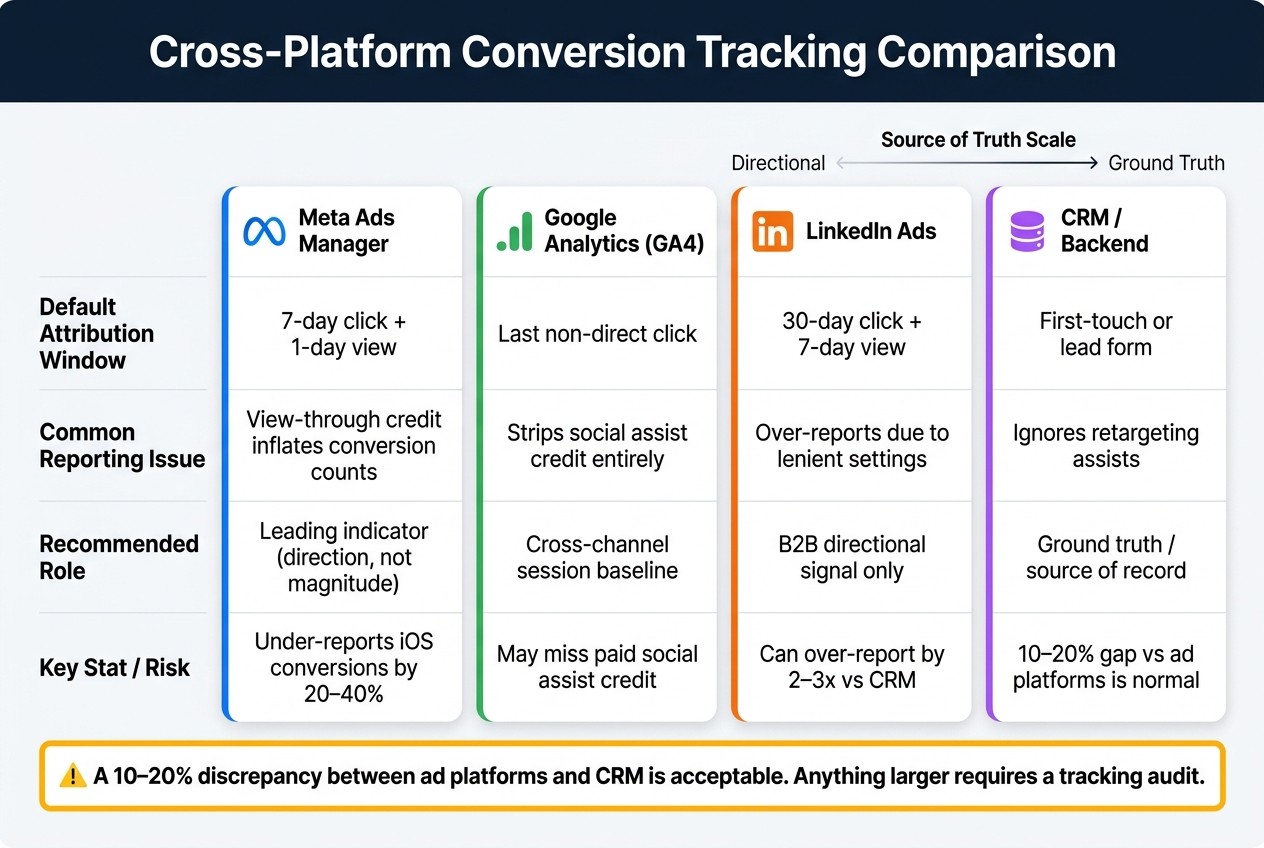
Cross-Platform Conversion Tracking: Attribution Windows & Key Metrics Compared
After addressing Meta tracking, the next step is to ensure that conversion reporting is consistent across all platforms.
Align Attribution Models and Windows Across Platforms
One major source of confusion in cross-channel reporting isn't faulty tracking - it’s differing attribution windows. For example, Meta uses custom attribution models like the 7-day click + 1-day view model by default, while GA4 relies on last non-direct click, and LinkedIn opts for a more lenient 30-day click + 7-day view model. With each platform measuring conversions differently, discrepancies are inevitable.
To address this, establish a "single attribution contract" by standardizing attribution windows across platforms. For instance, switching Meta to a 1-day click-only model aligns it more closely with last-click systems like GA4. However, note that this adjustment may reduce reported conversions by 30–60%, even though actual performance remains unchanged. This isn’t a tracking issue - it’s simply a more conservative way of counting.
Platform | Default Attribution Window | Common Reporting Issue |
|---|---|---|
Meta Ads Manager | 7-day click + 1-day view | View-through credit inflates conversion counts |
Google Analytics (GA4) | Last non-direct click | Strips social assist credit entirely |
LinkedIn Ads | 30-day click + 7-day view | Over-reports conversions due to lenient settings |
CRM / Backend | First-touch or lead form | Ignores retargeting assists; best used as ground truth |
Your CRM or payment processor should serve as the definitive source of truth, while ad platform data can be treated as directional. A discrepancy of 10–20% between Meta reports and backend data is typical in today’s privacy-focused landscape.
"Meta data is a leading indicator, not a ledger. It tells you direction more reliably than it tells you magnitude." - AdLibrary
Additionally, avoid making budget decisions based on same-day ROAS. Meta’s conversion data can be updated for up to 28 days, with most adjustments occurring in the first 72 hours.
With attribution models aligned, the next step is to address issues in Google Ads and GA4 tracking.
Fix Google Ads and GA4 Tracking
In Google Ads, navigate to Tools > Conversions to confirm that primary conversion actions are active and collecting data. Ensure the conversion tag fires exclusively on the order confirmation page. To prevent double-counting conversions during page refreshes, pass a unique transaction_id in your tag.
In GA4, check that the purchase event includes key parameters such as transaction_id, value, currency, and items. Use GA4 DebugView (found under Admin > DebugView) to monitor events in real-time as you test transactions. If you’re using server-side GTM, ensure all GA4 tags route through the same server container URL. Mixing server and client-side hits can lead to duplicate users and fragmented sessions.
For campaigns targeting the EU or UK, confirm that your Consent Mode v2 setup signals all four required parameters - ad_storage, ad_user_data, ad_personalization, and analytics_storage. Missing even one parameter can disable conversion tracking for that traffic.
UTM Parameters and Cross-Domain Tracking
UTM parameters are straightforward in theory but often fail in practice. Redirects, link shorteners, and enterprise SSO flows can strip query strings, leaving clicks without attribution data. Before launching a campaign, test destination URLs thoroughly to ensure UTM parameters survive every redirect.
Stick to a consistent UTM naming convention across all channels, documenting it centrally. For example:
utm_source=facebookutm_medium=paidutm_campaign=[campaign_name]
Inconsistent naming - like using utm_source=Facebook in one campaign and utm_source=fb in another - can fragment GA4 reports, making cross-channel comparisons difficult.
For cross-domain tracking (common with Shopify stores redirecting through PayPal or other third-party checkouts), configure GA4’s cross-domain measurement settings under Admin > Data Streams > Configure Tag Settings > Configure Your Domains. This ensures session identifiers carry across domains, maintaining the user’s journey. Without proper setup, checkout redirects may show as direct traffic, losing campaign attribution.
To unify tracking across platforms, ensure a universal identifier - like a transaction_id or order_id - is passed through every conversion event in Meta, Google, and your CRM. This practice allows for precise reconciliation of discrepancies, helping you achieve more consistent data reporting.
Monitoring and Maintaining Tracking Health Over Time
Fixing tracking issues is just the beginning; keeping it running smoothly is where the real work begins. Without proactive monitoring, tracking problems can linger undetected for weeks, potentially derailing campaigns. Meta's algorithm, for instance, needs about 50 conversions per week per ad set to exit the Learning Phase and optimize effectively. Even a brief tracking lapse can throw your campaigns off course, making recovery a challenge.
Set Up Regular Tracking Audits
Regular audits are your best defense against tracking issues. Weekly, check the Diagnostics tab in Meta Events Manager for automated alerts. A sudden drop in event volume often signals a broken tag. Review your Event Match Quality (EMQ) score during these checks - scores below 6.0 indicate poor customer data matching, which can lead to inaccurate conversion attribution. Aim for an EMQ score of 8.0 or higher.
After any site update, test the entire conversion funnel (ViewContent → AddToCart → InitiateCheckout → Purchase) using tools like Meta Pixel Helper and GA4 DebugView to ensure all events are firing correctly with accurate parameters. Monthly, compare your platform data with your CRM or order database (e.g., HubSpot, Salesforce, Shopify). A 10–20% discrepancy is typical, but larger gaps should prompt a deeper investigation.
"Without identifiers, debugging conversion discrepancies is guesswork. With them, it's forensics." - Michael, Strategy Lead, Taggingwise
To make troubleshooting easier, maintain a change log of site edits and campaign updates. Since ad platform algorithms typically need 3–7 days to recalibrate after changes, having a log can help you quickly identify which update might have caused a performance or tracking issue.
Use AI Tools to Monitor and Optimize Tracking
While manual audits are essential, automation can provide an added layer of protection. Tools like AdAmigo Protect offer real-time monitoring of your Meta ad account, flagging issues as they arise. This "always-on" approach ensures you catch problems early, saving you from wasting days - or even weeks - of ad spend.
In addition to safeguarding performance, AdAmigo's AI Autopilot performs daily audits of your Meta account, creating action plans tailored to your KPIs. For example, if there's a sudden drop in reported purchases that doesn't align with your backend data, the system will alert you to investigate before it impacts optimization. Broken conversion signals don't just disrupt your dashboards - they can mislead Meta's algorithm, causing it to target the wrong audiences and waste budget. On average, accounts with faulty conversion tracking lose 23% of their annual budget due to these inefficiencies.
Conclusion
Keeping your conversion tracking accurate takes consistent effort and regular check-ins. The steps are straightforward: outline your event structure, use both browser-side (Pixel) and server-side (Conversions API) tracking, include unique identifiers like event_id to avoid duplicate data, and make sure your attribution windows align across platforms. With challenges like iOS 14.5+ restrictions and ad blockers, Meta Ads Manager often under-reports conversions by 20–40%. On top of that, broken tracking can drain about 23% of an advertiser's yearly budget. The good news? Adopting the Conversions API can help recover 15–30% of those lost conversions.
"The goal is not perfect tracking, but tracking that is accurate enough to make informed optimization decisions and calculate meaningful return on ad spend." - Benly.ai
This highlights why regular audits and automation tools are so important. Meta's algorithm relies on clean, precise data for effective bidding and targeting. As Michael from Taggingwise puts it, "Fixing your tracking isn't just about making your reports look right. It directly affects how well your campaigns perform." A 10–20% discrepancy between your ad platform and CRM data is typically acceptable, but anything more than that signals the need for a deeper review.
Using tools like AdAmigo Protect alongside regular audits can make a big difference. These systems help spot problems early, ensuring your tracking setup stays solid and your budget stays protected. By following the steps in this guide - auditing, mapping, and monitoring - you'll send better data to the algorithm, which translates into sharper targeting, lower costs, and stronger ROAS.
FAQs
How can I tell if my Pixel or CAPI isn’t working?
To ensure your Pixel or Conversions API (CAPI) is working correctly, begin by double-checking their setup and event tracking. Use the Meta Pixel Helper to verify that the Pixel is installed and firing properly on your conversion pages. Next, head over to Events Manager in Meta Business Suite to confirm that key events are being received. If you notice conversions aren't being tracked or data is missing, it could indicate a problem with the configuration.
What should I use as the source of truth for conversions?
When it comes to tracking conversions, it's essential to rely on dependable tools like the Meta Pixel and Conversions API, paired with your CRM or sales data. These tools provide the foundation for understanding how your campaigns are performing.
To ensure everything is set up correctly, use tools like Meta Pixel Helper to verify your pixel installation. Then, check Events Manager to confirm that your events are being tracked accurately.
By combining the Conversions API with the pixel, you can recover any lost conversion data and achieve more precise attribution. This approach ensures you're not solely dependent on Meta's reporting, giving you a clearer picture of your campaign's impact.
How can I stop duplicate conversions from inflating results?
To avoid duplicate conversions, make sure your tracking setup doesn’t trigger the same event multiple times for a single user action. Double-check that your pixel is installed correctly and fires only once per conversion. Tools like the Meta Pixel Helper can help verify this. Also, review your server-side configurations to prevent duplicate signals. A proper setup ensures accurate conversion tracking and reliable campaign performance data.