
Meta API Integration: Fix Sync Errors
Fix Meta API sync errors fast: check tokens, permissions, deduplication, rate limits, and automate retries to keep ads accurate.
Meta API sync issues can derail your ad campaigns, waste your budget, and disrupt attribution. Here's how to fix them fast.
Common problems: Expired tokens, missing permissions, rate limits, and configuration errors.
Quick steps:
Check your API token using Meta's Access Token Debugger.
Confirm API permissions like
ads_managementandbusiness_managementare active.Test your API connection with the Graph API Explorer.
Address specific errors (e.g., Error 190 for expired tokens).
Fix deduplication issues when using both Meta Pixel and Conversions API.
Prevention tips: Automate retries for rate limits, monitor API usage, and stay updated with Meta's API changes.
These steps ensure your campaigns run smoothly, minimize data loss, and keep Meta's ad algorithm optimized.
How I Fixed Facebook Pixel, Conversion API & Catalog Match Rate Errors | Use Google Tag Manager
Check API Setup and Access Permissions
Before diving into troubleshooting, ensure your Meta API credentials and permissions are set up correctly. Many sync issues arise from expired tokens or missing scopes, and catching these early can save you hours of frustration.
Verify API Token and Permissions
Start by using the Access Token Debugger to check your token's status. Simply input your token to see its expiration date and the scopes it covers. Make sure the token includes these essential scopes: ads_read, ads_management, and business_management.
For server-to-server integrations, rely on System User tokens. These tokens are tied to your business entity rather than individual accounts, making them renewable and more stable. This setup avoids disruptions when team members log out or leave the organization.
Additionally, even with a valid token, you need to agree to Meta's Custom Audience Terms of Service for each ad account. To verify this, visit https://business.facebook.com/ads/manage/customaudiences/tos/?act=AdAccountID (replace "AdAccountID" with your actual account number) and ensure all required agreements are signed.
Role | View Ads & Reports | Create/Edit Ads | Edit Payment Method | Manage User Permissions |
|---|---|---|---|---|
Admin | ✓ | ✓ | ✓ | ✓ |
Advertiser | ✓ | ✓ | ✗ | ✗ |
Analyst | ✓ | ✗ | ✗ | ✗ |
Role mismatches can also lead to errors. If you encounter "Not authorized to perform action" messages, head to Business Settings > People to confirm your user role. For example, an Analyst can view reports but can't edit ads, while an Advertiser can create campaigns but lacks access to payment methods or user permissions.
Once you've confirmed valid credentials and roles, proceed to test your API connection.
Test API Connection
With your token and permissions verified, test the API connection. Open the Graph API Explorer, select your app, and run a GET request to /me/adaccounts. If the response includes your account ID, your connection is active, and the token is authenticated. However, if you encounter an error, pay attention to the error code:
Error 190: Your token has expired.
Error 0: The token has been invalidated and must be regenerated.
If you're using third-party tools like Klaviyo or a CRM, check their status in Meta Business Suite > Settings > Business Integrations. Ensure the tool is listed as "Active" with all necessary permissions. If it shows as "Pending" or is missing, re-authorize the connection. Clearing Meta domain cookies and logging in again can trigger a fresh OAuth flow to generate a new token.
Once you've confirmed a working connection, you're ready to address any deeper sync issues or use an AI copilot for Meta ads to automate the process.
Diagnose and Fix Common Sync Errors
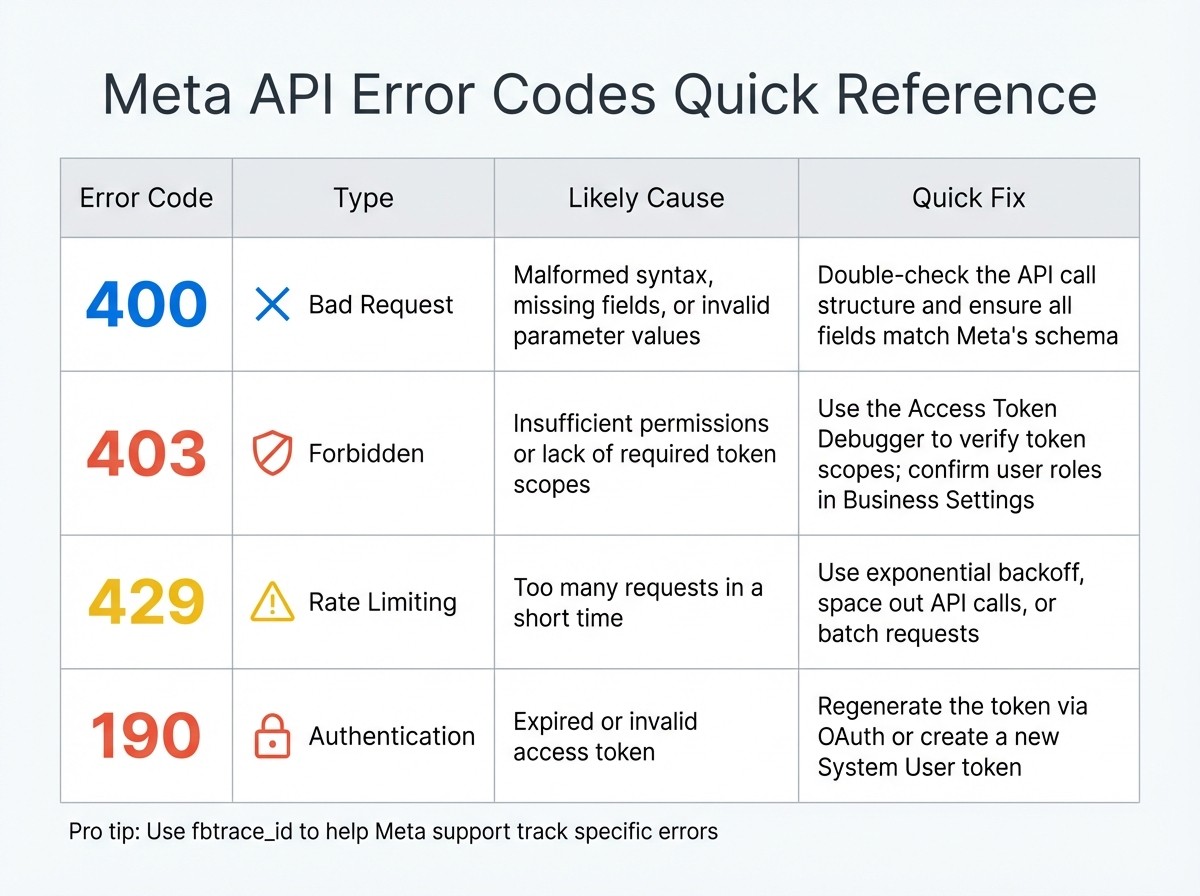
Meta API Error Codes Quick Reference Guide
Once your API connection is in place, the next step is figuring out what’s causing any sync issues. Meta API error responses follow a consistent structure, which makes troubleshooting easier when you know what to look for.
Identify Error Types and Causes
Meta's error responses include four key elements: code, error_subcode, message, and fbtrace_id. The fbtrace_id is especially useful - it allows Meta's support team to track down specific log data if you report a bug. When an error_subcode is present, focus on the error_user_msg field for the most direct explanation. If there’s no subcode, check the message or exception fields instead.
Error Code | Type | Likely Cause | Quick Fix |
|---|---|---|---|
400 | Bad Request | Malformed syntax, missing fields, or invalid parameter values | Double-check the API call structure and ensure all fields match Meta's schema |
403 | Forbidden | Insufficient permissions or lack of required token scopes | Use the Access Token Debugger to verify token scopes; confirm user roles and Meta API key compliance in Business Settings |
429 | Rate Limiting | Too many requests in a short time | Use exponential backoff and batch requests to manage throughput |
190 | Authentication | Expired or invalid access token | Regenerate the token via OAuth or create a new System User token |
Once you’ve identified the error code, you can begin working through the issue systematically.
Debug Sync Errors Step by Step
With your API setup confirmed, dive into debugging by analyzing detailed error logs. Enable verbose logging to capture the full request payloads, headers, and error responses. Use the Graph API Explorer to recreate the error and see if it stems from your code.
Pay close attention to the error_user_msg field - it often provides actionable insights. If the message flags a specific field or parameter, compare it against Meta's latest API documentation. Keep in mind that field names and requirements may change with version updates. For sync issues involving multiple objects, test each one individually to locate the problem. This step-by-step approach helps isolate and resolve the root cause efficiently. For issues specifically impacting performance data, you may also need to debug Meta Ads conversion tracking to ensure your pixel or API events are firing correctly.
Fix Specific Meta API Sync Problems
After identifying common error codes, apply these solutions to address the specific issues and restore synchronization.
Fix Token and Permission Problems
Sync failures often stem from expired tokens. User tokens typically last about one hour, while long-term tokens can last up to 60 days before requiring renewal. For server-based integrations, use renewable System User tokens to avoid unexpected disruptions.
Additionally, ensure there are no pending Terms of Service (TOS) agreements (refer to the earlier section on verifying API tokens and permissions).
Permission errors can occur due to incorrect Business Manager roles. Only Admins can manage payment methods and user permissions. Check that your token has the necessary scopes and confirm that user roles in Business Settings are correctly assigned. Once these issues are resolved, double-check that you standardize conversion data so events aren't miscalculated.
Fix Event Deduplication and Domain Issues
If you're comparing Meta Pixel vs. Conversions API for your setup, deduplication is essential to avoid double-counting conversions. To fix this, ensure the event_id and event_name match in both the browser and server versions of each event. Include customer parameters like external_id, fbp, and fbc to improve data matching.
It's also critical to send server events in real time. Delays longer than 24 hours can reduce attribution accuracy. Before transmitting personally identifiable information (PII), hash it using SHA-256 and format phone numbers in E.164 format (e.g., "14155551234") by removing symbols and including the country code. Use the Test Events tool in Meta Events Manager to confirm that deduplication is working and that events are processed in real time. You can also track Meta ads with Google Analytics to cross-reference conversion data.
For domain verification, you must verify at the eTLD+1 level. For example, verifying example.com will cover www.example.com and any subdomains. If you're an agency, the client should verify their domain in their Business Manager first, then share access with your agency's Business Manager. If you have hosting access, DNS TXT verification is a stable option. Meta typically reviews verification submissions within 10 minutes to 14 working days, so it's wise to complete this step before submitting any Conversions API integration requests.
Use Automation Tools to Prevent Errors
Manually troubleshooting API issues can be time-consuming, taking valuable resources away from strategic initiatives. Tools like AdAmigo.ai simplify the process by automating API optimizations with features like AI Ads Agent, AI Actions, and Bulk Ad Launch. These tools handle everything from generating creatives to refining targeting and managing budgets - all while adhering to your pacing, budget, geo, and placement rules.
The AI Actions feature provides a daily list of prioritized tweaks for creatives, audiences, budgets, and bids. You can either approve changes individually or let the system operate autonomously. For large-scale campaigns, the Bulk Ad Launch tool allows you to create dozens or even hundreds of Meta ads with the correct copy, creative, and targeting directly from your Google Drive.
Prevent Future Sync Errors
After addressing immediate sync issues, focus on creating a more robust integration. Proactive monitoring and automation can help reduce the risk of future disruptions.
Add Retry Logic and Monitor API Usage
When Meta's API encounters rate limit errors or throttling issues, your system should retry requests automatically rather than failing outright. Use exponential backoff to manage retries: wait a few seconds after the first failure, then double the wait time with each subsequent attempt. This approach avoids overwhelming the API and reduces the risk of prolonged throttling.
Capture the fbtrace_id from error responses to assist Meta support in locating relevant logs if needed. For detailed error handling, prioritize the error_subcode field when available. If not, rely on error_code and message to decide whether a request is worth retrying.
Regularly monitor your API usage through the Meta Developer Dashboard. This helps identify patterns and potential issues early. If rate limits are a recurring issue, consider batching requests or using asynchronous methods for operations with high volumes. Additionally, techniques like field filtering and ETags can shrink payload sizes and conserve bandwidth when polling for updates.
Keep Up with Meta API Updates
Meta frequently updates its API, deprecates older endpoints, and rolls out new features. Stay ahead by checking Meta's developer changelog monthly for breaking changes and compliance updates.
Schedule quarterly reviews of your integration to ensure everything is up to date. Confirm that your API version is still supported, token renewal processes are functioning, and any new Terms of Service agreements have been accepted. Staying proactive prevents unexpected failures when older API versions are retired.
Pair these measures with automated tools to further reduce the risk of sync errors.
Automate Campaign Management to Reduce Errors
Use automation tools like AdAmigo.ai for campaign management to limit manual mistakes. These AI-powered platforms simplify tasks like creative generation, budget adjustments, and targeting. By automating these processes, you can minimize API key errors and misconfigurations and ensure campaigns run smoothly while continuously optimizing performance.
Conclusion
Addressing Meta API sync errors requires a solid setup, methodical debugging, and consistent monitoring. Start by confirming your API tokens and permissions. Then, pinpoint and resolve specific issues by analyzing API response codes and leveraging the fbtrace_id. These steps, paired with ongoing monitoring - covering both Graph API responses and webhooks - help maintain campaign stability, protect your budget, and avoid attribution problems.
For a smoother workflow, automation can play a key role in reducing errors and maintaining campaign efficiency. Tools like AdAmigo.ai handle tasks such as creative generation and budget management, allowing you to focus on strategic decisions. By combining troubleshooting with automation, you can ensure your Meta API integrations reliably support your advertising goals while cutting down on manual effort.
FAQs
Why does my Meta API sync fail randomly?
Random Meta API sync failures typically stem from authentication problems, such as expired or invalid access tokens. These issues can also arise from misconfigured app settings or discrepancies with Facebook's developer platform. Beyond that, network disruptions, rate limits, or server-side glitches may contribute to the problem. To reduce the likelihood of these failures, make sure to update tokens regularly, double-check app configurations, and leverage debugging tools to track and resolve errors effectively.
How do I fix Meta token errors without breaking my campaigns?
To fix Meta token errors without interrupting your campaigns, start by verifying that your access tokens are both valid and properly set up. Use Meta’s debugging tools to inspect the token's status, expiration date, and assigned permissions. Double-check that your app’s bundle ID aligns with the one listed in the Facebook developer console. Pay close attention to API error messages, keep an eye on token validity, and refresh tokens when necessary to ensure your campaigns continue running smoothly.
How can I stop double-counted conversions with Pixel and CAPI?
To keep your conversion data accurate and avoid double-counting with Pixel and CAPI, it’s crucial to have proper event deduplication in place. Assign unique event IDs to each conversion event. This allows Meta to identify and filter out duplicates effectively.
Make it a habit to monitor your event match quality (EMQ) scores and review logs regularly. This can help you spot and fix any duplication issues, ensuring your attribution remains reliable and your data stays on point.