
5 Steps to Sync Meta Audience Data
Five steps to verify connections, standardize identifiers, automate audience syncs, validate match quality, and fix issues for better Meta ad targeting.
Syncing Meta audience data ensures your ads effectively reach the right people by keeping your data accurate and up-to-date. This process eliminates wasted ad spend, improves targeting, and boosts campaign results by leveraging audience data for growth. Here's a quick overview of how to do it:
Verify Your Setup: Confirm your Meta Business Manager account, data sources, and third-party tools are properly connected and active.
Standardize Your Data: Format audience data correctly, including emails, phone numbers, and other identifiers, to improve match rates.
Automate Syncing: Use Meta's Marketing API or integrations with platforms like Klaviyo to keep audience lists dynamic and updated.
Validate Accuracy: Regularly check audience sizes, match rates, and sync logs to ensure everything is working as expected.
Troubleshoot Issues: Resolve common problems like low match rates, failed syncs, or policy violations by cleaning data, re-authenticating tools, or revising audience segments.
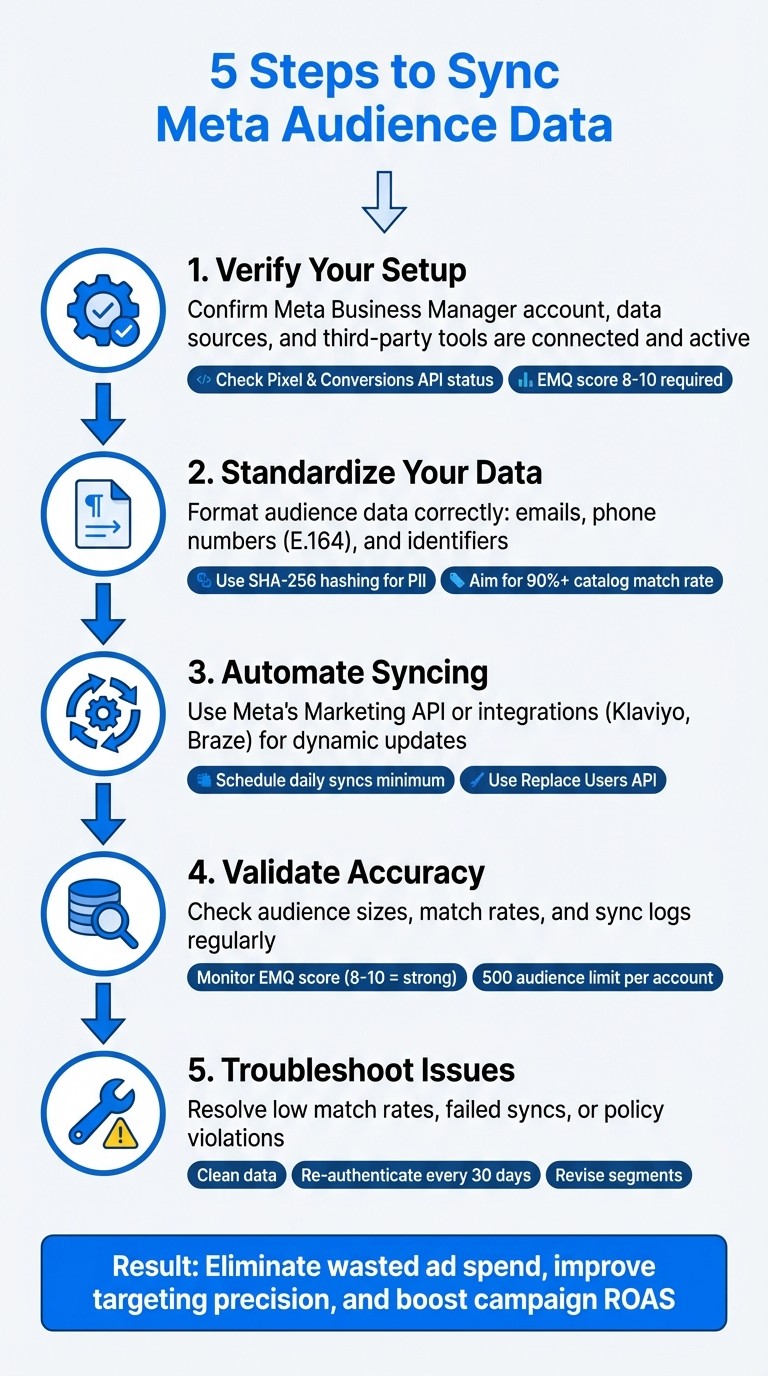
5-Step Process to Sync Meta Audience Data for Better Ad Targeting
Step 1: Verify Your Meta Business and Tool Connections
Confirm Your Business Manager Setup
Start by logging into Meta Business Manager to ensure your ad account, assets, and permissions are properly configured. Go to Business Settings > Accounts > Ad Accounts to check that the correct ad account is listed and active. Next, confirm admin access under Ad Account Settings > People to manage permissions and connect any necessary third-party tools.
Make sure all relevant assets - like the Meta Pixel, App, and Catalog - are linked correctly in Business Settings > Data Sources. These assets should appear under your business name. If something is missing or assigned to the wrong business, reassign it before proceeding. Once your Business Manager setup is verified, review your data sources to ensure a smooth audience sync.
Check Your Connected Data Sources
Head to Events Manager in Meta Business Suite and confirm that both your Pixel and Conversions API are active. Look for a green "Active" indicator and recent event activity. If you see "No Recent Activity" or a red warning, it means your tracking isn’t sending data to Meta, which will block audience syncing.
For the Conversions API, pay attention to the Event Match Quality (EMQ) score, which ranges from 1 to 10. A score between 8 and 10 indicates that Meta is receiving enough customer information - like email addresses and phone numbers - for effective user matching. If the score is lower, it could mean there are formatting errors or missing data fields that need to be fixed before syncing audiences. Once your internal data sources are confirmed as active, move on to compare AI and manual audience creation or validate any external integrations using Meta API integration best practices.
Verify Third-Party Tool Connections
If you’re using a CRM or customer data platform, such as Klaviyo or Braze, check the integration under Meta Business Suite > Settings > Business Integrations. Look for your tool in the list and confirm it shows an "Active" status with full permissions for audience access. If syncing fails, try removing and re-adding the integration to refresh the permissions.
For custom integrations, ensure the App ID is registered in Business Settings > Accounts > Apps and linked to the correct ad account. You can test your API token using the Meta Graph API Explorer at the /me/adaccounts endpoint. A valid response confirms authentication. Also, make sure you’ve accepted the Custom Audience Terms of Service by visiting https://business.facebook.com/ads/manage/customaudiences/tos/?act=AdAccountID, replacing "AdAccountID" with your actual account number. Skipping this step often causes integration issues.
Permission Type | Access Level | What It Enables |
|---|---|---|
| Standard Access | View ad reports and performance data |
| Standard Access | Create, update, and manage Custom Audiences |
| Admin/System User | Manage assets and users within Business Manager |
Meta Ads / Klaviyo Integration & Audience Sync Setup
Step 2: Standardize and Map Your Audience Data
Getting your audience data in the correct format is crucial for effective syncing with Meta. If your data doesn’t align with Meta’s formatting requirements, the platform won’t recognize or match users properly. This mismatch can tank your Event Match Quality (EMQ) score, which ranges from 1 to 10. To access features like omnichannel ads that optimize for both online and in-store sales, you’ll need a score between 8 and 10. Poorly formatted data not only wastes ad spend but also limits your ability to reach the right audience, though you can scale your performance using AI-driven tools, often leading to Meta Ads anomalies like pixel failures and misconfigurations. Let’s break down the key identifiers Meta requires for successful audience matching.
Meta's Audience Matching Fields
Meta uses specific identifiers to connect your customer data with Facebook and Instagram users. The more identifiers you include, the better your match rate. Email and phone number are the strongest primary identifiers, but adding details like first name, last name, zip code, country, and gender can significantly improve your results. If you're working with mobile apps, include Mobile Advertiser IDs (MADID). For cross-platform tracking, use External IDs such as loyalty program numbers or CRM IDs - these act as stable identifiers and don’t need to be hashed.
When sending personally identifiable information (PII) to Meta, it must be hashed using the SHA-256 algorithm. However, certain identifiers like External IDs, Mobile Advertiser IDs, App User IDs, and Page Scoped User IDs should remain unhashed. For e-commerce events, ensure that Content IDs align perfectly with your product catalog and always include the currency in ISO 4217 format (e.g., "USD") along with a value greater than or equal to zero. Aim for a catalog match rate of 90% or higher to maximize your product ad performance. You can also use an ad performance benchmark tool to see how your metrics compare to industry standards.
Data Formatting Best Practices
Formatting your data correctly is just as important as including the right identifiers. Errors in formatting are one of the main reasons for low match rates. Here are some tips to help you get it right:
For email addresses, remove any spaces and convert them to lowercase before hashing.
For phone numbers, use the E.164 format. Strip out symbols, letters, and leading zeros, and always include the country code - for example, "14155551234" for a US number.
For names, use lowercase letters only (a-z), and remove punctuation or special characters.
Location data also has specific formatting rules. For US states, use the 2-character ANSI abbreviation in lowercase (e.g., "ca" for California). For countries, use the lowercase 2-letter ISO 3166-1 alpha-2 code (e.g., "us" for the United States). Zip codes should be lowercase with no spaces, and for US addresses, include only the first 5 digits. Use "m" for male and "f" for female when indicating gender, and format dates of birth as YYYYMMDD (e.g., "19900315" for March 15, 1990).
Make sure purchase event values are non-negative and include a valid ISO 4217 currency code. Avoid splitting baskets when a customer buys multiple items in one transaction - combine all items into a single row to maintain accurate Average Order Value (AOV) metrics. To keep your offline transaction data relevant, upload it daily, or even hourly if possible, as data older than 3 days is considered outdated and can negatively impact Meta’s algorithm.
Creating Segments in Source Platforms
Once your data is standardized, the next step is to organize it into well-defined segments within your CRM, utilizing AI tools for behavioral targeting to refine your audience groups. For example, you could create segments for recent buyers or high-value customers. When setting up these segments, make sure each record includes multiple identifiers - combining email, phone number, and last name in one record significantly boosts your match rates compared to using just one identifier.
Before exporting, map your segment fields to Meta’s audience matching fields. For instance, if your CRM stores phone numbers with parentheses or dashes, apply a transformation rule to remove those characters and add the appropriate country code. You can also use Manus AI prompts for audience insights to automate the analysis of these segments. Use External IDs, like loyalty program numbers, as stable identifiers - but remember, these need to be refreshed every 90 days to stay effective.
Step 3: Set Up and Automate Audience Syncing
With your data standardized, the next step is connecting your CRM to Meta to enable dynamic audience updates with real-time API calls. This turns static customer lists into automatically updating audiences, keeping your campaigns fresh and relevant.
Start by creating custom audiences in Meta.
Create Custom Audiences in Meta
If you're syncing audiences programmatically, the Meta Marketing API is your go-to tool. First, create an empty audience container by specifying subtype=CUSTOM in your API call. Once the container is ready, use the /{audience_id}/users endpoint to populate it with user data. To improve your match rate, include as many identifiers as possible - such as email, phone number, first name, last name, and external IDs.
For ongoing updates, the Replace Users API is your best option. Use the /{audience_id}/usersreplace endpoint to update the entire list without disrupting active ad sets or resetting the learning phase - a common issue with standard POST or DELETE calls. Keep in mind that you’ll have up to 90 minutes to complete a replace session, so plan your data batches accordingly.
Configure CRM or CDP Integrations
Modern CRMs and customer data platforms (CDPs) like Klaviyo, Braze, or Segment often come with built-in Meta integrations to handle these API calls for you. When setting up these integrations, schedule your syncs to run at least once daily. Define rules for adding and removing users based on their segment activity - for example, when they join or leave a specific audience.
After syncing begins, check your Event Match Quality (EMQ) score in Meta’s Events Manager. Aiming for a score between 8 and 10 ensures better ad attribution. Also, remember that external IDs expire after 90 days, so plan a refresh cycle to keep these identifiers valid.
For more advanced automation, consider using AI tools.
Automate with AdAmigo.ai
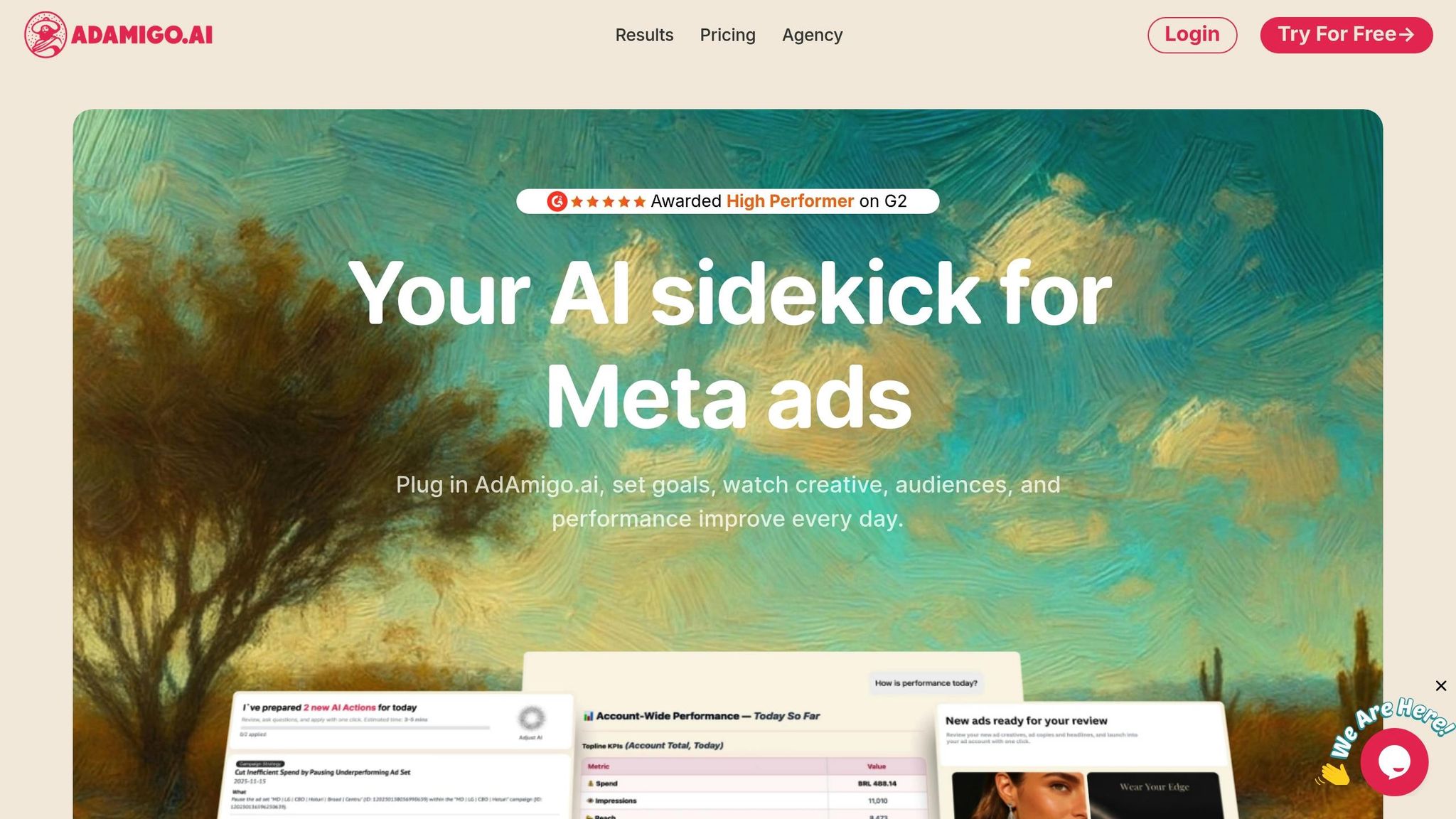
To take your audience syncing and campaign management to the next level, try AdAmigo.ai. This platform functions as an autonomous media buyer, handling audience creation, syncing, and campaign optimization through Meta’s APIs. It offers daily AI-driven recommendations for new audiences, budget adjustments, and automated bid rules. You can either approve these suggestions with a single click or enable autopilot for hands-free management.
When scaling up, the AI Chat Agent lets you launch hundreds of optimized ads and audiences directly from Google Drive or spreadsheets. This approach consolidates API calls into unified tasks, reducing the risk of hitting rate limits. The system also proactively identifies and resolves issues like configuration errors, permission problems, or sync delays before they affect your campaigns.
AdAmigo.ai doesn’t stop there - it analyzes performance trends to predict demand spikes and reallocates resources to top-performing audiences in real time. For added peace of mind, start in Review Mode to evaluate the AI’s recommendations before fully automating. You can also set specific KPI guardrails, such as “Increase spend by 30% while maintaining a minimum 3x ROAS,” to ensure the automation aligns with your business objectives.
Once your automation is in place, the next step is to validate your sync health and ensure your data is accurate.
Step 4: Validate Sync Health and Data Accuracy
Once your Meta ads automation is set up, it's time to ensure your audience data syncs correctly and remains accurate.
Monitor Audience Size and Growth
Head to the Audiences tab in Meta Ads Manager. Look for the "Ready" status under "Availability" for each synced audience. Click on any audience segment to explore its "Summary", "Usage", and "History" tabs, which provide insights into growth trends and changes over time.
Compare the audience size in Meta Ads Manager with the original segment from your CRM. If you need help identifying new segments, use a target audience finder to refine your profiles. For example, if you upload 50,000 CRM contacts and only see 30,000 in Meta, there may be a match rate issue or formatting error. Use the API fields num_received (total users received) and num_invalid_entries (entries rejected due to improper hashing or formatting) to identify discrepancies.
Keep in mind that Meta enforces a limit of 500 Standard Data File Custom Audiences per account. If you're approaching this limit, consider archiving unused segments to free up space.
Review Sync Logs and Status
Regularly check third-party sync logs for errors or integrate Meta Ads with GA4 to cross-reference performance data. Within Meta's Events Manager, the "View Details" section allows you to monitor your Event Match Quality (EMQ) score, which ranges from 1 to 10. A score of 8 to 10 reflects strong data matching, while anything below 3 indicates poor data quality that requires immediate action.
If you're syncing data through the API (as outlined in Step 3), pay attention to the operation_status field. Healthy statuses include Normal or replace_in_progress. However, a replace_error or code 471 signals a critical sync issue that needs resolution. Remember that Meta has a deduplication window: 48 hours for web events and 7 days for offline events. During these periods, duplicate records are automatically merged.
Diagnostic Checklist for Common Issues
If you encounter problems, these checks can help pinpoint the issue:
Ensure you aren’t exceeding the 10,000 records per batch limit for API uploads.
Verify whether removing customers from your source segment also removes them from Meta. Some integrations require explicit "delete" or "replace" actions instead of automatic removal.
Issue | Common Cause | Recommended Solution |
|---|---|---|
Flagged Audience | Integrity or policy violation | Review Meta’s policies on sensitive data like health or financial information |
Stalled Growth | Reached the 500-audience limit | Archive unused audiences to make room for new ones |
Sync Delays | Processing backlog | Allow up to 24 hours for changes to fully propagate |
For persistent discrepancies, you might consider using the usersreplace endpoint. This method clears the existing audience and replaces it with an updated set, ensuring data accuracy without disrupting your ad set's learning phase.
Once you've confirmed the sync health, you're ready to address any remaining challenges in Step 5.
Step 5: Troubleshoot Common Sync Issues
Syncing audiences can sometimes hit a few bumps. Here’s how to identify and resolve common issues effectively.
Fix Missing or Stalled Audiences
Meta automatically flags and deletes Customer File Custom Audiences that haven’t been used in active ad sets for over two years. To avoid this, make sure your audience is active in at least one campaign.
If you’ve reached the 500-audience limit, consider archiving unused segments to free up space.
Another common issue is Error 471, which occurs when an audience implies restricted categories like health conditions or financial status. To prevent this, double-check your segmentation rules and ensure they don’t suggest sensitive attributes. Additionally, re-authenticate your CRM or CDP connection every 30 days. This step prevents expired access tokens from interrupting the sync process.
By addressing these issues, you’ll maintain smooth audience data transfers. If audience sizes still seem unusually small, it’s time to focus on boosting match rates for accurate audience data.
Improve Low Audience Match Rates
If Meta’s audience count is more than 20% smaller than your CRM list, it’s a sign you need to clean up your data. Start by converting all email addresses to lowercase, adding international country codes to phone numbers, and hashing data using SHA-256 before uploading.
To improve matching, include multiple identifiers for each record - such as email, phone number, and external ID. This helps Meta identify users across devices. Check your Event Match Quality score in Events Manager, and address any scores below 3 immediately. If you’re only using the Meta Pixel, add the Conversions API to capture signals that might be blocked by ad blockers or privacy settings. Lastly, while Meta accepts lists with as few as 100 users, aim for at least 1,000 for better scalability.
Once you’ve optimized match rates, you can move on to resolving sync delays or failures.
Resolve Failed Syncs and Delays
Sync failures often result from rate limits or mapping errors. If you’re using the Replace Users API, ensure all batches are sent within a 90-minute session window - exceeding this timeframe will cause the operation to fail.
Custom Audience updates can take up to 24 hours to process. If delays persist beyond this, check the operation_status field for error codes like replace_error or 471. For large-scale updates, use the /{audience_id}/usersreplace endpoint instead of standard POST/DELETE calls. Keep in mind, this method is only applicable for audiences under 100 million users with a subtype of CUSTOM.
Here’s a quick reference table for common issues and fixes:
Issue | Common Cause | Recommended Fix |
|---|---|---|
Error 471 | Audience suggests restricted categories | Revise segmentation rules to remove sensitive attributes |
Failed Replace Session | Batches exceeded the 90-minute window | Send all batches within the session window using the Replace Users API |
Sync Appears Active but No Data | Expired access token | Re-authenticate your CRM/CDP connection every 30 days |
Conclusion
To get the most out of your Meta audience data, focus on verifying connections, standardizing your datasets, automating updates, validating accuracy, and resolving any issues that arise.
When your CRM and Meta work together seamlessly, you unlock more precise targeting, cut down on wasted ad spend, and see better conversion rates. The difference between a perfectly synced audience and a mismatched one can make or break your ability to hit those all-important ROAS goals.
Relying on manual syncing is risky - errors are almost inevitable, especially with large or multiple campaigns. That’s why automation is key. Tools like AdAmigo.ai handle audience syncing and campaign optimization for you. Instead of getting bogged down with troubleshooting or manually updating segments, you can shift your focus to strategy while the AI runs in the background, working around the clock.
This streamlined approach isn’t just for agencies - it’s a game-changer for in-house teams too. By syncing audience data accurately and effortlessly, you free up time to concentrate on scaling and long-term growth.
Keep your audience data clean, synced, and updated regularly. By doing so, you'll boost your campaign performance and set the stage for smarter, more effective ad strategies.
FAQs
How can I make sure my Meta Business Manager is properly set up for syncing audience data?
To keep your Custom, Lookalike, or Engagement audiences current, it's crucial to set up your Meta Business Manager correctly. Without the proper configuration, syncing email lists, website pixel data, or app events through API calls might not work as intended.
Start by ensuring you have admin access to both your Business Manager and the ad account you want to sync. Only admins can grant API permissions and link apps effectively. If you don’t already have a Meta app set up, you’ll need to create one or use an existing app. Assign the necessary permissions, such as ads_read and ads_management, to ensure audience data can be updated seamlessly. Also, double-check that the app is connected to the same Business Manager as your ad account.
Next, generate a long-lived access token. You can do this through the Graph API Explorer or your own OAuth process. This token is essential for enabling the Marketing API to handle the syncing process. Additionally, make sure customer files are hashed using algorithms like SHA-256, and confirm that your website or app pixel IDs are linked to your Business Manager.
Once everything is set up, you can automate the syncing process with tools like AdAmigo.ai. This approach eliminates the need for manual updates, ensuring your audience data stays accurate and up-to-date.
What data should I use to improve audience match rates on Meta platforms?
To improve audience match rates on Meta, leverage hashed identifiers such as email addresses, phone numbers, names, dates of birth, gender, location data, App User IDs, Page-Scoped User IDs, Apple’s IDFA, and Android Advertising IDs. These identifiers enable Meta to align your audience data more precisely across its platforms.
For a hassle-free and automated way to sync audiences, tools like AdAmigo.ai can be a game-changer. They keep your targeting data current and accurate, letting you concentrate on crafting effective strategies.
How can I keep my Meta campaigns updated automatically with the latest audience data?
To keep your Meta campaigns running smoothly and up-to-date, the Meta Marketing API can be a game-changer. By syncing your audience data - like customer lists, website visitors, or app users - you can skip the hassle of manual uploads and ensure your campaigns are always working with the latest information.
Here’s how it works: Set up an API connection to link your data source, such as a CRM or data warehouse, with Meta’s Custom Audience API. Once connected, you can automate updates by using a scheduled script or a cloud service to handle the heavy lifting. Want an even easier option? AI tools like AdAmigo.ai can take over the entire process. From authenticating with the API to scheduling regular audience updates and even suggesting better segmentation strategies, these tools let you focus on the bigger picture. The result? More accurate targeting and more time for strategic planning.