
How to Set Up a Meta Ads API Access Token: Step-by-Step Configuration
Hands-on configuration guide: create a Meta developer app, generate a system user access token step by step, and connect it to your ad accounts — with exact settings and security notes.
This is the hands-on configuration guide — exact steps, specific settings, and where to click. For the full workflow overview, permissions model, and access tier changes, see the Meta Ads API Key Creation Workflow. Here's what you'll configure:
Key Steps:
Prerequisites:
A Meta Business Manager account with admin access.
An active ad account linked to your Business Manager.
A registered Meta Developer account for creating apps.
Generate API Credentials:
Create a developer app in the Meta for Developers portal.
Enable the Marketing API and configure permissions.
Generate access tokens or API keys (short-lived, long-lived, or system user tokens) based on your needs.
Best Practices:
Store tokens securely in encrypted environments.
Regularly monitor API usage and token validity.
Use system user tokens for long-term automation.
Integration:
Connect third-party tools like AdAmigo.ai to automate campaign management, optimize budgets, and streamline ad operations. This setup is the foundation for Meta Ads ROI optimization across all your campaigns.
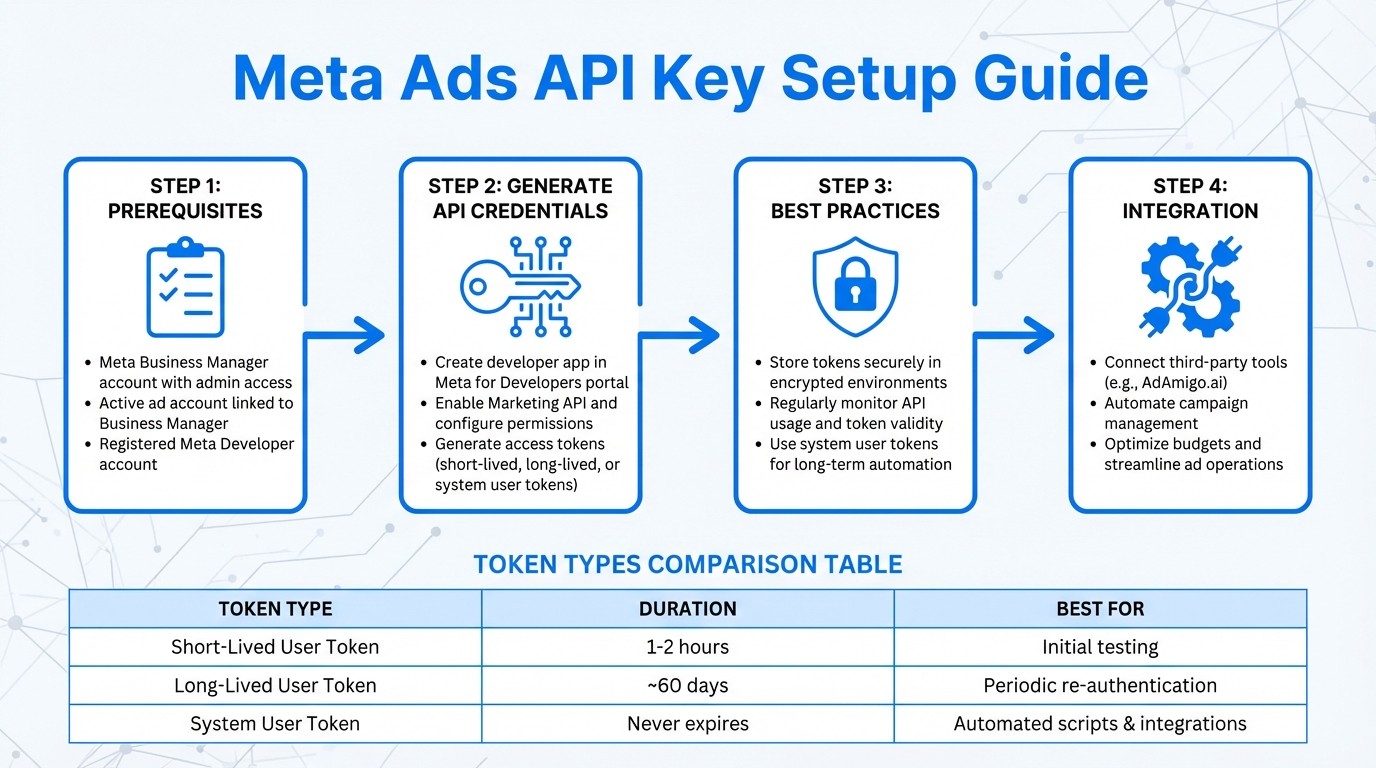
Meta Ads API Key Setup Process: 4-Step Guide from Prerequisites to Integration
How to Set Up Meta Ads API in n8n (Complete Step-by-Step Tutorial 2025)
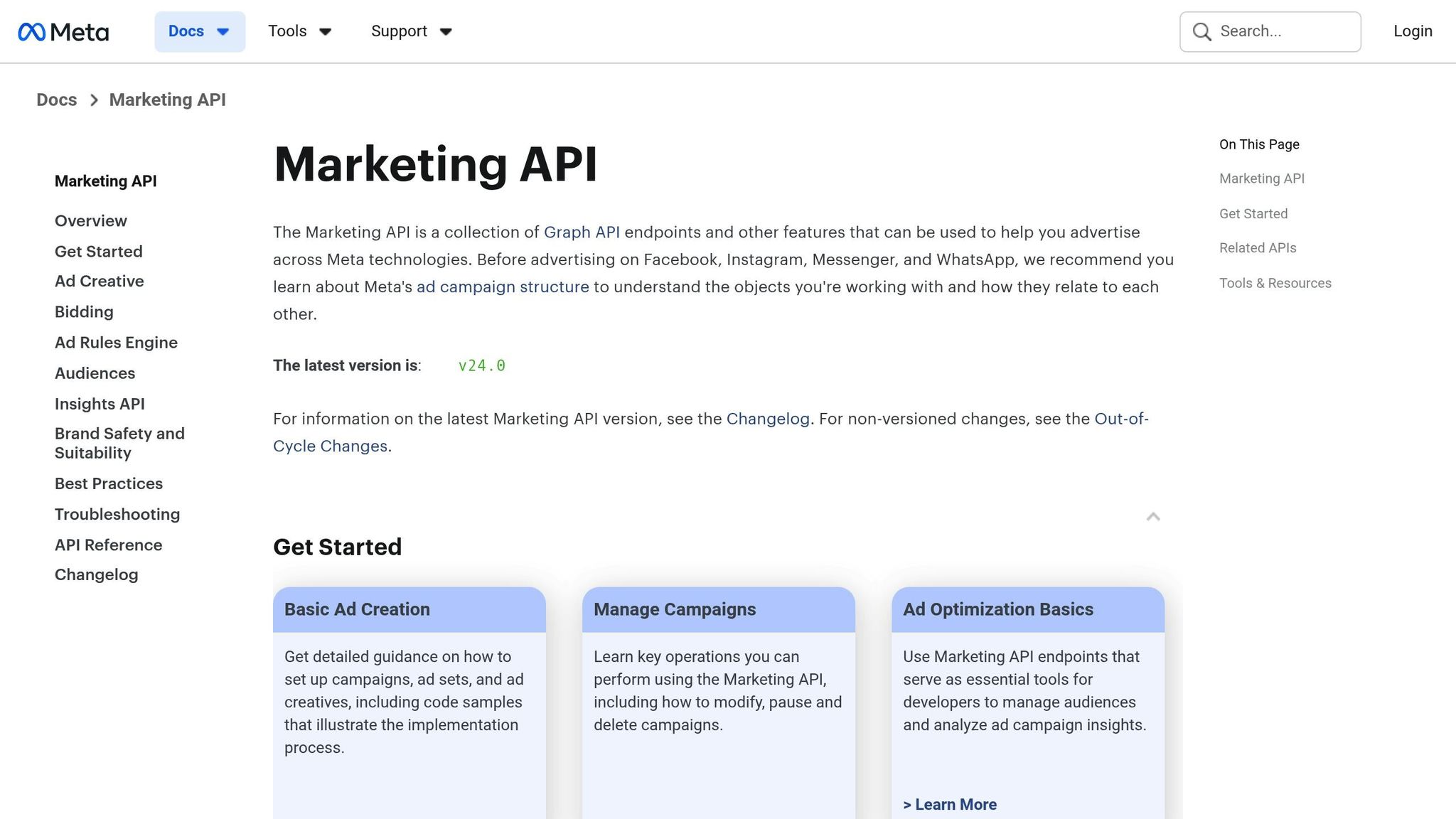
Prerequisites for Setting Up Meta Ads API Keys
Before you can generate your first access token, there are a few essentials you need to have in place.
Meta Business Account and Admin Access
First, you'll need an active Meta Business Manager account with administrator permissions. This platform is where you manage ad accounts, pages, system users, and more. It's also the hub for generating access tokens and assigning asset permissions. Additionally, you must have an active ad account linked to your Business Manager. This account is critical because the API relies on it for creating campaigns, adjusting budgets, and retrieving performance data. For those looking to scale, an AI Media Buyer can automate these processes once your API is live.
To find your ad account ID, head to Meta Ads Manager. Click on the settings menu in the bottom left corner, and look for the account number formatted as act_<AD_ACCOUNT_ID>.
Developer Account Creation
Next, register as a Meta Developer to access the App Dashboard. This dashboard is where you'll create the app that connects your systems to Meta's API. A developer account is essential for obtaining your App ID and App Secret. To get started, sign up through the Meta for Developers portal. Once registered, you’ll gain access to tools like the Graph API Explorer and the Access Token Debugger.
If you're working in a production environment or setting up third-party integrations, you’ll need to create a System User within Business Manager. System User tokens are ideal for server-to-server communication since they don’t expire like standard user tokens, which last only 1 to 2 hours (short-lived) or up to 60 days (long-lived).
After setting up your developer account, familiarize yourself with how Meta’s Marketing API is structured to streamline the process of generating keys.
Required API Permissions
Request these scopes in your app's Permissions tab:
ads_management— create and edit adsads_read— pull performance reportsbusiness_management— manage Business Manager assets
Request only what you need. Marketing API v26.0. Submit for Meta's app review before going live in production.
Requirement | Purpose |
|---|---|
Meta Business Account | Centralizes management of ad accounts, pages, and system users |
Admin Permissions | Needed for generating tokens and assigning asset permissions |
App ID & Secret | Unique credentials required for OAuth authentication |
How to Set Up Meta Ads API Keys
Once you've met the prerequisites, it's time to generate your API credentials. This involves creating a developer app, enabling the Marketing API, and generating access tokens.
Creating a Meta Developer App
Start by logging into the Meta for Developers portal and heading to the App Dashboard. Click on "Create App" and choose the app type that fits your needs - typically Business for advertising integrations. Enter your app name, a contact email, and link the appropriate Business Manager account. Once the app is created, make sure to save the provided App ID and App Secret, as you'll need them to generate tokens later.
Configuring App Settings and Adding the Marketing API
In your App Dashboard, go to the "Add Products" section and select Marketing API. This step lets your app interact with Meta's advertising tools. Before moving to production, check the Permissions tab and request only the scopes you need. When you're ready to go live, submit your app for Meta's review, explaining how each permission will be used.
Once your app is configured and you've assigned the necessary permissions, you can move on to generating access tokens.
Generating Access Tokens
Meta offers two types of access tokens:
Short-Lived User Tokens: These are created through the Graph API Explorer. Select your app, choose "User Token", add the required permissions, and click "Generate Access Token." If needed, you can extend its life up to 60 days using the Access Token Debugger.
System User Tokens: Ideal for server-to-server integrations or automation. Go to Business Settings > Users > System Users, select your admin system user, and click "Generate new token." Choose your app, select the required permissions, and generate the token. Be sure to copy it immediately - it won't be shown again.
Token Types Overview:
Token Type | Expiration | Best Use Case |
|---|---|---|
Short-Lived User Token | 1–2 hours | Initial testing in Graph API Explorer |
Long-Lived User Token | ~60 days | Apps requiring periodic re-authentication |
System User Token | Never | Automated scripts and third-party integrations |
Always store tokens securely in encrypted databases and transmit them over HTTPS. Keep in mind that even persistent tokens can become invalid if a user changes their password or revokes permissions. To avoid disruptions, follow best practices for Meta API integration and implement regular token validity checks.
These tokens play a key role in integrating with tools for multi-account Meta ad management like AdAmigo.ai, which streamline automated Meta ads management.
Best Practices for API Key Management
Once your token is generated, managing it effectively is crucial for keeping your Meta Ads integration secure and reliable. Mismanaging API keys can lead to unauthorized spending, data breaches, or disruptions in service. Here’s how to safeguard your API credentials and ensure Meta API key compliance. Understanding the Meta Ads API key creation workflow is the first step in this process.
Securing API Keys
Never hard-code tokens in client-side code or push them to version control systems. Instead, store them in encrypted environments to prevent unauthorized access. Always transmit tokens over HTTPS to protect them from interception. For production environments, opt for System User tokens rather than personal user tokens. These are linked to your Business Manager account and remain valid as long as they are properly maintained.
To minimize risks, set budget caps and bid thresholds to avoid unexpected expenses.
Monitoring API Usage
Keep a close eye on your API usage by logging every call your application makes. Record details like the object being modified (e.g., Campaign ID), the specific changes made (such as a budget update), and the timestamp. Use the Meta Developer Dashboard to set up alerts for unusual activity, such as spikes in call volume or frequent permission errors.
Meta imposes rate limits using a rolling one-hour window, so tracking your call frequency is essential. If you encounter error codes like #100 (Missing Permission) or #200 (Permission Denied), investigate immediately, as these could signal potential security breaches. Regularly use the Access Token Debugger to check your token’s associated App ID, scopes, and expiration dates.
These steps help you maintain control over API usage and ensure the integrity of your system.
Token Expiry and Renewal
Short-lived tokens typically expire within one to two hours, while long-lived tokens last up to 60 days. To avoid interruptions, implement automated checks to verify token validity and re-authenticate as needed. System User tokens are a better choice for server-to-server integrations, as they don’t expire if properly maintained. Tools like AdAmigo.ai can benefit from this setup. However, even persistent tokens can be invalidated if a user changes their Facebook password or revokes permissions. To address this, perform validity checks at application startup.
When a token expires, automate the re-authentication process to request new permissions without manual intervention. For background scripts without user interfaces, configure email notifications to alert your team when tokens need renewal. If you hit rate limits, apply exponential backoff - gradually increasing wait times between retries - to manage throttling without triggering additional penalties.
Integrating Meta Ads API with Third-Party Tools
Once your API keys are set up and secured, the next step is to put them to work. By integrating with tools like AdAmigo.ai, you can automate and scale your ad management processes with ease. Using System User tokens and following the steps within Meta Business Manager ensures a secure and efficient connection.
Connecting AdAmigo.ai to Your Meta Ads Account
For long-term automation, System User Access Tokens are the way to go. Unlike personal tokens, these are built for continuous use. As Meta's documentation explains:
"A system user access token... does not expire, so it can be used in long-running scripts or services that need to access the Marketing API".
To integrate AdAmigo.ai, start by heading to Business Settings > Users > System Users in your Meta Business Manager. Generate a new token, ensuring it includes permissions like ads_management, ads_read, and business_management. Once you have the token, paste it into AdAmigo.ai's setup interface. The entire process takes about five minutes, during which the platform verifies the connection and syncs your account data.
With the integration complete, you’re ready to tap into advanced automation features.
Using AdAmigo.ai's AI Features
After connecting, AdAmigo.ai takes over to optimize your campaigns automatically with AI Meta Ads tools. The AI Ads Agent dives into your brand identity, evaluates competitors, and analyzes your ad account to create optimized creatives on the spot. Meanwhile, AI Actions provide a daily list of prioritized tasks - such as reallocating budgets or refining audience targeting - that you can approve or let run automatically.
For agencies juggling multiple clients, tools like Bulk Ad Launch streamline the process by enabling hundreds of campaigns to be launched directly from a Google Drive spreadsheet. Additionally, the AI Chat Agent allows you to query performance data and make campaign adjustments through simple conversational commands.
This API-powered system offers a level of efficiency that manual management simply can’t match. As Cedric Yarish from AdManage puts it:
"anything you can do in Facebook Ads Manager, you can do through the API (and often more efficiently)".
With AdAmigo.ai, you can manage multiple accounts simultaneously, adapt to real-time data changes, and avoid the pitfalls of human error - all while staying within your budget and adhering to your geo-targeting and placement preferences.
Conclusion
Setting up Meta Ads API keys is the first step toward streamlining and automating your campaign management. By properly configuring your Meta Developer App and tokens, you can unlock efficient, automated processes that simplify campaign oversight and execution.
Automation can save an incredible amount of time - potentially thousands of hours each month. As Cedric Yarish from AdManage puts it:
"Anything you can do in Facebook Ads Manager, you can do through the API (and often more efficiently)".
However, security and ongoing maintenance are just as important as the setup itself. Make sure to encrypt your tokens, request only the permissions you absolutely need, and keep an eye on API rate limits. With Meta planning to phase out legacy APIs by Q1 2026, staying informed and following best practices will ensure your systems remain both functional and compliant.
Beyond security, AI automation platforms can take your campaigns to the next level. Once your API keys are securely managed, platforms like AdAmigo.ai can help you maximize efficiency. AdAmigo.ai’s AI Ads Agent generates on-brand creatives, while its AI Actions provide prioritized daily campaign adjustments that you can either approve or let run automatically. As Rochelle D. shared in a G2 Review:
"Our budgets are controlled, our spend is being smartly allocated and our ROAS is up massively. Agencies charging 7 times the cost of AdAmigo have been put to shame quite frankly!"
FAQs
Which token type should I use?
A long-lived access token is a secure string that allows your integration to interact with Meta's advertising platform through the API. By using this type of token, you ensure stable and extended access to the platform, minimizing interruptions and maintaining a seamless connection for your integration.
Why does my token stop working?
Tokens can stop functioning for several reasons. The most common issue is expiration - short-lived tokens expire quickly, while long-lived tokens usually last about 60 days. Tokens can also fail if they lack necessary permissions or scopes, such as ads_management. Other causes include account deactivation or security-related problems. To prevent disruptions, make sure your token is valid, correctly configured, and refreshed regularly.
How do I avoid API rate limits?
To steer clear of API rate limits when working with the Meta Ads API, it's important to follow a few key practices. Start with proper error handling - this helps you quickly identify and address rate limit errors as they arise. Another smart move is to batch your requests and cut down on unnecessary queries, which helps optimize your API usage.
Make it a habit to monitor your usage regularly using analytics tools. This allows you to spot patterns and adjust your approach before you run into any issues. Finally, stick to the platform's guidelines and avoid overwhelming the system with excessive request rates. By doing so, you'll keep your campaign automation running smoothly and minimize disruptions caused by hitting rate limits.