
Meta Ad Account Connection: Browser Fixes
Step-by-step browser fixes for Meta Ads Manager — clear cookies/cache, disable extensions, try a new profile, or use AI tools to bypass browser issues.
Having trouble with Meta Ads Manager? Most issues stem from browser settings, not Meta itself. Problems like login loops, blank screens, or missing accounts are often caused by Meta Ads data sync issues, corrupted cookies, outdated cache, or interfering extensions. Here's how to fix them:
Check Meta's Status: Use the Meta Business Status Dashboard to rule out platform-wide outages or vendor security breaches.
Test in Incognito Mode: If Ads Manager works here, the issue is with your browser's settings. If not, you may need to fix Meta ad account permission errors instead.
Clear Cookies/Cache: Remove data for Meta domains to fix session conflicts.
Disable Extensions: Ad blockers and privacy tools often block Meta scripts.
Create a New Browser Profile: Start fresh if the current profile is corrupted.
Turn Off Hardware Acceleration: Prevent crashes by disabling GPU rendering.
Switch Browsers: Edge or Firefox may handle Meta better than Chrome.
For a smoother experience, tools like AdAmigo.ai bypass browser issues entirely by connecting directly via a Meta Ads API key. This eliminates the need for manual fixes while offering streamlined ad management. This is a core benefit of using AI automation platforms for Meta ads.
Key Takeaway: Fix browser settings for quick solutions or consider AI tools like AdAmigo.ai for hassle-free Meta ad management.
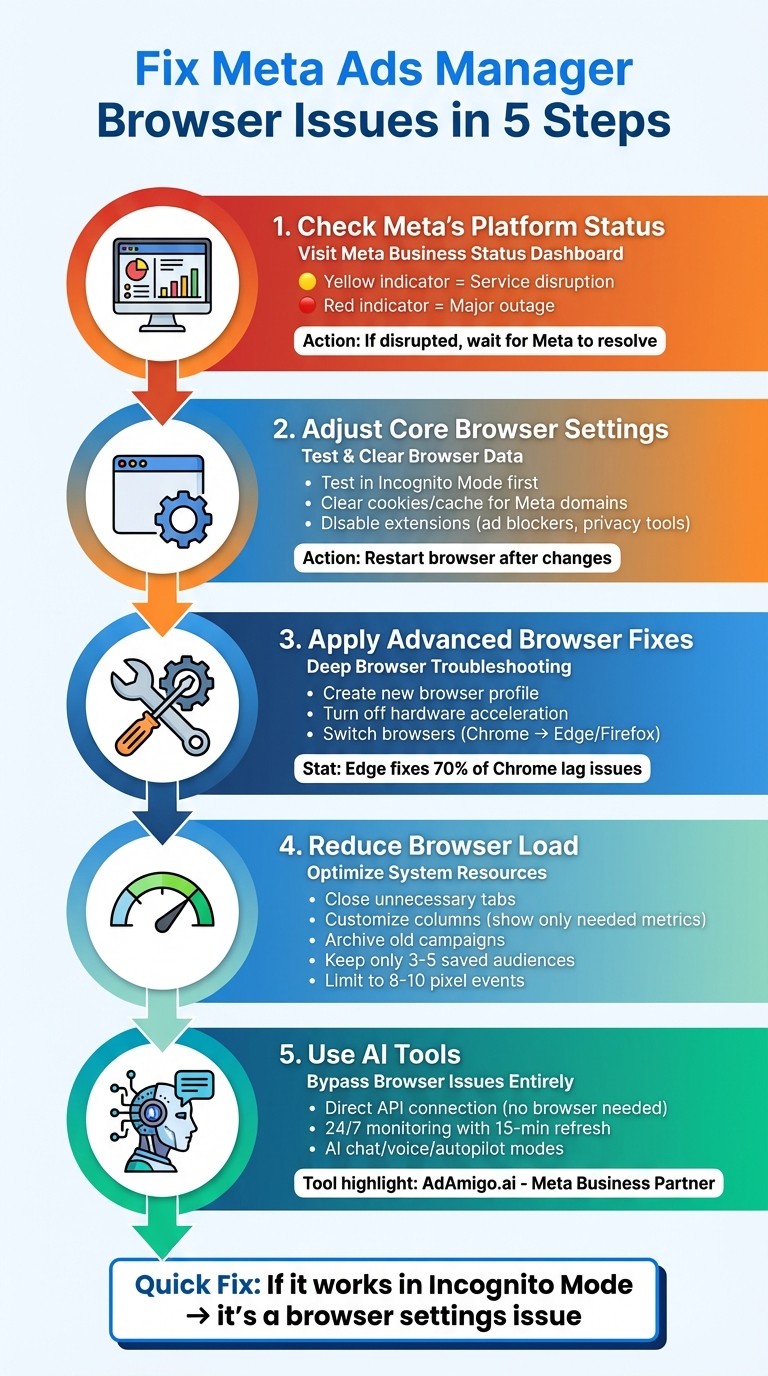
5-Step Browser Troubleshooting Guide for Meta Ads Manager Connection Issues
Step 1: Check Meta's Platform Status
Before diving into clearing caches or disabling extensions, make sure Meta's platform is running smoothly. Many connection problems are caused by platform-wide outages rather than issues with your browser or setup. Verifying this first ensures you're not wasting time troubleshooting when the problem isn't on your end.
Visit the Meta Business Status Dashboard
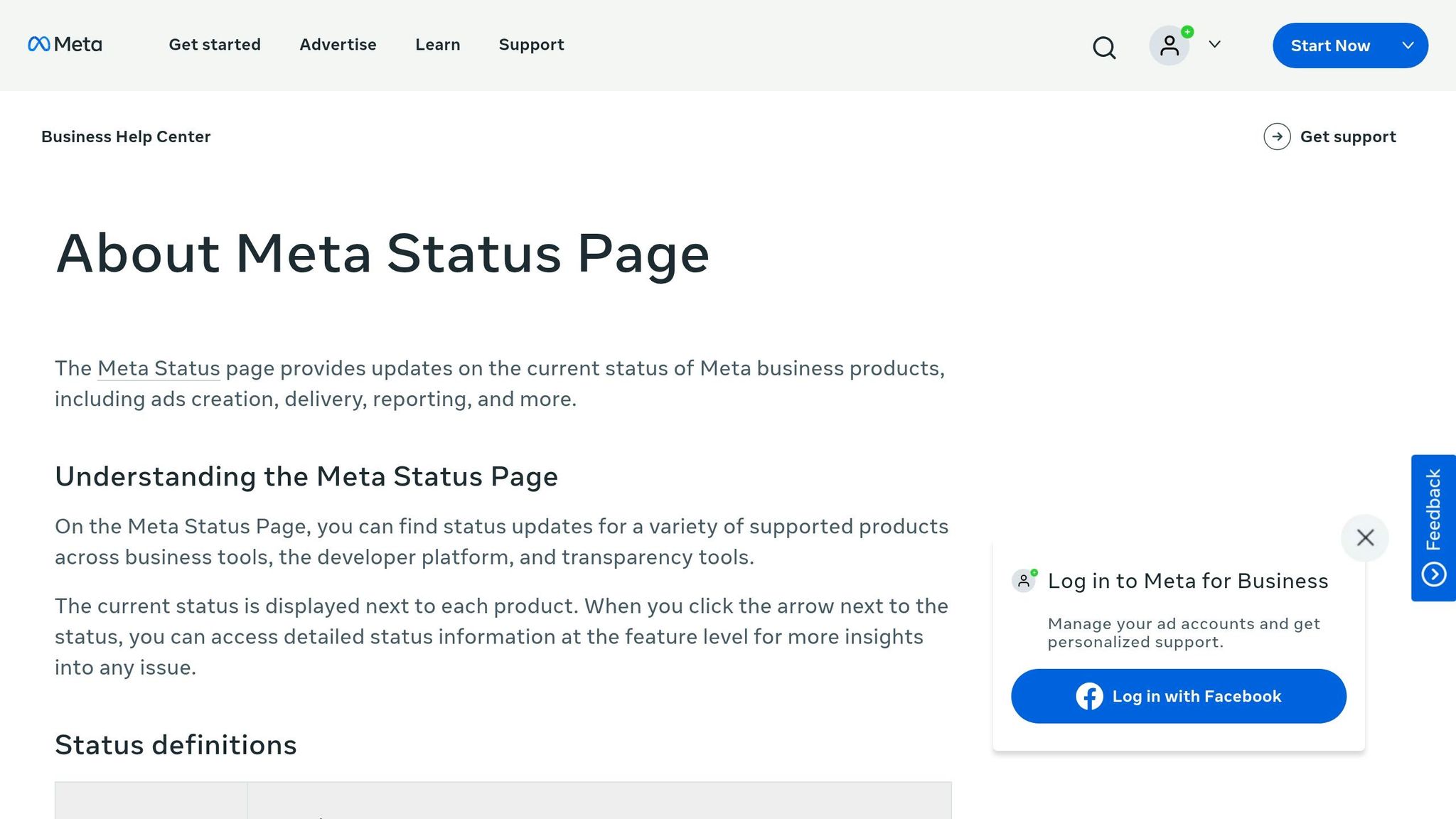
Head over to the Meta Business Status Dashboard. This tool provides real-time updates on the status of Meta's business tools, like AI and human-led Ads Manager setups. Here's how it works:
Yellow indicators signal service disruptions. These can often be confused with linking and permission errors that occur during setup.
Red indicators highlight major outages.
If you see either of these next to Ads Manager or Meta Business Suite, the issue is with Meta's platform, not your browser.
"If Ads Manager shows yellow or red, it's a platform issue – not your setup." - Expanse Digital
If the dashboard shows a disruption, hold off on troubleshooting until Meta resolves the issue. Changing browser settings during a system-wide outage won't help. Also, note the difference between authentication errors (like login loops) and authorization errors (such as missing accounts). This can save you from unnecessary adjustments.
Step 2: Adjust Core Browser Settings
If Meta's platform is functioning normally, the next step is to tweak your browser settings. Many Ads Manager issues stem from corrupted cookies, outdated cache, or problematic extensions. These steps address most browser-related problems.
Test in Incognito Mode
Start by opening an incognito window and logging into Meta Ads Manager. Incognito mode disables extensions and ignores stored cookies, offering a clean browsing environment. If Ads Manager works properly in this mode, you can confirm the issue lies with your browser settings, not Meta's platform or account restrictions.
"If it works in incognito mode, that's a good indicator it's a cache problem" - Dash Social
This method is especially helpful if you manage multiple accounts, as it ensures you're logging into the correct Facebook profile rather than a personal account without business access and permissions. If using incognito mode resolves the issue, the next step is clearing Meta-related site data to eliminate lingering conflicts.
Clear Cookies and Cache for Meta Sites
If incognito mode points to a browser issue, go back to your regular browser and clear cookies and cache specifically for Meta-related domains. In Chrome, navigate to the Privacy and Security settings, search for facebook.com and meta.com, and remove cookies and cache for each domain.
This process clears corrupted session data without affecting other websites. Clearing the cache also removes outdated files that might cause issues like blank screens or endless redirects. After completing this step, restart your browser and log back into Ads Manager.
Turn Off Browser Extensions
Browser extensions, especially ad blockers and privacy tools, are frequent culprits behind Ads Manager issues. Extensions like uBlock, Ghostery, and Privacy Badger often block Meta's internal scripts, preventing the dashboard from loading or causing interface glitches. Even marketing tools like MozBar or Keywords Everywhere can interfere by consuming too much RAM while Ads Manager tries to process real-time data.
To troubleshoot, open your extensions page (e.g., chrome://extensions) and disable all extensions. Refresh Ads Manager to see if it loads correctly. If it does, re-enable extensions one by one, refreshing after each, until you identify the problematic one. Many extensions let you whitelist specific domains - add facebook.com and business.facebook.com to keep your tools active elsewhere without disrupting Ads Manager.
Extension Type | Common Examples | Impact on Ads Manager |
|---|---|---|
Ad Blockers | uBlock, AdBlock, Ghostery | Blocks internal scripts; prevents dashboard loading |
Privacy Tools | Privacy Badger, Brave Shields, DuckDuckGo | Interferes with tracking pixels and pop-ups |
SEO/Marketing Tools | MozBar, Keywords Everywhere | Consumes RAM, slowing real-time data rendering |
Tag Inspectors | GTM Preview tools, Pixel helpers | Conflicts with Meta's measurement scripts |
Step 3: Apply Advanced Browser Fixes
When basic troubleshooting doesn't work, it's time to dive into more advanced solutions to tackle profile corruption and browser-specific issues.
Set Up a New Browser Profile
Instead of reinstalling your browser, try creating a new profile. This approach clears out stuck sessions and corrupted cookies, giving you a fresh start.
"Try a second browser profile (Chrome profile, Firefox profile) rather than reinstalling anything." - Connexify
In Chrome, you can create a new profile by clicking your profile icon in the top-right corner, selecting Add, and following the setup steps. After setting it up, log into Ads Manager using this clean profile. If it works, the problem likely lies with corrupted data in your original profile. You can either stick with the new profile or troubleshoot the old one by clearing site data and disabling extensions.
A fresh profile ensures a clean authentication state, reducing the chances of landing in the wrong business context and following account security best practices. Once that's done, you can tweak advanced settings like hardware acceleration to further improve stability.
Turn Off Hardware Acceleration
Hardware acceleration leverages your computer's GPU to speed up web page rendering. However, it can sometimes cause issues like crashes or script freezes, especially in resource-heavy dashboards like Ads Manager. To turn it off in Chrome, navigate to Settings > System and switch off Use hardware acceleration when available. Restart your browser and test Ads Manager again. This fix is particularly helpful if you experience blank screens, frozen buttons, or unexpected crashes.
If disabling hardware acceleration doesn’t solve the problem, it might be time to test a different browser.
Try a Different Browser
If Chrome continues to act up, switching to Microsoft Edge can be a game-changer. Running on the same Chromium engine as Chrome, Edge often handles Meta's demanding scripts more effectively, resolving 70% of lag issues almost immediately.
"If Chrome is lagging, Edge fixes 70% of cases instantly." - Expanse Digital
If both Chrome and Edge fail to deliver, Firefox is another solid option. Testing with a different browser can help you identify whether the issue is tied to your browser's setup or points to a broader network or account-related problem, such as a disabled account.
Step 4: Reduce Browser Load
Once you've optimized your browser settings, it's time to tackle system load. Reducing the strain on your browser can make Meta Ads Manager run more smoothly.
Meta Ads Manager is resource-intensive. It processes heavy scripts, real-time data pipelines, saved audiences, pixel measurement scripts, and dynamic campaign rendering - all at the same time. Plus, every time you open it, the dashboard loads your entire account history and saved audiences. Here’s how you can ease the load.
Close Extra Browser Tabs
Your browser has limited memory to work with. If you're juggling multiple tabs, Ads Manager has to compete for RAM with every other open page. Before launching Ads Manager, close all tabs that aren't absolutely necessary. This simple action frees up memory, giving Ads Manager the resources it needs to handle its demanding real-time processes without lagging or freezing.
Simplify Your Ads Manager View
The more data your browser has to process, the slower things get. Large accounts with detailed metric reports can drag performance down further. Start by customizing your columns to show only the metrics you actually need. Avoid displaying secondary metrics like CPC, CTR, and CPM unless they're critical - processing unnecessary data adds to the strain.
Another way to lighten the load is by archiving old campaigns and unused creatives. Meta Ads Manager loads all historical data each time you open it, so archiving reduces the amount of data it has to process. Similarly, delete outdated saved audiences and keep only 3–5 active ones to prevent slow initial loading. If you're running more than 8–10 pixel events, consider testing your pixel events and scaling back to improve dashboard responsiveness.
Step 5: Use AI Tools to Avoid Browser Issues
If you've hit a wall with manual browser fixes, AI tools can step in to simplify everything. Forget about tweaking browser settings - AI platforms can handle your Meta ads without ever needing to open Ads Manager in a browser. This means no more dealing with connection glitches, cookie errors, or extension conflicts. It's a straightforward way to sidestep the headaches of browser-based management.
How AdAmigo.ai Makes Meta Ad Management Easier
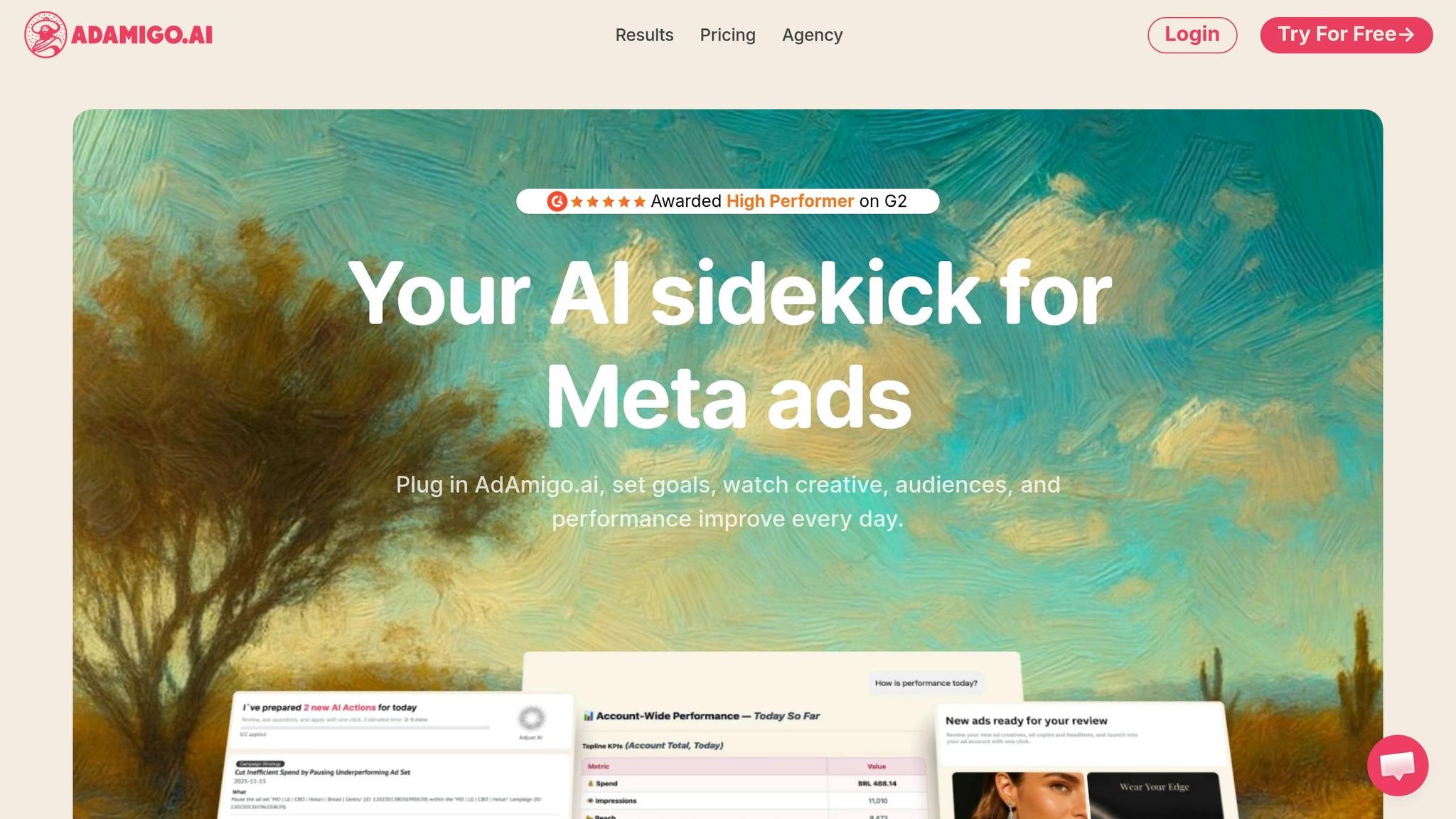
AdAmigo.ai, a recognized Meta Business Technology Partner, can connect Meta Ads to third-party tools by linking directly to Meta's Marketing API using secure OAuth 2.0 protocols. Translation? You can skip the browser entirely. Instead of logging into Chrome or Firefox, you’ll rely on AI agents to handle tasks like optimization, creative development, and campaign launches.
AdAmigo.ai audits your account every 15 minutes and offers daily optimization tips. You can pick between Review Mode, where you approve AI recommendations manually, or Autopilot Mode, which lets the AI make changes automatically while sticking to your goals - like maintaining a "ROAS ≥3x." Either way, you avoid sluggish dashboards and frozen browser tabs.
Key Features of AdAmigo.ai
AI Chat Agent: Think of this as your personal media buying assistant. It lets you manage campaigns, track performance, and launch ads using either text or voice commands.
Bulk Ad Launcher: Upload creative assets directly from Google Drive and launch them all at once - no repetitive steps required.
24/7 Monitoring: A team of AI agents works around the clock to catch setup errors, spending irregularities, broken links, or suspicious activity before they become costly.
AdAmigo.ai has earned "High Performer" recognition from G2, with users praising its ability to deliver on its promises. As one user, Nadia Toffar, shared:
"What others promised, AdAmigo.ai delivered. True AI, automation, and results." - Nadia Toffar
Feature | Browser-Based (Ads Manager) | AdAmigo.ai (AI-Driven) |
|---|---|---|
Interface | Manual Web Dashboard | AI Chat / Voice / Autopilot |
Optimization | Manual / Static Rules | Continuous Learning AI Agent |
Creative | Manual Upload/Design | Automated Generation & Iteration |
Monitoring | Periodic Manual Checks | 24/7 Real-Time (15-min refresh) |
Scaling | Repetitive Manual Steps | Bulk Launch from Google Drive |
Conclusion
Meta ad account issues often stem from corrupted cookies, conflicting browser extensions, or outdated sessions. Luckily, the fixes are simple: try using Incognito mode, clear your Meta-related cache, disable ad blockers, or set up a fresh browser profile. If you're working in a corporate setting, switching to a mobile hotspot can help rule out firewall restrictions that might block Meta's scripts.
That said, managing ads through a browser can be unreliable. Meta Ads Manager is resource-heavy and prone to lagging during high usage, while privacy-focused extensions often interfere with its functionality.
Good browser practices can resolve many of these problems, but for ongoing or complex challenges, advanced AI media buying tools offer a better solution. Platforms like AdAmigo.ai tackle these issues by connecting directly to Meta's Marketing API, completely bypassing the browser. With AdAmigo.ai, you can manage Meta ads using chat, voice commands, or autopilot mode. It also handles tasks like continuous monitoring, in-depth account analysis, bulk ad launches, and AI tools for creative generation. Many performance marketers see browser-related problems as hidden roadblocks, and AI tools provide a way to avoid them altogether.
If you're tired of troubleshooting browser issues or dealing with slow dashboards, combining smart browser hygiene with an AI-powered workflow can be a game-changer. This approach gives you a reliable backup for browser access while streamlining your campaign management for faster, more scalable results. Use this checklist as your go-to troubleshooting guide, and consider AI solutions for a smoother, more efficient workflow.
FAQs
How do I know if the issue is Meta or my browser?
If you're facing issues, start by determining whether the problem lies with Meta or your browser. Try accessing your Meta ad account or Ads Manager directly. If you encounter connection or permission errors, it's likely an issue on Meta's side. On the other hand, browser-related problems could stem from cookies, cached data, or script-blocking extensions. Tweaking these browser settings might help fix the issue.
What cookies and site data should I delete for Ads Manager?
To delete cookies tied to Meta Pixel, Facebook, and Instagram, you’ll need to remove both first-party cookies (used by Meta for ad delivery, measurement, and optimization) and third-party cookies (used for tracking and personalization). Doing this can often fix connection problems and improve performance.
When should I manage Meta ads via AdAmigo.ai instead of a browser?
AdAmigo.ai takes the hassle out of managing Meta ad campaigns by automating and scaling the entire process. Instead of spending hours tweaking creatives, adjusting budgets, and refining targeting, you can let the AI handle the heavy lifting while you focus on strategic decisions.
Unlike browser-based tools that require constant manual input, AdAmigo.ai steps in with features like real-time analysis, dynamic updates, and the ability to manage large-scale campaigns seamlessly. Its tools, including the AI Ads Agent and AI Actions, are designed to streamline workflows, cut unnecessary costs, and improve your return on ad spend (ROAS) compared to traditional manual methods.