
Manus AI not showing in Ads Manager - fixes that actually work
Troubleshoot Manus AI not appearing in Meta Ads Manager: verify admin/advertiser permissions, Sales objective, browser/cache, and rollout access.
If Manus AI isn’t showing up in your Meta Ads Manager, it’s likely due to one of these issues:
Permissions: Only Admins and Advertisers can access Manus AI. Analysts won’t see the tool, often due to Meta ad account permission errors.
Rollout Delays: Meta is gradually releasing Manus AI. Some accounts may still be in the queue.
Browser Problems: Outdated browsers, ad-blockers, or cached data can block Manus AI from loading.
Account Type: Business accounts with higher ad spends get earlier access compared to personal accounts.
Campaign Objectives: Manus AI only works with Sales objectives and specific conversion locations.
Quick Fixes:
Check Permissions: Ensure your role is Admin or Advertiser in Business Settings.
Enable Manus AI: Look under the Tools menu or Business AI Beta in Meta Business Suite.
Update Your Browser: Use the latest version of Chrome, Firefox, or Safari.
Clear Cache: Refresh Ads Manager by clearing cached data and cookies.
Verify Campaign Settings: Confirm you’re using the Sales objective and eligible conversion locations. You may also need to map events to conversion goals to ensure the objective functions correctly.
If none of these work, contact Meta Support with your ad account ID and screenshots. For a more comprehensive automation tool, consider Manus AI alternatives like AdAmigo.ai.
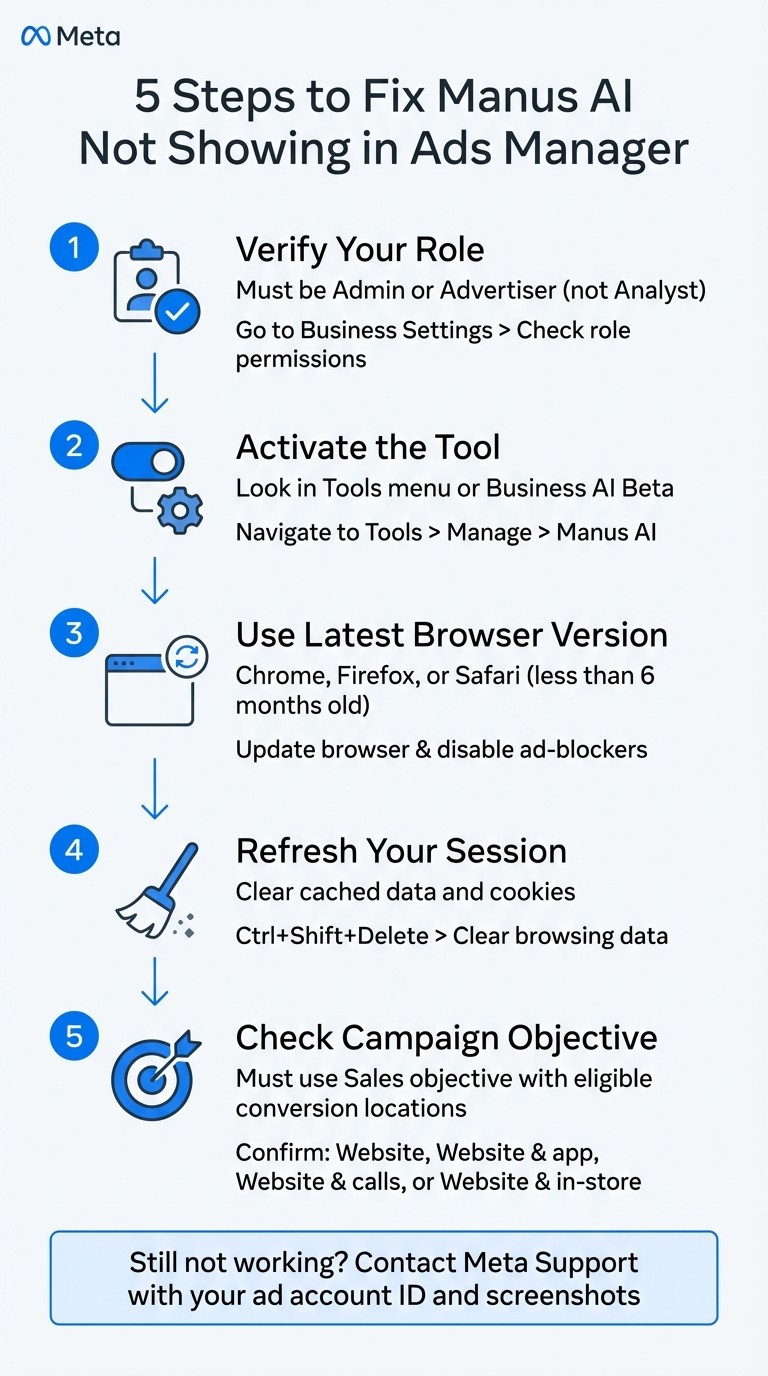
5-Step Troubleshooting Guide to Fix Manus AI Not Showing in Meta Ads Manager
Why Manus AI Isn't Showing Up
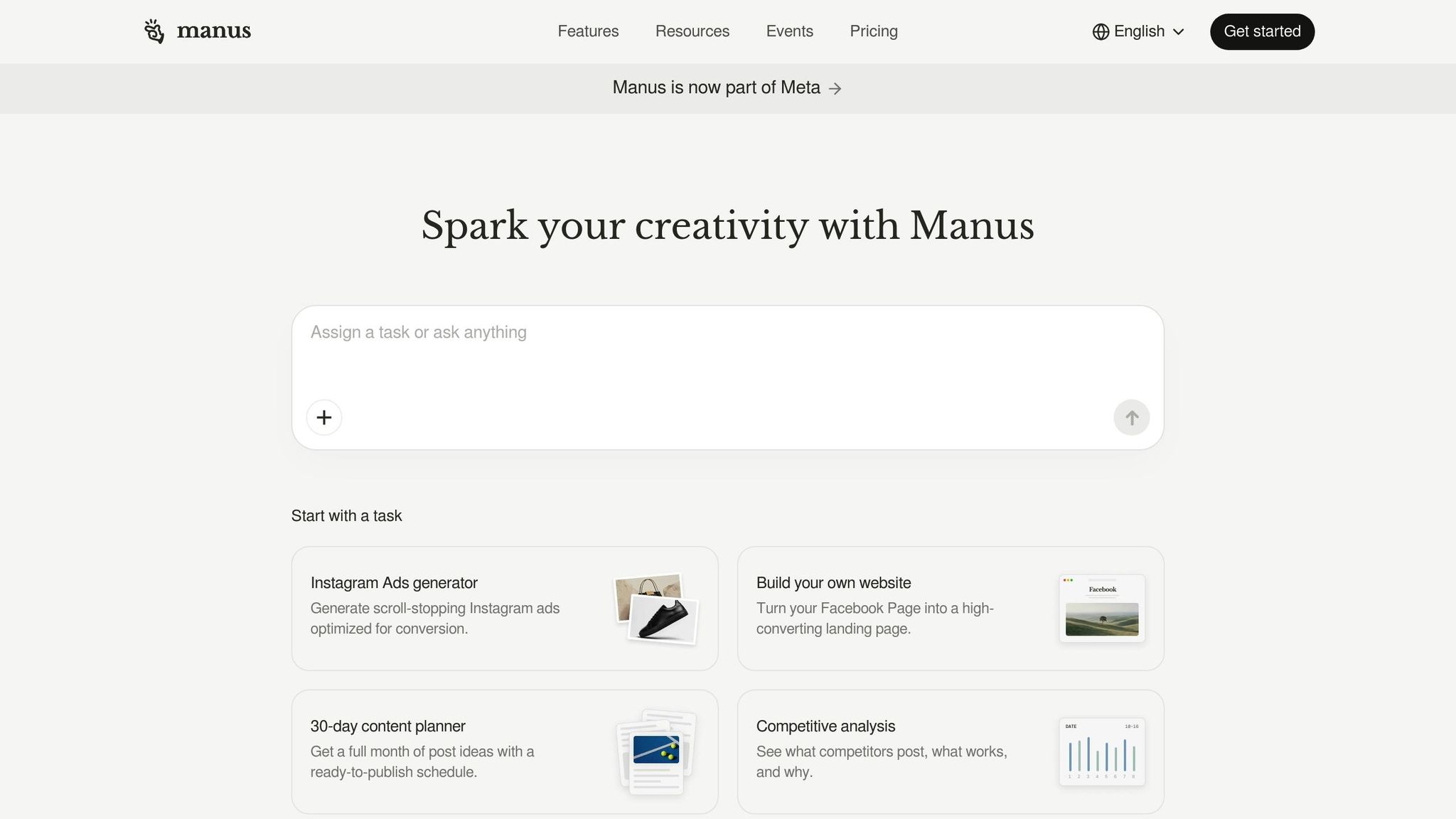
If Manus AI isn't appearing for you, the problem likely stems from one of three areas: setup issues, account restrictions, or technical hiccups on your end. Since Meta's rollout of Manus AI hasn't been uniform, access depends on several factors that may not be immediately obvious. If you're wondering what Manus AI actually does once you get access, see the full capabilities and limitations of Manus AI for Meta ads.
Setup and Permission Problems
Your account role plays a big role here. If you're logged in as an Analyst, Manus AI won't show up - even if it's enabled for your account. This is because only Admins and Advertisers have the required permissions to access and manage the tool. To check your role, head to Business Settings and review your permissions for the specific ad account.
Another common issue is incomplete activation. Even with an active account, Manus AI needs to be manually enabled through the Tools menu or via in-stream prompts. These role-based restrictions highlight why manual setup is crucial for access.
Account and Location Restrictions
Permissions aside, account type and Meta's phased rollout plan also influence access. Manus AI is being introduced gradually, so some advertisers might see it listed as "Manus AI" in the Tools menu, while others might find it under "Business AI Beta" in Business Suite. In some cases, access is granted through pop-up prompts during campaign creation. This is a key part of building AI-driven Meta campaigns effectively. If you can’t find it, your account may simply be queued for a later rollout phase.
Account type matters too. Personal ad accounts linked to individual profiles often receive new features later than Business Manager accounts, which typically involve multiple users and higher monthly ad spend. While Meta hasn't disclosed an official spending threshold, accounts managing larger budgets tend to gain earlier access to tools like Manus AI.
Browser and Technical Compatibility Issues
If your account settings seem fine, technical issues might be the culprit. Outdated browsers are a frequent problem. Manus AI relies on modern JavaScript frameworks, so using outdated versions of Chrome, Firefox, or Safari - anything older than six months - can prevent certain interface elements from loading, even if the rest of Ads Manager works.
Ad-blockers or privacy extensions can also interfere by blocking scripts that Manus AI needs to run. To troubleshoot, try switching to incognito mode. If Manus AI appears there but not in your regular browser, you’ve likely found the issue.
Cache and cookies can also cause problems. Meta’s infrastructure spending reached $22.1 billion in Q4 2025 to support AI integrations like Manus. However, all that backend investment won't help if your browser is loading outdated page data. Clearing your cache ensures that your browser retrieves the latest version of Ads Manager, which often resolves display issues immediately.
How to Fix Manus AI Not Appearing
If Manus AI isn't showing up for you, don’t worry - there are steps you can take to troubleshoot the issue. This guide walks you through the most common fixes to help you get the tool up and running.
Check If Your Account Qualifies
First, confirm that your account meets Meta’s requirements. Log into Business Settings and check your Meta ad permissions and roles for the ad account in question. To access Manus AI, you must have Admin or Editor permissions. If your role is set to Analyst, you’ll need to request an upgrade from your Business Manager admin.
Additionally, ensure your campaigns are using the Sales objective. Manus AI only works with this objective when conversion locations are set to specific options: Website, Website and app, Website and calls, or Website and in-store. Campaigns with objectives like Traffic or Engagement won’t support the tool. Also, accounts in restricted categories - such as Housing, Employment, Credit (HEC), Social Issues, Elections, Politics (SEIP), Financial Services, or Pharmaceuticals - are excluded from using Manus AI.
Once you’ve verified these details, you’ll be on the right track to enabling the tool in Ads Manager.
Enable Manus AI in the Tools Section
After confirming eligibility, open Ads Manager and look for the Tools icon in the left-hand navigation menu. Under the Manage section, locate Manus AI (it's typically between Instant Forms and Media Library). Click it to access the interface. If you're still trying to locate Manus AI in your account, here's where it lives in Ads Manager, including rollout variations to watch for.
When accessing Manus AI for the first time, you’ll need to complete a quick setup. This involves selecting your preferred report format and prompts and granting permissions for the AI to access your campaign performance data. If you don’t see Manus AI in the Tools menu, try checking the Meta Business Suite instead. Navigate to All Tools > Engage Audience and look for Business AI Beta - some accounts may find it there first.
Another option is to watch for pop-up prompts while setting up ads or viewing reports. These prompts might include Activate or Try Now buttons that allow you to enable the tool directly. If Manus AI is still missing, your account may be part of a phased rollout. Meta began introducing this tool on February 17, 2026, with broader availability confirmed by February 21, 2026. If your account hasn’t received access yet, it might simply be queued for a later release. While waiting, you can explore other AI automation platforms for Meta ads that offer similar optimization features.
Update Your Browser and Clear Cache
If eligibility isn’t the issue, browser-related glitches might be to blame. Start by ensuring you’re using an up-to-date version of Chrome, Firefox, or Safari. Older browser versions can cause compatibility issues with Manus AI’s JavaScript frameworks. Update your browser to the latest version available.
Next, clear your browser cache and cookies to refresh your session. In Chrome, press Ctrl+Shift+Delete (or Cmd+Shift+Delete on a Mac), select "Cached images and files" and "Cookies and other site data", and then clear the data. Restart your browser and log back into Ads Manager.
If you’re using ad-blockers or privacy extensions, disable them temporarily or try switching to incognito mode - these tools can sometimes interfere with Manus AI’s scripts. Finally, for the best experience, use a desktop browser. While Manus AI is accessible on mobile, tasks like data analysis are more efficient on a desktop setup.
What to Do When Basic Fixes Don't Work
If the usual troubleshooting steps aren't solving the problem, you might be dealing with deeper integration or permissions issues. These require a closer examination of how your account interacts with Meta's systems. In some cases, you may need to reach out for direct assistance.
Review and Adjust Integration Permissions
Permissions can sometimes be the hidden culprit, especially if your ad account is part of a business portfolio. To check and adjust these settings, head to Meta Business Suite Settings. Once there, ensure the person managing Manus AI is added to the business portfolio. Assign them the appropriate role - either Admin or Editor - to ensure they have the necessary access.
If the initial setup process was rushed, the integration might not have completed properly. Double-check that you've finished all required authorization steps. For instance, Manus AI needs permission to access your campaign performance data. Before enabling its autonomous features, take the time to set up budget caps, audience exclusions, and brand safety rules. As Alexander Zakharov, Founder of a Stealth AI Startup, advises:
"Manus will adjust bids, generate reports, and optimize targeting autonomously - without a human approving each step. Prepare by defining your guardrails now (budget caps, audience exclusions, brand safety rules etc.) before the AI sets its own defaults" If you're looking for a more established solution, you can use an AI Media Buyer to automate these optimizations..
If fine-tuning these settings doesn't resolve the issue, the next logical step is to contact Meta Support.
Contact Meta Support
When all else fails, reaching out to Meta Support is your best option. Be prepared with the following details to streamline the process:
Your ad account ID
The date you first tried accessing Manus AI
Screenshots showing where Manus AI should appear
Also, clarify whether your ad account is individually owned or linked to a business portfolio, and confirm your role permissions. If your account falls under restricted industry categories like Housing, Employment, Credit (HEC), or Social Issues, Elections, and Politics (SEIP), Manus AI may be intentionally blocked due to Meta's advertising policies. Meta Support can confirm whether these restrictions apply to your account or if a technical issue is causing the problem.
Other Tools for Meta Ad Optimization
If the solutions above don’t quite solve your challenges with Manus AI, there are other tools you can explore for optimizing Meta ads. One option to consider is AdAmigo.ai, which offers a more comprehensive approach to campaign execution.
AdAmigo.ai vs. Manus AI: Feature Comparison
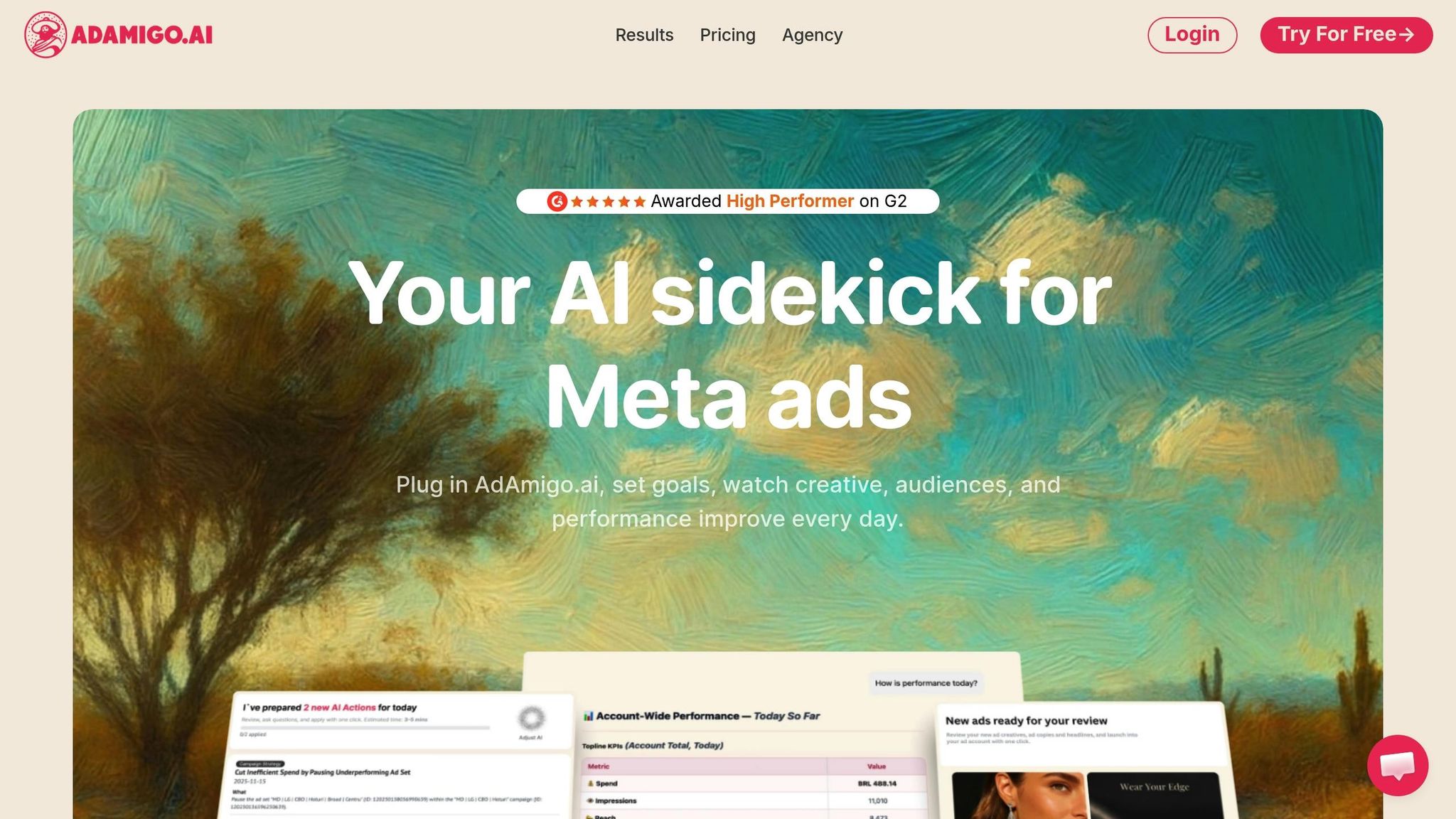
Here’s a quick breakdown of how AdAmigo.ai stacks up against Manus AI:
Feature | AdAmigo.ai | Manus AI |
|---|---|---|
Primary Role | Full-stack AI Media Buyer | Research & Analytics Assistant |
Ad Creation | High-quality visual creatives & copy generation | No (Analysis only) |
Campaign Launch | Bulk launch (100s of ads in seconds) | No execution capabilities |
Optimization | Automated campaign execution with CRM and attribution integration | Recommendations only |
Monitoring | 24/7 Anomaly detection & protection | Basic performance tracking |
Target User | Agencies and high-growth brands | Solo advertisers and small teams |
One standout distinction: Manus AI has been reported by early users to occasionally produce "hallucinations" or inaccuracies in ad data contexts, which means manual verification is often necessary. On the other hand, AdAmigo.ai is designed for hands-off execution, operating within pre-set parameters like budget limits, audience exclusions, and KPI targets. This ensures the AI stays aligned with your goals without constant oversight.
These differences make AdAmigo.ai a strong alternative for advertisers needing more than Manus AI’s analytical tools.
How to Set Up AdAmigo.ai
Getting started with AdAmigo.ai is quick and straightforward, taking just about five minutes. Here’s what you’ll need:
A Meta Business Manager account with admin access
An active ad account
Two-factor authentication (2FA) enabled
Once you’re ready, log in to the AdAmigo.ai dashboard and connect your Meta account through the integration settings. You’ll need to grant ads_management and ads_read permissions to enable the platform to manage your campaigns.
To avoid interruptions, it’s recommended to use system user tokens in Meta Business Settings. Unlike standard user tokens that expire every 60 days, system tokens don’t expire, eliminating the risk of "expired credential" errors.
After linking your account, you’ll set your KPIs and budget guardrails - whether daily or monthly limits - to guide the AI’s optimization efforts. You can start in Review Mode, where the AI suggests optimizations for your approval, or dive straight into Autopilot Mode, where the AI makes changes automatically. For first-time users, Review Mode is a great way to build confidence in the AI’s decisions before enabling full automation.
AdAmigo.ai also includes features like AI Actions, which provides a daily list of prioritized tasks (e.g., reallocating budgets or refining audience targeting) that you can execute with a single click. The AI Ads Agent takes care of creative production by analyzing your brand identity and competitor strategies, generating on-brand visuals and copy from just one text prompt. For agencies, the Bulk Ad Launch feature allows you to deploy hundreds of campaigns simultaneously, integrating seamlessly with Google Drive for streamlined operations.
Conclusion
If Manus AI isn’t showing up in your Ads Manager, the issue likely boils down to Meta Ads roles and permissions, campaign objective limitations, or a staggered rollout schedule. Since Manus AI began rolling out in mid-February 2026, some accounts might still be in the queue. To troubleshoot, ensure you have Admin or Editor access, check that your campaign uses the "Sales" objective, and confirm that you’re not running campaigns in Special Ad Categories like Housing, Employment, Credit, or Social Issues, Elections, and Politics - these aren’t eligible for Manus AI.
If these steps don’t resolve the issue, try clearing your browser cache or navigating to the "Business AI Beta" section in Meta Business Suite to ensure your interface is up to date. Still stuck? Reaching out to Meta Support might be the best course of action.
It’s also worth noting that Manus AI is designed for research and reporting purposes - it doesn’t create campaigns or handle optimizations. If you’re looking for an AI copilot for Meta ads, AdAmigo.ai could be a better fit, as it manages creative development and budget adjustments automatically. Whether you choose Manus AI once it’s available or opt for alternatives like AdAmigo.ai, the most important thing is finding a solution that aligns with how you work.
Run through these fixes, test your setup, and get back to fine-tuning your Meta campaigns.
FAQs
How long does Meta’s Manus AI rollout usually take?
Meta's Manus AI rollout usually takes 7 to 14 days to complete. Most advertisers notice the feature becoming available within this window after receiving initial prompts or updates. However, the timeline can differ based on factors such as account settings or recent platform updates.
What should I try if Manus AI shows in Incognito but not normally?
If Manus AI shows up in Incognito mode but not in your regular browser, here’s what you can do:
Check your account permissions: Make sure you have admin or editor rights to access the necessary features.
Clear your browser cache: This can help resolve any data conflicts that might be causing the issue.
Switch to a desktop browser: Ensure your account meets the campaign requirements, such as supported objectives like "Sales", and confirm there are no restrictions on your account.
Following these steps should help resolve the problem.
Can restricted ad categories ever get Manus AI access?
Restricted ad categories can use Manus AI if they fulfill all the required account criteria and permissions. However, access might still be denied due to violations of policies or restrictions tied to specific industries.