
How to Test Meta Webhooks for Real-Time Updates
Set up and test Meta webhooks: secure HTTPS endpoints, verify X-Hub-Signature-256, handle retries, deduplicate, and debug events.
Meta webhooks deliver real-time notifications about changes to Facebook Pages, Instagram accounts, ad accounts, and more. Instead of repeatedly checking the Graph API for updates, your server receives instant alerts through HTTPS POST requests. Proper testing ensures your integration works smoothly and avoids missed data or broken connections.
Key Points:
Why Test?: Missed events can lead to data loss, and delayed responses may cause Meta to unsubscribe your app.
Setup Requirements:
A public HTTPS endpoint with a valid SSL certificate.
A Meta app with Webhooks enabled and the necessary permissions.
A test account or Page for generating events.
Validation: Use the
X-Hub-Signature-256header and your App Secret to verify authenticity.Testing Tools: Meta's Webhooks dashboard, Lead Ads Testing Tool, and Graph API Explorer help verify your configuration.
By testing thoroughly, you ensure reliable, real-time updates while securing and optimizing your webhook setup.
How to Set Up Meta Webhooks for Testing
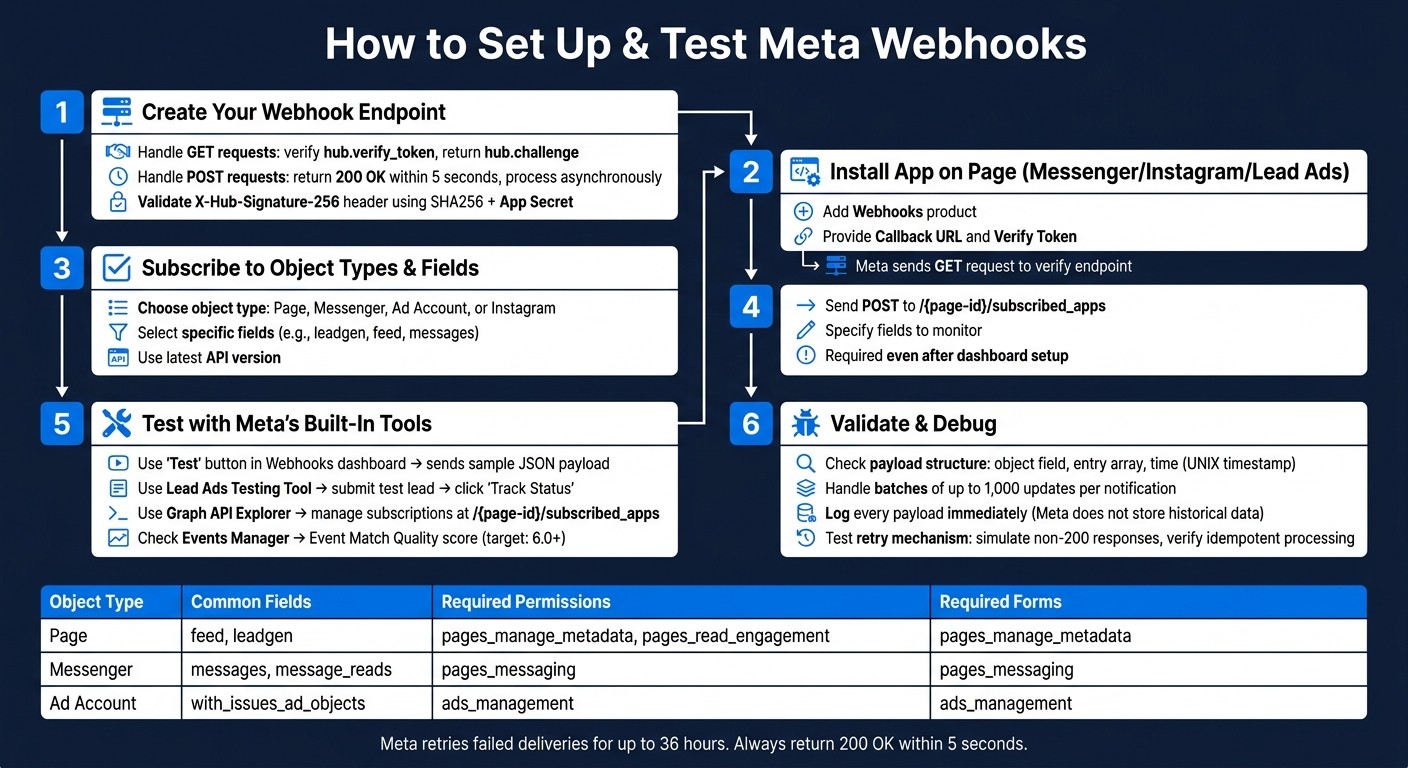
How to Set Up & Test Meta Webhooks: Step-by-Step Guide
Creating and Configuring a Webhook Endpoint
Your webhook endpoint needs to handle both GET and POST requests. When you register your URL in the Meta Dashboard, Meta sends a GET request with three parameters: hub.mode (always "subscribe"), hub.challenge (a random number), and hub.verify_token (a custom string you define). Your server should verify that hub.verify_token matches your predefined value and then respond with the hub.challenge value. Here's a simple way to handle this in Node.js:
For POST requests, your server must return a 200 OK response immediately, then process the payload asynchronously. This is especially important for Messenger and Instagram webhooks, as they require a response within 5 seconds.
Additionally, you must validate all incoming payloads using the X-Hub-Signature-256 header. Meta signs the payload using your App Secret and SHA256. To confirm the payload's authenticity, generate the signature on your server and compare it with the one sent by Meta. If the signatures don't match, discard the request.
Once your endpoint is ready, you can move on to registering and subscribing to webhooks in the Meta Dashboard.
Registering and Subscribing to Webhooks in the Meta Dashboard
With your endpoint live, log in to the Meta App Dashboard, add the Webhooks product, and provide your Callback URL and Verify Token. Meta will send a GET request to verify your server. If your endpoint responds correctly, your subscription will be confirmed.
After verification, choose the object type you want to monitor (e.g., Page, User, Ad Account, Instagram) and subscribe to the fields you need. The fields available depend on the object type. For instance, subscribing to the leadgen field on a Page object ensures you'll receive notifications whenever a new lead form is submitted.
For Messenger, Instagram, and Lead Ads, registering in the dashboard isn't enough. You'll also need to install your app on the desired Page. To do this, send a POST request to the /{page-id}/subscribed_apps endpoint, specifying the fields you want to monitor. Without this step, no notifications will be delivered, even if everything else is configured correctly.
Here's a quick overview of some common object types, their key fields, and the permissions required:
Object Type | Common Fields | Required Permissions |
|---|---|---|
Page |
|
|
Messenger |
|
|
Ad Account |
|
|
Make sure to select the latest API version in the Webhooks dashboard to access all available fields.
Once your setup is complete, use Meta's testing tools to ensure everything is working as expected.
Using Meta's Built-In Testing Tools
Meta provides testing tools to verify your webhook configuration. The "Test" button in the Webhooks dashboard sends a sample JSON payload to your callback URL, allowing you to confirm connectivity.
For Lead Ads, the Lead Ads Testing Tool helps you create a test lead on any connected form. After submitting the test lead, click "Track Status" to check if the Real-Time Update (RTU) reached your endpoint. If it failed, the tool provides an error_code to help you pinpoint the issue and avoid common tracking errors.
The Graph API Explorer is another useful resource. It allows you to manage subscriptions programmatically by targeting the /{page-id}/subscribed_apps endpoint, so you can confirm your app's connection to a Page without needing custom code. Lastly, the Events Manager tracks incoming events in near real-time (usually within 20 minutes) and provides metrics like Event Match Quality (scored 1–10, with 6.0 or higher being ideal) and Event Freshness.
How to Validate and Debug Webhook Events
Once your endpoint is set up and basic connectivity is verified, it's time to validate and debug webhook events thoroughly. This ensures your real-time updates across Meta platforms remain accurate and dependable.
Checking Payload Structure and Content
Meta webhook notifications are delivered as HTTP POST requests with JSON payloads. These payloads always include:
An
objectfield indicating the type (e.g.,pageorad_account).An
entryarray containing the changes.A
timefield with a UNIX timestamp.
The content of the entry array depends on your subscription settings. If you enabled "Include Values" in the App Dashboard, you'll see a changes array with the actual updated data. If not, the payload will only include a changed_fields list, which identifies the fields that were updated but without their values.
Important: Meta can batch up to 1,000 updates in a single notification. Your parsing logic must handle every item in the entry array, not just the first one.
To avoid losing data, log each payload as soon as it’s received. Meta does not store historical webhook data, so any missed notifications are irretrievable. Implement a logging middleware to capture and store the full request body in a file or database for future reference.
Testing Webhook Reliability
To confirm event delivery, ensure your endpoint consistently returns a 200 OK response. Additionally, simulate non-200 responses to test Meta's retry mechanism. Meta retries failed deliveries based on predefined windows. For Messenger webhooks, retries shrink to a 1-hour window, and continuous failures for 15 minutes trigger an alert to the developer account.
To test the retry process, intentionally return a non-200 response during testing. Then verify that your processing logic ignores the duplicate events, as webhook systems are designed to be idempotent. Use the "Event Freshness" tab in Events Manager to monitor delivery latency. For automated oversight, you can also monitor your ad accounts to ensure performance remains stable during technical updates. This tab shows the delay between the event occurrence and when Meta received it, which can range from real-time to up to a week.
Keep in mind that Meta does not guarantee delivery order, especially during failures. Use the time field in the payload to sort events chronologically and process them in the correct sequence.
Once reliability is confirmed, focus on resolving common errors to ensure smooth integration.
Fixing Common Webhook Errors
Webhook issues often fall into predictable categories. Below is a quick reference table outlining common problems, their causes, and how to resolve them:
Error | Likely Cause | Fix |
|---|---|---|
Verification failed | Incorrect | Ensure the token matches exactly in the App Dashboard and return only the challenge integer |
Missing events in Live mode | App not installed on the object or missing permissions | Call |
Signature mismatch | Incorrect App Secret or improperly hashed payload | Generate a SHA256 signature using your App Secret and compare it to Meta's signature |
No notifications in Dev mode | Triggering user lacks app role | Add the user as a Developer or Tester in the App Dashboard |
SSL/TLS error | Self-signed or expired certificate | Use a valid certificate from a trusted Certificate Authority |
If you're missing events while in development mode, it’s likely because only users with a role on the app can trigger webhook notifications in this mode. Switching to Live mode with the necessary permissions approved is the only way to test with real users effectively.
How to Improve Webhook Performance and Security
Ensuring your webhooks are both efficient and secure is key to managing reliable real-time updates. Let’s break down how to handle duplicate events, secure your webhooks, and deal with high event volumes effectively.
Handling Duplicate Events with Idempotent Processing
Meta's webhook retries can happen immediately and continue for up to 36 hours. This means the same event might hit your endpoint multiple times, so your application needs to manage duplicates effectively.
The best way to handle this is by using a unique payload identifier and checking it against an in-memory cache like Redis. For example:
For Lead Ads, use the
leadgen_id.For Messenger, rely on the
mid(message ID).For general Graph API webhooks, combine the object
idwith thetimefield.
If the identifier already exists in your cache, skip processing and return a 200 OK response immediately. This ensures you don’t process the same event multiple times, reinforcing earlier validation and security measures.
Another tricky scenario to watch for: out-of-order retries. Before updating any database records, compare the timestamp in the incoming payload to the last_updated value stored in your system. If the incoming event is older than the stored record, discard it to avoid overwriting newer data with outdated information.
Securing Your Webhooks
Meta includes an X-Hub-Signature-256 header with every request. This header contains a SHA256 HMAC of the raw payload, created using your App Secret. Validating this signature is critical - it’s the only reliable way to confirm the request is from Meta and hasn’t been tampered with during transit.
Here are some Meta API integration best practices for securing your webhooks:
Never hardcode your App Secret in client-side code. Keep it strictly on the server.
Always use HTTPS with a trusted certificate authority, especially for sensitive integrations like WhatsApp Business.
For WhatsApp Business and other high-security setups, configure Mutual TLS (mTLS) on your server. Trust Meta's outbound API CA certificate (
meta-outbound-api-ca-2025-12.pem) and verify that the certificate’s Common Name isclient.webhooks.fbclientcerts.com.
One important detail: when validating Messenger payloads, Meta generates the SHA256 signature using an escaped unicode version of the payload with lowercase hex digits. If your hash is calculated using raw decoded bytes, it may not match Meta's signature. Make sure your implementation accounts for this.
Once your security measures are in place, you’ll be ready to tackle performance challenges for high-volume events.
Handling High Volumes of Webhook Events
For endpoints handling large volumes of events, the golden rule is: respond first, process later. Always send a quick response to incoming requests to avoid retries, and offload intensive tasks to an asynchronous queue. This approach keeps your endpoint responsive and prevents Meta from interpreting delays as failures.
Meta can batch up to 1,000 updates in a single notification, so your queue system must be prepared for sudden bursts of activity. If you’re managing large-scale Meta ad campaigns, webhook events tied to ad account changes, lead form submissions, and delivery updates can escalate quickly. Tools like AdAmigo.ai are designed to handle this data flow automatically, ensuring your optimization logic receives performance signals without manual intervention.
To monitor your webhook performance, use the "Event Freshness" tab in Events Manager. Meta recommends aiming for an Event Match Quality score of 6.0 or higher (as detailed in our Meta Conversions API setup guide) to maintain strong attribution and ad delivery performance.
Conclusion: Key Takeaways and Next Steps
Keeping your Meta webhooks functional and reliable takes ongoing effort, but it's essential for maintaining a smooth real-time data pipeline and integration.
Here’s what you need to remember: your endpoint must respond with a 200 OK within 5 seconds, use a valid HTTPS certificate from a trusted CA, and verify every incoming request using the X-Hub-Signature-256 header. These aren’t optional steps - they’re critical for ensuring your webhook setup stays operational. Make sure to store payloads immediately upon receipt and keep an eye on your API version and developer alerts. If delivery issues persist for even an hour, Meta will disable your webhook subscription entirely. Staying proactive will save you from unnecessary disruptions.
Catching and fixing potential issues early is always easier - and cheaper - than repairing a broken integration later.
Once your webhook pipeline is running smoothly and delivering accurate, real-time data, you can start putting that data to work. Tools like AdAmigo.ai can leverage these live signals to automatically adjust ad budgets, rotate creatives, and respond to delivery shifts across your Meta ad account. This eliminates the need for constant manual adjustments in Ads Manager, letting automation take over.
The technical foundation you’ve established here - secure endpoints, proper validation, efficient processing, and the ability to handle large volumes - is what allows true automation to shine. Whether you choose a developer-build or full-operation approach to automation, these fundamentals remain the same. With a solid infrastructure in place, your downstream operations become much more efficient and effective.
FAQs
What’s the fastest way to test my Meta webhook end-to-end?
To test your Meta webhook quickly, use Meta's developer tools and API. Start by setting up a secure HTTPS endpoint with a valid TLS/SSL certificate. Then, subscribe to the relevant fields in your app's dashboard. Use the Webhooks testing feature to trigger notifications directly. Alternatively, you can simulate notifications and verify responses by manually sending test POST requests with tools like Postman or cURL.
How do I verify the X-Hub-Signature-256 correctly in my stack?
To confirm the X-Hub-Signature-256, you need to create a SHA256 hash of the request payload using your app's App Secret as the key. Once the hash is generated, prepend sha256= to it. Then, compare this result to the X-Hub-Signature-256 header included in the webhook request. If the two match, it means the payload is verified as legitimate and originates from Facebook. This method ensures the webhook data is securely validated.
How can I prevent duplicate or out-of-order webhook events from corrupting data?
To keep your data safe from duplicate or misordered webhook events, it's crucial to validate payloads. Use the X-Hub-Signature-256 header along with your app's secret for verification. Once you've confirmed an event's validity, respond with 200 OK HTTPS.
To further safeguard your system, implement deduplication and idempotency. These measures help manage retries effectively and ensure each event is processed only once. Remember, retries can occur within a 36-hour window, so handling them properly is essential to maintain data accuracy and consistency.