
Meta Business Manager: Partner Access Setup Guide
Step-by-step guide to grant and manage partner access in Meta Business Manager, including permissions, OAuth setup, and security best practices.
Want to securely share your Meta assets with external partners? Partner access in Meta Business Manager lets you grant permissions to agencies or tools without sharing your login details or ownership. Here's what you need to know:
What is Partner Access? It connects two businesses for asset management (ad accounts, Pages, Pixels, etc.) through their own Business Manager accounts.
When to Use It: Ideal for agencies, short-term projects, or AI tools like AdAmigo.ai that optimize campaigns automatically.
How to Set It Up: Verify your Business Manager, get your partner's Business ID, and assign permissions (View Only, Standard, Admin).
Security Tips: Use OAuth for secure connections, set budget limits, and review permissions regularly to avoid risks.
Key Takeaway: Partner access ensures secure collaboration while keeping you in control of your Meta assets. Follow this guide to set it up efficiently and maintain account security.
How to Share Partner Access to an Agency in Meta Business Manager
Roles, Permissions, and Access Types in Meta Business Manager
Meta Business Manager Partner Access: Roles & Permissions Guide
Types of Assets You Can Share
Meta Business Manager allows you to share essential assets with partners, such as:
Ad Accounts: For running and managing campaigns.
Facebook Pages: To handle content publishing and page-level ads.
Pixels: Useful for tracking conversions and audience behavior.
Instagram Accounts: For managing your brand's presence on Instagram.
Product Catalogs: Essential for e-commerce and dynamic ad campaigns.
For AI platforms, you can also grant Creative Hub access to streamline ad variation testing and optimization.
Permission Levels Explained
Each type of asset comes with specific permission levels:
View Only: Allows partners to see performance data but prevents them from making any changes. This is ideal for analytics tools or reporting purposes.
Standard Access: Enables campaign management without granting full administrative rights.
Admin Access: Provides comprehensive control, including the ability to manage other users and settings.
For AI platforms working in Autopilot mode, API-level read/write permissions are necessary. This allows the platform to make adjustments, like tweaking budgets or pausing underperforming ads, without requiring manual approval. Alternatively, a semi-auto setup lets the platform suggest changes, which you can review before implementing them.
To determine the right permission level, consult the partner-specific overview provided below.
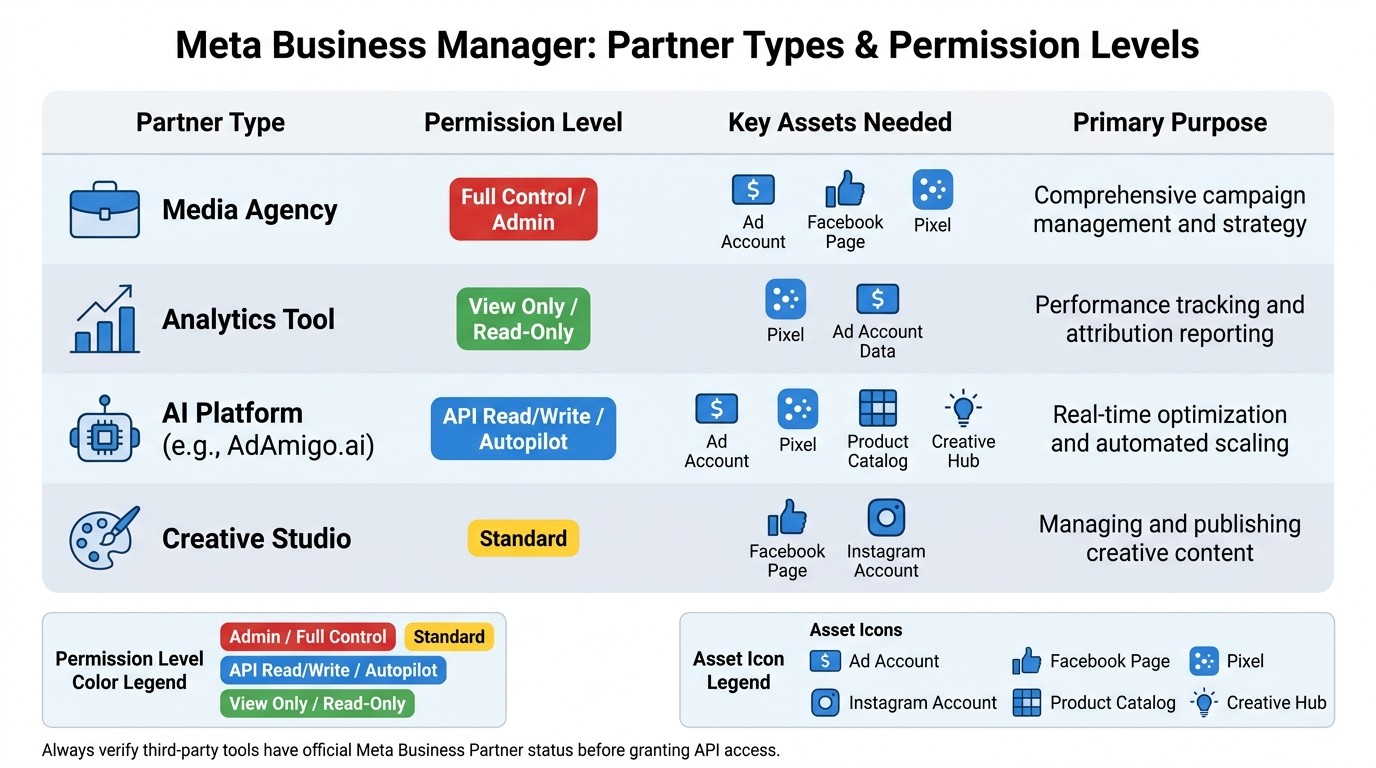
Roles and Permissions Comparison Table
Configuring the right roles and permissions ensures secure and efficient collaboration with partners. Here's a quick guide to help you choose the appropriate settings based on the partner type:
Partner Type | Typical Permission Level | Key Assets Needed | Primary Purpose |
|---|---|---|---|
Media Agency | Full Control / Admin | Ad Account, Page, Pixel | Comprehensive campaign management and strategy |
Analytics Tool | View Only / Read-Only | Pixel, Ad Account Data | Performance tracking and attribution reporting |
AI Platform (e.g., AdAmigo.ai) | API Read/Write / Autopilot | Ad Account, Pixel, Catalog, Creative Hub | Real-time optimization and automated scaling |
Creative Studio | Standard | Page, Instagram Account | Managing and publishing creative content |
Before granting API access, always confirm that third-party tools have Meta Business Partner status. This ensures the tool operates within Meta's official API framework, adheres to rate limits, and meets security standards - especially important when allowing platforms to adjust budgets automatically.
How to Grant Partner Access in Business Manager
Adding a Partner in Business Manager
To add a partner in Business Manager, follow these steps:
Go to Business Settings: Start by logging into your Business Manager account and navigating to the settings page.
Find "Partners" in the menu: Under the "Users" section in the left-hand menu, click on "Partners" and then select "Add".
Enter the partner's Business ID: Your partner, whether it's an agency, contractor, or tool provider, will provide you with their Business ID.
Choose the assets to share: Decide which assets you want to grant access to - this could include ad accounts, Pages, Pixels, Instagram accounts, or product catalogs.
Set permission levels: Assign the appropriate permissions for each asset based on the partner's role. (Refer to the permissions table mentioned earlier for guidance.)
Send the invitation: Once everything is set, send the request. Your partner will receive a notification and must accept the invitation to complete the process.
After the partner accepts the invitation, their Business Manager account will display the assets you've shared. They can then access these assets directly, without needing your login credentials. Meta uses OAuth-based authentication, ensuring your passwords remain secure.
Granting Access to AI Tools like AdAmigo.ai
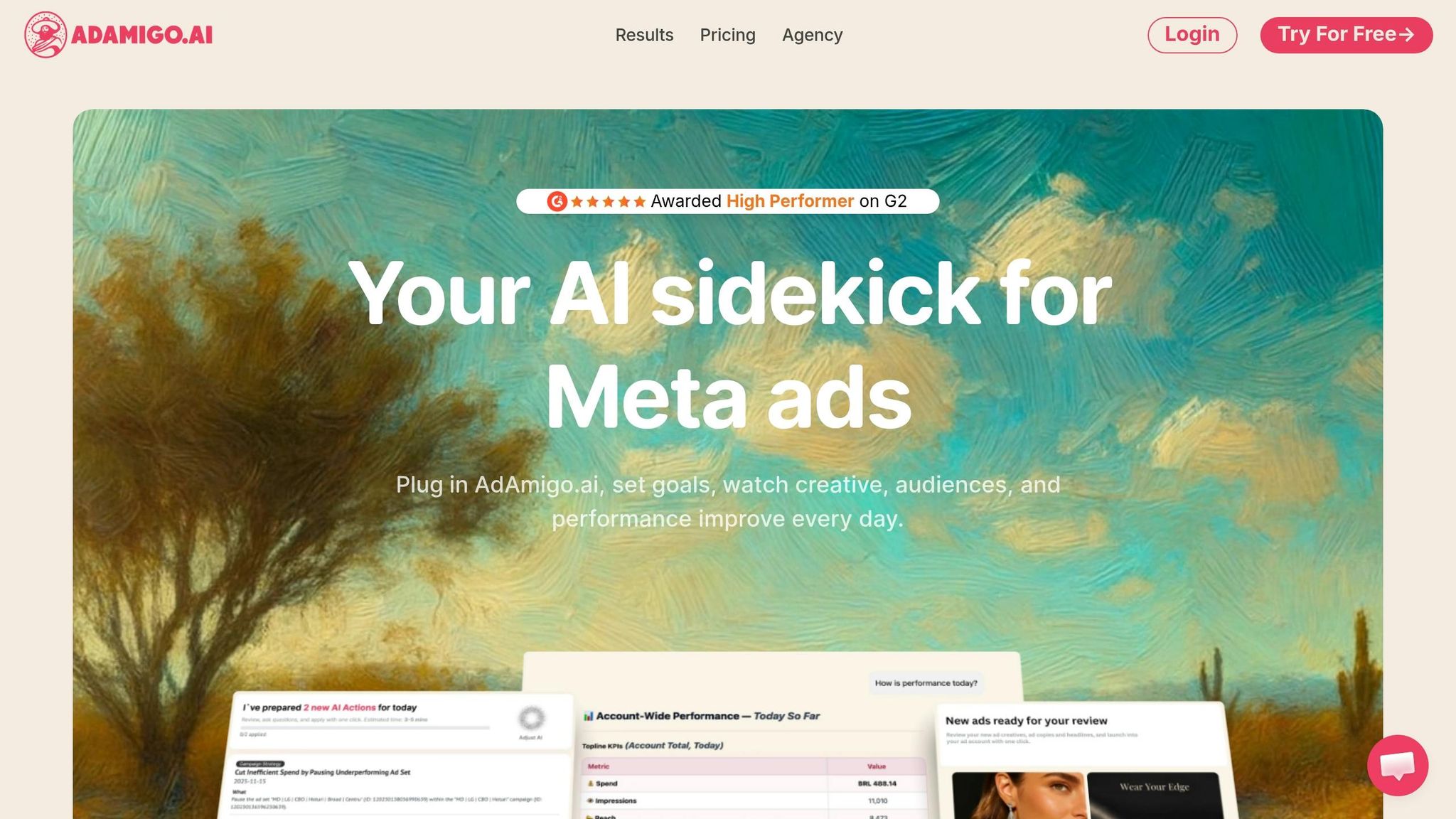
Granting access to AI tools works similarly to adding a partner, but it also requires specific API permissions for automation. For example, connecting a platform like AdAmigo.ai involves granting API-level read/write permissions to enable tasks like automated budget adjustments, creating ad sets, and pausing underperforming campaigns.
When connecting AdAmigo.ai, you will:
Provide access to your ad account, Pixel, and product catalog.
Authorize the platform via OAuth, allowing it to analyze your data securely.
Once connected, AdAmigo.ai will scan 90 days of historical data to fine-tune its optimization models. After setup, you can choose between two modes:
Semi-auto mode: Requires your approval for every recommendation.
Autopilot mode: Automatically implements changes within limits you define, such as CPA or ROAS targets.
As an official Meta Business Partner, AdAmigo.ai operates within Meta's API framework and adheres to rate limits, ensuring smooth and compliant performance.
How to Request Partner Access in Business Manager
Requesting Access to Client Assets
When agencies or tool providers need access to a client’s assets, they typically provide their Business ID to the client. In cases where access must be actively requested, here’s how to handle it efficiently.
For AI tools like AdAmigo.ai, the process is quick and secure through OAuth:
Start with the OAuth connection and authorize access: Use the "Connect Meta Ads" button in the tool's dashboard. The client logs in and approves read/write permissions without having to share passwords. This secure method ensures account integrity.
Set performance targets and budget caps immediately: Once connected, establish CPA/ROAS targets and budget limits right away. This ensures the system operates within the client’s approved parameters from the start.
Calibrate and execute: The tool scans 90 days of historical data to identify trends and fine-tune its optimization logic. From there, it provides daily action recommendations or can operate in Autopilot mode for real-time optimizations.
It’s best to start in Semi-auto mode, where every suggested change requires manual approval. This not only helps verify the tool’s logic but also builds trust with the client.
While the technical setup is important, maintaining clear communication throughout the process is just as critical.
Collaboration Best Practices
Before campaigns go live, it’s essential to align on asset access, permission levels, and required sign-offs. These practices work hand in hand with the technical setup to ensure campaigns are managed collaboratively and effectively.
Platforms like AdAmigo.ai offer a full action log, detailing every change made to the account in plain, understandable language. Pairing this transparency with real-time notifications via Slack or WhatsApp keeps everyone updated without requiring constant logins.
If you’re rolling out a new tool across multiple client accounts, consider running a 30-day pilot on one or two accounts first. This allows you to gather real performance data - AI-assisted tools like these have shown an average 34% performance improvement within the first 30 days.
Lastly, ensure each ad set generates at least 50 conversions per week. This provides enough data for AI systems to make reliable and informed decisions.
Troubleshooting and Security for Partner Access
Common Issues and How to Fix Them
Even with a well-organized setup, issues can arise. Here’s a quick look at some frequent partner access problems and how to address them:
Issue | Likely Cause | Fix |
|---|---|---|
Missing assets | Insufficient permission level | Update permissions to 'Manage Ads' or 'Full Control' in Business Settings. |
Invitation not received | Wrong Business ID or email filtering | Double-check the Partner Business ID and check the "Requests" tab. |
Wrong permissions | Defaulted to "View Only" during setup | Reconnect via OAuth and assign "Write" permissions. |
Spend spikes | Lack of controls or unauthorized access | set daily budget caps and enable anomaly alerts immediately. |
Broken links or disapproved ads | Landing page issues or API delays | Use monitoring tools to pause ads automatically when destination URLs fail. |
Quickly resolving these problems helps maintain both functionality and security for your account.
Security Best Practices
Granting excessive permissions puts your account at risk. For example, if an agency only needs to generate reports, assign them Analytics View access rather than full editing rights. Similarly, if a tool is only used to launch ads, restrict its access to Launch Only. Aligning permissions with actual needs minimizes exposure in case of a breach.
For third-party tools, always use OAuth instead of sharing login credentials. OAuth ensures a secure and stable API connection that you can revoke instantly if necessary. Additionally, when working with automated or AI-driven tools, set CPA or ROAS limits from the start to prevent overspending, even in autonomous modes.
It’s also critical to configure alerts for spend spikes, disapproved ads, and site downtime. Use platforms like Slack, WhatsApp, or email for these notifications. Relying solely on manual checks during weekdays could mean missing overnight issues, which could lead to unnecessary costs.
“The quote highlights the importance of continuous monitoring for unusual behavior and cost control.” - AdAmigo.ai
Reviewing and Updating Partner Access
Once your system is running smoothly, it’s important to periodically review partner access to ensure compliance and security. Over time, access permissions can pile up - agencies may be replaced, campaigns might end, and tools could become obsolete, yet their permissions often remain active.
During reviews, confirm that each partner's access aligns with their current role. Remove access for anyone no longer working on your account and downgrade permissions that exceed their intended scope. Conduct quarterly audits of your Partners tab using a centralized logbook - tools like AdAmigo.ai can automate this process - to track who accessed what and when. This ensures adherence to Meta’s guidelines while providing transparency. Prioritize using tools and agencies with Meta Business Partner status, as this indicates compliance with Meta’s API and security standards.
Conclusion
Setting up partner access properly in Meta Business Manager is a cornerstone of secure and effective collaborations between agencies and clients. When permissions are mismanaged, campaigns can falter, budgets may be wasted, and trust can quickly erode.
Key Takeaways
This guide covered the essentials - from understanding permission levels and asset types to granting and requesting access, and finally, implementing strong security practices. The golden rule? Give partners the access they need - no more, no less.
With the industry constantly evolving, your approach to partner access must keep pace. For instance, Meta's 2025 Andromeda update simplified creative testing, making it crucial for partner setups to support bulk ad launches and ongoing creative optimization. This means your system should enable rapid adjustments, whether it’s launching multiple ads at once, running continuous creative tests, or tracking performance 24/7.
Automated tools can make this process even smoother. Platforms like AdAmigo.ai integrate seamlessly with Meta Business Manager using OAuth. Once connected, AdAmigo.ai acts as an autonomous AI media buyer - auditing accounts, running tests, and managing budgets around the clock.
"The fact that you can launch campaigns through text or voice commands feels like magic! It handles everything from creating lookalike audiences to adjusting budgets with just a few prompts." - Jakob K., Verified User via G2
Regularly reviewing and fine-tuning partner access not only strengthens your account security but also enhances your overall Meta strategy.
FAQs
What’s the difference between partner access and adding someone as a user?
In Meta Business Manager, partner access lets a business manage your assets - such as ad accounts or pages - without needing individual logins for each person. On the other hand, adding someone as a user provides them with direct, personal access to your account. Tools like AdAmigo.ai streamline ad operations by automating tasks like optimizations, allowing you to concentrate on strategy rather than juggling permissions or campaign management.
What permissions should I give an agency versus an AI tool like AdAmigo.ai?
For agencies, it's important to assign specific roles, such as Advertiser or Analyst, to team members. This ensures everyone has the right level of access for handling strategy and creative tasks effectively.
When using AI tools like AdAmigo.ai, provide deep read/write permissions through Meta's official API. This access allows the tool to perform autonomous tasks like audits, budget adjustments, and campaign management. All of this happens within Meta's secure compliance framework, as AdAmigo.ai operates as a certified Business Technology Partner.
How do I revoke partner access and confirm it’s fully removed?
To remove a partner's access in Meta Business Manager, start by navigating to Business Settings. Locate the Partners section, select the partner you want to remove, and click Remove. After completing this, double-check your partner list to confirm they no longer appear. Additionally, verify that shared assets, such as ad accounts or pages, no longer include the partner.
For extra peace of mind, consider using tools like AdAmigo.ai. These tools can help monitor your account for any unauthorized changes or suspicious activity.