
API Integration for Bulk Ad Launching
Automate Meta ad launches: secure API access, validate IDs and assets, standardize inputs, batch requests, and monitor errors.
If you launch lots of Meta ads, the fix is simple: use the API to turn setup into a repeatable process instead of a long series of manual clicks.
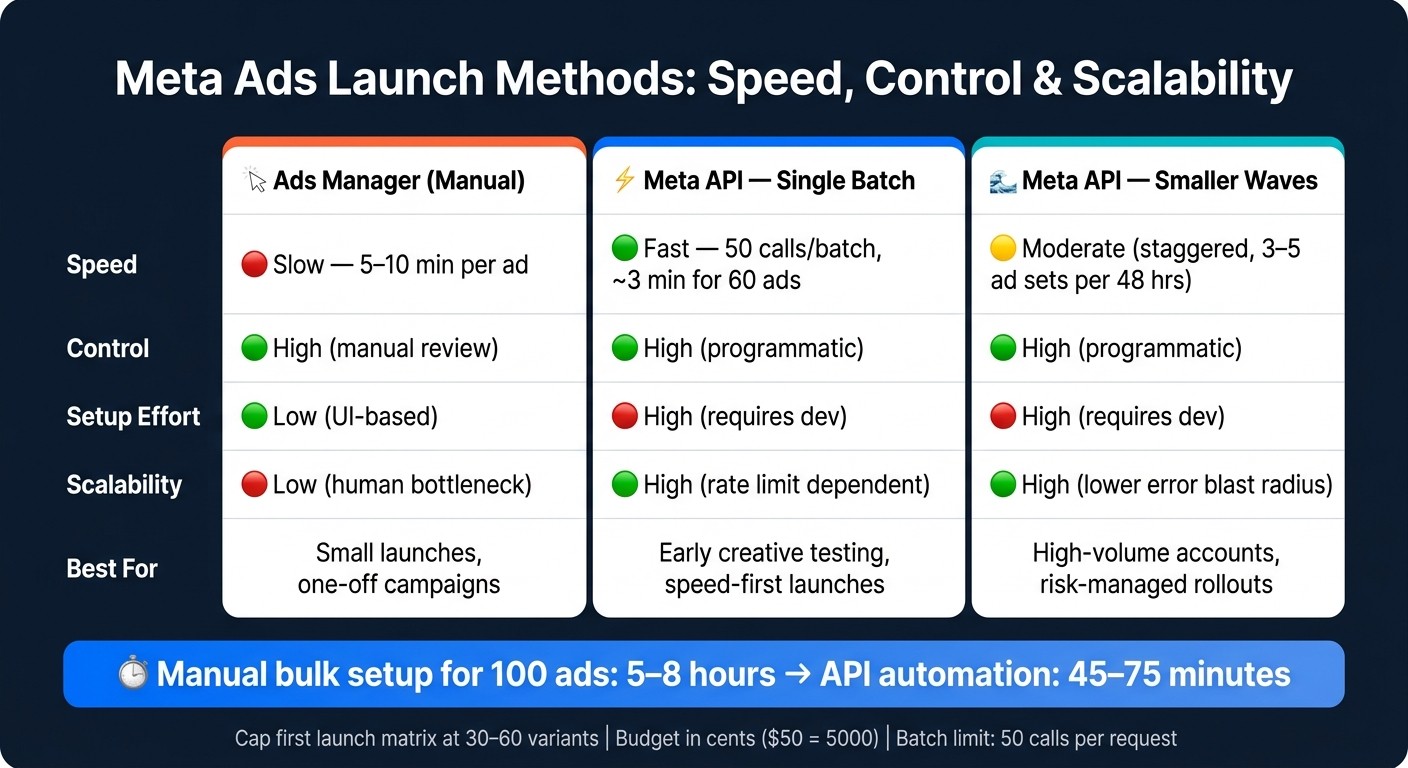
I’d boil this article down to four steps: get the right access, confirm account and asset IDs, standardize campaign inputs, and send batched launch requests with checks in place. That matters because manual bulk uploads can take 5 to 8 hours for 100 ads, while automation can cut that to about 45 to 75 minutes.
Before I launch anything, I’d make sure these pieces are locked in:
Meta Business app with Marketing API access
System User token with
ads_management,ads_read, andbusiness_managementActive ad account with no billing or policy blocks
Connected Facebook Page and Instagram account
Clean launch sheet with names, budgets, URLs, UTMs, media files, and copy checked
Batch plan that stays within Meta’s 50-call
/batchlimitError handling for rate limits, bad parameters, expired tokens, billing issues, and verification delays
Post-launch checks for object status, spend, impressions, CPA, and stalled delivery
A few points stand out. Budgets must be sent in cents, a batch can return HTTP 200 while item-level calls still fail, and ad accounts with status issues can block writes right away. I’d also keep first launches small - about 30 to 60 variants - so review and QA stay under control.
If you want the short version: the API helps you launch more ads with less manual work, but only if your permissions, inputs, and monitoring are clean from the start.
That’s the core of the article below.
Meta Ads API vs Manual Launch: Speed, Scale & Control
How I Automated Bulk Uploading Meta Ads n8n (Full Build)
1. API access and account prerequisites
Before you launch anything, make sure the basic pieces are in place. Meta's Marketing API is picky here, and if even one ID or permission is missing, your requests can fail fast.
Requirement | What You Need | Required ID or Scope |
|---|---|---|
Meta Developer App | A "Business" type app created at developers.facebook.com | App ID & App Secret |
Ad Account | Active account |
|
Facebook Page | Page that will publish the ads | Page ID |
Instagram Account | Linked Instagram account | Instagram Account ID |
Access Token | System User Token (recommended) or Long-lived User Token |
|
Permissions | Scopes required for ad creation and management |
|
Business Verification | Verified Business status to move the app from Development to Live mode | Verified Business status |
Once you have those assets and scopes lined up, the next job is to map each ID to the campaign objects you'll create.
Meta app setup, access tokens, and required permissions
Only a "Business" type app can use the Marketing API product. When you create the app at developers.facebook.com, choose Business as the app type, following a standard Meta Ads API key setup guide. If you pick another type, you won't get the ad management endpoints needed for calls like /act_{ad_account_id}/campaigns.
New apps begin in Development Mode. That means API access is limited to accounts owned by the app developer. If you need access to accounts outside the app owner's business, you have to move the app to Live mode after App Review.
Business Verification is what opens the door to advanced permissions like ads_management, and it usually takes 2 to 5 business days to finish. After verification, check that your token includes the right scopes by calling the /debug_token endpoint before making any write calls.
Use a Meta Graph API version that Meta still supports.
After you've checked token scopes, pull the account and asset IDs you'll need for bulk launch payloads.
Ad account, Facebook Page, and Instagram asset readiness
For production bulk launches, System User tokens are the better pick than personal user tokens. Personal tokens expire, and they can lose scope if someone leaves the team. System User tokens don't expire by default, and they stay active even when staff changes happen.
Store the System User token in a secrets manager, not in environment variables. Then assign the System User to the ad account in Business Settings with Advertiser or Admin permissions.
Before you trigger any bulk launch, check the ad account's account_status field through the API. If the status code is 1, the account is active and ready. If the code is 2, the account isn't ready and may throw error 1487470, so fix billing or policy issues first.
After access is confirmed, the next step is ID retrieval and object prep.
2. Connect assets and prepare campaign objects for launch
Once access is confirmed and the account looks good, the next step is simple: pull the right IDs and clean up your inputs before you build the launch payload.
Retrieve and verify account, Page, and Instagram IDs
Call graph.facebook.com/v20.0/me/adaccounts to see every ad account tied to your access token. Pull the id, name, account_status, and currency fields for each result. That gives you a clean list of active accounts and helps you confirm you're pointing at the right one before you write anything.
Then check Business Settings to make sure the System User has access to the ad account, Page, and Instagram account. This matters more than it seems. If the Instagram account isn’t assigned, creative creation will fail. Match each Page ID and Instagram ID to the right ad account before you create any objects.
Those IDs become the values you map into each launch object.
Standardize campaign, ad set, and creative inputs
Before you build a payload, lock in the fields that stay the same across variants. At the campaign level, that means the objective, using exact API strings like OUTCOME_SALES or OUTCOME_LEADS, plus an initial status of PAUSED so every ad gets reviewed before publish.
At the ad set level, define:
optimization goal
billing event
geo targeting
age range
gender
interests
placements
At the creative level, keep headlines under 40 characters and primary text under 125 characters so they don’t get cut off.
Two details often slip through the cracks. Budget must be sent in cents, so $50.00 becomes 5000 in the payload. You should also disable Advantage+ Creative during testing. If Meta starts auto-cropping visuals or adding text overlays, your test results get messy fast.
Use one variable per test: one hook, one visual, one headline.
Prepare media and copy inputs at scale
Set up assets in a clean folder structure like /assets/video/, /assets/static/, and /assets/copy/ before you build the upload file. Then validate each asset before it goes into the payload. Video files should be in MP4 or MOV format, static images need to stay under 30 MB, and every destination URL should be checked for broken links and standardized UTMs.
A spreadsheet helps keep this from turning into a mess. Map each file to its copy variant, and treat that sheet as the source of truth for launch and QA.
Clean inputs save headaches later.
Once the spreadsheet is clean, you can turn it straight into a batch launch payload.
3. Build and submit bulk launch requests
How the bulk launch payload is structured
Once your rows are cleaned and your IDs are checked, turn that data into API calls. Keep each bulk request in the same parent-child structure: Campaign → Ad Set → Ad. At each level, map the required IDs, creative assets, ad copy, tracking, and status fields.
Before you submit anything, validate the basics. Check URLs, UTMs, pixel links, aspect ratios, and file sizes.
A couple of small issues can cause outsized trouble. Trailing spaces in names can trip things up, and placement-specific aspect ratios matter more than people expect, especially 9:16 for Reels. Also, don't trust the top-level response too much. A batch can come back with a 200 status while some item-level calls still fail, so parse those errors one by one.
Meta's /batch endpoint accepts up to 50 API calls per request. Keep an eye on X-Business-Use-Case-Usage, and once usage goes past 80%, back off with jitter so you don't trigger a retry pileup.
After the payload clears validation, the next call is about batch size and rollout cadence.
One large batch vs smaller launch waves
Once the payload format is locked, pick the launch pattern that fits how your team reviews work. The choice between one large batch and smaller launch waves usually comes down to account size, risk tolerance, and approval flow.
A single-batch launch is the fast option. A batch of 20 campaigns with 3 ad sets each - 60 total - often finishes in under 3 minutes through parallel API processing. That's a good fit for early creative testing when speed matters and you're fine reviewing a big set in one pass.
Smaller repeated launch waves are usually the safer path for high-volume accounts. Launching in waves of 3–5 ad sets every 48 hours can help avoid CPM spikes and gives the algorithm time to settle on early signals before the next wave lands. It also cuts the blast radius of mistakes. If batch three breaks, batches one and two are already live and running cleanly.
Here’s the side-by-side view:
Method | Speed | Control | Setup Effort | Scalability |
|---|---|---|---|---|
Ads Manager (Manual) | Slow (5–10 min/ad) | High (manual review) | Low (UI-based) | Low (human bottleneck) |
Meta API - Single Batch | Fast (50 calls/batch) | High (programmatic) | High (requires dev) | High (rate limit dependent) |
Meta API - Smaller Waves | Moderate (staggered) | High (programmatic) | High (requires dev) | High (lower error blast radius) |
"The Marketing API becomes worth it for automated Facebook ad launching when you need campaign cloning at scale, cross-account consistency, or programmatic budget rules." - Murat Bock, Founder, AdLibrary
No matter which pattern you choose, cap the first launch matrix at 30–60 variants. Each ad set needs enough volume to produce about 50 optimization events per week, and if you spread budget across too many variants, the signal gets thin fast.
4. Monitor launches, handle errors, and add safeguards
Check batch status and confirm published objects
Submitting a batch request isn't the finish line. A batch call can return HTTP 200 and still include 400-level errors for individual objects, so you need to parse each item in the response array on its own instead of trusting the outer status code.
After that, validate the item-level response and confirm each object ID and status in Ads Manager. Make sure every returned campaign, ad set, and ad ID exists in the account and shows "In Review", "Approved", or "Active".
If an ad set still has zero impressions after 2 or more hours, dig into it. That often points to a budget or targeting block. During the first 24 hours, keep a close eye on rejected creatives, zero-spend ad sets, and uneven spend. It also helps to track batch progress directly, since large launches can get stuck in "uploading" status without throwing an error.
Fix the most common integration failures
Once you've parsed the batch response, match each error code to the right fix before you retry anything. If you skip that step, you can end up repeating the same failed request over and over.
Error Code | Meaning | Fix |
|---|---|---|
17 / 80000 | Rate limit exceeded | Parse |
100 | Invalid parameter | Fix field names, asset IDs, or formatting; do not retry without changes |
190 | Expired or revoked token | Refresh the token or re-authenticate |
1487470 | Outstanding account balance | Resolve outstanding billing in Ads Manager before retrying writes |
273 | Business verification pending | Complete Business Verification in Security Center |
A few other failure points can sneak up on teams.
Tokens tied to personal accounts can expire or lose scope when someone leaves the team. Use non-expiring System User tokens issued through Business Manager instead.
For creative failures, log the
error_subcode, not just the main code. Error 100 with subcode 1487390 points to a creative policy violation, while subcode 33 means an invalid ad account ID.Also watch for private file permissions on assets, unsupported video formats, and static files over 30 MB.
With those failure modes mapped out, the next move is putting guardrails in place before full write access goes live.
Set guardrails before enabling full write automation
After launch, shift from simple submission checks to automated spend and delivery controls.
Before moving any integration from read-only to full write access, put a validation layer in front of every launch. Check that destination URLs resolve, UTM parameters are present, and the pixel is firing on the landing page before the API write is triggered. Naming conventions matter just as much. One off-pattern name in a 50-ad batch can throw off downstream reporting for weeks.
On the spend side, set launch-time rules. Pause any ad set where CPA runs 50% above your target for 48 hours, or where spend goes 15% over the daily budget with zero conversions. You should also pause ads when frequency goes above 3.0 in cold audiences and CTR falls more than 20% below the lifetime baseline.
For teams moving from manual work to API-based execution, a phased rollout is the safer path. Start with read-only validation. Then move to small test batches with manual spot checks before you scale. A monitoring layer should flag delivery stalls, spend spikes, and account anomalies early.
Conclusion: A practical workflow for reliable bulk launching on Meta
Reliable bulk launching comes down to four steps: secure API access, connect assets, standardize inputs, and submit batched requests. After the batch goes live, the focus shifts to verification and guardrails.
At that stage, spot-check a sample of ads and keep budget, CPA, and frequency guardrails turned on.
The upside is simple: faster launches and cleaner reporting. That gives your team more room to test and scale without piling on manual work.
Teams that want this same API workflow without running it in-house can use AdAmigo.ai's Bulk Ad Launcher to upload creatives, add a brief, and publish ads straight into their Meta account - built on Meta's official API.
FAQs
Do I need a System User token?
Yes - if you’re building or using a custom integration with the Meta Marketing API, you’ll usually need a System User token.
Why? Because it gives your app a persistent identity inside Business Manager. That means the integration can keep running on its own, instead of being tied to one employee’s account. If that person leaves the company or loses access, the integration doesn’t suddenly break. That’s the big idea.
You can create it in Business Settings by setting up a system user and giving it the right permissions, such as ads_management and business_management.
There’s one common exception: if customers are connecting their own ad accounts, standard OAuth 2.0 is usually the better route. In that case, you’re not acting through a system-level identity inside your Business Manager. You’re asking each customer to grant access directly.
What should I test before scaling?
Before you scale, make sure the basics are locked in.
Check that your Meta Business Account assets are linked, permissions are set the right way, billing is active, and the Facebook Pixel is tracking events as expected. If one of those pieces is off, scaling can get messy fast.
It also helps to run a pre-launch QA check before anything goes live. Focus on a few key items:
Creative assets match format rules and policy requirements
Ad copy stays within length limits and follows platform guidelines
UTM parameters, targeting, budgets, naming, and audience overlap are all set up correctly
This kind of check may feel small, but it can save you from wasting spend on avoidable mistakes.
How do I catch hidden batch errors?
Run a pre-launch QA audit of your assets, targeting, and campaign structure before you hit publish. Check that your creatives match Meta’s format rules, that aspect ratios line up with each placement, and that every link and UTM parameter works as expected.
It’s also smart to catch the small stuff that can throw off results. A common one is accidentally turning on Advantage+ Creative settings, which can skew your test data and muddy the read on what’s working.
If you’re managing a high-volume launch, AdAmigo.ai can help flag anomalies, delivery problems, and setup errors early, before they turn into bigger issues.